


Who can do this: Everyone can look up an order. "Resend tickets": Owner, Administrator, Programs and Front desk. "Resend receipt": Owner, Administrator, Finance and Fundraiser. A role that can't resend still sees when each email was last sent, and can view it.
Quick steps: Events › Events › the event › "Orders" tab › search › "Emails" on the order › "Resend tickets" or "Resend receipt" › "Send"
Before you start
- Any staff login can look up orders. Resending needs one of the roles above.
- Have to hand: the buyer's name, email or order number.
- The "Orders" tab lists one card per order. The "Attendees" tab next to it lists one row per person instead.
Find the order
Page: /dashboard/campaigns/<campaignId>?tab=attendees
- In the left-hand menu, under "Fundraising", click "Events". Then click "Events" in the list that opens below it.
- In the list of events, click the event's name.
- Click the "Orders" tab in the row of tabs near the top.
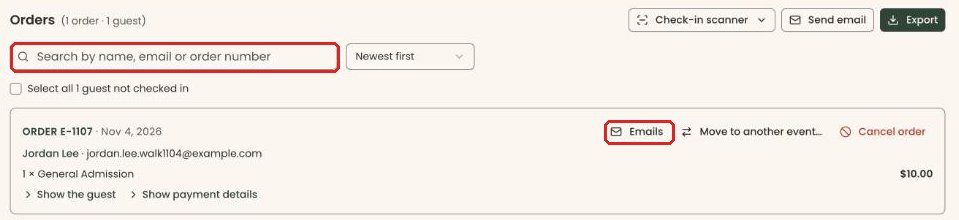
- In the search box at the top ("Search by name, email or order number"), type the buyer's name, email or order number, for example "Lee".
- Optional: in the menu to the right of the search box, choose "Newest first", "Oldest first", "Order number" or "Buyer name".
- Each order card shows its number and date, the buyer and their email, what was bought, and the total.
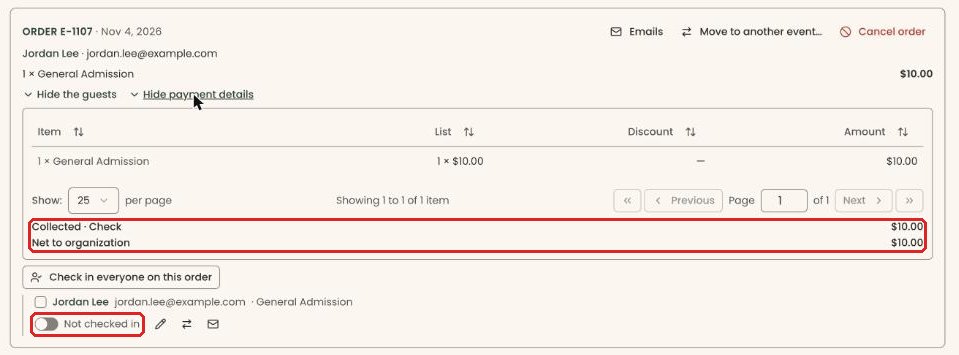
- Under the order, click "Show the guest" (or "Show the 4 guests") to see each person. Each guest line has a switch that reads "Not checked in" until they arrive.
- Under the order, click "Show payment details" to see the money. It lists each item, then "Collected · Card" (or Check, Cash, Comp), any refunds, and "Net to organization".
- To open the order on its own page, click the order number at the top left of the card, for example "ORDER E-1042".
Resend the tickets or the receipt
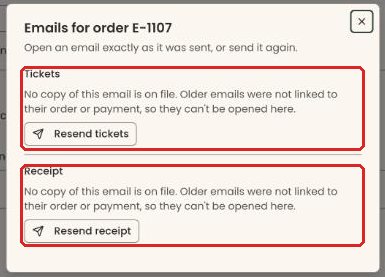
- At the top right of the order card, click "Emails" (with an envelope icon). A box opens called "Emails for order …".
- The "Tickets" row says "Last sent to … on …". Click "View ticket email" to see exactly what was sent. If it says "No copy of this email is on file.", there is nothing to view, but you can still resend.
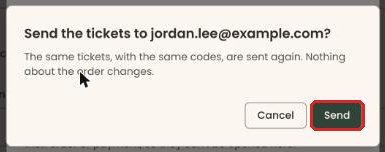
- Click "Resend tickets". A box asks "Send the tickets to …?".
Important: clicking "Send" emails the tickets to the address shown, straight away. The same tickets and codes are sent; nothing about the order changes.
- Click "Send".
- You'll see "Tickets sent to …" at the top of the screen and inside the box. That means it worked.
- For the receipt, use the "Receipt" row in the same box. Click "View receipt" to check it, then "Resend receipt".
Important: clicking "Send" emails the same receipt again to the address shown, straight away.
- Click "Send". You'll see "Receipt sent to …". That means it worked.
If it didn't work, you'll see "We couldn't send the tickets. Try again." (or the receipt). Close the box and try again.
Resend one guest's tickets
- Under the order, click "Show the … guests".
- On the guest's line, next to the "Not checked in" switch, click the envelope icon ("Tickets email"). A box opens called "Tickets for …".
- Click "Resend tickets".
Important: clicking "Send" emails that guest's tickets straight away, to the guest's email, or to the buyer if the guest has none.
- Click "Send". You'll see "Tickets sent to …". That means it worked.
Special cases
- "Can't resend:" followed by a reason means it can't be sent. The reasons are "Tickets are only sent for a confirmed order.", "This order has no tickets.", "The buyer has no email address on file." and "Neither this guest nor the buyer has an email address on file."
- "No copy of this email is on file." appears when an email isn't linked to the order. At the moment this also shows for orders entered by hand, even just after a confirmation or resend was sent. You can still resend.
- A canceled order still has an "Emails" button, so you can see its receipt. Its tickets can't be resent.
- To send tickets to a different address, first correct the guest's email. Click the pencil on the guest's line, next to the "Not checked in" switch ("Edit Attendee"), then resend.
- To resend a receipt from the Payments page instead, see Resend a receipt.
If you make a mistake
A resend can't be taken back, but it changes nothing: the same tickets and codes, or the same receipt, are sent again.