


Who can do this: To turn an alert off for everyone: Owner, Administrator and Fundraiser. Finance, Programs and Viewer see those switches grayed out, and Front desk doesn't see that page. To stop alerts for one person: Owner and Administrator can change anyone's switch. Everyone else can change only their own.
Quick steps: For everyone: Settings › "Emails" › "To your staff" › click the alert's switch. For one person: Settings › "Organizations" › "Team Management" › "Members" › their "Staff alerts" switch.
Before you start
- You need one of the roles above.
- A staff alert is an email Clerestory sends to your team when something happens, such as a new payment or a rental request.
- Every staff alert starts out on, and every person on your team starts out getting them. That includes every role.
- There are two separate switches. One turns a single kind of alert off for the whole team. The other stops every staff alert for one person.
Which staff alerts there are
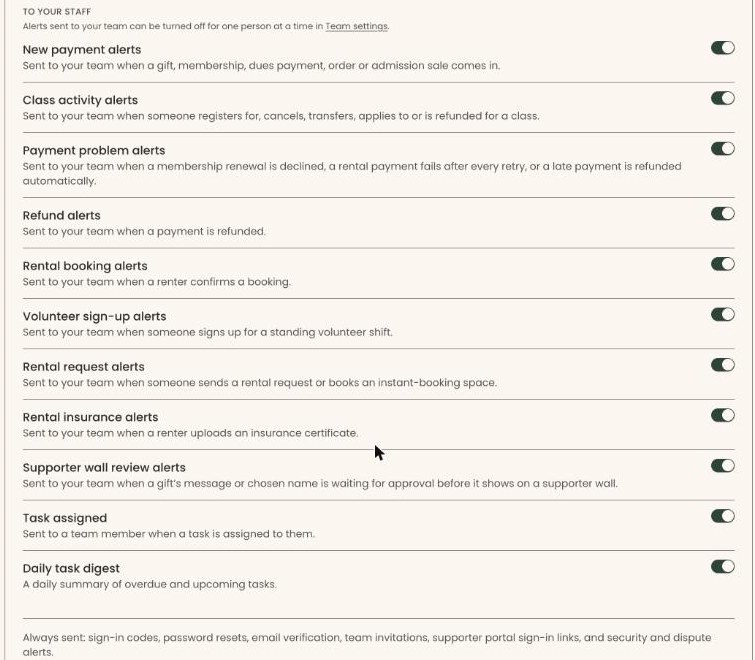
These are listed under "To your staff" in Settings › "Emails".
| Alert | When it is sent |
|---|---|
| New payment alerts | When a gift, membership, dues payment, order or admission sale comes in. |
| Class activity alerts | When someone registers for, cancels, transfers, applies to or is refunded for a class. |
| Payment problem alerts | When a membership renewal is declined, a rental payment fails after every retry, or a late payment is refunded automatically. |
| Refund alerts | When a payment is refunded. |
| Rental booking alerts | When a renter confirms a booking. |
| Volunteer sign-up alerts | When someone signs up for a standing volunteer shift. |
| Rental request alerts | When someone sends a rental request or books an instant-booking space. |
| Rental insurance alerts | When a renter uploads an insurance certificate. |
| Supporter wall review alerts | When a gift's message or chosen name is waiting for approval before it shows on a supporter wall. |
| Task assigned | To a team member when a task is assigned to them. |
| Daily task digest | A daily summary of overdue and upcoming tasks. |
"Task assigned" and "Daily task digest" go to one named person. The other alerts go to everyone on the team who has "Staff alerts" on.
Turn one alert off for the whole team
Page: /dashboard/settings/emails
- In the left-hand menu, near the bottom under "Tools", click "Settings" to open the group. If you can't see it, scroll down inside the menu.
- A list opens under "Settings". Click "Emails".
- Scroll down to the last small heading, "TO YOUR STAFF".
- Find the alert. Each shows its name in bold and, underneath, when it is sent.
Important: Turning an alert off stops it for your whole team right away. There is no "Save" button, and nothing asks you to confirm.
- At the far right of that alert's line, click the switch.
- You'll see a message such as "Refund alerts turned off." That means it worked. Click the switch again to turn it back on ("Refund alerts turned on.").
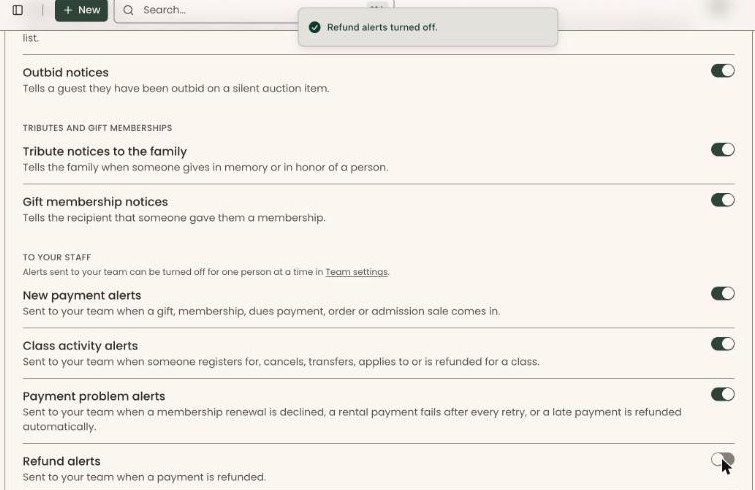
If you see "Couldn't save that change. Please try again.", wait a moment and click the switch again.
Stop all staff alerts for one person
Page: /dashboard/settings/organizations
- In the left-hand menu, under "Tools", click "Settings", then click "Organizations".
- Scroll down to the box headed "Team Management". You can also click "Team settings" in the note under "TO YOUR STAFF" on the Emails page. It opens this box.
- Make sure the "Members" tab is selected. It sits above the box, on the left, next to "Invitations".
- Find the person. You can type their name or email in "Search name or email".
- In their "Staff alerts" column, click the switch. Filled in and pushed to the right means on.
- You'll see "Staff alerts turned off for Jordan Lee." (or "turned on"). For your own row it says "Staff alerts turned off for you.". That means it worked.
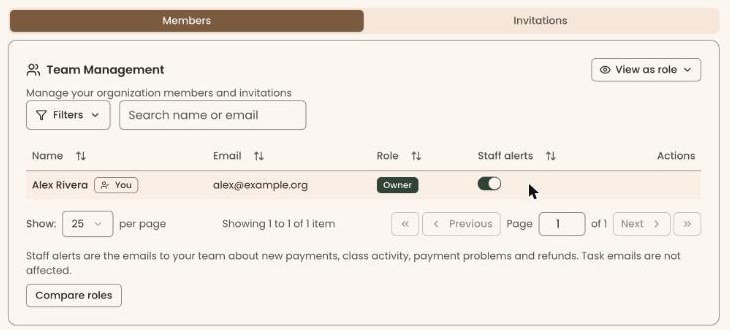
If you can't change someone else's switch, you'll see "On" or "Off" there instead. Only an Owner or Administrator can change it.
Special cases
- The person switch covers every team alert. It can't stop one kind of alert for one person. To stop only "Refund alerts" for everyone, use the Emails page.
- Task emails aren't affected by the person switch. The note under the team list says so: "Task emails are not affected."
- "Rental booking alerts" and "Rental request alerts" share one switch. Turning either one off turns both off.
- Some alerts are always sent. At the bottom of the Emails page: "Always sent: sign-in codes, password resets, email verification, team invitations, supporter portal sign-in links, and security and dispute alerts." These have no switch.
- Emails to supporters are on the same page, under the other headings. See See which emails go out automatically, and turn one off.
- Removing someone from your team stops their alerts too. See Remove a user, answer access requests, and set staff alerts.
If you make a mistake
Click the switch again to turn the alert back on. Alerts that weren't sent while it was off are not sent later.