


Who can do this: Owner and Administrator. Only the Owner can remove the Owner. Everyone else can see the team list, and can turn their own staff alerts on or off.
Quick steps: Settings › Organizations › "Team Management" › "Members" › "Remove" › "Yes". Access requests: the "Access requests" box › "Approve" (pick a role) or "Decline".
Before you start
- A team member is someone with a Clerestory login for your organization. Removing someone takes them off your team. Your supporter, gift and payment records aren't touched.
- An access request comes from someone who signed up with an email address on your organization's web domain (for example @sprucefir.org) and asked to join.
- Staff alerts are emails to your team about new payments, class activity, payment problems and refunds.
Remove someone from your team
Page: /dashboard/settings/organizations
- In the left-hand menu, click "Settings" to open the group.
- Under "Settings", click "Organizations".
- Scroll down, near the bottom of the page, to the box headed "Team Management".
- Make sure the "Members" tab is selected. It's just above the box, on the left, next to "Invitations".
- Find the person. You can type their name or email in "Search name or email".
- At the far right of their row, under "Actions", click "Remove".
- A box opens asking "Are you sure?" and saying "This action cannot be undone."
Important: clicking "Yes" takes away their access to your organization straight away.
- Click "Yes".
- You'll see "Member removed successfully" and they disappear from the list. That means it worked.
If you see "Failed to remove member" or another error, refresh the page and try again.
Approve or decline an access request
Page: /dashboard/settings/organizations
- Go to Settings › Organizations, as above.
- If anyone is waiting, a box headed "Access requests" appears just above "Team Management". If there's no such box, nobody is waiting.
- Each row shows the "Person" (name and email), "Matched domain", "Account created" and "Requested" dates.
- Check you recognize the person. Clerestory has only checked that their email domain matches, not that they work with you.
To let them in:
- At the far right of their row, under "Decision", click "Approve".
- A box opens called "Role for [their name]". No role is chosen to start with.
- Click the role that fits their job. Read the CAN and CAN'T lists underneath.
- Click "Approve" at the bottom of the box.
- You'll see "[Their name] now has access." That means it worked. They now appear on the "Members" tab.
To turn them down:
Important: "Decline" works straight away. There's no "Are you sure?" step.
- At the far right of their row, click "Decline".
- You'll see "Request declined." That means it worked.
If you see "We couldn't complete that just now. Please try again.", wait a moment and click again.
Turn staff alerts on or off for a person
Page: /dashboard/settings/organizations
- Go to Settings › Organizations › "Team Management" › "Members", as above.
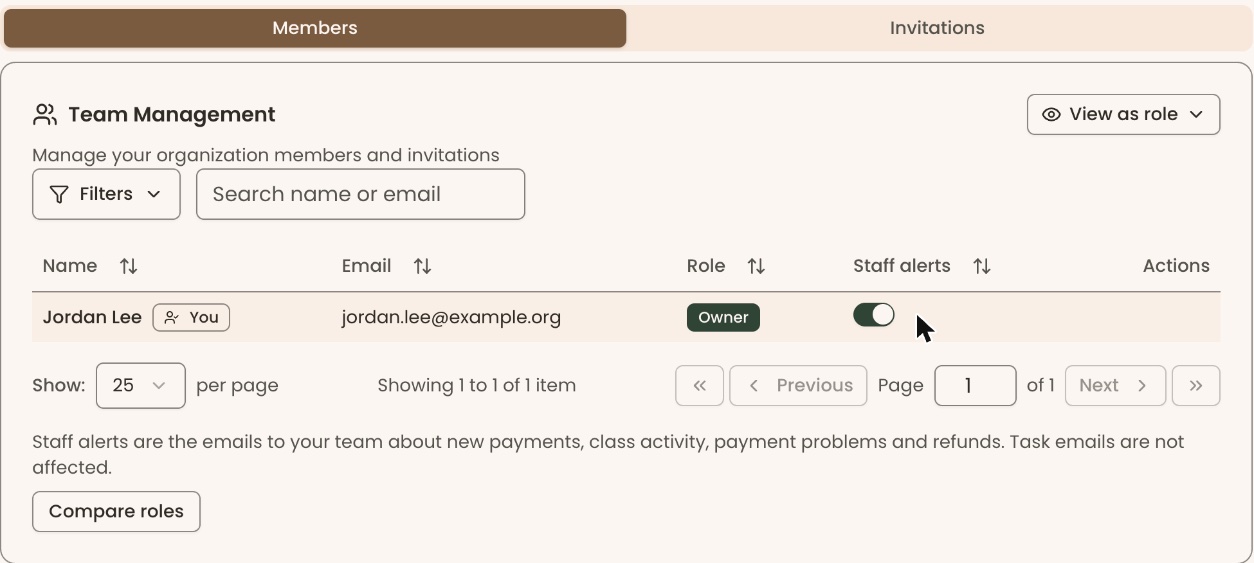
- Find the person. Their "Staff alerts" column has a switch.
- Click the switch. Filled in and pushed to the right means on.
- You'll see "Staff alerts turned off for [their name]." (or "turned on"). That means it worked.
Owners and Administrators can change anyone's switch. Everyone else sees "On" or "Off" for others and a switch only on their own row ("Staff alerts turned off for you.").
This switch doesn't affect task emails. To stop a staff alert for the whole team, use Settings › Emails (see "See which emails go out automatically, and turn one off").
Special cases
- No "Remove" button on a row. It's your own row, or the person is the Owner and you're an Administrator.
- You want to leave the organization yourself. This page has no button for it. Ask another Owner or Administrator to remove you.
- The person was only invited, not yet a member. They're on the "Invitations" tab instead. Use "Cancel invitation" there (see "Invite staff, and copy, resend or cancel an invitation").
- Nobody sees the request in time. Clerestory doesn't email you about access requests. The person waiting is told to ask you to check Settings.
If you make a mistake
- Removed the wrong person: invite them again (see "Invite staff, and copy, resend or cancel an invitation"). Choose their role again; it isn't remembered.
- Declined by mistake: invite them instead.
- Approved with the wrong role: change it (see "Change someone's role, compare the roles, and see the app as a role").