


Who can do this: Owner, Administrator and Fundraiser can turn Visitor Pulse on or off. Every role can open the page and read the answers; for everyone else the switches are grayed out.
Quick steps: Supporters › "Visitor Pulse" › under "When to ask", turn on "After a visit", "After an event" and/or "After a gift" · read results under "Answers"
Before you start
- You need one of the roles above to change the switches.
- Your organization's emails should be set up, with your logo and colors in your brand kit. The question page shows your logo and uses your main color. See Edit your organization details, brand, portal link and retail tax setting.
- Decide which of the three moments to ask about.
- Visitor Pulse is one short question, "How was it?" from 1 to 5, emailed the day after someone visits, comes to an event or gives. A supporter is anyone in your records who has given, joined, bought or registered.
Turn on Visitor Pulse
Page: /dashboard/supporters/pulse
- In the left-hand menu, under People, click "Supporters". A short list opens under it.
- Click "Visitor Pulse". The page "Visitor pulse" opens.
- Under "When to ask", you'll see three switches. All three start off.
- "After a visit": "When someone buys admission."
- "After an event": "When someone is checked in at an event."
- "After a gift": "When someone makes a donation."
Important: Turning on a switch starts emailing a question to the people it covers, from the next day on. It is sent without asking you again.
- Click the switch next to each moment you want to ask about.
- You'll see "Saved." each time. That means it worked.
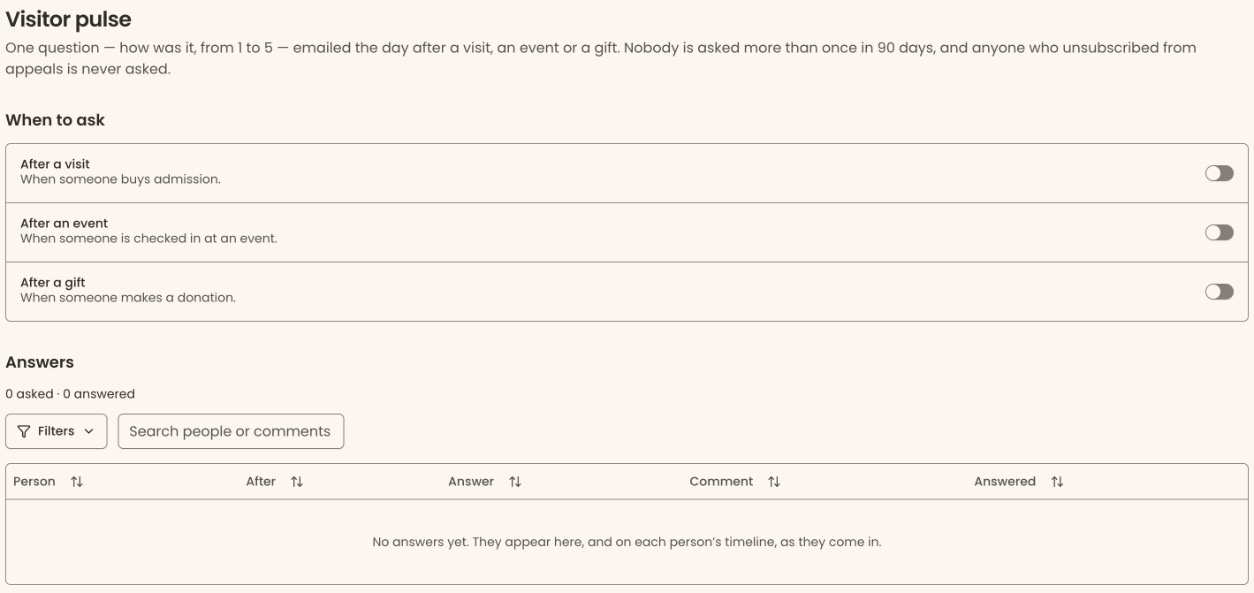
To stop asking, click the switch again to turn it off. You'll see "Saved.".
Who gets asked, and when
- The email goes the day after the visit, event check-in or gift.
- Nobody is asked more than once in 90 days. If someone did two things, they're asked about the latest one.
- Only things that happen after you turn a switch on are asked about. Earlier visits, events and gifts are not.
- People are never asked if they unsubscribed from appeal emails, are marked as not to be contacted, are marked deceased, have no email address, or are kept under Contacts rather than Supporters. These are set on each person's record: see Edit a supporter's contact details and preferences, or mark them deceased.
Read the answers
Page: /dashboard/supporters/pulse
- On the "Visitor pulse" page, find "Answers", below "When to ask".
- The line at the top gives the totals, for example "40 asked · 12 answered · average 4.5 out of 5".
- The table lists each answer: "Person", "After" ("Visit", "Event" or "Gift"), "Answer" (for example "4 – Very good"), "Comment" and "Answered".
- To find an answer, type a name or a word from a comment in "Search people or comments".
- Click a column heading to sort by it.
- Click a person's name to open their record. The answer is also on their timeline, for example "Rated their visit 4 out of 5".
If the table says "No answers yet. They appear here, and on each person's timeline, as they come in.", nobody has answered yet.
What the visitor sees
The email
- The subject is the question, for example "How was your visit to Spruce and Fir?". After an event it names the event, for example "How was Spring Gala?". After a gift it reads "How was your experience giving to …?".
- It opens "Hi" and their first name, then the question and "One tap tells us, and it helps … do better."
- Under "Choose your answer" are five buttons: "5 – Excellent", "4 – Very good", "3 – Good", "2 – Fair" and "1 – Poor".
- Below them is "Answer and add a comment".
- At the bottom is an "Unsubscribe" link. It unsubscribes them from your appeal emails.
Clicking a button opens the answer page with that answer already chosen. Nothing is recorded until they click "Send" on that page.
The answer page
- At the top are your logo and your organization's name, then the question.
- Under "Your answer, from 1 (poor) to 5 (excellent)", they click one of the five answers.
- In "Anything you would like to tell us? (optional)" they can type a comment, up to 2,000 characters.
- They click "Send".
- They see "Thank you" and "… has your answer. You can close this window."
- "Change my answer" lets them change it and send again.
If they click "Send" without choosing, they see "Choose an answer from 1 to 5.". If the link is broken, they see "This link isn't working".
Special cases
- Answers and the "Before filters" note. When you search or filter the table, the totals line still counts every answer. The note "Before filters" says so.
- Settings could not be loaded. If you see "Settings could not be loaded." or "Answers could not be loaded.", refresh the page.
If you make a mistake
- Turned on the wrong switch: turn it off again. Emails already sent can't be recalled.