


Who can do this: Owner, Administrator and Programs. Other roles can open a space and see its rates and member pricing, but don't see "Add rate", "Edit", "Set" or "Remove".
Quick steps: Rentals › "Spaces" › the space › "Rates" › "Add rate" › "Amount ($)", "Per", "For", "On" › "Save rate". For members: "Member pricing" › "Set" next to a level › "Discount" › "Save".
Before you start
- You need the Owner, Administrator or Programs role.
- The space must exist. See Add a building and a space.
- For member pricing, your organization needs membership levels. See Set up membership levels: add, edit, duplicate, stop offering and delete.
- A rate is a price for renting the space, for example $95 per hour.
- A membership level is one kind of membership your organization sells, such as "Family".
- Know your prices, and whether non-profits or weekends are priced differently.
Add a rate
Page: /dashboard/rentals/spaces/<spaceId>
- In the left-hand menu, under "Programs & Sales", click "Rentals".
- In the row of tabs under the "Rentals" heading, click "Spaces".
- In the list, click the space's name. The space's page opens.
- Scroll down to the box headed "Rates". With no rates yet, it says "No rates yet. A space needs a rate before it can be published."
- At the top right of that box, click "Add rate". A small form opens in the box.
- In "Amount ($)", type the price, for example 95.
- Click the box under "Per" and choose "Per hour", "Half day", "Full day" or "Flat fee". It starts on "Per hour".
- Click the box under "For" and choose "Member of the public" or "Non-profit". It starts on "Member of the public".
- Click the box under "On" and choose "Any day", "Weekdays" or "Weekends". It starts on "Any day".
Important: On a published space, "Save rate" changes the price renters are offered as soon as you click it.
- Click "Save rate", at the bottom right of the form. It stays grayed out until you type an amount.
- The form closes and the rate shows in the list, for example "$95.00/hr public". That means it worked.


Repeat for each price. For example, add a second rate for "Non-profit", or one for "Weekends".
If you see "This space already has a rate for that unit, renter type and kind of day. Change that rate instead.", there's already a rate with those three choices. Click "Edit" on that rate instead.
When a space has rates for both "Member of the public" and "Non-profit", the request form asks the renter "I am a" and lets them choose.
Change a rate
Page: /dashboard/rentals/spaces/<spaceId>
- In the "Rates" box, find the rate. At the right of its row, click "Edit".
- The form opens with the rate filled in. Change what you need.
Important: "Save rate" changes the price renters are offered as soon as you click it.
- Click "Save rate".
- The list shows the new rate. That means it worked.
Remove a rate
Important: The trash can removes the rate at once, with no question first. Keep at least one rate on a published space: the screen doesn't stop you removing the last one.
- In the "Rates" box, find the rate.
- At the far right of its row, click the trash can.
- The rate disappears from the list. That means it worked.
Give members a discount
A member discount comes off the space's standard rate on every date. A renter gets it only with an active membership at that level.
Page: /dashboard/rentals/spaces/<spaceId>
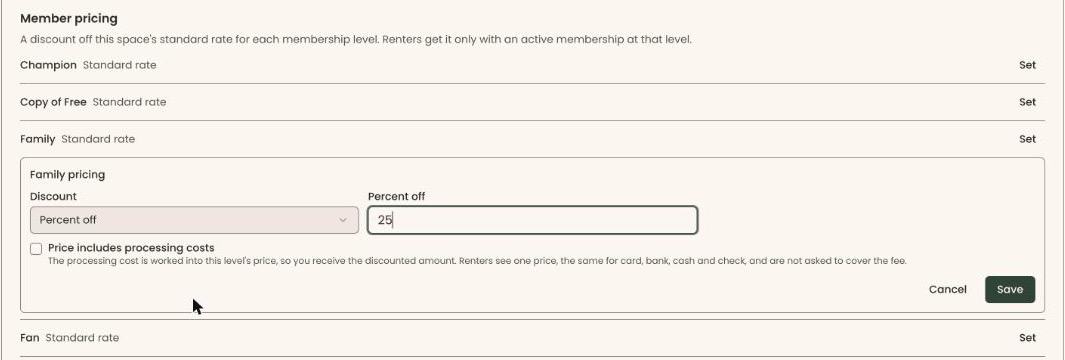
- On the space's page, scroll to the box headed "Member pricing", under "Rates".
- Each membership level has its own row. A level with no discount says "Standard rate".
- At the right of the level's row, click "Set". A form opens under that row, headed with the level's name and "pricing".
- Click the box under "Discount" and choose "Free", "Percent off" or "Amount off". It starts on "Percent off".
- For "Percent off", type the percent in "Percent off", for example 25. For "Amount off", type dollars in "Amount off each date ($)", for example 30. "Free" needs no number.
- Check "Price includes processing costs" if you want the card processing cost worked into this price. Renters then see one price and are not asked to cover the fee.
Important: "Save" changes the price members at this level are offered as soon as you click it.
- Click "Save".
- The form closes and the row shows the discount, for example "25% off" or "$30.00 off each date". That means it worked.

To change a discount, click "Edit" on its row.
Important: "Remove" takes the discount off at once, with no question first. Members at that level then pay the standard rate.
To take a discount off, click "Remove" on its row. The row goes back to "Standard rate".
If the box says "No membership levels yet. Add one under Memberships to offer member pricing.", your organization has no membership levels yet. See Set up membership levels: add, edit, duplicate, stop offering and delete.
Special cases
- "Retired" next to a level means that membership level is no longer offered. Its discount still shows.
- Price includes processing costs. With this checked, the box says renters see "one price, the same for card, bank, cash and check".
- Rates are needed to publish. A space with no rate can't be published. See "Publish the space" in Add a building and a space.
Buttons to avoid
- The trash can on a rate removes it right away.
- "Remove" on a member pricing row takes the discount off right away.
- "Cancel" in either form closes it without saving.
If you make a mistake
- A rate removed by mistake: add it again with "Add rate".
- A discount removed by mistake: click "Set" on that level and enter it again.