


Who can do this: Owner, Administrator, Finance, Fundraiser, Programs and Front desk. A Viewer can see the Dues page but doesn't see "Send a reminder".
Quick steps: Membership › "Dues" › ⋯ on a row › "Send a reminder" › "Send 1 reminder". For many: check the rows › "Send reminder to N" › "Send N reminders".
Before you start
- You need one of the roles above.
- Your organization needs a dues level with members who owe. See Dues: see who owes and record a dues payment.
- A dues reminder is an email telling a member what they owe for a period.
- Clerestory also sends dues reminders by itself. You can see and turn those on or off in Settings › "Emails", under "Dues reminders". See See which emails go out automatically, and turn one off. This guide is for sending one yourself.
Send a reminder to one member
Page: /dashboard/membership/dues
- In the left-hand menu, find the Fundraising group and click "Membership" to open it. (If "Dues" already shows under it, skip this step; clicking again closes it.)
- Under "Membership", click "Dues".
- Use the arrows at the top left to show the period they owe for.
- Find the member. You can type their name or email in "Search name or email".
- At the far right of the member's row, click the three dots (⋯).
- Click "Send a reminder".
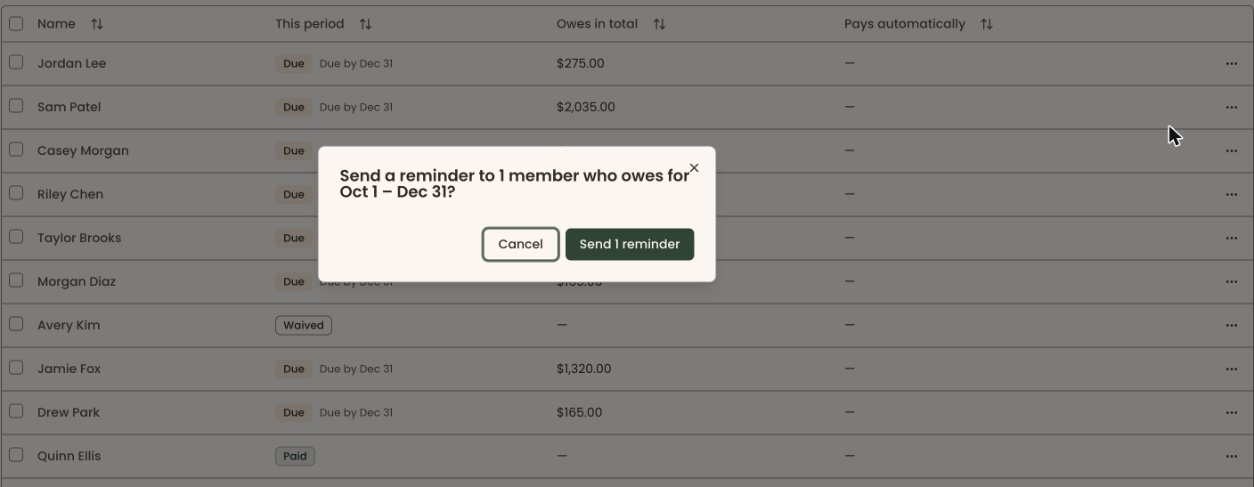
- A box opens asking "Send a reminder to 1 member who owes for" and the period.

Important: clicking "Send 1 reminder" emails the member right away. An email can't be unsent.
- Click "Send 1 reminder".
- You'll see "Sent 1 reminder." That means it worked.
Send reminders to many members at once
Page: /dashboard/membership/dues
- Open the Dues page (see the steps above, 1 to 3).
- To pick only people who owe, click "Due" or "Overdue" in the row of buttons above the list.
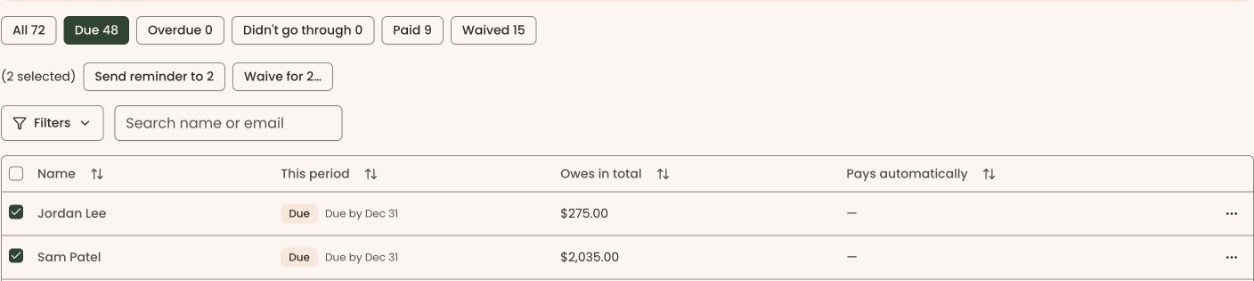
- At the left of each row, check the box for each member you want to remind. To pick every row on the page, check the box at the top of that column.
- A bar appears showing how many you've picked, for example "(5 selected)".
- In that bar, click "Send reminder to 5" (with your number).
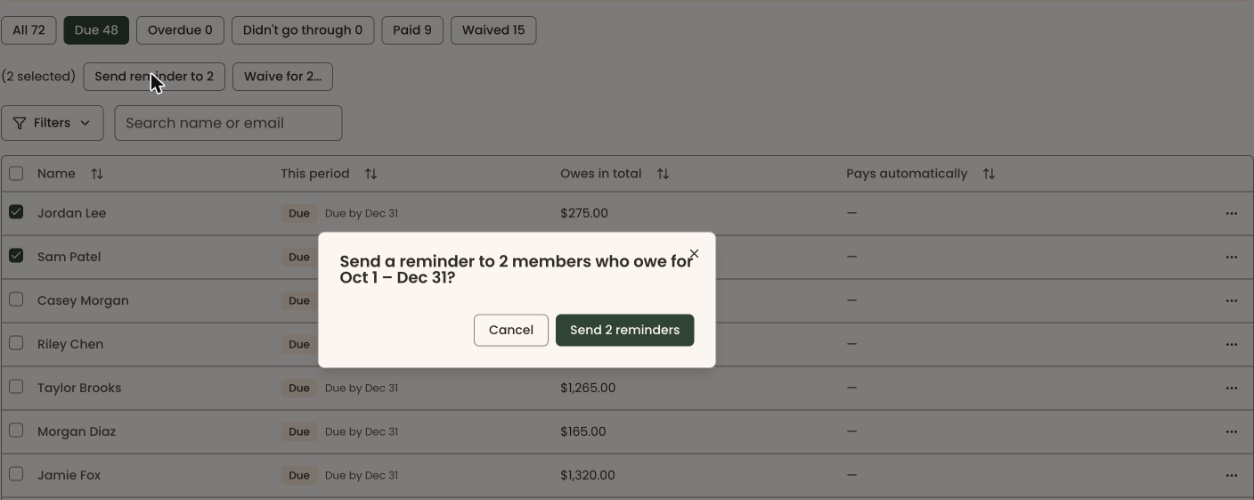
- A box opens asking "Send a reminder to 5 members who owe for" and the period. The number counts only members who still owe and don't pay automatically.
- If some members pay automatically, the box says "Members who pay automatically aren't included" with how many.
Important: clicking the send button emails every member counted in the box, right away. There is no undo.
- Click "Send 5 reminders" (with your number).
- You'll see "Sent 5 reminders." (with your number). That means it worked.
If the send button is grayed out, nobody you picked still owes for that period, or they all pay automatically.
Send a reminder from the member's details
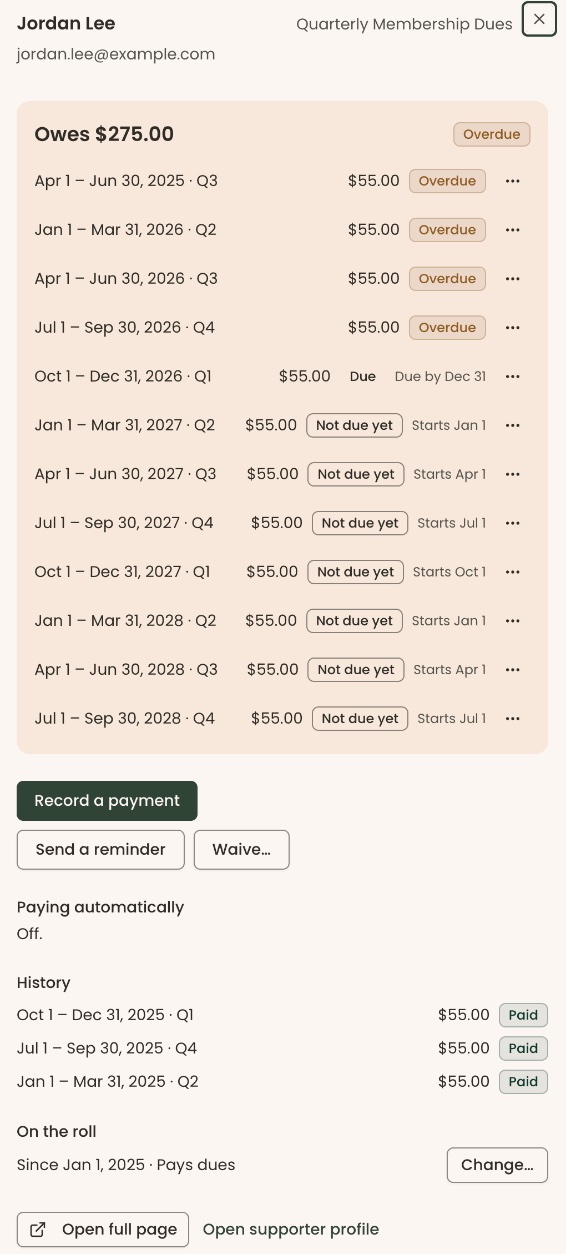
- On the Dues page, click the member's name. Their details open on the right of the page.
Important: in the member's details, "Send a reminder" emails the member as soon as you click it. There is no box asking you to confirm.
- Click "Send a reminder".
- You'll see "Reminder sent." That means it worked.
Special cases
- "Send a reminder" is grayed out on a row: that member doesn't owe anything for this period.
- Members who pay automatically are left out of reminders sent from the many-members box, because their card is charged on its own.
- A message in red appears in the box: nothing was sent. Close the box and try again.
If you make a mistake
- Sent a reminder to the wrong person: an email can't be unsent. Contact the member directly if you need to.