


Who can do this: Owner, Administrator, Finance, Fundraiser and Programs can run the report. Viewer and Front desk can't. Every role can open the Donations list and filter it by fund.
Quick steps: Reporting › Templates › "Transactions" › "Run Report →" on "Gifts by Fund" › date range button › "All Time". For the gifts: Fundraising › "Donations" › "Filter by column" › "Fund" › "is" › your fund › "Add filter".
Before you start
- Your role must be Owner, Administrator, Finance, Fundraiser or Programs to run the report.
- A fund is what a gift's money is for, for example "Building Fund". Funds are set up in Settings › "Funds and appeals". See Set up funds and appeals.
- Your organization must have at least one fund. With no funds, the Donations list has no "Fund" column and no "Group by fund" switch.
- Know which dates you want. The report starts on "Last Calendar Month".
See the total for each fund
Page: /dashboard/reporting/templates
- In the left-hand menu, under "Tools", click Reporting to open its list.
- Click Templates.
- The page is headed "Report Templates". Under "Built-in Reports", find the "Transactions" group.
- Find the "Gifts by Fund" card.
- Click "Run Report →" at the bottom of its card.

Page: /dashboard/reporting/templates/gifts-by-fund
- The report opens with "Gifts by Fund" at the top and one row for each fund below. That means it worked.
- Find the row of buttons under the report's name. The first button on the left has a calendar icon and shows "Last Calendar Month". Click it.
- Click the dates you want, for example "Year to Date", "This Fiscal Year" or "All Time". For your own dates, click "Custom Range", then click the start day and the end day.
- The table reloads. Find your fund in the "Fund" column. Its "Net" is what the fund received after refunds and disputes.
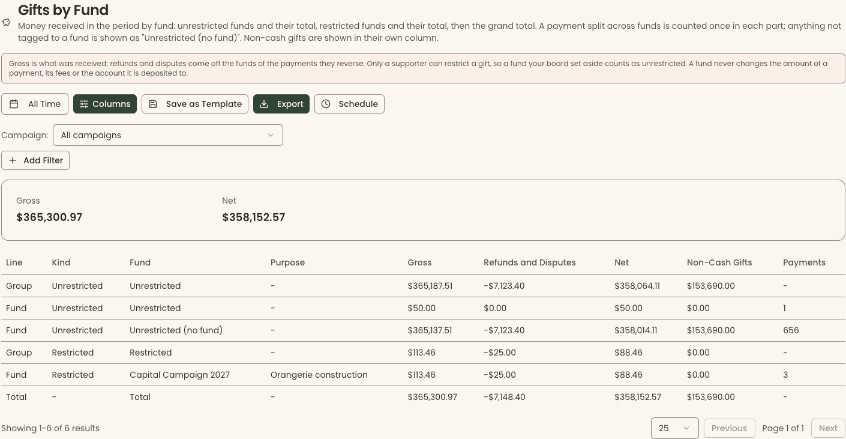
To see one campaign's gifts only, click the "Campaign:" box above "Add Filter". It starts on "All campaigns". Choose the campaign.
What the labels mean
- Line: "Group" for the "Unrestricted" and "Restricted" heading rows, "Fund" for one fund, and "Total" for the grand total.
- Kind: "Unrestricted" or "Restricted". Only a supporter can restrict a gift, so a fund your board set aside counts as unrestricted.
- Fund: the fund's name. Money not given to any fund shows as "Unrestricted (no fund)".
- Purpose: the purpose written for the fund in Settings › "Funds and appeals", if it has one.
- Gross: the money received. Refunds and Disputes: money given back. Net: what is left.
- Non-Cash Gifts: the value of in-kind gifts to the fund. It is shown on its own and is not part of "Gross" or "Net".
- Payments: how many payments the row counts.
A payment split across funds is counted once in each fund it went to.
See the gifts given to one fund
Page: /dashboard/donations
- In the left-hand menu, under "Fundraising", click "Donations". The page is headed "Donations".
- Under the "Filters" button, click "Filter by column". A row opens below it.
- Click "Column" and choose "Fund".
- "Condition" starts on "is". Leave it.
- Click "Value" and choose your fund.
- Click "Add filter".
- A tag such as "Fund is Building Fund" appears, and the list shows only that fund's gifts. That means it worked.
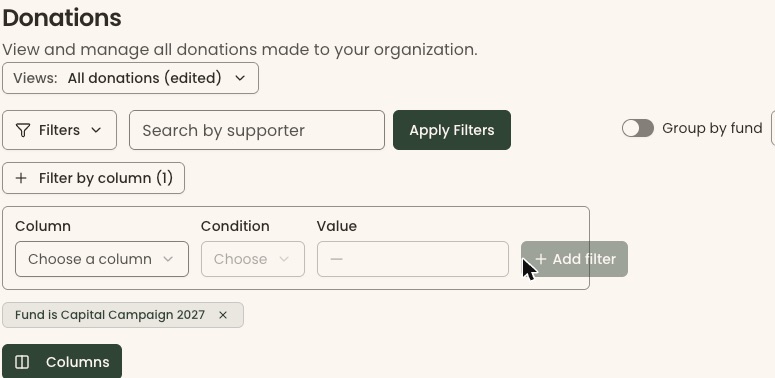
To remove the filter, click the small x on its tag.
The Donations list doesn't add the gifts up. For a dollar total, use the "Gifts by Fund" report above.
List every gift fund by fund
On the Donations list, turn on the "Group by fund" switch next to the buttons at the top right. The gifts are listed under a heading for each fund, with the number of gifts beside it, for example "Building Fund · 12 gifts". The heading shows how many gifts, not how much money.
If you don't see the "Fund" column, click "Columns" and check "Fund".
Special cases
- No "Gifts by Fund" card, or no Reporting in the menu. Your role can't run reports. Ask an Owner or Administrator.
- A fund is missing from the report. It received no money in your dates. Widen the date range.
- No "Fund" in the "Column" list, and no "Group by fund" switch. Your organization has no funds yet. They are added in Settings › "Funds and appeals".
- "No results match your filters. Try adjusting your date range or filters." Nothing matches. Choose "All Time" or remove a filter.