


Who can do this: Owner, Administrator, Finance and Fundraiser can change the funds and appeals. Only an Owner or Administrator can choose a fund's QuickBooks class. Programs, Front desk and Viewer can open the page, but everything on it is grayed out. Finance and Fundraiser don't see the QuickBooks class menus.
Quick steps: Settings › "Funds and appeals" › type in "Add to …" › "Add". QuickBooks: under a fund, click "QuickBooks class" › choose a class.
Before you start
- A fund is where a gift's money goes, for example "Building Fund". An appeal is the request that brought the gift in, for example "Spring Mailing". Both are tags you put on payments.
- Each campaign chooses which funds it records, on the campaign's Form tab. The funds it can offer come from this page.
- To choose QuickBooks classes, QuickBooks Online must be connected. See Connect QuickBooks. The classes themselves are made in QuickBooks.
Open the page
Page: /dashboard/settings/funds-and-appeals
- In the left-hand menu, open "Settings" and click "Funds and appeals".
- The page is headed "Funds and appeals". Under the heading it says "The funds gifts can go to, and the appeals you tag payments with. Each campaign chooses which funds it records on its Form tab."
- You'll see a box called "What you call your lists", then your two lists side by side. They start out called "Fund" and "Appeal".
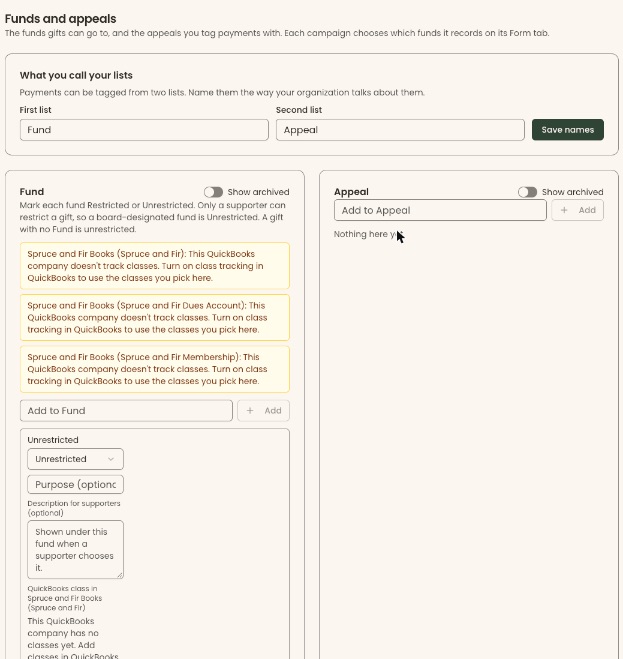
To name the lists, add, rename, reorder or archive entries, mark a fund restricted, or describe it for supporters, follow Name and manage payment tag lists.
Choose a QuickBooks class for a fund
A gift to the fund is then sent to QuickBooks under that class. The class never changes the gift's amount, its fees, or the account it is deposited to.
- In the first list, find the fund. Under it is a "QuickBooks class" menu. It shows "No class" until you choose one.
- Click the menu. A search box opens with your QuickBooks company's classes.
- Type to search, for example "Capital", or scroll the list.
- Click the class.
- You'll see "Building Fund will be filed under Capital." (with your fund and class). That means it worked.
- To clear it, open the menu again and click "No class". You'll see "Building Fund no longer has a QuickBooks class."
If your organization has more than one account connected to QuickBooks, each fund has one menu per account. Each is called "QuickBooks class in" followed by the QuickBooks company's name and, in brackets, the account's name.
If you see "We couldn't save that class.", try again.
What archiving a fund does
Archiving hides a fund you no longer use. Nothing is deleted, and payments already tagged with the fund keep it.
- A fund that no campaign uses disappears from the list as soon as you click "Archive". You'll see "Building Fund archived." (with your fund's name).
- If a campaign uses the fund, a box called "Archive …?" opens first. It lists each campaign and what will change there, for example "Supporters will no longer see it."
- If a campaign gives every gift to the fund, or selects it for supporters, the box asks "Which fund takes its place?" You must choose one before you can archive.
- When you archive, the fund leaves every campaign at once, and those campaigns change as the box said.
- A campaign that lets supporters choose, and would be left with only one fund, switches to giving every gift to that fund.
- If there is no other fund to take its place, you'll see "Add another fund first, then archive this one."
To bring a fund back, turn on "Show archived" and click "Restore". A restored fund isn't added back to any campaign. Add it again on the campaign's Form tab.
The full steps are in Name and manage payment tag lists.
Special cases
- No "QuickBooks class" menu. QuickBooks isn't connected, or your role can't see QuickBooks settings. Appeals never have one.
- "Your QuickBooks company assigns one class per transaction, so the payment account's class is used. Switch QuickBooks to one class per row to track funds." Your QuickBooks company files each sale under a single class. When the payment account already has a class, that class is used and the fund's class is not.
- "This QuickBooks company doesn't track classes. Turn on class tracking in QuickBooks to use the classes you pick here." This shows in yellow at the top of the fund list, starting with the company's name. Turn on class tracking in QuickBooks first.
- "This QuickBooks company has no classes yet. Add classes in QuickBooks, then reload this page to pick one." This shows under each fund in place of the menu. Make the classes in QuickBooks, then reload.
- "We couldn't load this company's classes from QuickBooks. Check the connection in Settings → Integrations, then reload this page." See Connect QuickBooks.
- "We couldn't load this list." Reload the page.
If you make a mistake
- Wrong class: choose the right one, or "No class".
- Archived a fund by mistake: turn on "Show archived", click "Restore", then add the fund back to any campaign that offered it.