


Who can do this: Owner, Administrator, Programs and Front desk. Finance, Fundraiser and Viewer can see Purchases but don't see "Record Manual Purchase".
Quick steps: Programs & Sales › Retail › "Purchases" › "Record Manual Purchase" › choose the buyer › address › "Add Product" › payment method › "Record Purchase".
Before you start
- You need the Owner, Administrator, Programs or Front desk role.
- The products must already be in your shop and set to "Active". See Add or edit shop products and event items.
- Have ready: the buyer's name and email, a street address, city and ZIP code, what they bought, and the check number if they paid by check.
- A supporter is anyone in your records who has given, joined, registered or bought something.
Record a sale
Page: /dashboard/retail/purchases
- In the left-hand menu, under "Programs & Sales", click "Retail". A short list opens under it.
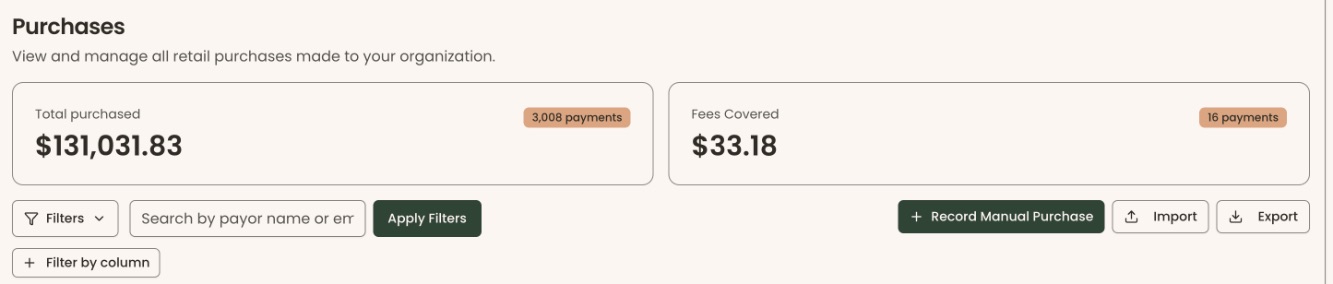
- Click "Purchases". The "Purchases" page opens.
- At the top right of the list, next to "Import" and "Export", click "Record Manual Purchase". A box opens called "Record Manual Retail Purchase".
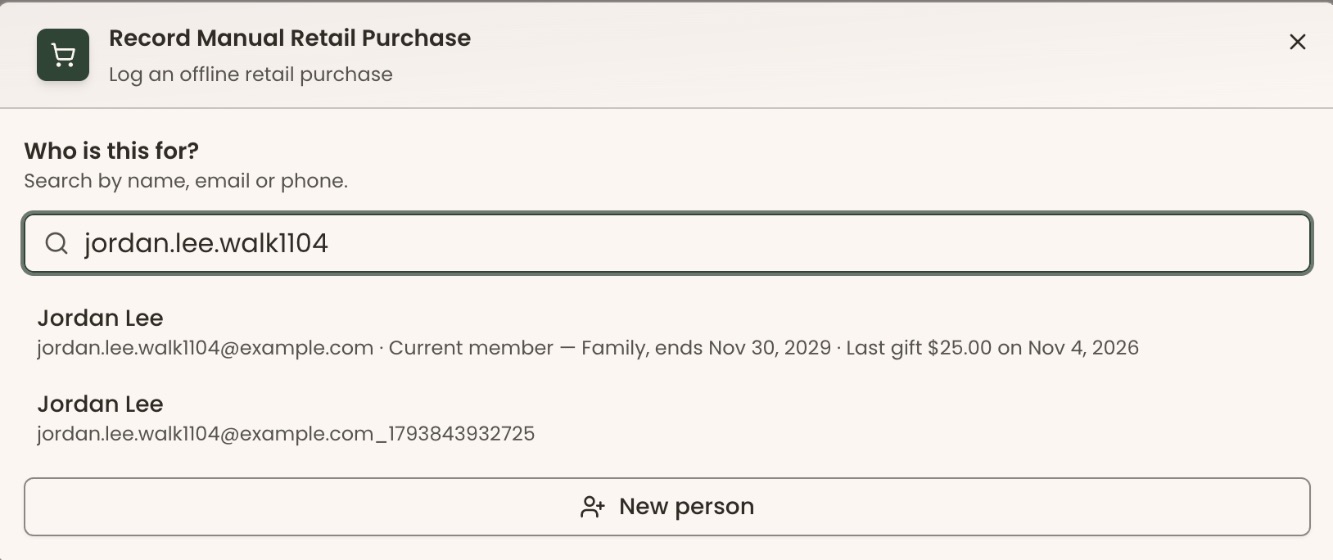
- The box asks "Who is this for?" Click in "Search people…" and type the buyer's name, email or phone, for example "Jordan Lee".
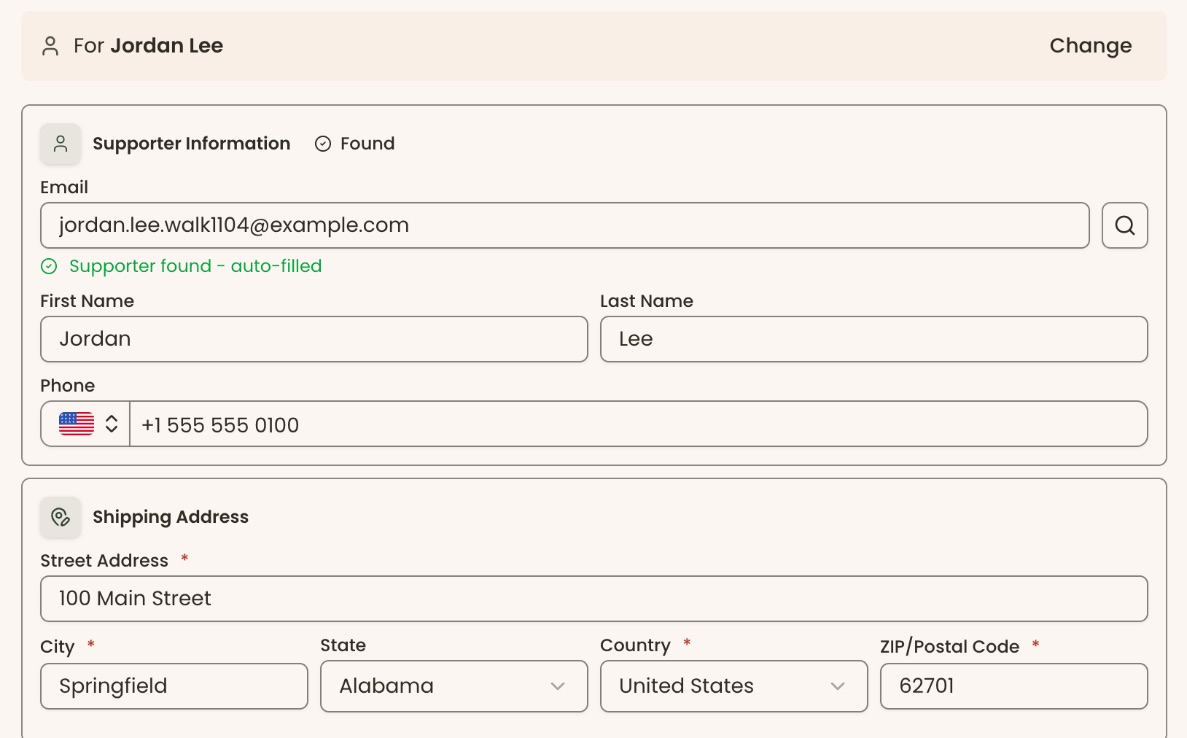
- Click the right person in the list. Each match shows their email, and for members their membership and last gift, so you can tell two people with the same name apart. The box shows "For Jordan Lee". If you picked the wrong person, click "Change".
- If the buyer isn't in Clerestory yet, click "New person" instead.
- Under "Supporter Information" (it shows "Found" for a supporter already in your records), check "Email" is filled in. If it's empty, type it, then click the magnifying glass to the right of it. You'll see "Supporter found - auto-filled" or "Will be created".
- Check "First Name", "Last Name" and "Phone". Type any that are missing.
- Under "Shipping Address", fill in "Street Address", "City", "State", "Country" and "ZIP/Postal Code". These are filled in already if the supporter has an address on file. Street, city, country and ZIP are required (marked with a red star), even for a sale in person.
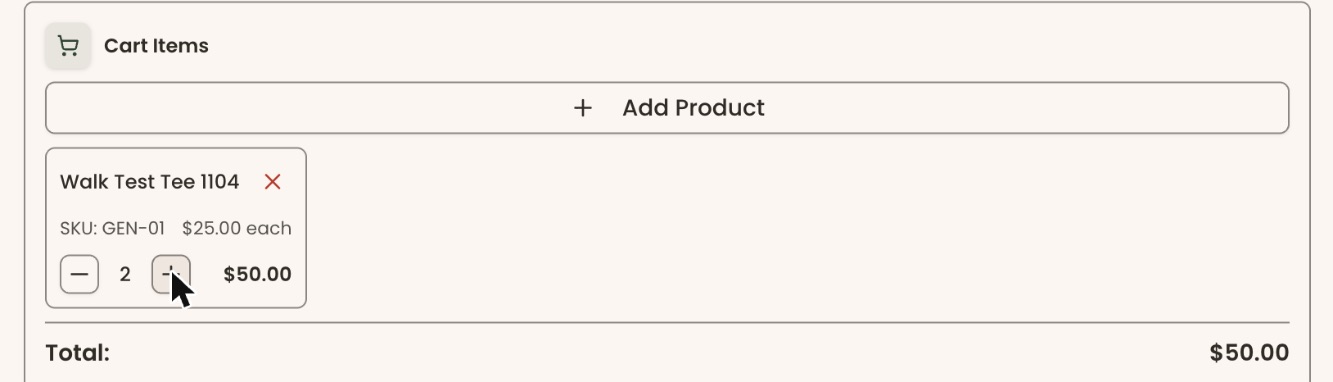
- Under "Cart Items", click "Add Product". A search list opens.
- Type the product's name in "Search products..." and click it. You'll see "… added to cart".
- To sell more than one, click the plus (+) button next to the quantity. The minus (−) button lowers it. The red cross (×) next to the item's name removes it.
- Check "Total:" under the cart.
- In "Note (Optional)", type anything to keep with the sale. You can leave it empty.
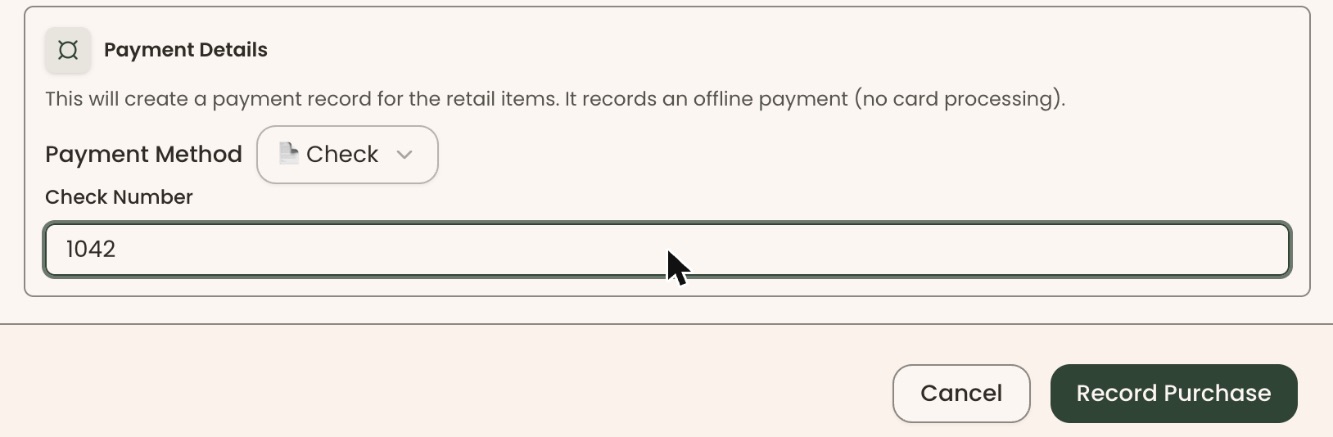
- Under "Payment Details", click "Payment Method" and choose "💵 Cash", "📄 Check", "🏦 Bank Transfer" or "📋 Other". "💵 Cash" is chosen to start with.
- For a check, type the number in "Check Number". For a bank transfer, type it in "Reference Number". For "Other", describe it in "Notes".
Important: Clicking "Record Purchase" emails the buyer a receipt right away. It can't be undone in the screens.
- At the bottom right of the box, click "Record Purchase".
- You'll see "Retail purchase recorded successfully". The box closes and the sale appears on the Purchases list. That means it worked.
If "Record Purchase" is grayed out, the cart is empty. Add a product first.
If the box doesn't save, look for a red message under a field, for example "Invalid email address", "Street address is required", "City is required" or "ZIP code is required". Fill it in and click "Record Purchase" again.
Other ways to open the same box
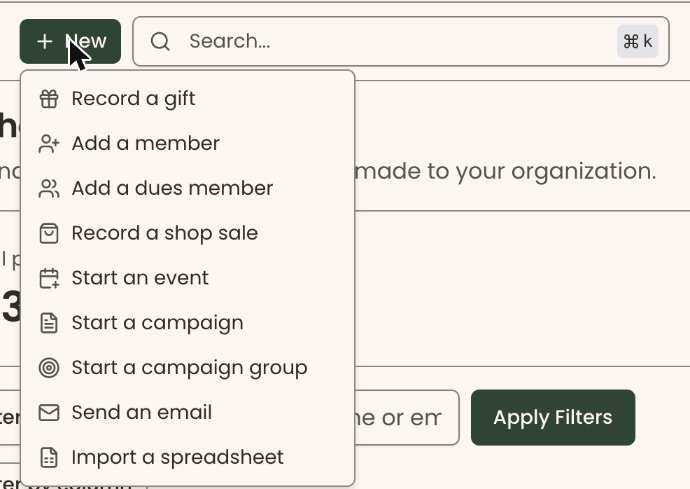
- From the top of any page: click "New" (at the top left, with a plus sign), then "Record a shop sale".
Special cases
- A product isn't in the search list. Products set to "Closed for sale" (deactivated) don't show. Activate it first: see Add or edit shop products and event items. The list also shows event items (tickets and sponsorships) and products that are out of stock, so check you pick the right one.
- The buyer paid by card. This box records money you took yourself. It doesn't charge a card.
- "Failed to record retail purchase". The sale didn't save. Check the connection and try again.
Buttons to avoid
- "Cancel" at the bottom of the box, or the cross (×) at its top right, closes it and throws away what you typed.
If you make a mistake
A recorded sale can't be deleted in this box. To give the money back, an Owner, Administrator or Finance user can refund the payment: see Refund a payment.