


Who can do this: Owner, Administrator, Finance and Fundraiser can create, change, archive and delete a campaign group. Only Owner and Administrator can put a campaign into a group, because that is done in the campaign's own settings. Programs, Front desk and Viewer can open the groups but don't see "Create campaign group".
Quick steps: Campaign Groups › "Create campaign group" › "Name" › "Create". Then Campaigns › the campaign › "Settings" tab › "Group (optional)" › check the group › "Save changes".
Before you start
- To create a group you need the Owner, Administrator, Finance or Fundraiser role. To put a campaign into it you need Owner or Administrator.
- "Campaign Groups" must be turned on for your organization, or it isn't in the menu. See Turn features on or off.
- A campaign is one of your donation forms. A campaign group bundles several campaigns, events or classes that share a goal, such as an annual fund run through three forms. The group shows their combined totals. Each campaign keeps its own page.
- Groups are optional. A campaign works the same whether or not it is in a group.
- Have ready: the group's name, and any goal amount and dates.
Create a campaign group
Page: /dashboard/campaigns/create
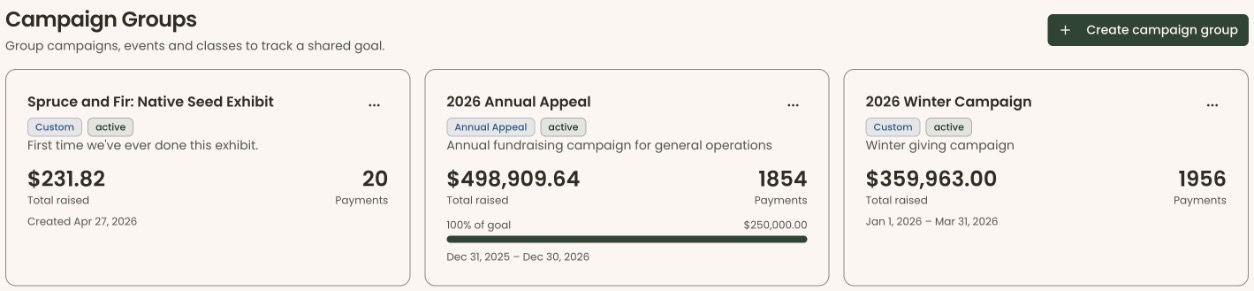
- In the left-hand menu, under "Fundraising", click "Campaign Groups". The "Campaign Groups" page opens.
- At the top right of the page, click "Create campaign group". The "Create campaign group" page opens.
- In "Name", type the group's name, for example "Annual Fund 2026". It must be at least 2 characters.
- In "Description (Optional)", type a short description if you want one.
- Under "Type (Optional)", you can click "Select type" and choose "Ongoing", "Annual Appeal" or "Custom".
- In "Goal Amount (Optional)", type the goal in dollars, for example 25000.
- Under "Start Date (Optional)" and "End Date (Optional)", you can choose dates.
- To show supporters how close the group is to its goal, turn on "Show supporters a progress bar".
- At the top right of the page, click "Create".
- You'll see "Campaign group created successfully", and you're back on "Campaign Groups" with the new group's card. That means it worked.
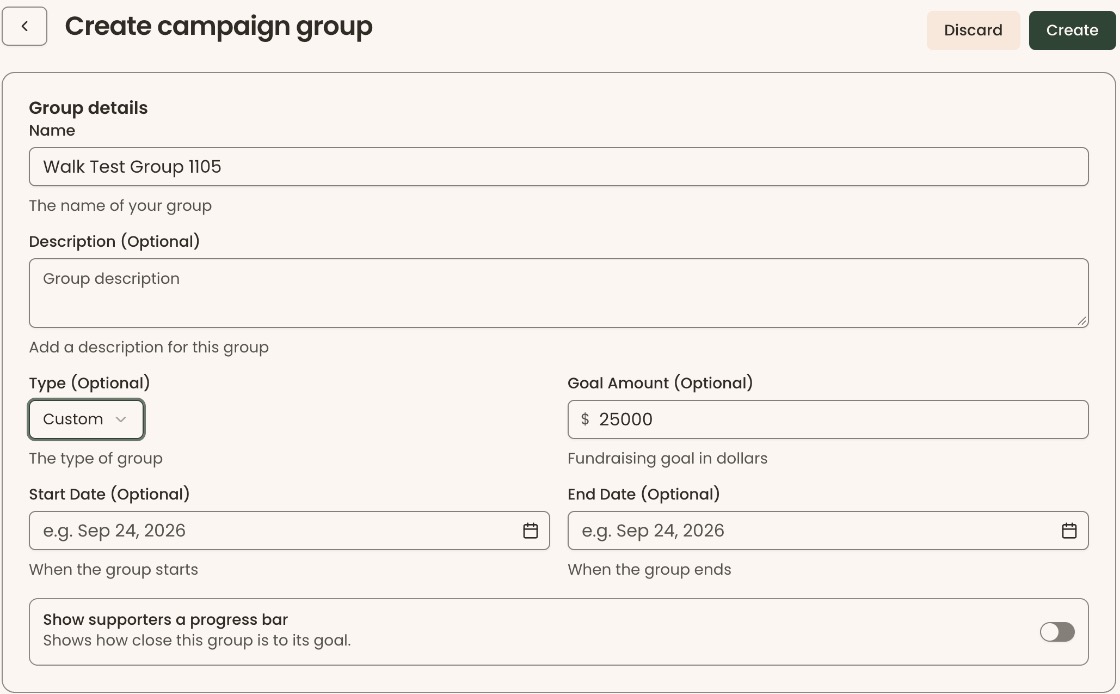
If you see "Name must be at least 2 characters.", type a longer name. To leave without saving, click "Discard".
Put a campaign into a group
Page: /dashboard/campaigns/<campaignId>?tab=settings
- In the left-hand menu, under "Fundraising", click "Campaigns".
- Click the campaign's row. The campaign's own page opens.
- Click the "Settings" tab in the row of tabs near the top.
- Scroll down to the box called "Group (optional)", below "Goal (optional)". It lists the groups you've created, each with a check box.
- Check the group you want. You can check more than one.
- Scroll back up. At the top right of the tab, click "Save changes".
- You'll see "Campaign updated successfully". That means it worked.
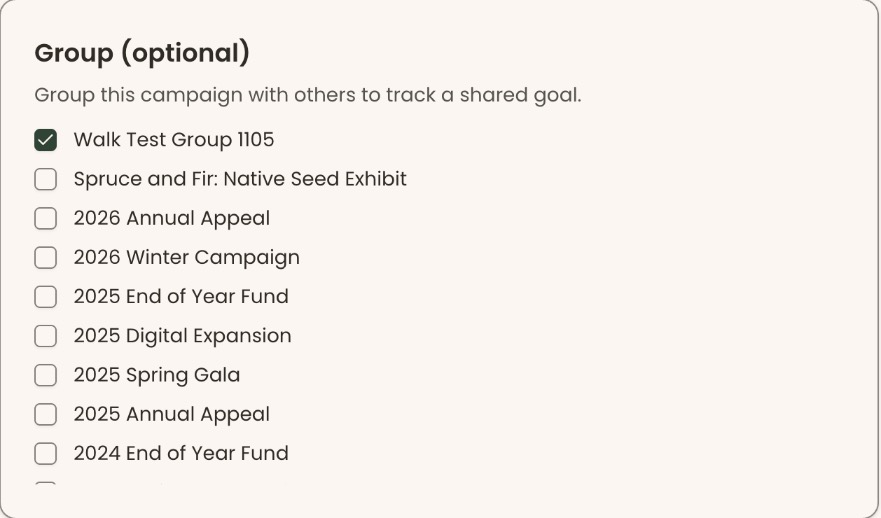
To take a campaign out of a group, uncheck the group in step 5 and click "Save changes".
If "Group (optional)" shows only "Create a campaign group", you haven't created a group yet. Follow "Create a campaign group" first.
On the "Campaigns" list, the "Campaign Group" column shows each campaign's groups, or "No group".
See a group's totals and what's in it
Page: /dashboard/campaigns/<campaignId>
- In the left-hand menu, under "Fundraising", click "Campaign Groups".
- Each card shows the group's "Total raised" and number of "Payments". If the group has a goal, it shows the "% of goal" and a bar.
- Click the group's name to open it.
- The "Included" tab lists every campaign, event and class in the group. Click one to open its page.
- The "Payments" and "Supporters" tabs list the group's payments and the people who gave.
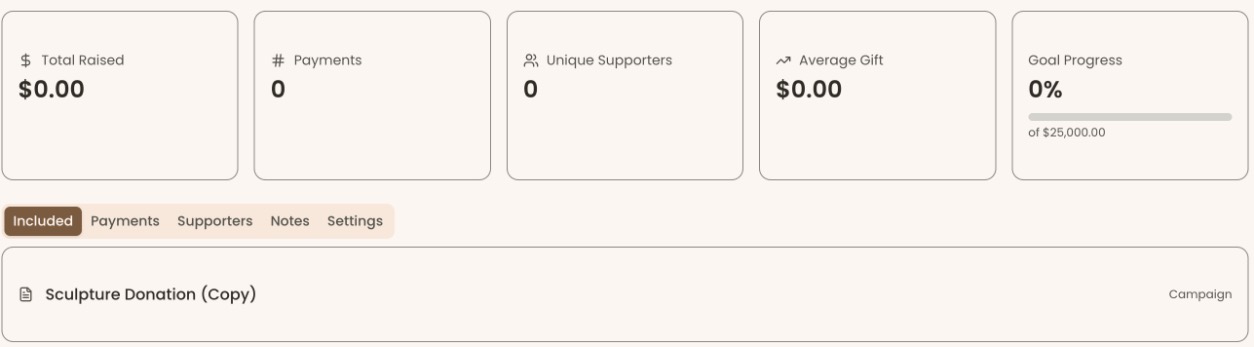
"Nothing is in this group yet" means nothing has been added. Add campaigns from their own "Settings" tab, as above.
Change, archive or delete a group
Page: /dashboard/campaigns
- Change it: open the group, click the "Settings" tab, change the details and click "Save Changes" at the bottom right. You'll see "Campaign group updated successfully".
- Archive it: on the "Campaign Groups" page, at the top right of the group's card, click the three dots (⋯), then "Archive". The card's status changes to "inactive". To bring it back, choose "Unarchive".
Important: Deleting a group can't be undone. Your browser asks "Are you sure you want to delete this campaign group? This action cannot be undone." Click "OK" only if you're sure.
- Delete it: "Delete group" is in the same ⋯ menu, but only for a group with no payments. Click it, then click "OK" in the box your browser shows.
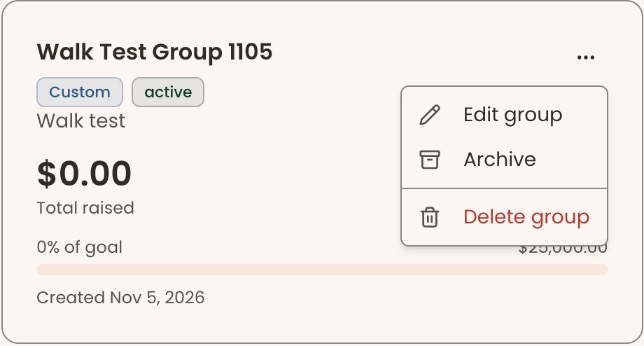
When the delete works, the group's card disappears. No message is shown. If campaigns were still in the group, they are taken out of it and are kept, now with "No group".
If you see "This campaign group can't be deleted because a campaign, event, class or admission still uses it. Open the group and check its Included tab.", something still depends on the group. Open its "Included" tab and take each item out of the group first.
Special cases
- Events. An event joins a group from its own settings, in a box also called "Group (optional)", with an "Add to a group" button. See Edit, clone, archive or delete an event.
- Feature turned off. If "Campaign Groups" is turned off, the menu item goes away. A campaign already in a group stays in it, and its "Settings" tab shows the group's name under "Group" without check boxes.
- Money. A group never decides where money goes. Each campaign keeps its own "Deposits go to" setting.
If you make a mistake
- Wrong campaign in a group: uncheck the group on that campaign's "Settings" tab and click "Save changes".
- Wrong name, goal or dates: change them on the group's "Settings" tab.
- Deleted a group: this can't be undone in the screens. Create it again and put the campaigns back in.