


Who can do this: Owner, Administrator, Finance and Fundraiser. Programs and Viewer can open the "Tag lists" tab, but everything on it is grayed out. Front desk doesn't see Communications.
Quick steps: Communications › "Tag lists" › "What you call your lists" › type the names › "Save names". Then, in each list, type in "Add to …" › "Add".
Before you start
- You need the Owner, Administrator, Finance or Fundraiser role.
- A tag marks what a payment was for, such as a fund or an appeal. You can split one payment across several tags.
- You have two lists of tags. They start out called "Fund" and "Appeal". You can rename them to the words your organization uses, for example "Program" and "Drive".
- A restricted fund is money a supporter gave for one purpose only. An unrestricted fund can be spent on anything.
Open the tag lists
Page: /dashboard/communications?tab=tag-lists
- In the left-hand menu, under "Operations", click "Communications".
- The page is headed "Communications". In the row of tabs under it, click "Tag lists".
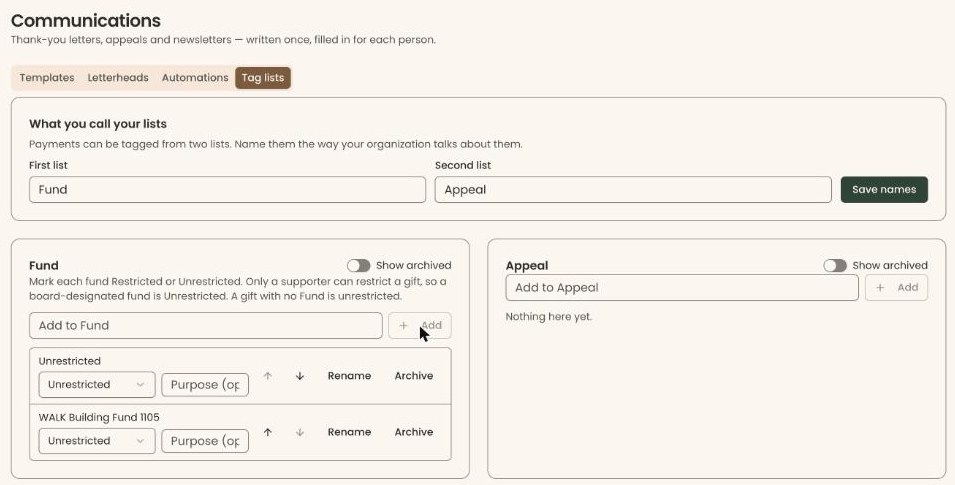
- At the top is a box called "What you call your lists". Under it are your two lists, side by side, each headed with its name.
Name your two lists
- In "What you call your lists", click in "First list". Select the name and type your own, for example "Program".
- Click in "Second list" and type its name, for example "Drive".
- To the right, click "Save names".
- You'll see "List names saved." The two lists below now carry the new names. That means it worked.
The new names show on every screen that uses the lists.
If you see "Both lists need a name.", fill in both boxes. If you see "The two lists need different names.", change one of them.
Add an entry to a list
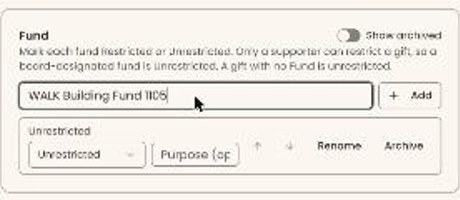
- In the list's box, click in the box that says "Add to …", for example "Add to Fund".
- Type the entry's name, for example "Building Fund".
- Click "Add", to the right. You can also press Enter.
- The entry appears in the list. That means it worked.
If you see a message that the name "is already on the list", choose a different name.
Mark a fund restricted or unrestricted
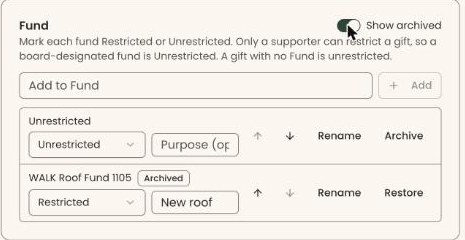
This shows only on the first list. It is for your records and reports. It doesn't change a payment, a receipt or what goes to QuickBooks (see Connect QuickBooks Online).
- Under the entry's name, click the drop-down that shows "Unrestricted" or "Restricted".
- Click "Restricted" or "Unrestricted". The change saves right away.
- If you want, click in "Purpose (optional)" next to it and type what the fund is for, for example "New roof". It saves when you click somewhere else on the page.
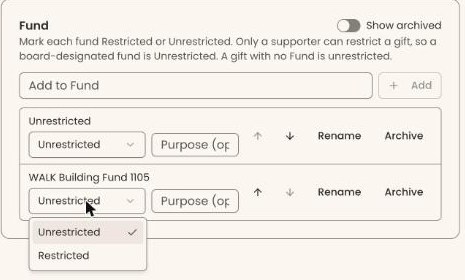
The note at the top of the list explains: "Only a supporter can restrict a gift, so a board-designated fund is Unrestricted." A payment with no entry from this list counts as unrestricted.
Rename, reorder or archive an entry
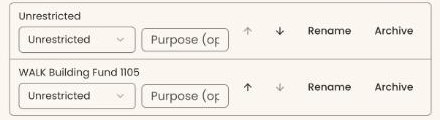
Each entry has buttons at the right of its row.
Rename:
- Click "Rename". The name becomes a box you can type in.
- Type the new name.
- Click "Save". To stop, click "Cancel".
- The entry shows its new name. That means it worked.
Reorder:
- Click the up arrow (↑) to move an entry up, or the down arrow (↓) to move it down.
- The list shows the new order. This is the order the entries are offered in when tagging a payment.
Archive:
Archiving hides an entry you no longer use. Payments already tagged with it keep the tag.
- Click "Archive".
- The entry disappears from the list. That means it worked. It is no longer offered when tagging a payment.
Bring back an archived entry
- At the top right of the list's box, click the "Show archived" switch.
- Archived entries appear with an "Archived" label.
- On the entry's row, click "Restore".
- The "Archived" label goes away. That means it worked.
Special cases
- Tagging a payment. Tags are added to a payment from its "Tags" option, for example on the Fundraising › "Payments" list. That box is called "Tags".
- Grayed out. Your role can see the lists but not change them.
- "We couldn't load this list." Reload the page.
- "Nothing here yet." The list has no entries. Add one.
If you make a mistake
- Wrong name: rename the list or the entry again.
- Archived by mistake: turn on "Show archived" and click "Restore".
- Entries can't be deleted, only archived.