


Who can do this: Everyone can see Purchases and open an order's details. Marking orders shipped or picked up: Owner, Administrator, Programs and Front desk. Downloading ("Export"): Owner, Administrator, Finance and Fundraiser. Anyone else doesn't see that button.
Quick steps: Programs & Sales › Retail › "Purchases" › the order's "Details" › "Mark shipped" (or "Mark picked up"). To download: "Export" › "Start Export" › "Download".
Before you start
- To mark orders, you need the Owner, Administrator, Programs or Front desk role. To download, the Owner, Administrator, Finance or Fundraiser role.
- Fulfilling an order means sending it to the buyer, or handing it over when they collect it.
- An online order is either "Ship" (you mail it to the buyer) or "Local pickup" (the buyer collects it). The buyer chooses at checkout.
- Before marking an order, have the item ready to mail, or the buyer in front of you.
Open Purchases
Page: /dashboard/retail/purchases
- In the left-hand menu, under "Programs & Sales", click "Retail". A short list opens under it.
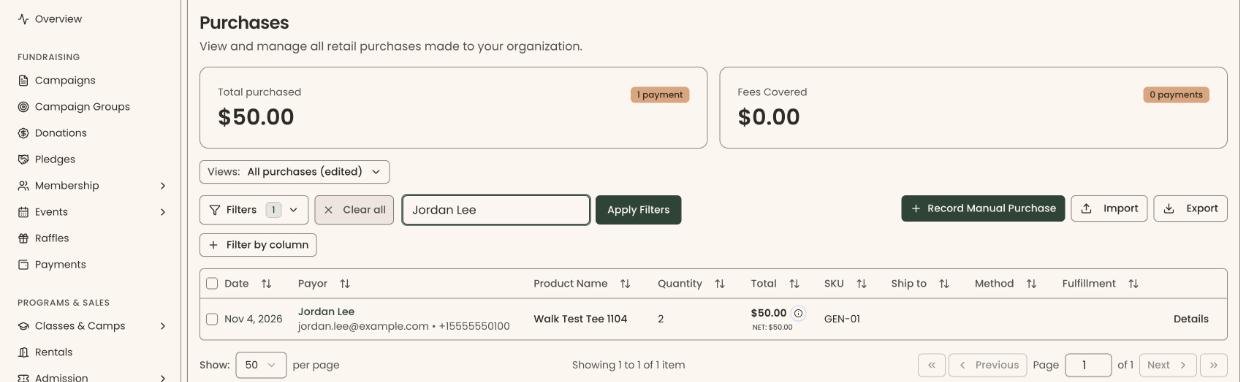
- Click "Purchases". The page is headed "Purchases".
- Two boxes at the top show "Total purchased" and "Fees Covered" for every order that matches your filters.
- Below them is the list. Each product in an order is one row. The rows of one order are grouped together, with a line above them.
Find an order
- In the search box at the top of the list ("Search by payor name or email..."), type the buyer's name or email, for example "Jordan Lee".
- Press Enter, or click "Apply Filters".
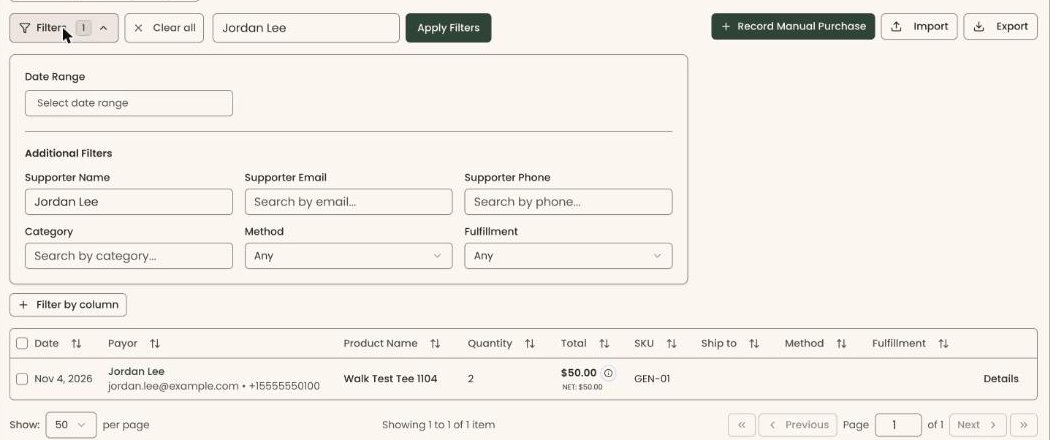
- To narrow the list further, click "Filters". A panel opens below. Pick a "Date Range", fill in any of "Supporter Name", "Supporter Email", "Supporter Phone" or "Category", or choose a "Method" or "Fulfillment" status. Then click "Apply Filters", next to the search box.
- To show only orders still to send, click "Filters", choose "Unfulfilled" under "Fulfillment", and click "Apply Filters".
- To remove every filter, click "Clear all".
To sort, click a column heading such as "Date" or "Total".
If nothing matches, the list is empty. Check the spelling, or click "Clear all".
Open an order's details
- Find the order in the list.
- At the far right of its first row, click "Details". A panel opens on the right with the buyer's name at the top.
- The panel shows "Payment" and its status, "Items", "Fulfillment" (the address under "Ship to", or "Local pickup") and "Totals" down to "Total charged".
- If an offer code was used, you'll see, for example, "Code SPRING10 saved $5.00.".
- To see the sale on its own page, click "Open full page".
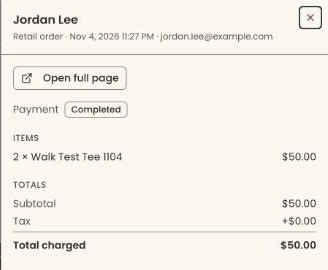
To close the panel, click outside it, or the cross (×) at its top right.
Mark an order shipped or picked up
- Open the order's details, as above. Under "Fulfillment", the status reads "Unfulfilled".
- For a "Ship" order, mail the item first. For a "Local pickup" order, hand it to the buyer first.
- Click "Mark shipped" or "Mark picked up" under the status.
- You'll see "Order marked shipped" or "Order marked picked up". The status changes to "Shipped" or "Picked up", with the date and time. That means it worked.
You can also do this from the list: the same button is in the "Fulfillment" column, on the order's first row.
Marking an order doesn't email the buyer.
If you see "Could not update the order" or another red message, the change didn't save. Try again.
Orders you can't mark yet
- "PAYMENT PENDING" and "Waiting for payment": the buyer paid by bank transfer and the money hasn't arrived. Hold the order. There is no button until the payment clears.
- "PAYMENT FAILED", in red: the bank payment failed. Don't send or hand over this order. There is no button to move it on.
- No fulfillment status at all: the sale has nothing to ship or pick up, for example a kiosk sale or an in-person sale recorded with "Record Manual Purchase". Its details panel has no "Fulfillment" section.
Download purchases
- On "Purchases", at the top right of the list, click "Export". It has a download arrow icon.
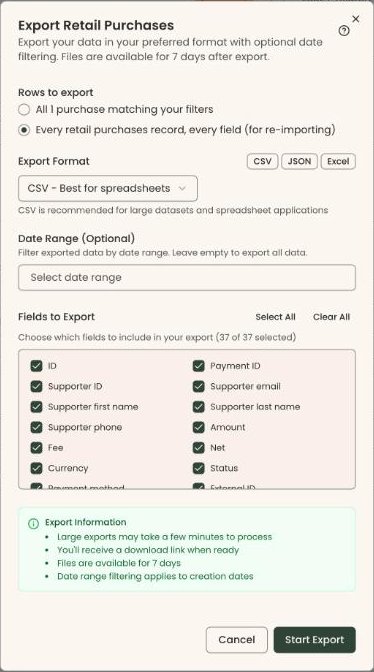
- A box opens called "Export Retail Purchases".
- Click the "Export Format" list and choose "CSV - Best for spreadsheets", "JSON - Best for programmatic access" or "Excel - Best for manual editing". CSV is chosen to start with.
- Under "Date Range (Optional)", pick dates to limit the export, or leave it empty for everything. The dates filter by when each record was created.
- Under "Fields to Export", every column is checked. Uncheck any you don't want. "Select All" and "Clear All" change them all at once.
- Click "Start Export" at the bottom right.
- A bar shows "Exporting..." while the file is made.
- You'll see "Export ready!". That means it worked.
- Click "Download" to save the file. Then click "Close".
A CSV file is a plain spreadsheet file. It opens in Excel, Numbers or Google Sheets. The download link works for 7 days.
A downloaded file holds private information about your buyers. Store it safely.
Changes in the next release: the export box starts with "Rows to export": "All … matching your filters" or "Every retail purchases record, every field (for re-importing)". The Purchases list also gets "Views", "Filter by column" and a checkbox on each row.
What the labels mean
- "Total purchased": the total of every order matching your filters, with how many payments.
- "Fees Covered": processing fees buyers chose to pay. "—" with "not recorded" means older orders didn't record it.
- "Payor": the buyer.
- "Method": "Ship" or "Local pickup".
- "Fulfillment": "Unfulfilled", "Shipped" or "Picked up".
- "Ship to": the city and state for a "Ship" order, or "Pickup".
Buttons to avoid
- "Import", next to "Export", adds purchases from a file. Use it only to bring in past sales. See Import supporters, gifts, memberships and payments from a spreadsheet.
- "Record Manual Purchase" records a new sale paid in person and emails the buyer a receipt. See Record an in-person shop sale.
If you make a mistake
- Marked shipped or picked up by mistake: open the order's details and click "Mark unfulfilled". You'll see "Order marked unfulfilled".
- A download changes nothing in your records.