


Who can do this: Owner, Administrator, Finance and Fundraiser. Programs, Front desk and Viewer can see the Dues page but don't see "Add member", "Waive this period", "Change…" or the two export buttons.
Quick steps: Membership › "Dues". Waive: row ⋯ › "Waive this period" › "Reason" › "Waive $…". Add: "Add member" › find the person › "Add member". Standing: click the name › "Change…" › choose › "Save". Export: "Export who owes" or "Export whole year".
Before you start
- You need the Owner, Administrator, Finance or Fundraiser role.
- Your organization needs at least one dues level. Until it has one, "Dues" doesn't show under Membership. See Set up membership levels: add, edit, duplicate, stop offering and delete.
- To add a member, the person must already be in your supporter records. A supporter is anyone in your records who has given, joined or registered. To add a new person first, see Add a supporter or contact.
- Dues are what members of a dues level owe for each period, for example each year or each quarter. A period is one stretch of time that dues are owed for.
- Waiving a period means your organization excuses the member from paying for it.
- The roll is the list of members on a dues level. Members stay on it, and owe for each period, until they are removed.
Open the Dues page
Page: /dashboard/membership/dues
- In the left-hand menu, find the Fundraising group and click "Membership" to open it. (If "Dues" already shows under it, skip this step; clicking again closes it.)
- Under "Membership", click "Dues".
- At the top left, the current period is shown between two arrows. Click the left arrow for an earlier period, or the right arrow for a later one.
- If you have more than one dues level, choose the level in the box beside the arrows.
Waive one member's period
Page: /dashboard/membership/dues
- Open the Dues page and pick the period (see "Open the Dues page").
- To find the member, type their name or email in "Search name or email" above the list.
- At the far right of the member's row, click the three dots (⋯).
- Click "Waive this period". It is grayed out if they owe nothing for this period, are already waived, or a bank payment is on its way.
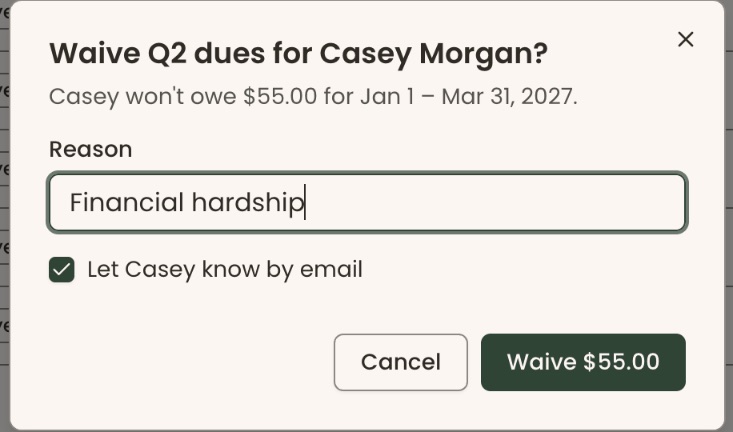
- A box opens asking "Waive … dues for" the member's name. The line under it says how much they won't owe, and for which dates.
- In "Reason", type why, for example "Financial hardship". You can't continue without a reason.
- "Let <first name> know by email" is checked to start with. Uncheck it if the member shouldn't get an email.

Important: if the email box is checked, clicking the button in the next step emails the member right away to say the period is waived, with your reason. An email can't be unsent.
- At the bottom right of the box, click the button that reads "Waive" followed by the amount.
- You'll see "Waived $…" at the top of the screen. That means it worked. The row's "This period" column now shows "Waived".
If a message in red appears in the box instead, nothing was waived. "An automatic payment for this period is being processed. Try again once it has finished." means wait until the automatic payment is done.
You can also waive from the member's details: click their name, then "Waive…". If they owe for more than one period, choose the period under "For" first.
Waive a period for several members at once
Page: /dashboard/membership/dues
- Open the Dues page and pick the period.
- Check the box at the far left of each member's row. To check every row on the page, check the box in the heading row, above the first name.
- Above the "Filters" button, a line appears reading how many are selected, for example "(3 selected)". Click "Waive for" followed by the number, for example "Waive for 3…". The list moves down a little when this line appears, so check each box before you look for the next one.
- A box opens asking "Waive … dues for 3 members?".
- In "Reason", type why.
- "Let them know by email" is checked to start with. Uncheck it if the members shouldn't get an email.

Important: if the email box is checked, clicking the button in the next step emails every member in the list right away. An email can't be unsent.
- Click the button that reads "Waive" followed by the amount.
- You'll see "Waived for 3 members." That means it worked.
- If some members couldn't be waived, for example because they had already paid, the box stays open. A message in red names each one and why. The others were waived.
Undo a waiver
Page: /dashboard/membership/dues
- Open the Dues page and go to the period you waived.
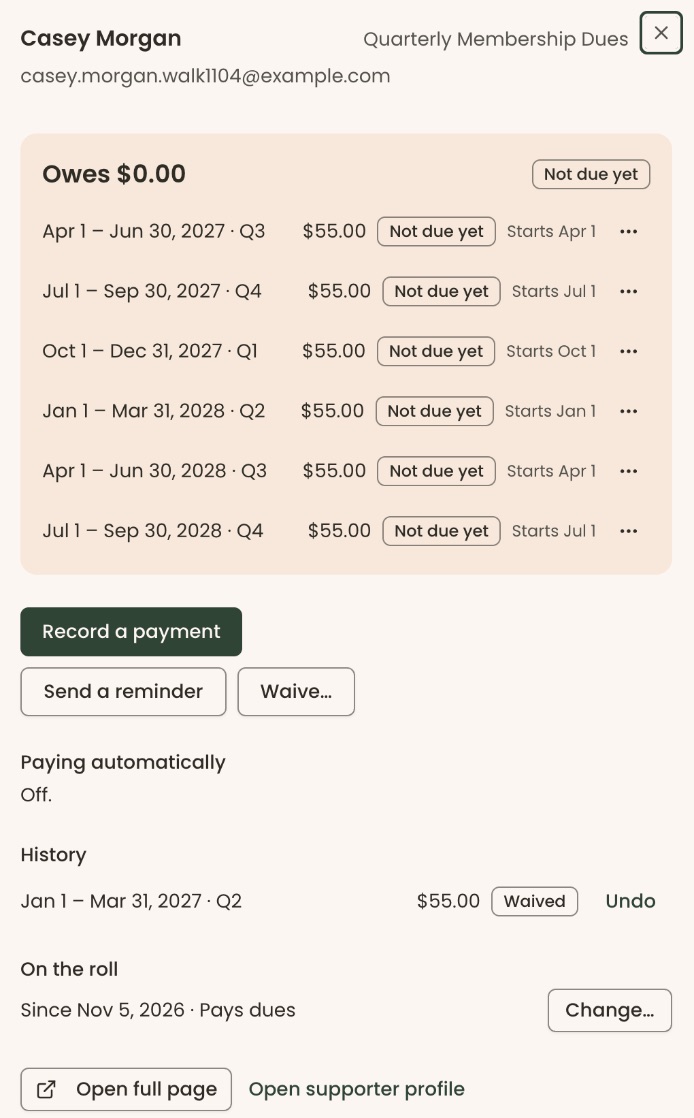
- Click the member's name. Their details open on the right of the page.
- Under "History", find the period marked "Waived".
- At the right of that line, click "Undo".
- The period moves back up into what they owe. That means it worked. No email is sent.
If you see "This member doesn't pay dues. Change the member instead.", the period was waived because the member is set to not pay dues. Change their standing instead (see "Change whether a member pays dues").
Add a member to a dues level
Page: /dashboard/membership/dues
- Open the Dues page. If you have more than one dues level, choose the level first, in the box beside the arrows.
- At the top right of the page, click "Add member".
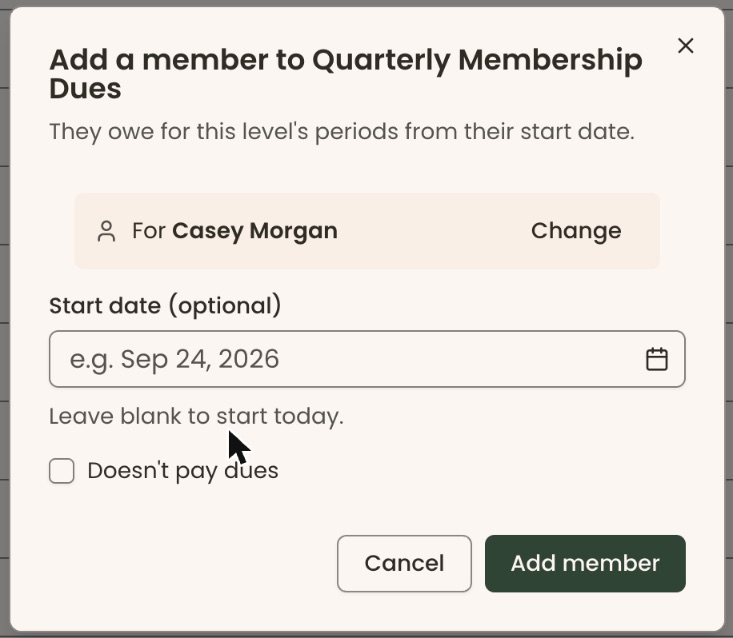
- A box opens called "Add a member to" followed by the level's name.
- Under "Who is this for?", type at least two letters of the person's name, email or phone in "Search people…".
- Click the person in the list. "For" and their name appears at the top of the box. To pick someone else, click "Change".
- In "Start date (optional)", choose the date they join. Leave it blank to start today. What they owe is worked out from this date: a period that began before it isn't billed, so a member who joins partway through a period usually starts owing from the next one.
- If they won't pay dues, for example an honorary member, check "Doesn't pay dues". Then choose "Honorary", "Emeritus" or "Other" in the box beside it.
- At the bottom right of the box, click "Add member".
- You'll see the person's name, "added to", the level's name and their standing, for example "Jordan Lee added to Club Dues: Pays dues." That means it worked. Their details open on the right.
If it didn't work:
- "No one matches …" means the person isn't in your records yet. Add them as a supporter first. See Add a supporter or a contact, and move people between Supporters and Contacts.
- "… is already on the roll for …" means they are already a member of this level.
Change whether a member pays dues
Use this to mark a member as not paying dues (for example honorary), to put them back to paying, or to take them off the roll when they leave.
Page: /dashboard/membership/dues
- Open the Dues page and click the member's name. Their details open on the right of the page.
- Scroll to "On the roll". It shows when they joined and their standing, for example "Pays dues".
- At the right of that line, click "Change…".
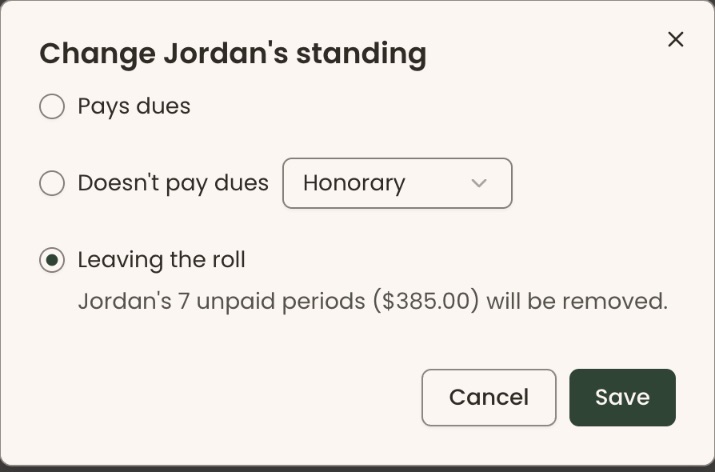
- A box opens called "Change <first name>'s standing".
- Choose one:
- "Pays dues": they owe for each period.
- "Doesn't pay dues": choose "Honorary", "Emeritus" or "Other" in the box beside it. The box then says how many unpaid periods will be waived, and that future periods won't be billed.
- "Leaving the roll": the box says how many unpaid periods will be removed, and how much they total.
Important: "Leaving the roll" ends their membership and removes what they haven't paid. It can't be undone in the screens. Read the sentence under your choice before you save.
- At the bottom right of the box, click "Save". It stays grayed out until you choose something different from their current standing.
- You'll see the member's name and their new standing, for example "Jordan Lee: Doesn't pay dues · Honorary." That means it worked.
If it didn't work:
- "An automatic payment for this period is being processed. Try again once it has finished." means wait, then try again.
- "This member is paying dues online right now. Try again once that payment has finished." means the member is in the middle of paying. Try again later.
Export who owes
Page: /dashboard/membership/dues
- Open the Dues page and pick the level and period.
- At the top right of the page, click one of the export buttons:
- "Export who owes": one row for every member on the level for the period shown, whether they owe or not. It is grayed out if the period has no members.
- "Export whole year": one row for every member and every period in that period's dues year.
- The button reads "Exporting…" for a moment. Then a spreadsheet file (CSV) downloads to your computer, named after the level and the period or year.
- Open it in Excel, Numbers or Google Sheets. The columns include "Name", "Email", "Status", "Owed", "Paid", "Still owed", "Owes in total" and "Pays automatically".

The buttons above the list ("Due", "Paid" and so on) and the search box don't narrow the export. It always has every member for the period or year.
Special cases
- Paid periods can't be waived. "Waive this period" is grayed out once a member has paid in full.
- A part-paid period: waiving it excuses what is left. The money already paid stays recorded.
- Waived periods and the summary: waived periods aren't counted in "billed" at the top of the page.
- Putting a member back to "Pays dues": periods waived because they didn't pay dues are owed again, for periods that haven't ended yet.
Buttons to avoid
- "Record a payment", next to the export buttons, records money received. It doesn't waive anything.
- "Send a reminder" in the ⋯ menu, and "Send reminder to" followed by a number on the selection line, email the members about what they owe.
- "Cancel" in any of these boxes closes it without saving.
If you make a mistake
- Waived the wrong period: use "Undo" (see "Undo a waiver"). The member isn't told about the undo, so let them know yourself if they were emailed.
- Added the wrong person or level: use "Change…" › "Leaving the roll" to take them off. Then add the right person.
- Took someone off the roll by mistake: add them again with "Add member". The unpaid periods removed when they left don't come back, so set the start date carefully.