


Who can do this: Owner, Administrator and Fundraiser. Other roles don't see "Profile Fields" in the menu.
Quick steps: People › Supporters › "Profile Fields" › "Add member field" › "Label", "Field type", "Who can see the answer" › "Add field". To change a field later, edit it and click "Save field changes".
Before you start
- You need the Owner, Administrator or Fundraiser role.
- Decide the question's wording and the kind of answer: a short answer, a choice from a list, a yes or no, a number, a date or a web link.
- If the answer is a choice from a list, have the choices ready, for example "Small, Medium, Large".
- A profile field is a question your organization adds to each person's record. One set of fields serves supporters, members and dues members alike. It stays with the person across every membership term.
Add a profile field
Page: /dashboard/member-fields
- In the left-hand menu, find the group called "People".
- Click "Supporters". A short list opens under it.
- Click "Profile Fields". The "Profile fields" page opens. (The same page is also under "Membership", and under "Dues" if your organization uses dues.)
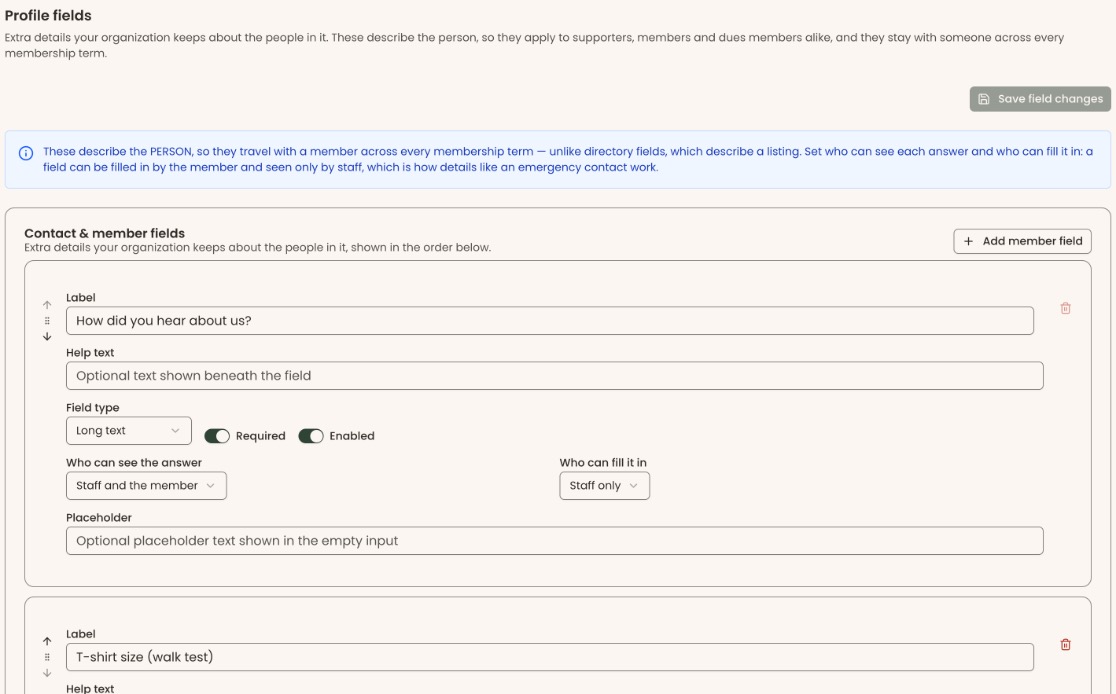
- On the right of the "Contact & member fields" box, click "Add member field". A dashed box opens below.
- In "Label", type the question as people should see it, for example "Emergency contact".
- Under "Field type", click the box and choose the kind of answer: "Short text", "Long text", "Single select", "Multi select", "Yes / No", "Number", "Date" or "Web link".
- If you chose "Single select" or "Multi select", a box called "Options (comma-separated)" appears. Type the choices with a comma between each, for example "Small, Medium, Large".
- To make the question one that must be answered, click the "Required" switch so it turns on.
- Under "Who can see the answer", choose "Staff only" or "Staff and the member". "Staff only" is selected to start with.
- Click "Add field" at the bottom left of the dashed box.
- You'll see "Field added", and the new field appears in the list. That means it worked.
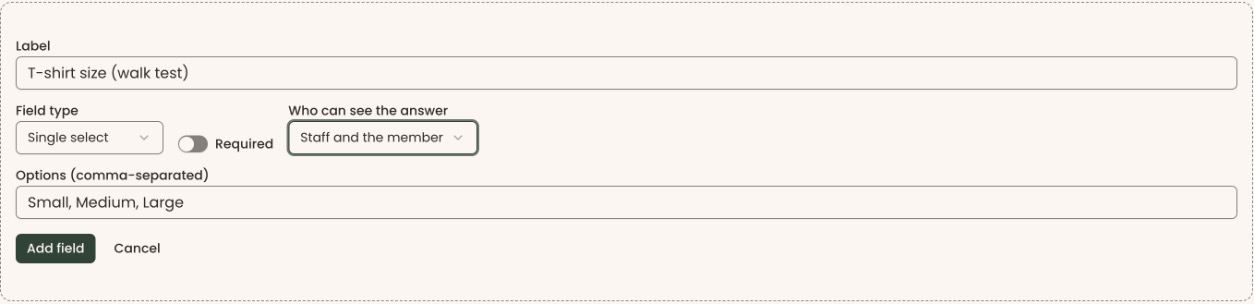
"Add field" can't be clicked until "Label" has something in it. To give up without adding, click "Cancel".
If you see "Failed to add field", nothing was saved. Try again.
Change a field's settings
Page: /dashboard/member-fields
Each field in the list has its own box. Changes here are not saved until you click "Save field changes".
- Open the "Profile fields" page, as in steps 1–3 of "Add a profile field".
- Find the field's box. Change any of these:
- "Label": the question's wording.
- "Help text": a short line shown under the question.
- "Field type": the kind of answer.
- "Required": whether it must be answered.
- "Enabled": whether the question is asked at all.
- "Who can see the answer": "Staff only" or "Staff and the member".
- "Who can fill it in": "Staff only" or "Staff and the member".
- "Placeholder": light gray example text shown in the empty answer box.
- For a "Single select" or "Multi select" field, edit the choices under "Options". Each row has a "Stored value" and a "Display label". Click "Add option" for a new choice. Click the X at the right of a row to remove it.
- At the top right of the page, a small badge shows how many changes are waiting, for example "1 unsaved change".
- Click "Save field changes", to the right of that badge.
- You'll see "Fields saved". That means it worked.

If you see "Failed to save field changes", your changes were not saved. Try again.
A select field needs at least one choice. Until it has one, its box shows "At least one option is required for select fields."
Change the order of the fields
Page: /dashboard/member-fields
Fields appear on each person's profile in the order of this list.
- Open the "Profile fields" page.
- At the far left of a field's box, click the small up arrow to move it up, or the small down arrow to move it down.
- The field moves at once. You don't need to click "Save field changes" for this.
If you see "Failed to reorder fields", the list goes back to its saved order. Try again.
Stop asking a question
Page: /dashboard/member-fields
Turn a field off when you no longer want to ask it but want to keep the answers people already gave.
- Open the "Profile fields" page.
- In the field's box, click the "Enabled" switch so it turns off. After you save, the box fades and shows a "Hidden" badge at the right of "Label".
- Click "Save field changes" at the top right of the page.
- You'll see "Fields saved". That means it worked.
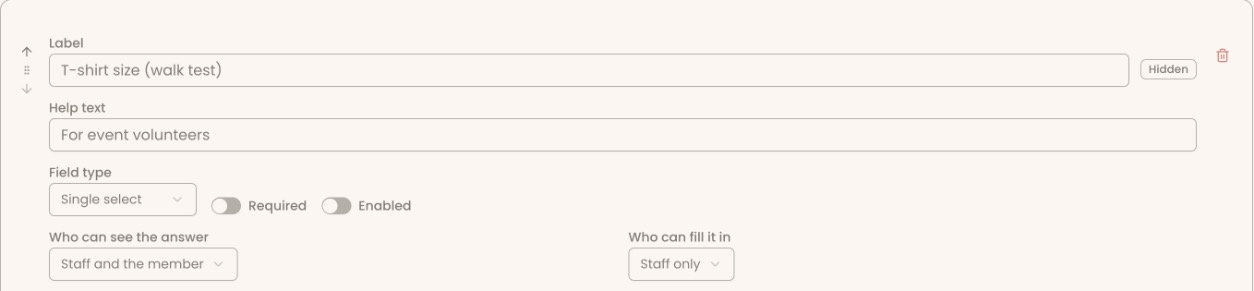
To ask it again later, turn "Enabled" back on and click "Save field changes".
Delete a field
Page: /dashboard/member-fields
You can delete a field only if nobody has answered it yet. Once anyone has an answer stored, the trash can icon is grayed out. Point at it to see how many answers there are. Turn the field off instead (see "Stop asking a question").
- Open the "Profile fields" page.
- At the top right of the field's box, click the red trash can icon. A box opens called "Delete custom field".
Important: Clicking "Delete" removes the field at once. It can't be undone in the screens.
- Click "Delete".
- You'll see "Field "Emergency contact" deleted" (with your field's name). That means it worked.

To keep the field, click "Cancel" instead.
Where the fields appear
- On the supporter's profile. Open a supporter, go to the "Profile" tab and scroll to the bottom. A "Profile Fields" box lists the questions staff can fill in. Type the answers and click "Save" at the top right of that box. You'll see "Member fields saved".
- When you add a supporter by hand, the same questions appear in the form.
- In the supporter portal, a member sees a question when "Who can see the answer" or "Who can fill it in" is set to "Staff and the member". See Update your profile and choose which emails and mail you get.
- The "Profile Fields" box doesn't appear on profiles until you have at least one field staff can fill in.

What the labels mean
- "Staff only": only people who sign in to Clerestory for your organization.
- "Staff and the member": your staff, and the person themselves in the supporter portal.
- "Who can see the answer" and "Who can fill it in" are separate. For example, an emergency contact can be filled in by the member but seen only by staff.
- "Hidden": the field is turned off. Its saved answers are kept.
Special cases
- Directory fields are different. If you use the member directory, its listing fields are a separate set, set up under Membership › "Directory" (see Member directory: settings, categories, fields, listings and the public page). Profile fields describe the person; directory fields describe their listing.
- Unsaved changes. If you leave the page before clicking "Save field changes", your edits are lost. Adding, reordering and deleting save at once.
If you make a mistake
- Wrong wording or settings: change the field and click "Save field changes".
- Added a field by mistake: delete it, if nobody has answered it yet. Otherwise turn "Enabled" off.
- Deleted a field: this can't be undone in the screens. Add the field again with "Add member field".