


Who can do this: Owner, Administrator and Fundraiser. Finance, Programs, Front desk and Viewer can open the page, but every switch and box on it is grayed out.
Quick steps: Settings › "Task Automation" › turn on "Stage Change" › "When someone moves to" › choose the stage › "Default Assignee"
Before you start
- You need one of the roles above.
- Your stages must be set up first. See Set up supporter levels and stages, assign owners, and work your portfolio.
- Decide which stage should make a task, and who on your team should get it.
- A stage is where a relationship stands; your organization names its own stages. A task is a to-do for someone on your team.
Turn on the stage-change task
Page: /dashboard/settings/task-automation
- In the left-hand menu, scroll down to Tools and click "Settings". A short list opens under it.
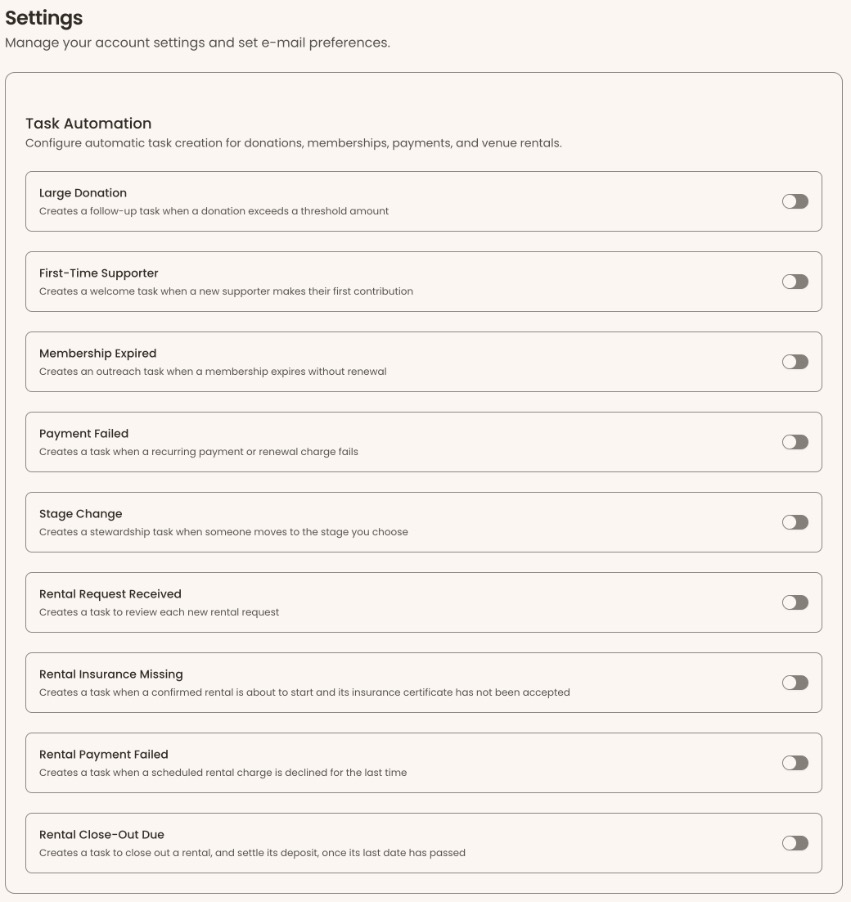
- Scroll the menu down again and click "Task Automation", near the bottom of that list. The "Settings" page opens with a box called "Task Automation". It lists one card per kind of automatic task.
- Find the card called "Stage Change". It says "Creates a stewardship task when someone moves to the stage you choose".
- At the right of that card, click the switch to turn it on.
- You'll see "Stage Change updated". That means it saved. Two boxes now appear under the card.
- In "When someone moves to", on the right under the card, click "Choose a stage" and click your stage, for example "Ready to ask".
- You'll see "Stage Change updated" again.
- In "Default Assignee", on the left under the card, a team member's name is already shown. To change it, click it and choose the team member who should get each task. "Use organization default" gives it to your organization's Owner.
- You'll see "Stage Change updated". There is no separate Save button: each change saves as you make it.

Important: Until you choose a stage in step 6, the switch is on but no tasks are made.
What happens next
- When someone is moved to that stage, on their record or for many people at once, Clerestory makes a task.
- The task is called, for example, "Jordan Lee moved to Ready to ask". Its description says "Jordan Lee is now at the "Ready to ask" stage. Plan the next step with them."
- It appears under Operations › "Tasks", and on the "Notes & activity" tab of the person's record. In "Task Details" it says "Auto-generated task".
- It has no due date and "Normal" priority.
- Clerestory does not email anyone when it makes one of these tasks.
- If the person already has an open task from this rule, no second task is made.
- Renaming a stage doesn't make a task. Moving someone to "No stage" doesn't either.
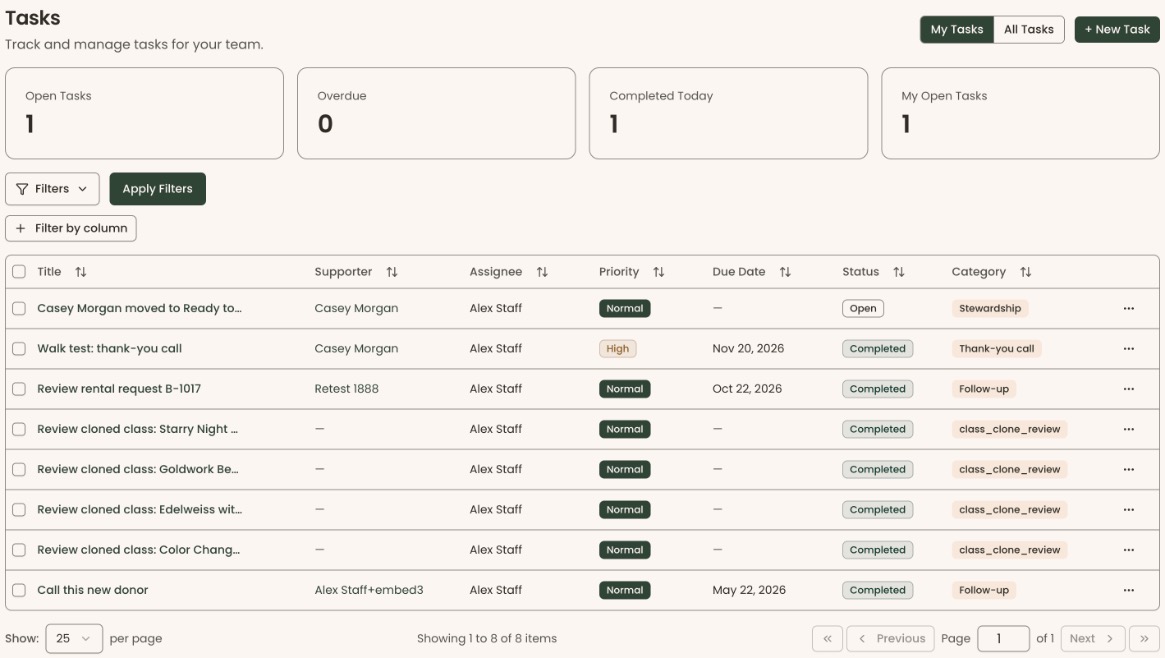
To work these tasks, see Create, update and complete tasks.
The other automatic tasks on this page
Each card works the same way: turn on its switch, then choose a "Default Assignee". All of them start turned off.
- "Large Donation": "Creates a follow-up task when a donation exceeds a threshold amount". Type the amount in "Minimum Donation Amount", for example 500.00, then click anywhere outside the box to save it.
- "First-Time Supporter": "Creates a welcome task when a new supporter makes their first contribution".
- "Membership Expired": "Creates an outreach task when a membership expires without renewal".
- "Payment Failed": "Creates a task when a recurring payment or renewal charge fails".
- Rental cards: "Rental Request Received", "Rental Insurance Missing", "Rental Payment Failed" and "Rental Close-Out Due". These matter only if your organization rents out space.
Special cases
- Turning it off. Click the switch again. You'll see "Stage Change updated". Tasks already made stay on the Tasks page.
- Changing the stage. Choose a different stage in "When someone moves to". Only moves to the new stage make tasks from then on.
- If a change doesn't save, you'll see "Failed to update Stage Change". Try again.
Buttons to avoid
- Each card's switch saves at once. Turning on the wrong card starts making tasks of that kind. Turn it off again to stop.
If you make a mistake
- Wrong stage or assignee: choose the right one. It saves at once.
- Unwanted tasks were made: mark them complete or set them to "Canceled" on the Tasks page. See Create, update and complete tasks.