


- A supporter level is a recognition tier, such as Friend, Patron or Benefactor, with a minimum amount. Clerestory places everyone in a level from their giving.
- A stage is where a relationship stands, such as "Getting to know" or "Ready to ask". You name the stages and choose their order. Each person can be at one stage.
- A relationship owner is the staff member who looks after that person.
- Your portfolio is the list of people you own, grouped by stage.
Who can do this: Owner, Administrator and Fundraiser can set up levels and stages and assign owners and stages. Every role can open "My Portfolio" to see the people they own. Only Owner, Administrator and Fundraiser can look at someone else's portfolio.
Quick steps: Supporters › "Supporter Levels & Stages" › "Add a level" / "Add a stage" · Supporters › All Supporters › check people › "Assign an owner or stage" · Supporters › "My Portfolio"
Before you start
- You need one of the roles above.
- Decide your level names and minimum amounts, and whether a level counts lifetime giving or the last 12 months.
- Decide your stage names and their order.
- Staff must have joined your organization in Clerestory before they can be chosen as an owner (see the guide "Invite staff, and copy, resend or cancel an invitation").
Add a supporter level
Page: /dashboard/supporters/levels
- In the left-hand menu, under People, click "Supporters". A short list opens under it.
- Click "Supporter Levels & Stages".
- In the "Supporter levels" card, click "Add your first level". If you already have levels, click "Add a level", under the card's description at the top left.
- A box opens called "Add a supporter level". In "Name", type the level name, for example "Patron".
- In "Minimum, in dollars", type the minimum, for example 500.
- Under "Measured over", choose "Everything they have given" (already chosen) or "The last 12 months".
- Click "Save level".
- You'll see "Supporter level saved. Everyone's level has been updated." That means it worked.
- If you see "Give the level a name." or "Enter a minimum of zero or more.", fix that box and click "Save level" again.
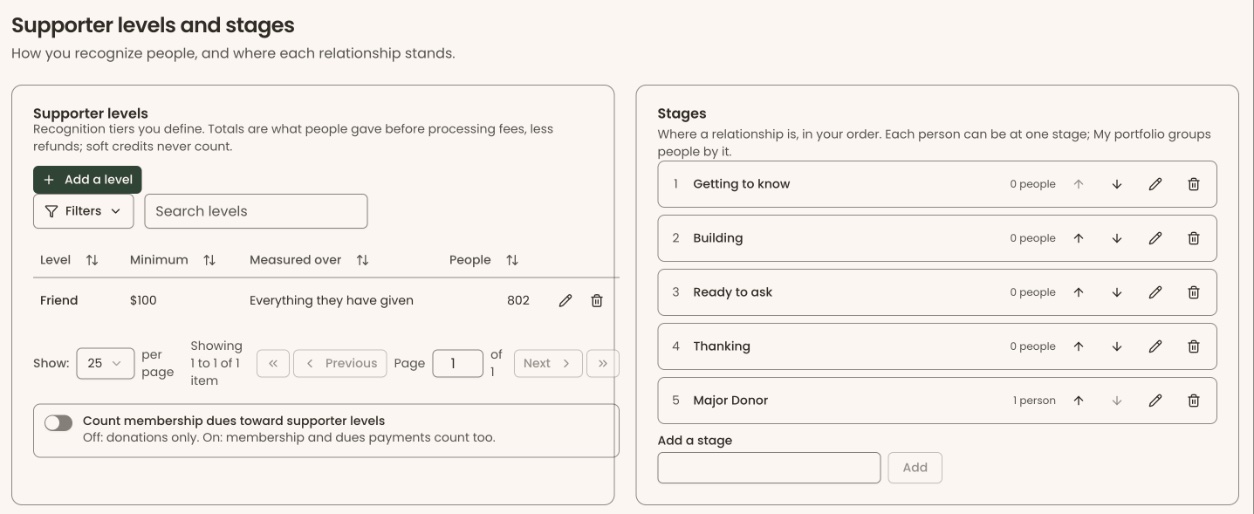
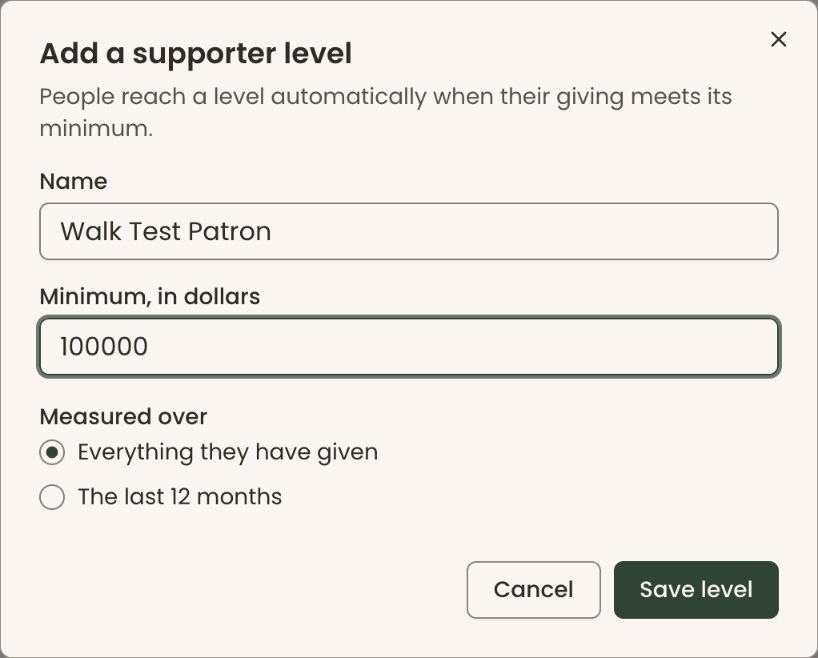
Totals are what people gave before processing fees, less refunds. Soft credits never count.
Count membership payments too
Under the list of levels, turn on "Count membership dues toward supporter levels". Off counts donations only; on counts membership and dues payments too. You'll see "Saved. Everyone's level has been updated."
Change or delete a level
- In the "Supporter levels" card, find the level's row.
- To change it, click the pencil icon at the right of the row. The "Edit supporter level" box opens. Make your changes and click "Save level".
- To delete it, click the trash can icon at the right of the row.
Important: Deleting a level can't be undone. People at it move to the level their giving reaches.
- In "Delete the … level?", click "Delete level".
- You'll see "Supporter level deleted."
Set up stages
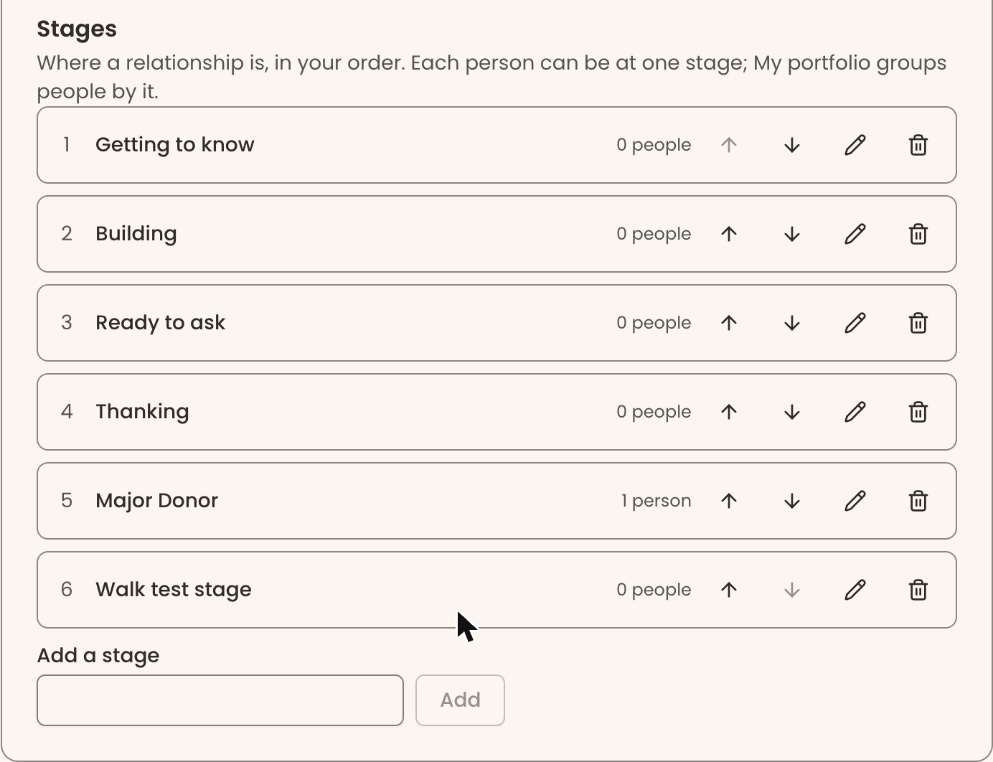
- On the same page, find the "Stages" card.
- Under "Add a stage", type a stage name and click "Add". You'll see "Stage added".
- To change the order, click the up arrow or down arrow on a stage's row. You'll see "Stages reordered".
- To rename one, click the pencil icon on its row, type the new name and click "Save". You'll see "Stage renamed".
- To delete one, click the trash can icon on its row.
Important: Deleting a stage can't be undone. The people at that stage will have no stage.
- Click "Delete stage". You'll see "Stage deleted".
If you see "That change could not be saved.", try again.
Set the level, owner or stage for one person
- Open the person's record: People › "Supporters" › "All Supporters", then click the eye button at the far right of their row, under "Actions".
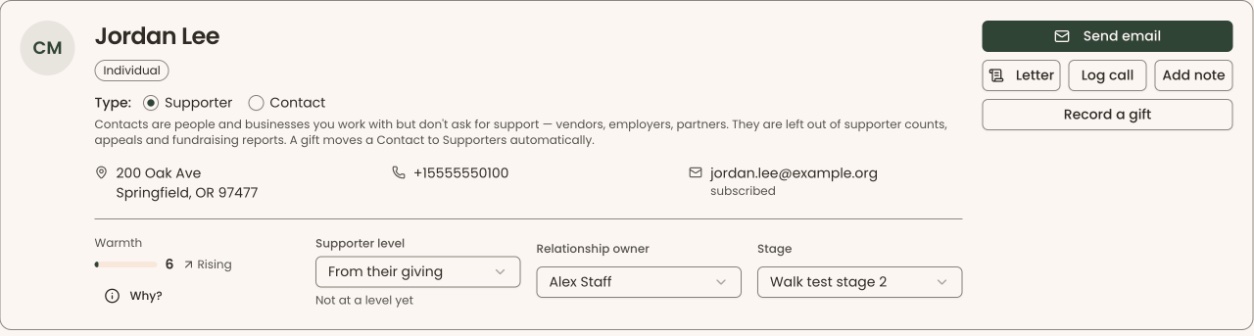
- In the top box of the record, below the address, find "Supporter level", "Relationship owner" and "Stage".
- Choose from each list:
- "Supporter level": "From their giving" lets Clerestory choose. Pick a level to set it by hand.
- "Relationship owner": a staff member, or "Nobody yet".
- "Stage": a stage, or "No stage".
- It saves straight away. You'll see "Supporter level saved", "Relationship owner saved" or "Stage saved".
Assign an owner or stage to many people at once
Page: /dashboard/supporters
- In the left-hand menu, under People, click "Supporters", then "All Supporters".
- Check the box at the left of each person you want. To pick everyone on the page, check the box at the top of that column.
- Next to the search box, above the list, you'll see how many are selected, for example "12 selected", with new buttons beside it.
- Click "Assign an owner or stage", just right of "12 selected".
- A box opens called "Assign an owner or stage". Both lists start on "Leave as it is".
- Click the list under "Relationship owner" and choose a staff member, "Nobody", or "Leave as it is".
- Click the list under "Stage" and choose a stage, "No stage", or "Leave as it is".
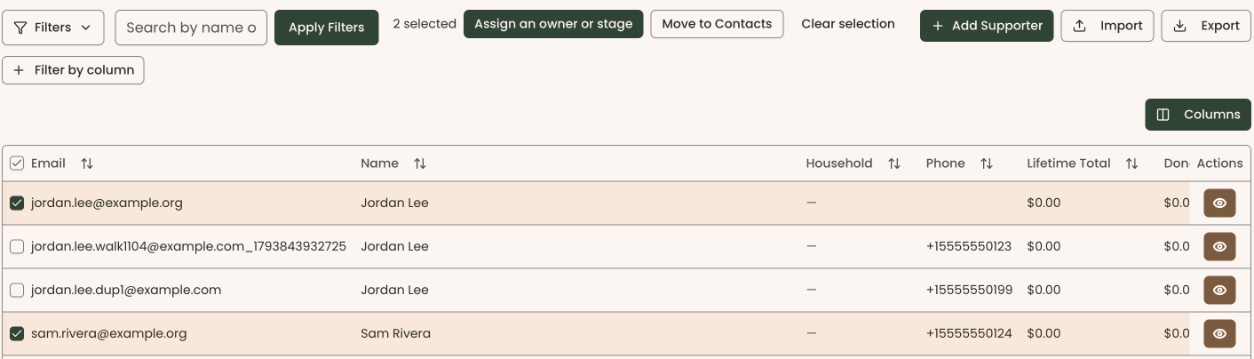
Important: The next step changes every person you checked, at once. There is no undo button. To undo it, check the same people and assign their old owner or stage again.
- Click "Assign".
- You'll see "Updated 12 people." (with your number). That means it worked.
- If you see "Choose an owner or a stage to set.", both lists say "Leave as it is". Change at least one. The red message stays in the box after you change a list; click "Assign" again.
Work your portfolio
Page: /dashboard/supporters/portfolio
- In the left-hand menu, under People, click "Supporters", then "My Portfolio".
- You'll see "My portfolio": the people you own, grouped into one box per stage, warmest first.
- Each row shows "Person", "Warmth", "Supporter level", "Last gift" and "Next task". A task's due date shows beside it, highlighted as a warning when it is overdue.
- Click a person's name to open their record.
- Owner, Administrator and Fundraiser: to see someone else's portfolio, choose them under "Relationship owner" at the top right.
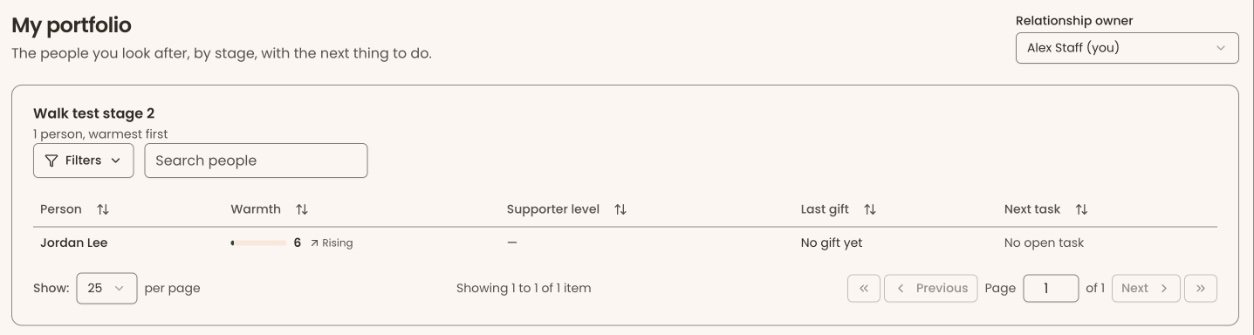
If it says "Nobody here yet", nobody has been given you as their relationship owner.
If you make a mistake
- A level or stage you changed: change it back the same way.
- A deleted level or stage can't be brought back in the screens. Add it again; people must then be given the stage again.
- One person's owner or stage: choose the right one on their record.