


Who can do this: Owner and Administrator. Only the Owner can change the Owner's role. Everyone else sees each person's role as a plain label, with no button. Anyone can open "Compare roles".
Quick steps: Settings › Organizations › "Team Management" › "Members" › click the person's role › choose › "Save role".
Before you start
- You need the Owner or Administrator role to change roles or use "View as role".
- A role decides what a person can see and change. Every team member has exactly one.
- Have ready: the person's name or email, and the role they need (see "What each role can do" below).
- The person must already be on your team. To add someone, see Invite staff, and copy, resend or cancel an invitation.
- You can't change your own role.
Change someone's role
Page: /dashboard/settings/organizations
- In the left-hand menu, click "Settings" to open the group.
- Under "Settings", click "Organizations".
- Scroll down, near the bottom of the page, to the box headed "Team Management".
- Make sure the "Members" tab is selected. It's just above the box, on the left, next to "Invitations".
- Find the person. You can type their name or email in "Search name or email".
- In the "Role" column, click the button showing their current role, for example "Fundraiser" with a small down arrow.
- A box opens called "Role for [their name]".
- Click the role you want. Each one shows a one-line description.
- Read the box underneath. It lists what this person CAN and CAN'T do with that role.

Important: Clicking "Save role" changes what this person can see and do at once. With a lower role they may lose access to pages they use now.
- Click "Save role". It stays grayed out until you pick a role different from their current one.
- You'll see "Role saved." That means it worked. The new role applies the next time their pages load.
If you see "Your role doesn't allow giving someone that role." you can't give that role (for example, only the Owner can change the Owner).
What each role can do
"Can change" means view, add, edit and set up. "Can do some things" means everyday tasks such as checking people in, but not setting things up. "View only" means they can look but not change. "Hidden" means the area doesn't appear for them.
| Area | Owner | Administrator | Finance | Fundraiser | Programs | Front desk | Viewer |
|---|---|---|---|---|---|---|---|
| Supporters | Can change | Can change | Can do some things | Can change | Can do some things | Can do some things | View only |
| Gifts | Can change | Can change | Can change | Can change | View only | View only | View only |
| Memberships | Can change | Can change | Can change | Can change | Can do some things | Can do some things | View only |
| Events | Can change | Can change | View only | View only | Can change | Can do some things | View only |
| Classes | Can change | Can change | View only | View only | Can change | Can do some things | View only |
| Gala/raffle | Can change | Can change | View only | View only | Can change | Can do some things | View only |
| Shop/kiosk | Can change | Can change | View only | View only | Can change | Can change | View only |
| Rentals | Can change | Can change | Can do some things | View only | Can change | Can do some things | View only |
| Emails | Can change | Can change | View only | Can change | Can do some things | Hidden | View only |
| Reports | Can change | Can change | Can change | Can change | Can do some things | Hidden | View only |
| Settings | Can change | Can change | Hidden | Hidden | Hidden | Hidden | View only |
| Refunds | Yes | Yes | Yes | No | No | No | No |
| Bank/payouts | Yes | Yes | Yes | No | No | No | No |
| Export data | Yes | Yes | Yes | Yes | No | No | No |
| Giving totals | Yes | Yes | Yes | Yes | No | No | No |
| Team & roles | Yes | Yes | No | No | No | No | No |
In short:
- Owner: everything. There is one Owner, and you can't choose "Owner" in the screens.
- Administrator: everything except changing the Owner.
- Finance: payments, refunds, payouts, reports.
- Fundraiser: supporters, gifts, emails, reports.
- Programs: events, classes, gala, shop, rentals, kiosk.
- Front desk: kiosk, check-in, looking people up.
- Viewer: sees everything, changes nothing.
Compare the roles on screen
- Go to Settings › Organizations › "Team Management" › "Members", as above.
- Below the list, at the bottom left of the box, click "Compare roles".
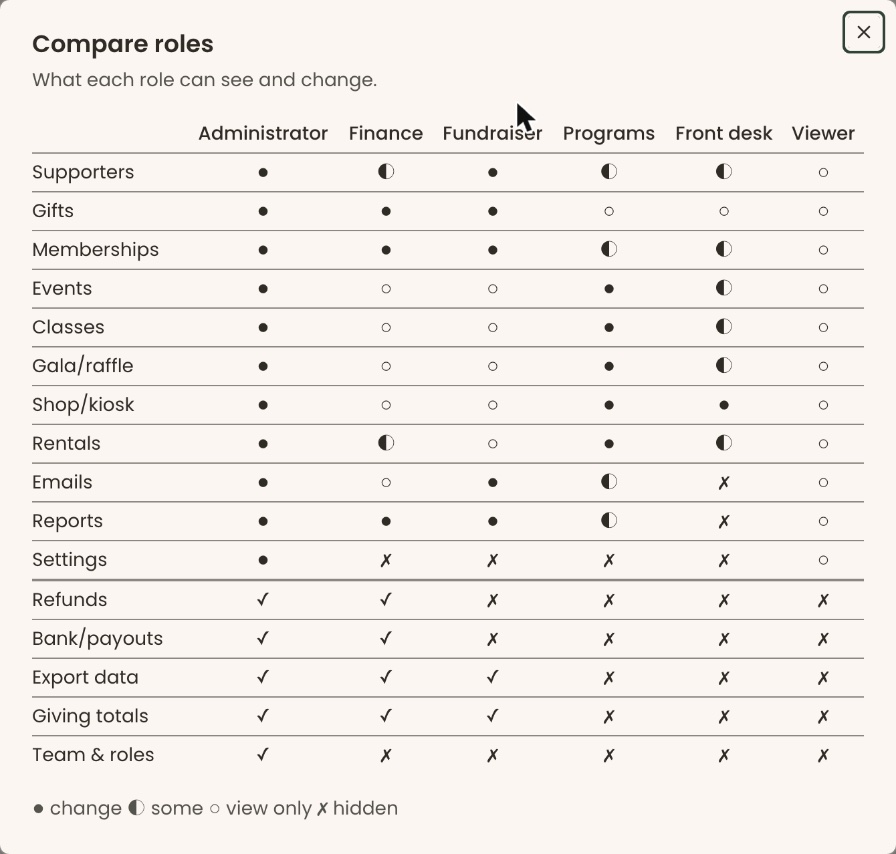
- A box opens called "Compare roles". It shows each area against each role you can give: Administrator, Finance, Fundraiser, Programs, Front desk and Viewer. The Owner isn't a column; the Owner can do everything.
- The symbols are explained underneath: "● change ◐ some ○ view only ✗ hidden". The last five rows, from "Refunds" to "Team & roles", show "✓" (yes) or "✗" (no).
- On a phone, swipe the table sideways to see every role.
- To close it, click the × at its top right.
See the app as a role
Use this to check what a colleague with a given role will see. Nothing about their account changes.
- Go to Settings › Organizations and scroll to "Team Management".
- At the top right of the box, click "View as role". It has an eye icon.
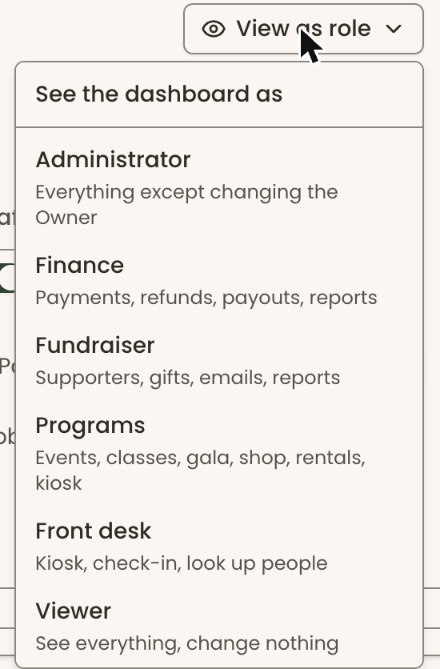
- A menu opens headed "See the dashboard as", listing each role with a one-line description. Click a role, for example "Finance". The role you picked turns gray in the menu.
- Press Esc to close the menu, then click "Overview" at the top of the left-hand menu. The Settings page may not change on its own.
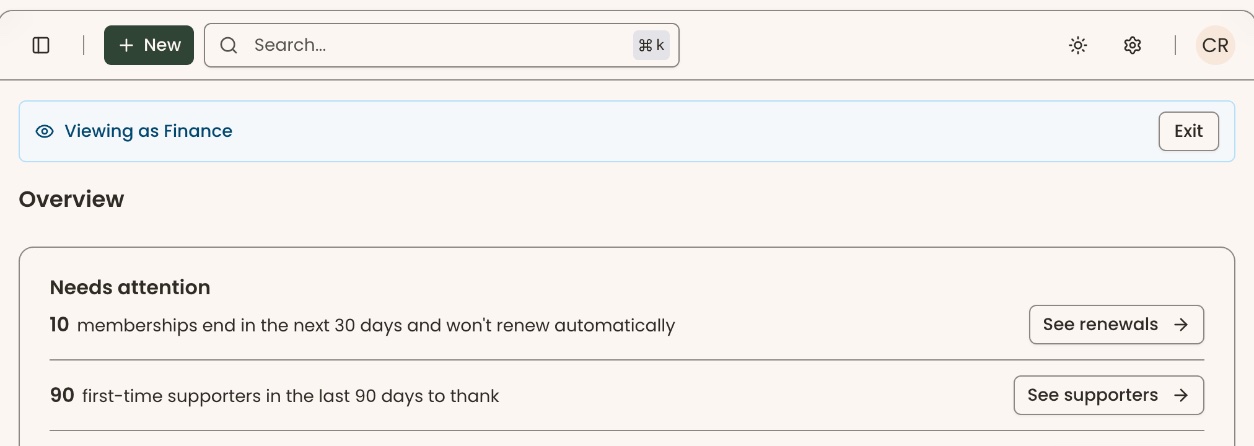
- A blue bar appears at the top of the page saying "Viewing as Finance". The menu and buttons now match that role.
- To go back to your own view, click "Exit" at the right of the blue bar. The bar disappears.
If you see "We couldn't switch the view. Please try again." or "We couldn't exit View as role. Please try again.", wait a moment and try again.
Special cases
- No role button next to someone. Either it's you, or they're the Owner and you're an Administrator.
- Making someone else the Owner. This can't be done in the screens. Email support@clerestoryhq.com.
- Removing someone from the team instead. See Remove a user, answer access requests, and set staff alerts.
- Someone who joined by email domain starts as Viewer. Change their role here if they need more.
If you make a mistake
Open the person's role again and choose the right one. You'll see "Role saved." There's nothing else to undo.