


Who can do this: Owner, Administrator, Finance and Fundraiser. Programs, Front desk and Viewer don't see the three dots (⋯) on the Donations list.
Quick steps: Donations › the gift's ⋯ › "Cancel Subscription" or "Cancel Donation" › "Confirm Cancel".
Before you start
- You need the Owner, Administrator, Finance or Fundraiser role.
- Know the donor's name or email, so you can find the gift.
- A recurring gift is a gift that repeats on a schedule, such as every month. A pledge is a promise to give a set amount over time.
- Canceling doesn't refund anything. To give money back too, see Refund a payment.
Which option you'll see
On a gift's three dots (⋯) menu you'll see one of these, depending on how the gift is paid:
- "Cancel Subscription": a recurring card gift set up as a subscription. You choose to stop it now or at the end of the period already paid for.
- "Cancel Donation": any other recurring gift or pledge, including recurring card gifts that Clerestory charges itself and recurring gifts you record by hand. It stops straight away.
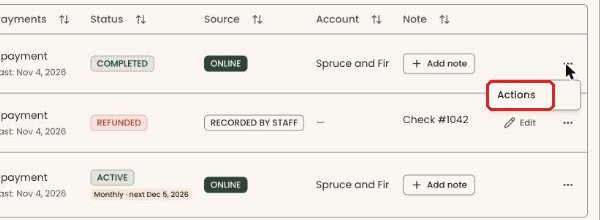
- Neither: the gift is one-time, or it's already canceled. A one-time gift can't be canceled. Its ⋯ menu opens with only the word "Actions" and nothing to click.
Cancel a recurring gift
Page: /dashboard/donations
- In the left-hand menu, find the group called "Fundraising".
- Click "Donations". The Donations page opens.
- Click in the search box that says "Filter by supporter name or email..." and type the donor's name or email. Then click "Apply Filters", to the right of the box.
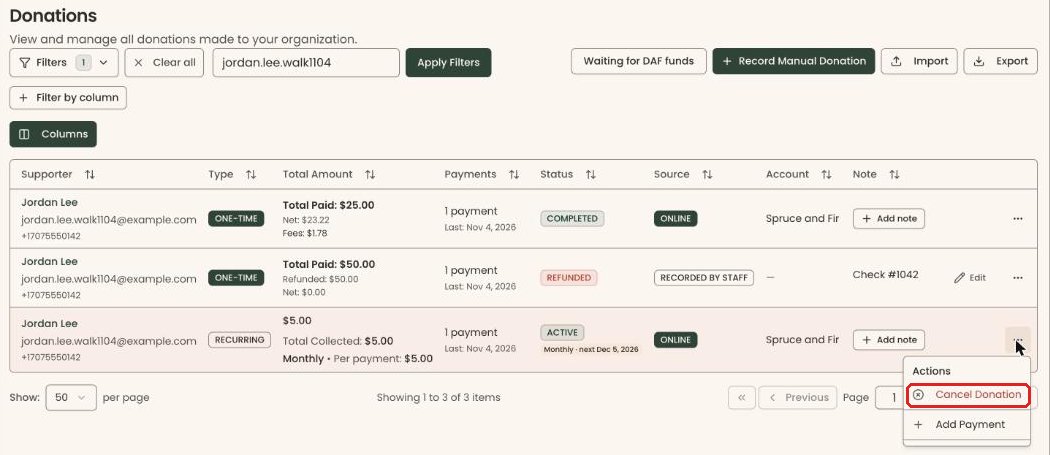
- Find the gift's row. Its "Type" says "RECURRING". The list is wider than the screen: scroll it to the right, then click the three dots (⋯) at the far right of the row.
- A menu opens under "Actions". Click "Cancel Subscription" or "Cancel Donation", whichever you see.
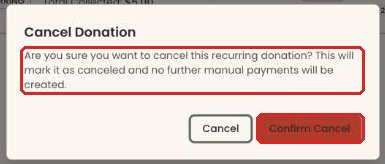
- A box opens asking if you're sure. For "Cancel Donation" it reads "Are you sure you want to cancel this recurring donation?"
- If the box is "Cancel Subscription", click one choice:
- "Cancel immediately": no more charges from today.
- "Cancel at period end": the gift runs to the end of the period already paid for, then stops.
Important: This can't be undone in the screens. The donor won't be charged again for this gift.
- Click "Confirm Cancel".
- You'll see one of these messages at the top of the screen. Any of them means it worked. The gift's "Status" changes to "CANCELED", with "Schedule canceled" under it.
- "Subscription cancelled immediately"
- "Subscription will cancel at period end"
- "Donation cancelled successfully"
If you see "Failed to cancel subscription" or "Failed to cancel donation", close the box and try again.
What happens after you cancel
- Payments already made stay on the donor's record. Nothing is refunded.
- For "Cancel Donation", the next charge date is cleared, so the donor no longer gets a reminder that a charge is coming.
- The ⋯ menu no longer offers a cancel option for that gift.
Special cases
- The donor wants their last payment back too. Cancel the gift as above, then refund that payment. See Refund a payment.
- The "Cancel Donation" box says "no further manual payments will be created". It says that for every gift that isn't a subscription, including recurring card gifts that Clerestory charges. For those, it also stops the card charges.
Buttons to avoid
- "Cancel" in the box closes it without canceling the gift.
- "Add Payment" in the same menu adds a payment to the gift. It doesn't cancel anything.
If you make a mistake
This can't be undone in the screens. To restart, the donor gives again, or you record a new recurring gift. See Record a gift paid by check or cash.