


Who can do this: Owner, Administrator, Finance and Fundraiser. Programs, Front desk and Viewer users don't see "Giving Statements" in the menu.
Quick steps: Tools › Reporting › Giving Statements › choose the year › "Download all (PDF)" or "Email to supporters with an email (…)" › "Send statements".
Before you start
- You need one of the roles above.
- Check the name and "EIN (Employer Identification Number)" on your payment account, under Settings › Organizations › "Payment Accounts" (/dashboard/settings/organizations). They print at the top of every statement. See Add a payment account, connect Stripe and set your payout schedule.
- Decide the year. Statements cover a calendar year, January 1 to December 31.
Words used here:
- A giving statement is one document per supporter listing everything they gave in a year, for their tax records.
- Deductible is the part of a gift the supporter may be able to deduct: what they paid, less the value of anything they received in return.
What goes on a statement
- Every gift the supporter paid in that year, with its date, the amount, the value of anything they received, and the deductible amount, as each receipt stated them.
- Payments that were refunded are taken off, so the totals match what was kept.
- Gifts of property (non-cash gifts) are listed by description, with no value.
- The top of the statement carries your organization's legal name, address and EIN, and the same tax sentence your receipts use.
What is left off
- Payments that didn't go through, or are still waiting to clear.
- Gifts credited to someone who didn't pay (soft credits). A gift counts only for the person who paid it.
- Any payment not linked to a supporter.
Look at the year's statements
Page: /dashboard/reporting/giving-statements
- In the left-hand menu, near the bottom under the heading Tools, click "Reporting". If you can't see it, scroll down inside the menu. A short list opens.
- Click "Giving Statements". The page is called "Giving statements".
- At the top right of the page, click the year box and choose the year. It starts on last year.
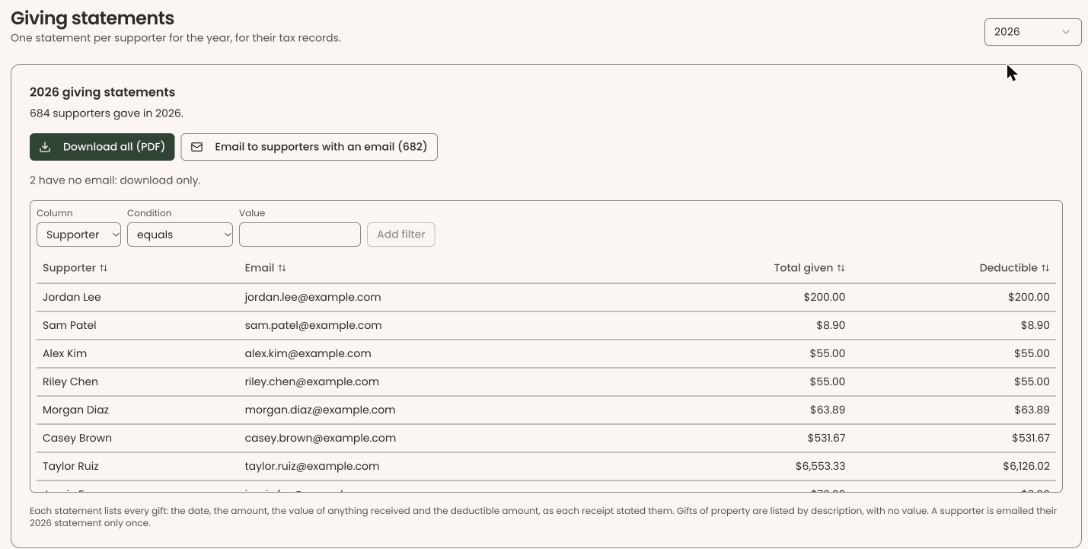
- The card, headed for example "2026 giving statements", says how many supporters gave that year, for example "212 supporters gave in 2026."
- The table lists each "Supporter", their "Email" (or "No email"), "Total given" and "Deductible". To narrow it, use "Column", "Condition" and "Value" above the table, then click "Add filter".
Download all statements as one PDF
- On the same page, click "Download all (PDF)".
- Your browser saves a PDF with every supporter's statement for that year.
Use this for supporters with no email. Under the buttons, the page says how many have none, for example "14 have no email: download only."
If you see "We couldn't build the PDF.", try again.
Email the statements
- On the same page, click "Email to supporters with an email (198)". The number is how many will get one.
- A box asks, for example, "Email 198 statements?"
Important: the next step emails every supporter with an email address their own statement. It also goes to supporters who asked not to be contacted, because it is a tax record, like a receipt. It can't be taken back.
- Click "Send statements".
- You'll see "198 statements on the way." That means it worked.
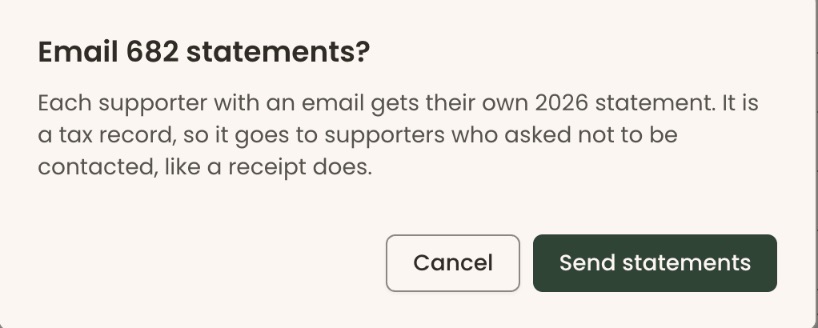
"Cancel" closes the box without sending. If you see "We couldn't send the statements.", try again.
Special cases
- Each supporter is emailed their statement for a year only once. Clicking the button again later doesn't send a second copy to someone who already got one.
- A gift made late in the year that is still waiting to clear isn't on the statement until it does.
If you make a mistake
An emailed statement can't be taken back, and a supporter is never emailed a second copy for the same year. Check a few statements in "Download all (PDF)" before you email them.