


Who can do this: Owner, Administrator, Finance, Fundraiser, Programs and Viewer. Front desk users don't see Reporting. The Reporting feature must be turned on for your organization.
Quick steps: Reporting › Dashboard › date range button (top right) › read the tiles › click a tile or chart slice to filter › "View as table" at the top right of a chart.
Before you start
- Your role must be anything except Front desk.
- If Reporting isn't in your menu, an Owner or Administrator can turn it on. See Turn features on or off.
- A supporter is anyone in your records who has given, joined or registered.
- A tile is one of the boxes near the top that shows a single number, such as "Gross Revenue".
Open the dashboard
Page: /dashboard/reporting
- In the left-hand menu, under "Tools", click Reporting to open its list.
- Click Dashboard.
- The page is headed "Reporting". At the top right are "Report Templates", "Scheduled Reports" and the date range button.
- It opens showing the last 30 days. That means it worked.
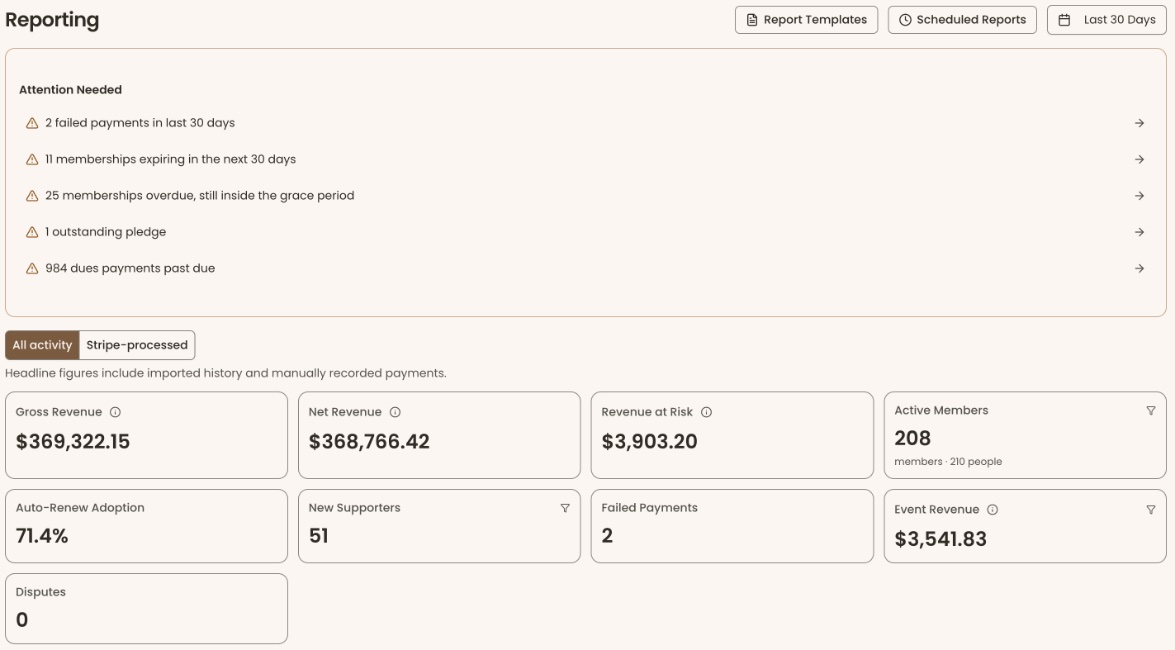
The dashboard doesn't remember your dates or filters. When you leave the page and come back, it starts again at the last 30 days with no filters.
If you see "Failed to load reporting data" and "Please try refreshing the page.", refresh the page in your browser.
Change the dates
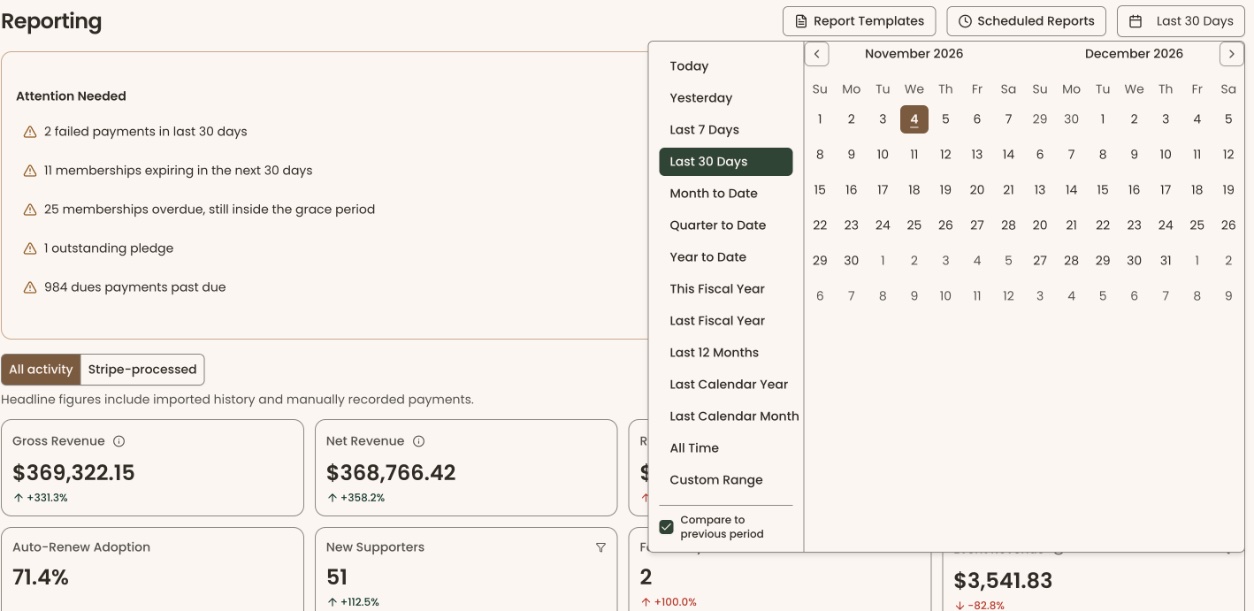
- At the top right of the page, click the date range button. It has a calendar icon and shows the current range, for example "Last 30 Days".
- Click a range, for example "Year to Date" or "This Fiscal Year".
- For your own dates, click "Custom Range", then click the start day and the end day on the calendar.
- The page reloads with the new range. That means it worked.
Not every number follows the dates. See "What the labels mean": some show today's position whatever the dates say.
Compare with the previous period
- Click the date range button.
- Check "Compare to previous period". It is grayed out when the range is "All Time".
- The tiles now show a small arrow and a percentage under the number, such as ↑ 12.5%. The trend and lifecycle charts add a "Previous Period" series.
Green means better and red means worse. For "Revenue at Risk", "Failed Payments" and "Disputes", a fall shows green, because fewer is better. No arrow means no change, or a tile that never compares (such as "Active Members").
Switch between all activity and Stripe-processed
- Above the tiles, find the two buttons "All activity" and "Stripe-processed".
- "All activity" is selected when the page opens. The line under it says the figures include imported history and payments recorded by hand.
- Click "Stripe-processed" to count only payments taken through Stripe.
- The tiles reload. A line appears under the tiles: "Includes all activity, including imported history and manually recorded payments — so these figures are higher than the headline totals above."
Stripe-processed changes only "Gross Revenue", "Net Revenue" and "New Supporters". Every other tile, and every chart, still counts all activity.
Filter the dashboard by clicking
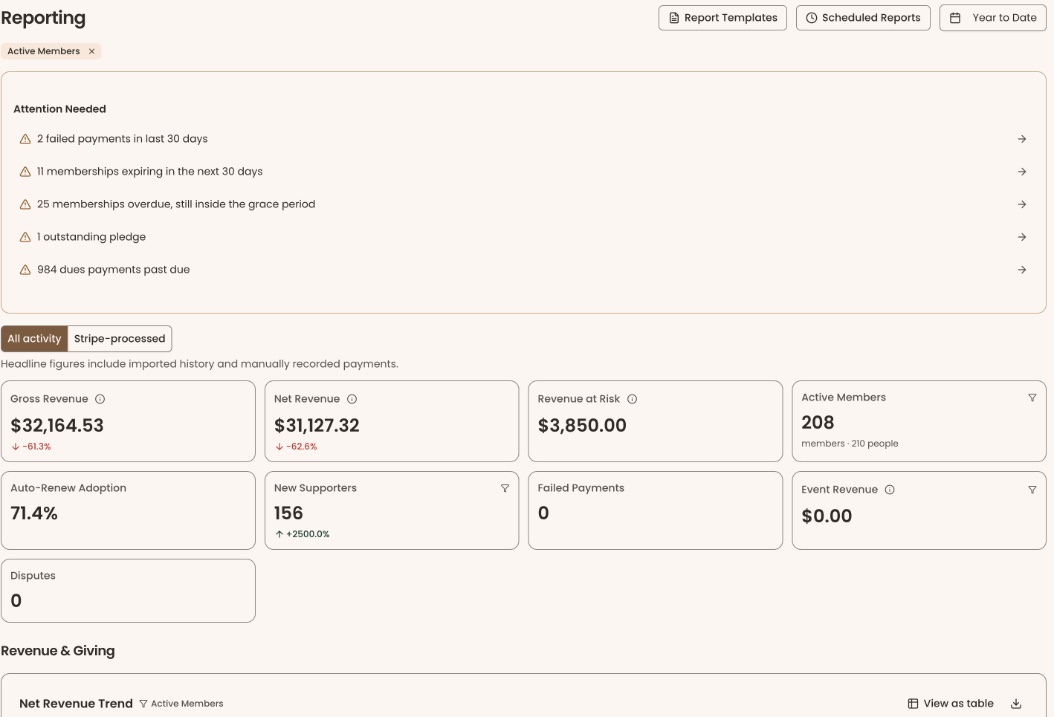
- Click a tile that shows a small funnel icon at its top right: "Active Members", "New Supporters" or "Event Revenue".
- Or click a slice or bar in a chart, for example a tier in "Membership by Tier".
- A filter tag appears under the page heading. Charts the filter applies to show its name beside their title with a funnel icon. Charts it doesn't apply to fade.
- To remove a filter, click the x on its tag.
See a chart as a table
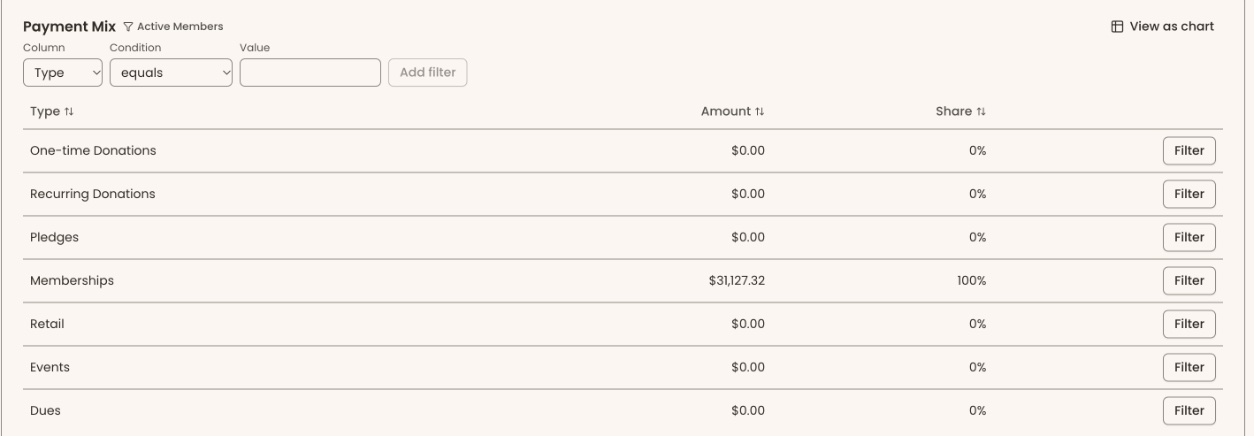
- At the top right of a chart, click "View as table". It has a small table icon.
- The chart becomes a table. Click a column heading to sort it.
- Click "View as chart" to go back.
To save a chart as a picture, click the download icon beside "View as table" ("Download as PNG" when you hover over it). It is hidden while the table shows.
What the labels mean
All money figures count only payments that went through ("succeeded"). Failed payments are counted separately. Refunds are recorded as negative payments, so they are taken off every money total below. Security deposits for rentals are never counted as revenue. Below, a payment is in the range when its date falls between the dates you chose, using your organization's time zone.
Attention Needed — a list of things to act on today, whatever dates you chose. Click a line to go to it. "Nothing needs attention" means the list is empty. Lines you may see:
- "N failed payments in last 30 days"
- "N memberships expiring in the next 30 days"
- "N memberships overdue, still inside the grace period"
- "N past-due subscriptions"
- "N campaigns below goal ending soon": active campaigns with a goal, ending in the next 14 days, not yet at goal
- "N outstanding pledges"
- "Dispute needs response by [date]" or "Dispute needs response": a card payment a supporter's bank is disputing
- "N one-off renewal charges failed every retry"
- "N dues payments past due"
Tiles:
- Gross Revenue: all succeeded payments in the range, before fees are taken off, less refunds.
- Net Revenue: the same payments after Stripe processing fees and platform fees are taken off. This is what your organization receives.
- Revenue at Risk: the yearly price of active memberships expiring in the next 30 days (counting from today) that are not set to auto-renew and haven't been renewed, plus the amount of payments that failed in the range. Dues memberships, which don't expire, are left out.
- Active Members: how many supporters hold an active membership today. Someone with two overlapping memberships counts once. The line under it, "members · N people", adds everyone their memberships cover, such as a household. Doesn't follow the dates.
- Auto-Renew Adoption: of the active memberships that are able to renew automatically, the share set to auto-renew. Gifted memberships, and memberships with no automatic renewal set up, are left out. Doesn't follow the dates.
- New Supporters: supporters whose first-ever payment falls in the range. Contacts (people you keep for reference, not as supporters) are left out. Under "Stripe-processed", it counts people whose first Stripe payment falls in the range.
- Failed Payments: how many payment attempts failed in the range.
- Event Revenue: ticket and registration money from events in the range, after fees. A gift added at an event checkout is counted as a donation, not here.
- Disputes: how many card payments were disputed by the supporter's bank in the range. A dispute you later won still counts.
Charts:
- Revenue & Giving › Net Revenue Trend: net revenue over time. Each point is a day for ranges up to 31 days, a week up to 90 days, and a month beyond that.
- Revenue & Giving › Payment Mix: net revenue in the range split into "One-time Donations", "Recurring Donations", "Pledges", "Memberships", "Retail", "Events" and "Dues", with each one's share.
- Membership Health › Membership Renewal Pipeline: active memberships by when they expire: "This Month", "Next Month", "60 Days" and "90+ Days", split into "Auto-Renew" and "Manual". Doesn't follow the dates.
- Membership Health › Membership by Tier: active members at each membership level today. In the table, "Members" counts each member once at their current level; "People" adds everyone their membership covers. Doesn't follow the dates.
- Campaign Progress: for each active campaign, the amount raised against its goal. "Raised" counts every succeeded payment to the campaign, less refunds, including cash and checks. Doesn't follow the dates. "No active campaigns" means there are none.
- Supporter Lifecycle: supporters split three ways. "First-Time": first payment in the range. "Returning": gave before the range and again in it. "Lapsed": has given before but not since the range began.
- Giving by Source: net revenue in the range by where the payment came from, for example "Online", "Website", "Kiosk", "Recorded by staff", "Imported" or "Auto-pay".
Special cases
- "Includes more than one currency" under a money tile means your payments are in more than one currency, so the total mixes them.
- Charts and tiles that "don't follow the dates" show today's position. Changing the dates doesn't change them.
If you make a mistake
- Wrong filter: click the x on its tag.
- Wrong dates: click the date range button and choose again.
- Nothing on this page changes your records.