


Who can do this: Owner, Administrator, Programs and Front desk. Finance, Fundraiser and Viewer users can see attendance but can't change it.
Quick steps: Programs & Sales › Classes & Camps › Classes › the class › "Attendance" tab › "P", "A" or "E" in each person's row, or ⋯ on the session › "Mark all present" › "Confirm"
Before you start
- You need an Owner, Administrator, Programs or Front desk login.
- The class needs sessions on its "Schedule" tab, and people on its roster. See Create a class, and edit, clone, cancel or archive it and Add a registrant to a class.
- A session is one meeting of the class, on one date.
Mark attendance one person at a time
Page: /dashboard/classes/<classId>?tab=attendance
- In the left-hand menu, under "Programs & Sales", click "Classes & Camps". Then click "Classes" in the list that opens below it.
- In the list of classes, click the class's name.
- Click the "Attendance" tab in the row of tabs near the top.
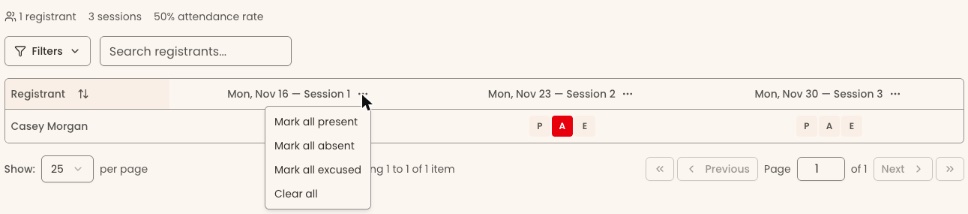
- The table has one row per registrant. Each column is a session, headed with its date, for example "Mon, Mar 2 — Session 1".
- In the person's row, under the session, click "P" for present, "A" for absent or "E" for excused.
- The letter turns green (P), red (A) or amber (E). It saves right away; there is no Save button. That means it worked.
- To undo a mark, click the same letter again. It goes back to plain (unmarked).

If it didn't work, you'll see "Failed to update attendance" and the mark goes back. Click it again.
Mark everyone at once
- In the session's column heading, click the three dots (⋯) next to the date.
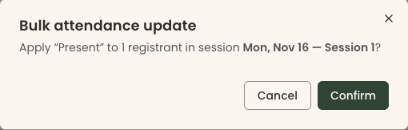
- Click "Mark all present", "Mark all absent", "Mark all excused" or "Clear all". A box opens called "Bulk attendance update".
- It asks, for example, "Apply "Present" to 12 registrants in session Mon, Nov 16 — Session 1?".
- Click "Confirm".
- You'll see "Marked 12 registrants as present". That means it worked.
- Change anyone who was different by clicking their letter, as above.
If it didn't work, you'll see "Failed to apply bulk action". Try again.
What the labels mean
- "P", "A", "E": present, absent, excused. Plain (not colored) means not marked yet.
- "… % attendance rate" above the table: of all the marks made, the share marked present. Unmarked boxes don't count.
- Point at a colored letter to see when it was marked.
Special cases
- "Add sessions on the Schedule tab to track attendance." means the class has no sessions yet. See Create a class, and edit, clone, cancel or archive it.
- "Roster is empty." means nobody is registered yet.
- On a phone or narrow screen, scroll the table sideways to see later sessions. The names stay on the left.
If you make a mistake
Click the right letter instead. Click a lit letter again to clear it. "Clear all" in the session's ⋯ menu clears the whole column.