Who can do this: Supporters of the organization: members, donors and others. There is no password; you sign in with a code sent to your email. Staff: see "For staff: where to find the portal link".
Quick steps: open the portal link › "Email address" › "Email me a code" › type the 6-digit code from your email › "Verify".
Before you start
- You need the portal link from the organization. It is a web address ending in "/portal/" and the organization's short name. You may find it in a receipt or renewal email, or on a printed QR code.
- Use the email address the organization has for you, for example the one your receipts go to.
- Have that email inbox open on your phone or computer. The code arrives there.
- The supporter portal is a private page where you can see your membership, payments and receipts with the organization.
Sign in
Page: /portal/<orgSlug>
- Open the portal link the organization gave you.
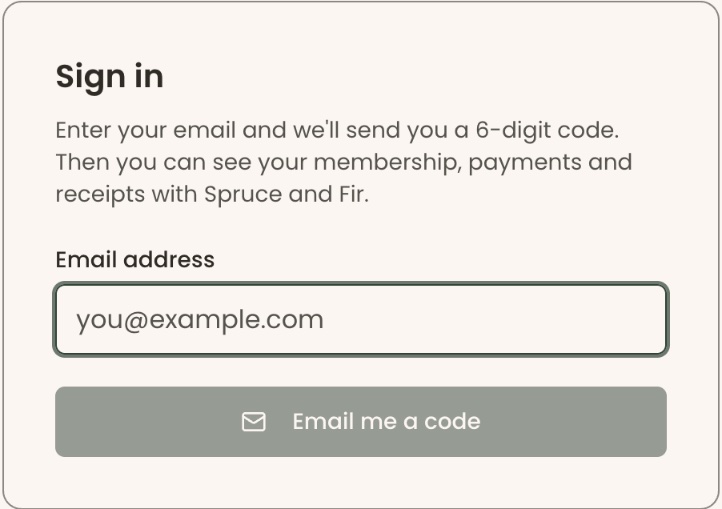
- You'll see a box headed "Sign in". It says it will send you a 6-digit code.
- Click in "Email address" and type your email, for example "jordan@example.com".
- Click "Email me a code".
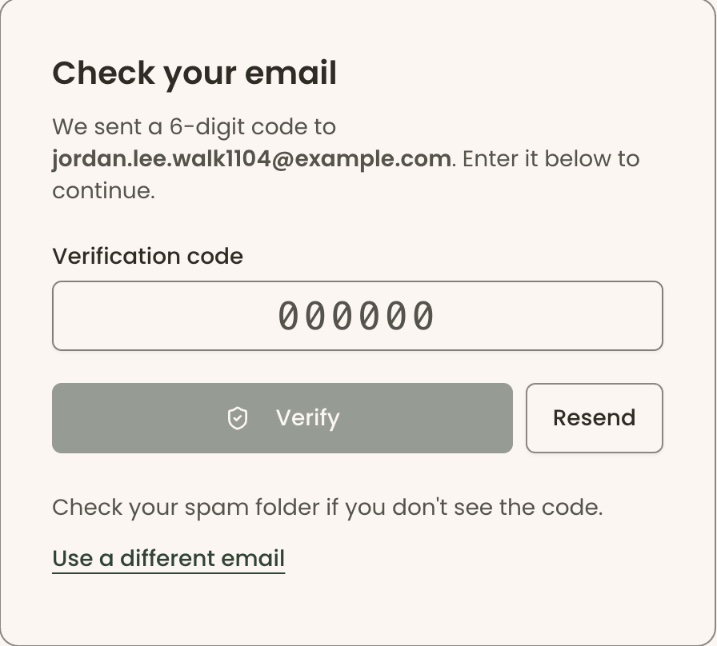
- You'll see "Verification code sent to your email". The box is now headed "Check your email" and shows the address it sent to.
- Open your email. Find the message with your 6-digit code. If you don't see it, check your spam folder.
- Back on the portal page, type the code in "Verification code".
- Click "Verify". The button stays grayed out until all 6 digits are typed.
- You'll see "Email verified successfully". Your portal page opens. That means it worked.
If something goes wrong
- "Invalid verification code. Please check and try again.": the code was typed wrong. Type it again from the email.
- "Invalid or expired code. Please request a new one.": the code is too old. Click "Resend" to get a new one, and use the newest email.
- "Too many attempts. Please wait a moment before trying again.": wait a moment, then try again.
- No code arrived: check your spam folder. Then click "Resend". After you click it, the button shows a countdown in seconds, such as "Resend (" and a number, before you can use it again.
- "That's all the new codes we can send for now.": enter the newest code in your email, or click "Use a different email".
- Typed the wrong email: click "Use a different email" and start again from step 3.
- "Your session has expired. Please verify your email again.": you were signed in too long. Sign in again from step 3.
Shortly before your session ends, a yellow line warns "Your session expires in" with the time left. Finish what you are doing.
For staff: where to find the portal link
Who can see it: Owner and Administrator. A Viewer can see the link on the page but can't use its buttons. Finance, Fundraiser, Programs and Front desk don't see this page. See also Edit your organization details, brand, portal link and retail tax setting.
Page: /dashboard/settings/organizations
- In the left-hand menu, under "Tools", click "Settings" to open it.
- Click "Organizations".
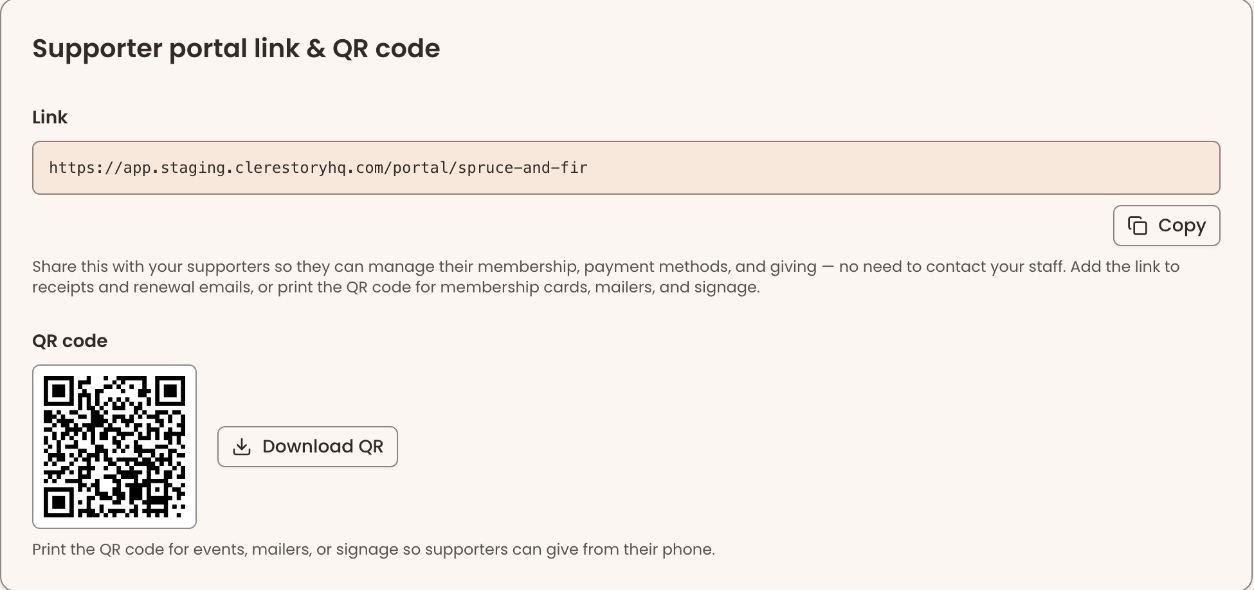
- Find the box called "Supporter portal link & QR code". It shows your portal's web address.
- To copy the link, click "Copy", just below it at the right. The button changes to "Copied".
- To get a QR code for cards, mailers or signs, click "Download QR".