


Who can do this: Everyone with a Clerestory staff login, whatever their role.
Quick steps: Sign in page › "Sign In" tab › "Email" and "Password" › "Login". Forgotten password: "Forgot your password?" › "Send Reset Email" › email link "Reset my password →" › new "Password" › "Reset Password".
Before you start
- You need a Clerestory staff login. New staff get one from an invitation. See Invite staff, and copy, resend or cancel an invitation.
- Have to hand: the email address you were invited with.
- For a reset: access to that email inbox.
- If your account uses two-factor sign-in: your phone with your authenticator app, or one of your backup codes. An authenticator app is a phone app that shows a new 6-digit code every few seconds.
Sign in
Page: /auth/login
- Go to the sign-in page. The box in the middle of the page is headed "Login".
- At the top of the box, under the heading, there are two tabs side by side. Click "Sign In", the one on the left.
- Click in the "Email" box and type the email address you were invited with.
- Click in the "Password" box and type your password.
- Click the "Login" button below the password. Clicking it means you agree to the Clerestory Terms and Services Agreement and Privacy Policy, linked just above it.
- You'll see the message "Signed in", and your Overview page opens. That means it worked.
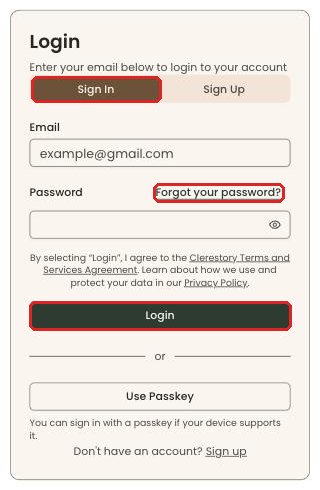
If your device supports passkeys, you can click "Use Passkey" below the "or" line instead of typing a password. A passkey lets you sign in with your fingerprint, face or device PIN.
Reset a forgotten password
Page: /auth/login
- On the sign-in page, type your email address in the "Email" box. This saves typing it again.
- Click "Forgot your password?". It's on the right, on the same line as the word "Password".
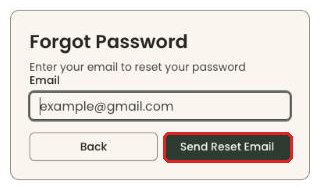
- The box is now headed "Forgot Password". Check that the "Email" box shows your address.
- Click "Send Reset Email" at the bottom right of the box, next to "Back".
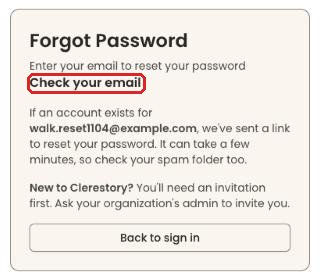
- You'll see "Check your email" and a line starting "If an account exists for" your address. That means the request went through. "Back to sign in" takes you back.
- Open your email inbox. Find the email with the subject "Reset Your Clerestory Password".
- In the email, click "Reset my password →". The link works for 1 hour.
Page: /auth/reset-password
- A page headed "Reset Your Password" opens.
- Click in the "Password" box and type your new password. Use at least 8 characters.
- Click "Reset Password" below the box.
- You'll see "Password reset successful". The sign-in page opens a moment later. That means it worked.
- Sign in with your new password, as in "Sign in" above.
Enter a two-factor code
Two-factor sign-in means Clerestory asks for a code from your phone after your password.
Page: /auth/2fa
- Sign in with your email and password, as in "Sign in" above.
- A page headed "Two-Factor Authentication" opens.
- At the top of the box, leave the "Authenticator" tab selected. It's on the left.
- On your phone, open your authenticator app and find the 6-digit code for Clerestory.
- Click in the "Code" box and type the code. Spaces are fine, so "123 456" works.
- Click "Verify".
- Your Overview page opens. That means it worked.
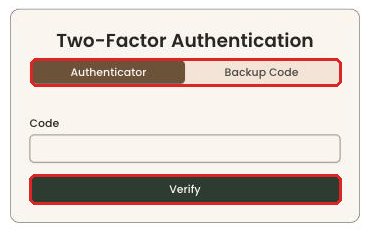
Without your phone: click the "Backup Code" tab on the right. Type one of your saved backup codes in "Backup Code" and click "Verify".
Special cases
- "Check your email", but no email arrives. The message starts "If an account exists for …". Clerestory shows it whether or not that address has an account. Check your spam folder. If you've never been invited, there's no account to reset. Ask your organization's admin to invite you.
- "Invalid Reset Link". The page says "The password reset link is invalid or has expired." The link is more than 1 hour old or was already used. Click "Back to Login" and request a new one.
- "Verify Your Email". Your email address hasn't been confirmed yet. Click the link in the verification email. If it hasn't arrived, click "Resend Email". You can resend every 30 seconds.
- "That code didn't work. Check your authenticator app and try again." The code was wrong or had already changed. Wait for a new code and type it again.
- "Enter the 6-digit code from your authenticator app." What you typed isn't 6 digits. Check it and type it again.
- "Please enter a valid email address". The email is mistyped. Check for a missing "@" or a space.
- New staff. Don't use the "Sign Up" tab to make your own account. Use the "Accept my invitation →" link in your invitation email.
If you make a mistake
- Clicked "Forgot your password?" by accident: click "Back", at the bottom left of the box. Nothing is sent until you click "Send Reset Email".
- Requested a reset you don't need: ignore the email. Your password doesn't change until you choose a new one.