


Who can do this: Owner, Administrator and Programs can turn the roll call on or off, change what it shows, reset the link and hide an order. Every role that can open the event can copy the link.
Quick steps: Events › Events › the event › "Settings" tab › "Roll call" switch on › "Show each guest as" › "Copy". To hide an order: "Orders" tab › "Don't show on roll call" on that order.
Before you start
- To change the roll call, you need an Owner, Administrator or Programs login.
- The event needs a date. The link works until the day after the event.
- To show answers to a question, the event must ask it first. See Event custom fields (questions at checkout).
- A guest is one person on an order. An order is one purchase, which can include several guests.
- The roll call is a private web page that lists who is coming to your event, one line per guest. Anyone with the link can see it, without signing in.
Turn the roll call on
Page: /dashboard/campaigns/<campaignId>?tab=settings
- In the left-hand menu, under "Fundraising", click "Events". Then click "Events" in the list that opens below it.
- In the list of events, click the event's name.
- Click the "Settings" tab in the row of tabs near the top. It is the last tab, on the second line.
- Scroll down to the box called "Roll call". You don't need to click "Edit" for this box.
- Click the switch at the top right of the "Roll call" box.
- You'll see "Roll call turned on". A "Roll call link" box appears with the page's web address. That means it worked.
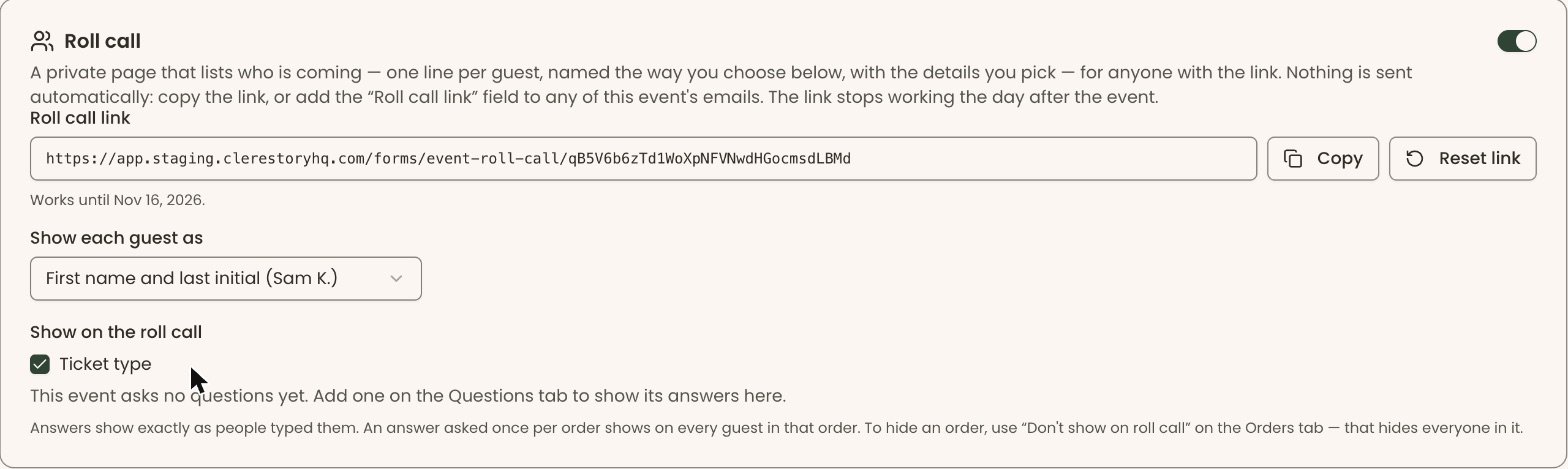
Turning it on doesn't email anyone. Under the link it says "Works until" and a date.
If you see "Set the event date first — the link works until the day after the event.", add the event's date on this tab with "Edit", then come back.
Choose what the roll call shows
Each change saves as soon as you make it.
- In the "Roll call" box, click the box under "Show each guest as".
- Click "First name only", "First name and last initial (Sam K.)" or "Full name".
- Under "Show on the roll call", check "Ticket type" to show which ticket each guest bought.
- If the event has auctions, you'll also see "Table". Check it to show each guest's table.
- Below those, each of the event's questions is listed, with "(Asked once per order)" or "(Asked of each guest)". Check a question to show its answers.
- If you see "This event asks no questions yet.", the event has no questions to show. Questions are added on the event's "Custom Fields" tab. See Event custom fields (questions at checkout).
Answers show exactly as people typed them. An answer asked once per order shows on every guest in that order.
Share the link
- In the "Roll call" box, at the right of the "Roll call link" box, click "Copy".
- You'll see "Roll call link copied". That means it worked.
- Paste the link into your own email or message.
If you see "Couldn't copy the link. Select it and copy it instead.", click the link box, and copy it with your keyboard.
You can also put the link in any of this event's emails. In the email's fields, it is called "Roll call link (who's coming)". See Event emails.
What people see on the roll call
Page: /forms/event-roll-call/<token>
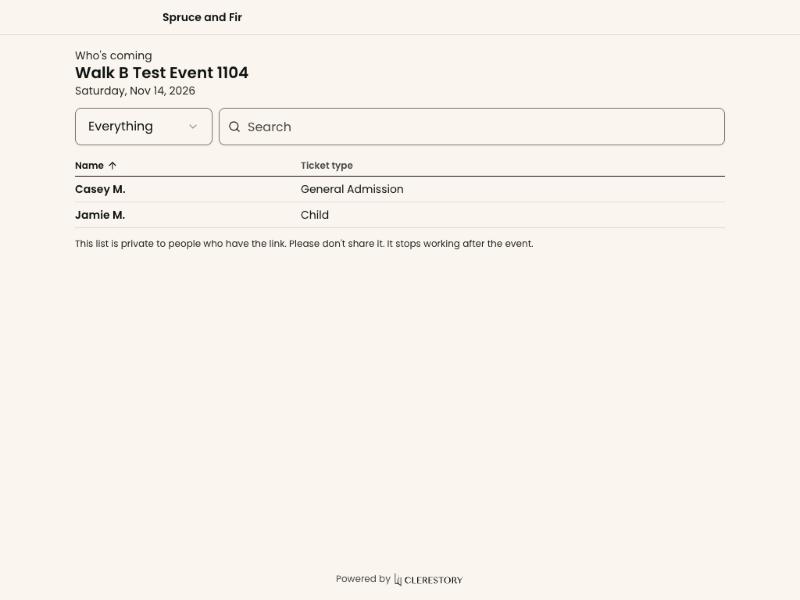
- The page says "Who's coming", with the event's name and date.
- It lists one line per guest, named the way you chose, with the details you checked.
- They can search the list, sort it by name, and narrow it with the list beside the search box (it starts on "Everything").
- At the bottom it says the list is private and stops working after the event.
- If the link has expired or was reset, they see "This link isn't working".
Hide an order from the roll call
Use this when a buyer doesn't want their party listed.
Page: /dashboard/campaigns/<campaignId>?tab=attendees
- Open the event, as in steps 1 and 2 of "Turn the roll call on".
- Click the "Orders" tab in the row of tabs near the top.
- In the search box at the top ("Search by name, email or order number"), type the buyer's name.
- On the top line of their order, at the right, click "Don't show on roll call". It has an eye icon with a line through it. You only see it while the roll call is on.
- You'll see "This order won't show on the roll call". The order now shows a "Hidden from roll call" label. That means it worked.


Everyone on that order comes off the roll call, not one guest.
To put them back, click "Show on roll call" on the same order. You'll see "This order shows on the roll call again".
Reset the link
Use this if the link reached someone it shouldn't have.
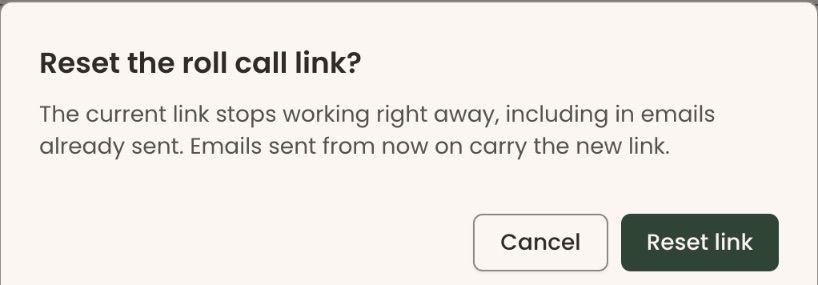
- In the "Roll call" box on the "Settings" tab, at the right of "Copy", click "Reset link". A box asks "Reset the roll call link?".
Important: The current link stops working right away, including in emails you already sent. Anyone who needs the roll call must be sent the new link.
- Click "Reset link" in the box.
- You'll see "Roll call link reset", and a new link appears in "Roll call link". That means it worked.
Turn the roll call off
- In the "Roll call" box, click the switch at the top right.
- You'll see "Roll call turned off" and "The roll call is off for this event." The link stops working.
Special cases
- Archived event. The roll call is off and reads "The roll call is off because this event is archived."
- Event is over. It reads "This event is over, so its roll call link no longer works."
- Canceled orders never show on the roll call.
- If a change doesn't save, you'll see "That didn't save. Try again."
If you make a mistake
- A hidden order can be put back with "Show on roll call".
- A reset can't be undone. The old link never works again; share the new one.