


Who can do this: Every role can open the list. Fixing an address on a record needs Owner, Administrator or Fundraiser.
Quick steps: Supporters › "Undeliverable Email" › call the person › open their record › "Profile" › "Email, Phone & Address" › "Edit" › new email › "Save"
Before you start
- Anyone can read the list. To change an email address you need the Owner, Administrator or Fundraiser role.
- Have a phone ready: the list shows each person's phone number so you can call them.
- An email bounces when the address doesn't exist or the mailbox refuses it. A supporter is anyone in your records who has given, joined, bought or registered.
See who can't get your emails
Page: /dashboard/supporters/undeliverable
- In the left-hand menu, under People, click "Supporters". A short list opens under it.
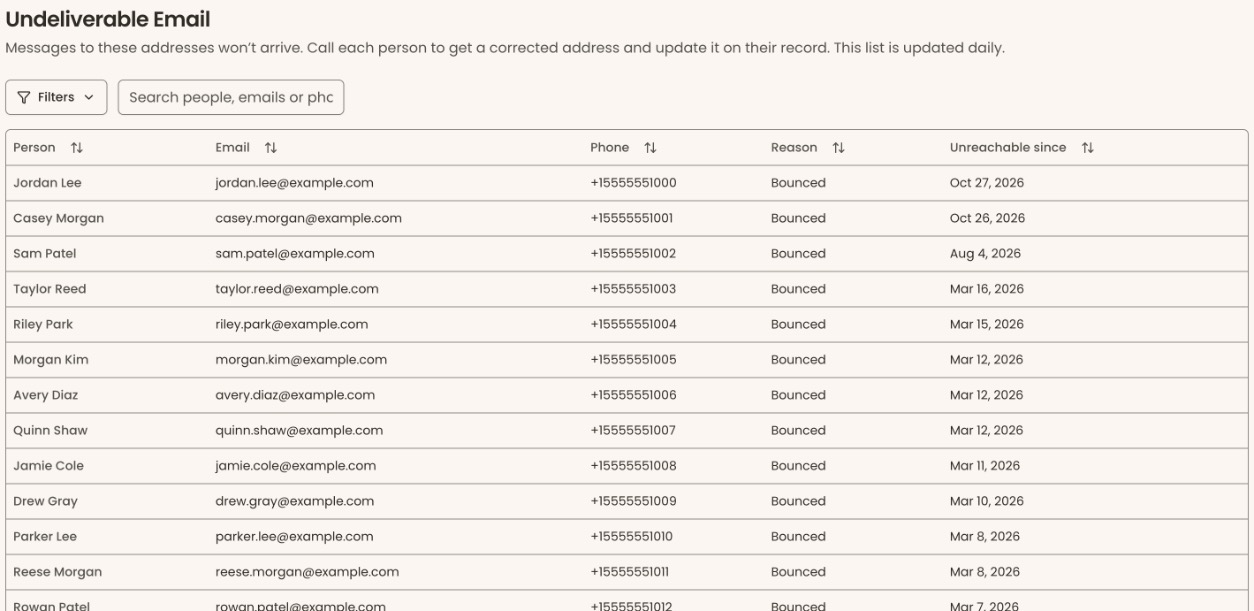
- Click "Undeliverable Email". The page "Undeliverable Email" opens.
- Each row is one person. The columns are "Person", "Email", "Phone", "Reason" and "Unreachable since".
- "Reason" says "Bounced" (the address doesn't work) or "Marked as spam" (the person marked one of your emails as spam).
- To find someone, type a name, email or phone number in "Search people, emails or phones".
- Click a column heading, such as "Unreachable since", to sort by it.
If the page says "Nobody here. Every email address we have can be delivered to.", there is nothing to fix.
The list is updated daily. People marked deceased are left off.
Fix someone's address
- Call the person. On a phone or a computer that can make calls, you can click the number in "Phone".
- Ask for their current email address.
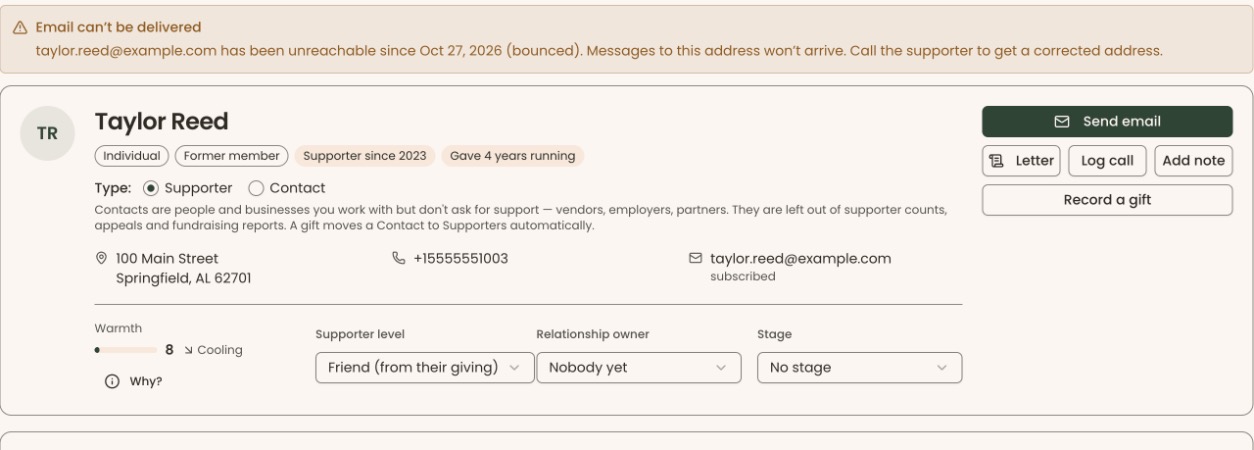
- On the list, click the person's name. Their record opens. At the top, above their name, it shows a note with a warning triangle, "Email can't be delivered".
- Below the giving totals, in the row of tabs that starts with "Overview", click "Profile".
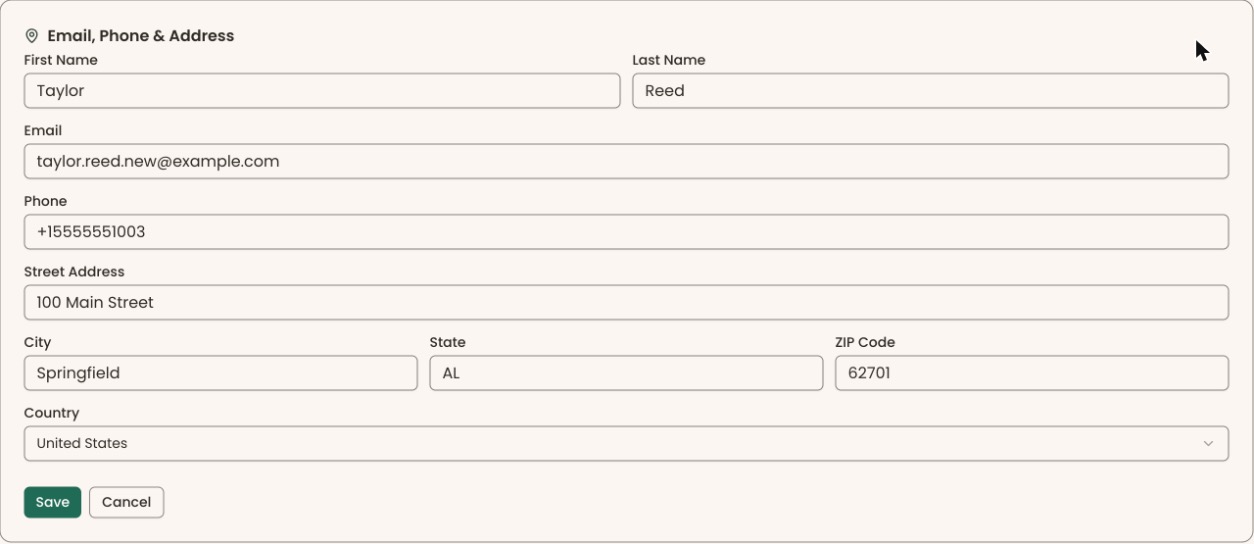
- Find the card "Email, Phone & Address". At its top right, click "Edit". The card turns into fields.
- In "Email", replace the old address with the new one.
- Click "Save", at the bottom left under the fields.
- You'll see "Contact information updated". That means it worked.
- The person comes off the "Undeliverable Email" list right away.
If the person is still on the list after you save, the new address is also one that can't be delivered to. Check it with them.
For more on editing contact details, see Edit a supporter's contact details and preferences.
Special cases
- "Marked as spam". The person chose to mark your email as spam. Ask them before you email them again, even at a new address.
- No phone number. The "Phone" column shows "—". Try another way to reach them, such as by mail.
- You can't remove an address. A saved email can be changed but not cleared. If you see "Email address cannot be empty.", type an address back in.
If you make a mistake
- Typed the new address wrong: open the record again, click "Edit" on "Email, Phone & Address", fix it and click "Save".