


Who can do this: Owner, Administrator, Programs and Front desk. Finance, Fundraiser and Viewer see the "… missing" badge but no buttons.
Quick steps: Programs & Sales › Classes & Camps › Classes › the class › "Roster" tab › in the "Waivers" column, "Record paper waiver" › "Record signed" — or "Email signing link". For everyone at once: "Waivers" tab › "Email everyone missing".
Before you start
- You need an Owner, Administrator, Programs or Front desk login.
- A waiver is a form a family agrees to before the class, such as a liability release. The class must have one attached on its "Waivers" tab. See Create a waiver and attach it to an event or class.
- For a paper waiver, have the signed paper in front of you.
- A signing link goes to the email address of the person who registered. Check they have one.
Record a waiver signed on paper
Page: /dashboard/classes/<classId>?tab=roster
- In the left-hand menu, under "Programs & Sales", click "Classes & Camps". Then click "Classes" in the list that opens below it.
- In the list of classes, click the class's name.
- Click the "Roster" tab in the row of tabs near the top.
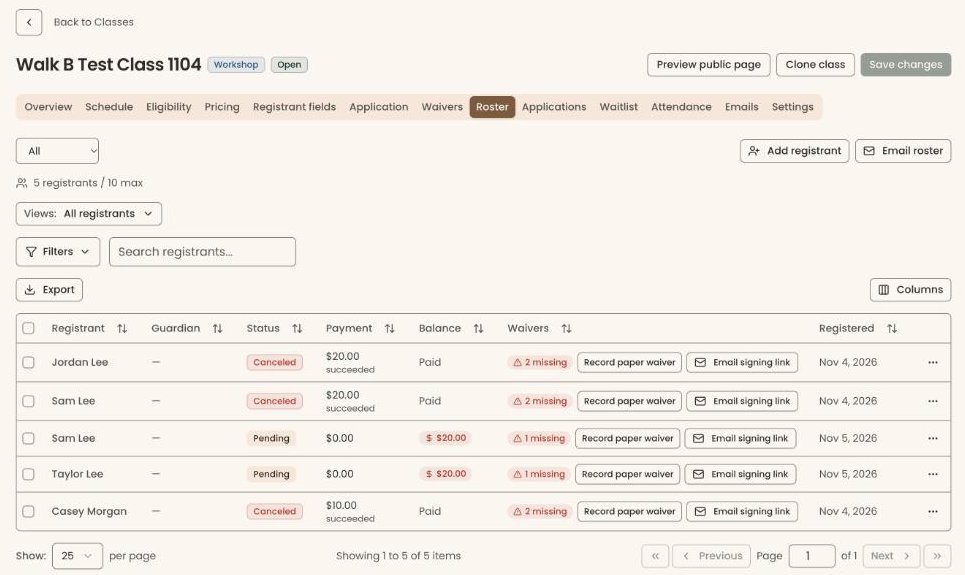
- Find the registrant. In the "Waivers" column, a red badge says, for example, "1 missing".
- Next to the badge, click "Record paper waiver". (You can also click the three dots (⋯) at the far right of the row, then "Record paper waiver".)
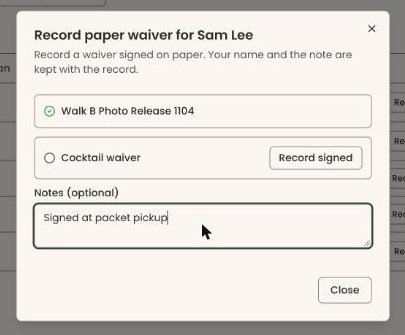
- A box opens called "Record paper waiver for" and the person's name. It lists each waiver. A green check means it's already signed; an empty circle means it isn't.
- If you want, type a note in "Notes (optional)", for example "Signed at packet pickup". Type it before the next step: the note is saved with the record.
- Next to the waiver they signed, click "Record signed".
- You'll see "Paper waiver recorded". The waiver now shows a green check. That means it worked.
- Click "Close" at the bottom right.
Back on the roster, the "Waivers" column says "All signed" once nothing is missing.
If it didn't work, you'll see "Failed to record waiver". Try again.
Email one family a link to sign online
Page: /dashboard/classes/<classId>?tab=roster
- Open the class's "Roster" tab, as in steps 1 to 3 above.
- Find the registrant with the red "… missing" badge in the "Waivers" column.
Important: "Email signing link" sends an email right away to the person who registered. There is no confirmation step.
- Next to the badge, click "Email signing link".
- You'll see "Signing link sent to" and their email address. That means it worked.
If it didn't work, you'll see the reason, for example "This registration has no email address to send the link to" or "Every waiver on this registration is signed".
Email everyone who is missing a waiver
Page: /dashboard/classes/<classId>?tab=waivers
- Open the class, as in steps 1 and 2 of "Record a waiver signed on paper".
- Click the "Waivers" tab in the row of tabs near the top.
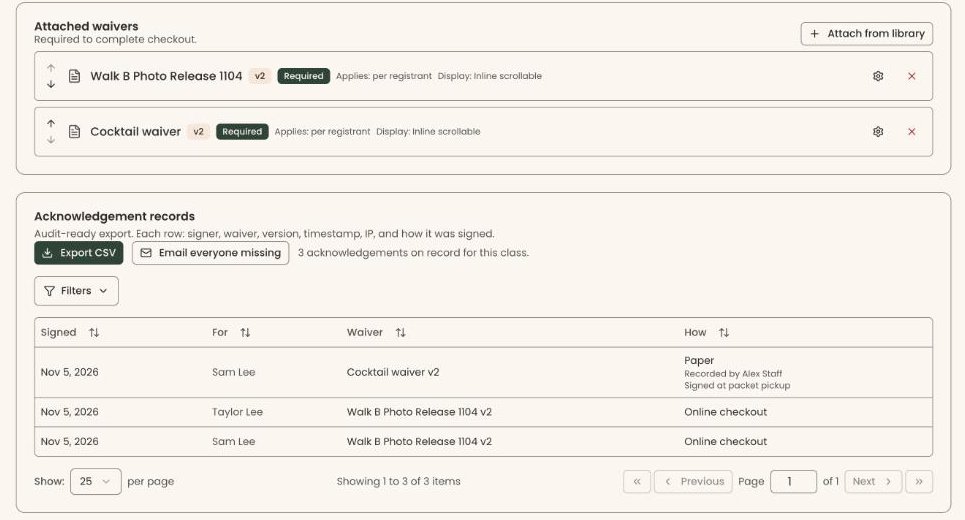
- Below the attached waivers, find "Acknowledgement records". "Email everyone missing" is under that heading, next to "Export CSV".
Important: "Email everyone missing" sends a signing link right away to every registration still missing a required waiver. There is no confirmation step.
- Click "Email everyone missing".
- You'll see, for example, "Signing links sent to 3 people." That means it worked. If some had no email address, it adds, for example, "(1 without an email address)".
If nobody is missing anything, you'll see "Nobody is missing a required waiver." Nothing is sent.
What the family sees
The email has a link to a page on your organization's site.
Page: /forms/waivers/sign/<token>
- The page shows your organization's name and "Sign your waiver for" the class name.
- To read a waiver, they click "Read the full waiver".
- They agree as the waiver asks: check the box (for example "Jordan Lee agrees"), or type a full name in "Type your full name".
- They click "Sign and submit". It can't be clicked until every required waiver is agreed to.
- The page says "Thank you — you're all set" and "Your waiver for … has been signed."
The link works once, for 14 days. Opening it again afterwards shows "This link can't be used" with the reason, for example "This signing link has already been used" or "This signing link has expired". Send a new one from the roster if needed.
Signing online writes the same record as signing at checkout. It appears in "Acknowledgement records" on the class's "Waivers" tab.
What the labels mean
- "… missing" (red, in the "Waivers" column): how many required waivers this registrant hasn't signed.
- "All signed": every required waiver is signed.
- "None required": the class has no required waiver.
- In "Acknowledgement records", the "How" column says how each waiver was signed. A paper one shows "Recorded by" and the staff member's name, and any note.
Special cases
- Only a confirmed registration can be sent a link. A canceled one shows "Only a confirmed registration can be sent a signing link".
- Events have the same two buttons, "Record paper waiver" and "Email signing link", next to a guest who is missing a waiver, on the event's "Attendees" tab and at check-in.
- Nothing sends a signing link on its own. Staff always start it.
If you make a mistake
- A paper waiver recorded by mistake can't be removed in the screens.
- A sent signing link can't be recalled. It stops working after it's used once or after 14 days.