


Who can do this: Owner, Administrator and Programs can move people. A move that refunds money (to a cheaper class, or "Refund in full and rebook") needs an Owner or Administrator login. Front desk, Finance, Fundraiser and Viewer users don't see "Move".
Quick steps: Programs & Sales › Classes & Camps › Classes › the class › "Roster" tab › "Move" on the person's row › "Another price in this class" or "A different class" › choose › "Move"
Before you start
- You need an Owner, Administrator or Programs login. To refund money as part of a move, an Owner or Administrator login.
- The other class must be published and upcoming or under way. A class that has ended isn't offered.
- Only a confirmed order can move to another class. Nobody on it can have checked in yet.
- An order is one checkout. Moving to a different class moves everyone on the order. Moving to another price moves just the one person.
- If the order was paid in cash or by check and money is refunded, hand the money back before you move them. The box asks you to confirm it.
Move to another price in the same class
Use this when a class has more than one price, for example a Tuesday price and a Thursday price. Nothing is refunded. If the new price costs more, you choose how to collect the difference.
Page: /dashboard/classes/<classId>?tab=roster
- In the left-hand menu, under "Programs & Sales", click "Classes & Camps". Then click "Classes" in the list that opens below it.
- In the list of classes, click the class's name.
- Click the "Roster" tab in the row of tabs near the top.
- On the person's row, click "Move". A box opens called "Move …" with their name.
- Check that "Another price in this class" is chosen.
- In "New price", choose the price.
- If the new price costs more or less, a yellow note says what happens to the money. Clerestory works the figure out from what this person actually paid.
- Costs more: for example "Adult costs $15.00 more than what they paid for this place." Choose "Email them a card link to pay the $… difference" (chosen to start with; it works until the class ends), "They paid the $… difference now" (then "How they paid"), or "Waive the $… difference". If a card link can't be sent, it is grayed out with the reason under it.
- Costs less: "Moving them doesn't refund anything. If they paid for the tickets, refund the difference afterward from the Payments page." (A Programs login is told to ask an Owner, Administrator or Finance member.) Check "I understand the prices differ".
- "Email the supporter about the move" starts checked. Uncheck it if you don't want them emailed. With a card link, the link is in that email.
- Click "Move".
- You'll see "… moved to …" with their name and the new price. That means it worked. With a card link not emailed, a box called "Share the payment link" opens with the link to copy and send yourself. That includes when "Class transfer notices" are turned off (Settings › Emails, or on the class's own "Emails" tab): the email isn't sent, and the box says "This email is turned off, so the payment link wasn't sent. …".

If the class has only one price, the box says "This class has only one price. Add another on the Pricing tab to move someone to it."
Move the order to a different class
- On the person's row, click "Move", and choose "A different class". The box says "Everyone on this order moves."
- In "Class", choose the class. If it has more than one price, choose one in "Price". The list shows only published classes that aren't archived. To move someone into an archived class, unarchive it first.
- If the new class needs details these people don't have yet (for example a date of birth), the box asks for them under "The new class needs a few details these people do not have yet". Fill them in for each person.
- Choose what happens to their payment:
- "Keep their payment and settle the difference". Their payment moves with them. See "Keep their payment" below.
- "Refund in full and rebook". Their original payment is refunded, and the new class is booked as a new registration. See "Refund in full and rebook" below. Only Owner and Administrator users see this choice.
- "Email the supporter about the move" starts checked. Uncheck it if you don't want them emailed.
Important: "Move" moves everyone on the order at once. Any refund goes back right away. It can't be undone in the screens.
- Click "Move".
- You'll see a message that starts "Moved to …" and says what happened to the money, for example "Moved to … with their payment; the $30.00 difference is recorded.", "Moved to … with their payment; the $30.00 difference is waived." or "Moved to …; $50.00 refunded.". The people now show on the new class's "Roster" tab. That means it worked.
Keep their payment
The box works out the figures for everyone on the order, for example "Everyone on this order paid $90.00 for their places. The new class is $75.00 for those places." Then it says which of these applies:
- Same price: "Their payment moves with them and no money moves."
- Cheaper: "Their payment moves with them and $… is refunded to it." If any of it was paid in cash or by check, check "If the money refunded was paid in cash or by check, I handed it back." A Programs user can't make this move: the box says the refund "your role does not allow".
- More expensive: "Their payment moves with them. The new class costs $… more." The box offers three choices:
- "Email them a card link to pay the $… difference". This is chosen to start with. The link is in the move email, and works until the new class ends.
- "They paid the $… difference now". Choose "How they paid" ("Cash", "Check" or "Other") and add a "Check number or note" if you like. After the move, their row on the new class's roster shows "+ $… difference paid".
- "Waive the $… difference". They pay nothing more.

If you choose the card link but uncheck "Email the supporter about the move", a box called "Share the payment link" opens after the move. It opens too when the email wasn't sent: if "Class transfer notices" are turned off (Settings › Emails, or on the class's own "Emails" tab), it says "This email is turned off, so the payment link wasn't sent. …"; if it couldn't be emailed, it says "The payment link couldn't be emailed. …". Click "Copy link", send it to them yourself, then click "Done". The link is shown only once.
If an earlier move left a difference still owed, the box says this move cancels it: its payment link stops working.
Refund in full and rebook
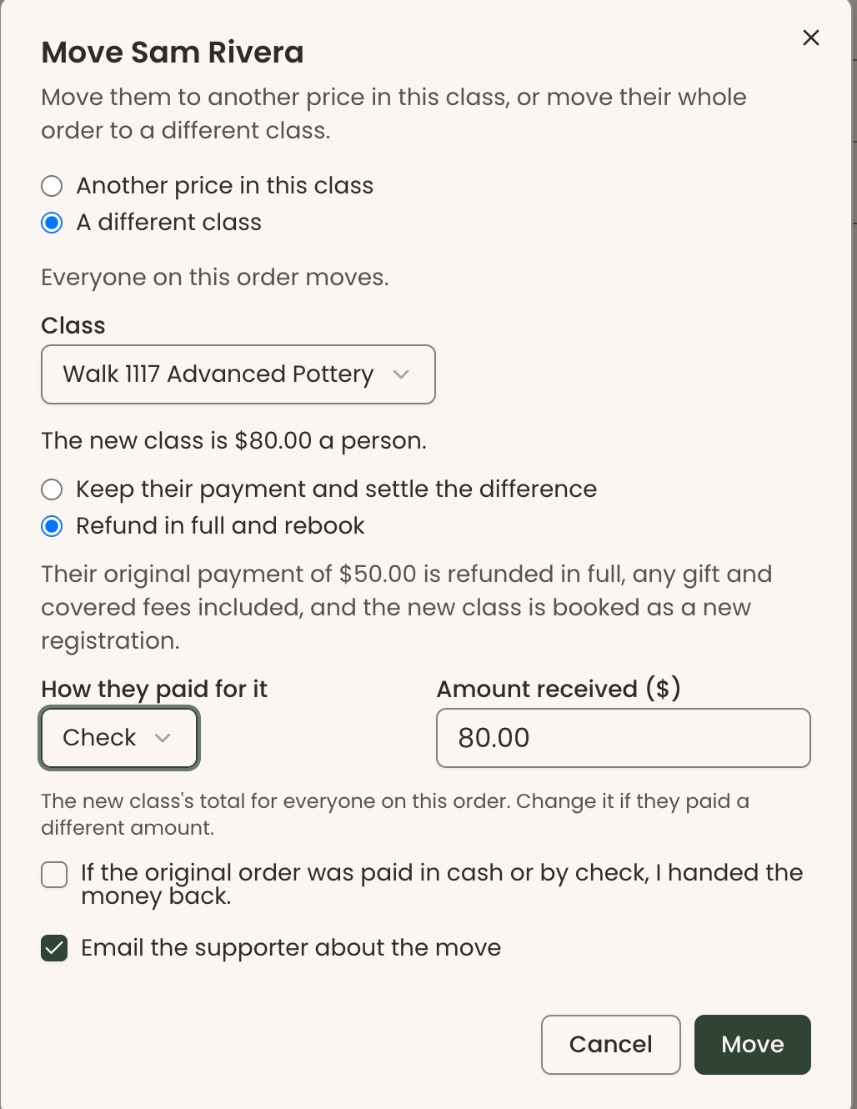
- Under "Class", a line gives the new class's price, for example "The new class is $80.00 a person." Below the two choices, the box says what is refunded, for example "Their original payment of $82.40 is refunded in full, any gift and covered fees included, and the new class is booked as a new registration."
- In "How they paid for it", choose "Cash", "Check", "No charge (comp)" or "Other". "Move" stays grayed out until you choose.
- For anything but "No charge (comp)", "Amount received ($)" is filled in with the new class's total for everyone on the order. Change it if they paid a different amount.
- If the original order was paid in cash or by check, check "If the original order was paid in cash or by check, I handed the money back." If you don't, "Move" shows "This order was paid in cash or by check. Confirm you handed the money back before moving it." and nothing changes.
Collect or settle a difference later
After a move to a more expensive class with a card link, the roster shows "Difference pending $…" on the order's rows until the family pays.
- To email the family a fresh link, click "Send a new link". You'll see "A new payment link was emailed to the family. The old link no longer works." If "Class transfer notices" are turned off (Settings › Emails, or on the class's own "Emails" tab), the email isn't sent. A box called "Share the new payment link" opens instead, saying "This email is turned off, so the new link wasn't sent. …". Click "Copy link" and send it to them yourself.
- If they paid another way, click "Settle difference". In the box, choose "They paid the $… difference", pick "How they paid", and click "Record payment". Or choose "Waive the $… difference" and click "Waive difference". Either one closes the card link.
Once paid, the row shows "+ $… difference paid". The family's link opens a page that says "Pay the $… difference for …" with the class's name.
If the class is canceled while a difference is still owed, the card link stops working. The family's page says "This class was canceled" and asks them to contact you. "Send a new link" no longer shows. Nothing is refunded or emailed automatically. If they pay you another way, use "Settle difference" to record it, or waive it there.
A family who had already started paying by card before you canceled the class can still finish. That payment is recorded as paid, like any other difference payment. Nothing refunds it automatically. To give it back, refund the payment from the Payments page. See Refund a payment.
If it didn't work
The box shows the reason and nothing is changed. For example:
- "Someone on this order has already checked in, so it cannot be moved."
- "Only a confirmed registration can be moved. A pending one is still being paid for."
- "This order was paid in cash or by check. Confirm you handed the money back before moving it."
- "People on this order are on more than one price, so it cannot be moved to another run at once. Move them to one price first."
- "The other class is not open for registration."
- "The other class is archived, so nobody can be moved into it. Unarchive it first, or pick another class."
- "This class was canceled, so its card link no longer works and a new one can't be sent. Record the payment or waive the difference instead." (on "Send a new link")
- "No other upcoming classes are open for registration." under "Class" means there is no class to move them to.
Special cases
- A move counts what the order still holds. If an earlier move already refunded part of the payment, the figures start from what is left.
- Moving into a class with an age or grade range checks the people moved against it.
- A move to a different class sends the family one email about the move (if "Email the supporter about the move" is checked). The new booking sends no separate receipt.
If you make a mistake
A move can't be undone in the screens. Move them back the same way. A refund to a card can't be taken back.