


Who can do this: Owner, Administrator, Finance and Fundraiser. Programs, Front desk and Viewer can see the order but don't see "Move to another event…" or "Turn the gift into an add-on…".
Quick steps: Events › Events › the event › "Orders" tab › on the order, "Move to another event…" › "Event" › tickets › "Why it's being moved" › "Move payment". Or "Turn the gift into an add-on…" › "Add-on" › "Quantity" › "Convert".
Before you start
- You need the Owner, Administrator, Finance or Fundraiser role.
- Know the buyer's name or the order number.
- To move a payment: know which event and which tickets it should be for. Nobody on the order can be checked in yet.
- To turn a gift into an add-on: the event must have an add-on on sale. An add-on is an extra sold with tickets, such as a parking pass or a meal.
- An order is one purchase: the buyer, their tickets and one payment.
Find the order
Page: /dashboard/campaigns/<campaignId>?tab=attendees
- In the left-hand menu, under "Fundraising", click "Events". Then click "Events" in the list that opens below it.
- In the list of events, click the event's name.
- Click the "Orders" tab in the row of tabs near the top.
- In the search box at the top ("Search by name, email or order number"), type the buyer's name or the order number.
- Find the order's card. Its buttons sit in a row at the top right of the card, for example "Emails", "Move to another event…" and "Cancel order".

Changes in the next release: a "Views" list sits above the search box, for saving and reusing a filtered list of orders.
Move a payment to another event
Page: /dashboard/campaigns/<campaignId>?tab=attendees
- Find the order (see "Find the order").
- At the top right of the order's card, click "Move to another event…". (It isn't shown on a canceled order.)
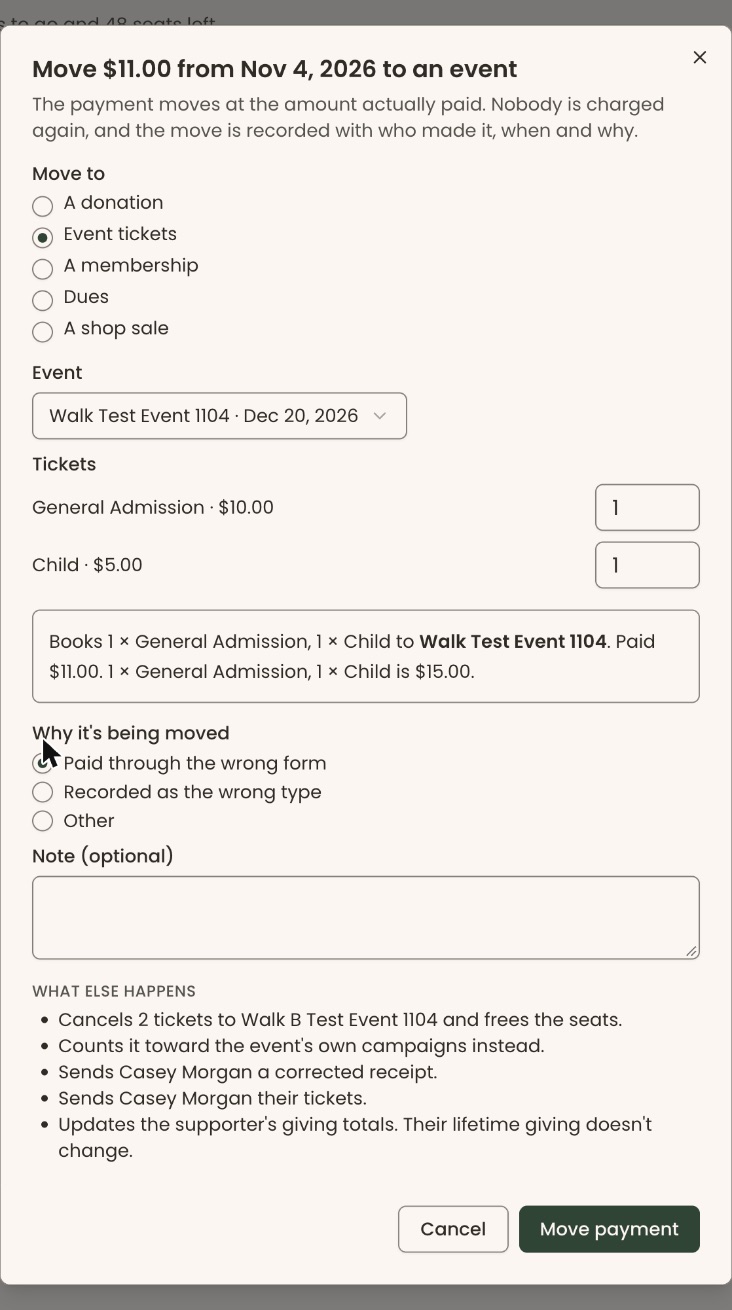
- A box opens. Its title reads "Move", the amount, the payment date and "to an event". Under "Move to", "Event tickets" is already chosen.
- If you see a message in red instead of the form, the payment can't be moved. The message says why (see "If it can't be moved").
- In "Event", click "Choose an event" and pick the right event.
- Under "Tickets", each ticket type has a box at the right, starting at 0. Type how many of each, for example 1.
- A box appears below the tickets with a sentence starting "Books", saying which tickets go to which event, what was paid and what those tickets cost.
- Under "Why it's being moved", choose "Paid through the wrong form", "Recorded as the wrong type" or "Other". You can add a note in "Note (optional)" below. For "Other", type one there.
- Read the list under "What else happens". It names the tickets that will be canceled and the emails that will be sent.
Important: "Move payment" cancels the old tickets and frees their seats, books the new tickets, and emails the buyer a corrected receipt and their new tickets. Nobody is charged or refunded.
- At the bottom right, click "Move payment". It stays grayed out until the event, tickets and reason are filled in. A gray line above the buttons says what is still missing.
- You'll see "Payment moved to the event. The tickets are on their way." That means it worked. The old order shows as canceled. The new order is on the other event's Orders tab.
The first new ticket is in the buyer's name. Any others show as "Unnamed guest". To name them, on the other event's Orders tab click "Show the … guests" on the order, then the pencil beside the guest.
If it can't be moved
The box shows the reason in red. The most common ones:
- "Someone on this order has already checked in, so it can't be moved." Check-ins can't be undone in the screens, so this order can't be moved.
- "Sponsorships can't be moved yet."
- "This payment was deposited to a different bank account than this event uses, so it can't be moved here."
- "You can't move a payment to a draft or canceled event."
- "This payment is already for this event."
- "This payment was charged at a gala and can't be moved. Correct it from the gala's settlement instead."
Click "Close" to leave the box.
Turn a checkout gift into an add-on
Use this when a buyer typed an add-on's price into the gift box at checkout instead of buying the add-on.
Page: /dashboard/campaigns/<campaignId>?tab=attendees
- Find the order (see "Find the order").
- At the top right of the order's card, click "Turn the gift into an add-on…". It only shows on an order with a gift, at an event with an add-on on sale.
- A box opens called "Turn the gift into an add-on". Its first line shows the buyer, their tickets and the gift, for example "Jordan Lee — 2 tickets + $50.00 gift".
- In "Add-on", choose the add-on. Each shows its price.
- In "Quantity", type how many, for example 1.
- A sentence appears saying what the gift becomes, for example "The $50.00 gift becomes 1 × Parking pass. The payment total stays $150.00. Nothing is charged or refunded." If part of the gift is left over, it says how much stays a gift.
- Click "Convert" at the bottom right.
- You'll see "The gift is now 1 × Parking pass." (with your add-on's name). That means it worked. No email is sent to the buyer.
If a message in red appears, nothing changed. Read it, for example to lower the quantity.
Undo a gift conversion
- On the same order, click "Turn the gift into an add-on…" again.
- Near the bottom of the box, you'll see "Last change:" and what the gift became.
- Click "Undo".
- You'll see "The add-on is a gift again." That means it worked.
If a sentence shows instead of "Undo", that change can no longer be undone. It says why.
Special cases
- The buyer had a gift and you move the order: "What else happens" says the checkout gift is kept on the new order, still counted as a donation.
- No "Move to another event…" button: the order is canceled, or its payment isn't an event ticket payment.
- The buyer has no email address: the box warns that no corrected receipt can be sent.
Buttons to avoid
- "Cancel order", on the same row, cancels the whole order. It doesn't move the payment. See Cancel or refund an order.
- "Cancel" in either box closes it without changing anything.
If you make a mistake
- Moved to the wrong event: find the new order on the event you moved it to and click "Move to another event…". The box asks "This payment was moved on … What should happen?". Choose "Undo that move" to put it back with its tickets, exactly as it was, if the seats are still free. Or choose "Choose a different event". Then pick a reason and click "Move payment". The buyer is emailed again.
- Converted the wrong add-on or quantity: use "Undo" (see "Undo a gift conversion"), then convert again.