


Who can do this: Owner, Administrator, Finance and Fundraiser can view and resend a receipt. Programs, Front desk and Viewer can open and view a receipt, but they don't see the "Resend receipt" button.
Quick steps: Fundraising › "Payments" › "Receipt" on the payment's row › "Resend receipt" › "Send"
Before you start
- To resend, you need one of these roles: Owner, Administrator, Finance or Fundraiser.
- A receipt is the email Clerestory sends a supporter to confirm a payment. A supporter is anyone in your records who has given, joined or registered.
- The receipt goes to the email address on the supporter's record. If it has changed, update it first. See Edit a supporter's contact details and preferences, or mark them deceased.
- Have to hand: the supporter's name and roughly when they paid.
Resend a receipt from the Payments list
Page: /dashboard/payments
- In the left-hand menu, find the Fundraising group and click "Payments".
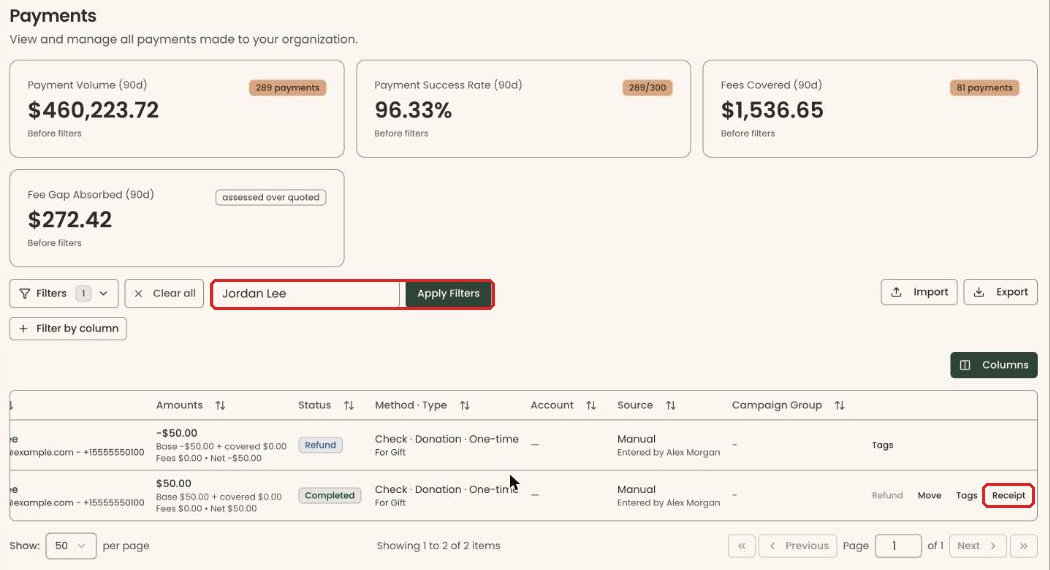
- Find the payment. Above the list, type the supporter's name in the "Search by name or email..." box.
- Click "Apply Filters", to the right of the box. The list now shows only that supporter's payments.
- The list is wider than the screen. Scroll the list to the right until you reach the buttons at the far right of each row.
- On that payment's row, click "Receipt".
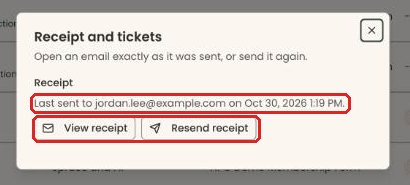
- A box opens called "Receipt and tickets". Under "Receipt" it says who the receipt was last sent to and when.
- To see the email exactly as it was sent, click "View receipt". Close that view with the X at its top right.
- To send it again, click "Resend receipt".
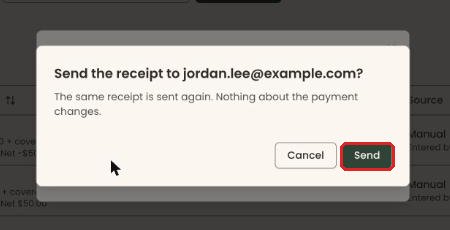
- A box asks "Send the receipt to" the supporter's email address. It says "The same receipt is sent again. Nothing about the payment changes."
Important: clicking "Send" emails the receipt to the supporter straight away. An email can't be unsent.
- Click "Send".
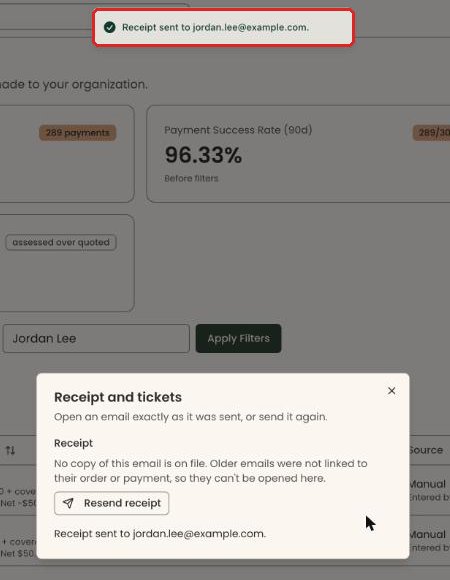
- You'll see "Receipt sent to" and the email address, at the top of the screen and inside the box. That means it worked.
- If you see "We couldn't send the receipt. Try again." close the box and try once more.
Resend a receipt from the payment's own page
Page: /dashboard/payments/<paymentId>
- In the left-hand menu, find the Fundraising group and click "Payments".
- Find the payment as in steps 2 and 3 above. On its row, click the date in the "Date" column. This opens the payment's own page.
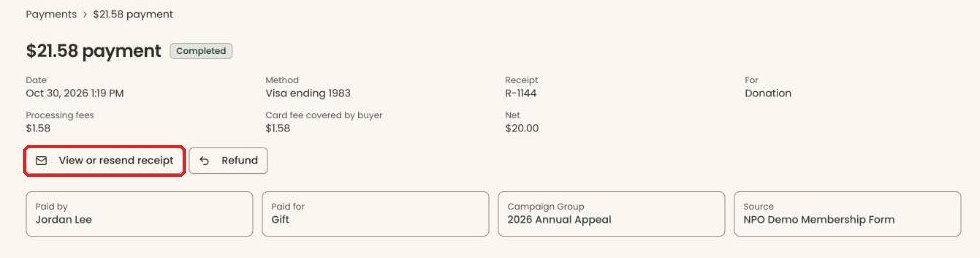
- Below the payment details at the top of the page, click "View or resend receipt".
- Follow steps 6 to 12 in "Resend a receipt from the Payments list" above.
Special cases
- Where the receipt goes: it is always sent to the email address on the supporter's record right now. You can't type a different address in this box. If the supporter has a new email address, update it on their record first (see Edit a supporter's contact details and preferences, or mark them deceased), then resend.
- The receipt shows the payment as it is now. If the payment was corrected after it was first sent, the resent receipt shows the corrected details.
- "No copy of this email is on file": older emails, and gifts recorded by hand, may have no copy linked to the payment, so there is nothing to view. You may still see "Resend receipt", which sends a fresh receipt.
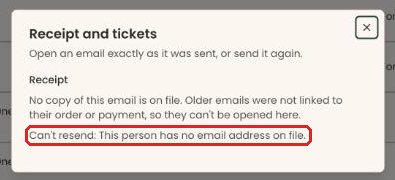
- "Can't resend:" followed by a reason means there is no receipt to send. The reasons you may see:
- "This person has no email address on file." Add an email address to the supporter's record, then try again.
- "The payment has not gone through, so there is no receipt yet."
- "No one is on file for this payment, so there is no one to send it to."
- "Raffle tickets are not a receipt, so there is no receipt to resend."
- "This kind of payment has no receipt to resend."
- Refunds: a refund row has no "Receipt" button, and a refund's own page has no "View or resend receipt" button, because a refund has no receipt.
- Automatic receipts turned off: if your organization has turned off an automatic receipt under Settings, then Emails, you can still resend it yourself from here.
- Event tickets: for an event purchase, the same box also lists the tickets with a "Resend tickets" button. Resending the receipt never resends the tickets.
If you make a mistake
An email can't be unsent. Resending a receipt only sends another copy of the same email; it does not change the payment, the amount or the supporter's giving history. If you sent it to the wrong address, correct the email address on the supporter's record and resend.