


Who can do this: Everyone. What you see depends on your role and on the features your organization has switched on. Front desk users don't see the Overview page. Clerestory opens the first page they can use instead.
Quick steps: Left-hand menu › a heading's row (click a row with a list to open it) · "New" at the top of the page › pick a job · "Next:" box › its button · Overview › "Needs attention".
Before you start
- You need to be signed in. See Sign in, reset a forgotten password, and enter a two-factor code.
- Know your role. Your role is the set of permissions your admin gave you, such as Fundraiser or Viewer. It decides which menu rows and buttons you see.
- A feature is a part of Clerestory your organization can switch on or off, such as Events or Rentals. Owners and Administrators do this in Settings, then Features. See Turn features on or off.
Use the left-hand menu
- Look at the menu down the left side of the page. Rows are grouped under small headings, such as "Fundraising" and "People".
- Click a row to open its page.
- Some rows have their own list, for example "Settings". Click the row once to open the list, then click the item you want.
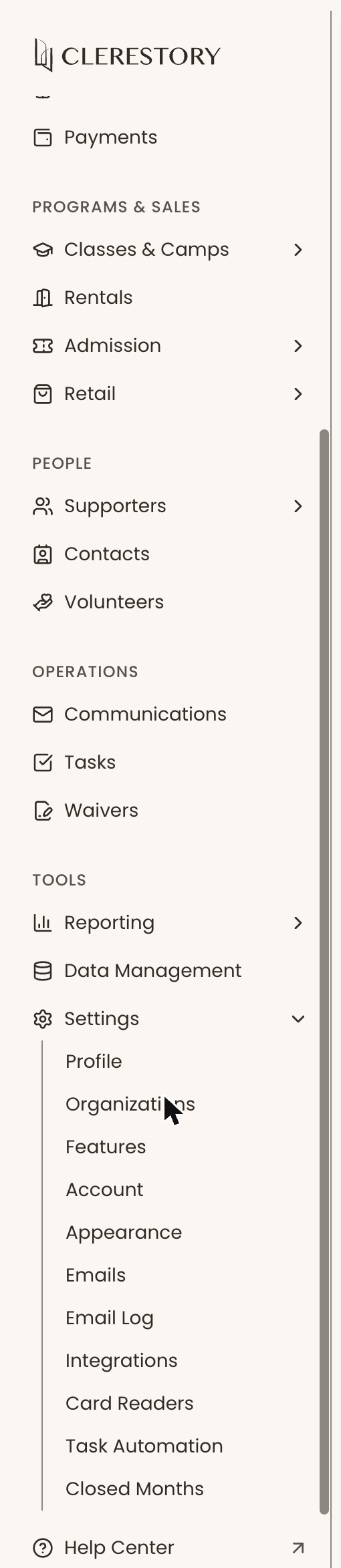
A row you can't use is hidden, not grayed out. If a list is long, the menu itself scrolls: move the pointer over the menu and scroll down to see the rest, such as the "Settings" list. If a feature is switched off, its rows are hidden for everyone.
| Heading | Rows | Who sees them |
|---|---|---|
| (no heading, at the top) | Overview | Everyone except Front desk |
| Fundraising | Campaigns, Donations, Payments, Membership (Member List, Directory, Offer Codes), Events (Events, Event Series, Offer Codes), Raffles | Everyone |
| Pledges, Campaign Groups | Everyone, once the feature is switched on (both start off) | |
| In the Membership list: Dues | Everyone, for organizations with a dues level | |
| In the Membership list: Membership Settings | Owner, Administrator, Finance, Fundraiser | |
| In the Membership list: Profile Fields | Owner, Administrator, Fundraiser | |
| Dues (Dues Settings, Dues Periods, Dues Members), its own row | Organizations whose dues haven't moved into Membership yet | |
| In the Events list: Event Custom Fields | Owner, Administrator, Programs | |
| Programs & Sales | Classes & Camps (Classes, Catalogs), Admission (Visitor Dashboard), Retail (Purchases, Retail Products, Offer Codes) | Everyone |
| Rentals | Everyone, once the feature is switched on (it starts off) | |
| In the Admission list: Admission Settings | Owner, Administrator, Programs, Front desk | |
| People | Supporters (All Supporters, My Portfolio, Tributes, Grants, Visitor Pulse, Undeliverable Email), Contacts | Everyone |
| Duplicates, Supporter Levels & Stages, Profile Fields | Owner, Administrator, Fundraiser | |
| Volunteers | Everyone, once the feature is switched on (it starts off) | |
| Operations | Tasks, Waivers | Everyone |
| Communications | Everyone except Front desk | |
| Tools | Reporting (Dashboard, Templates, Scheduled Reports), Data Management | Everyone except Front desk |
| In the Reporting list: Giving Statements | Owner, Administrator, Finance, Fundraiser | |
| Settings: Profile, Organizations, Account, Appearance, Card Readers, Task Automation | Everyone | |
| Settings: Features, Integrations | Owner, Administrator, Viewer | |
| Settings: Emails, Email Log | Everyone except Front desk | |
| Settings: Closed Months | Owner, Administrator, Finance |
A supporter is anyone in your records who has given, joined or registered. Seeing a page doesn't always mean you can change it. A Viewer, for example, sees most pages but can't change anything.
If you open a page your role doesn't include, for example from a bookmark, you'll see "You don't have access to this page — ask an Administrator". Ask your Owner or Administrator to change your role. They follow Change someone's role, compare the roles, and see the app as a role.
Start a job with "New"
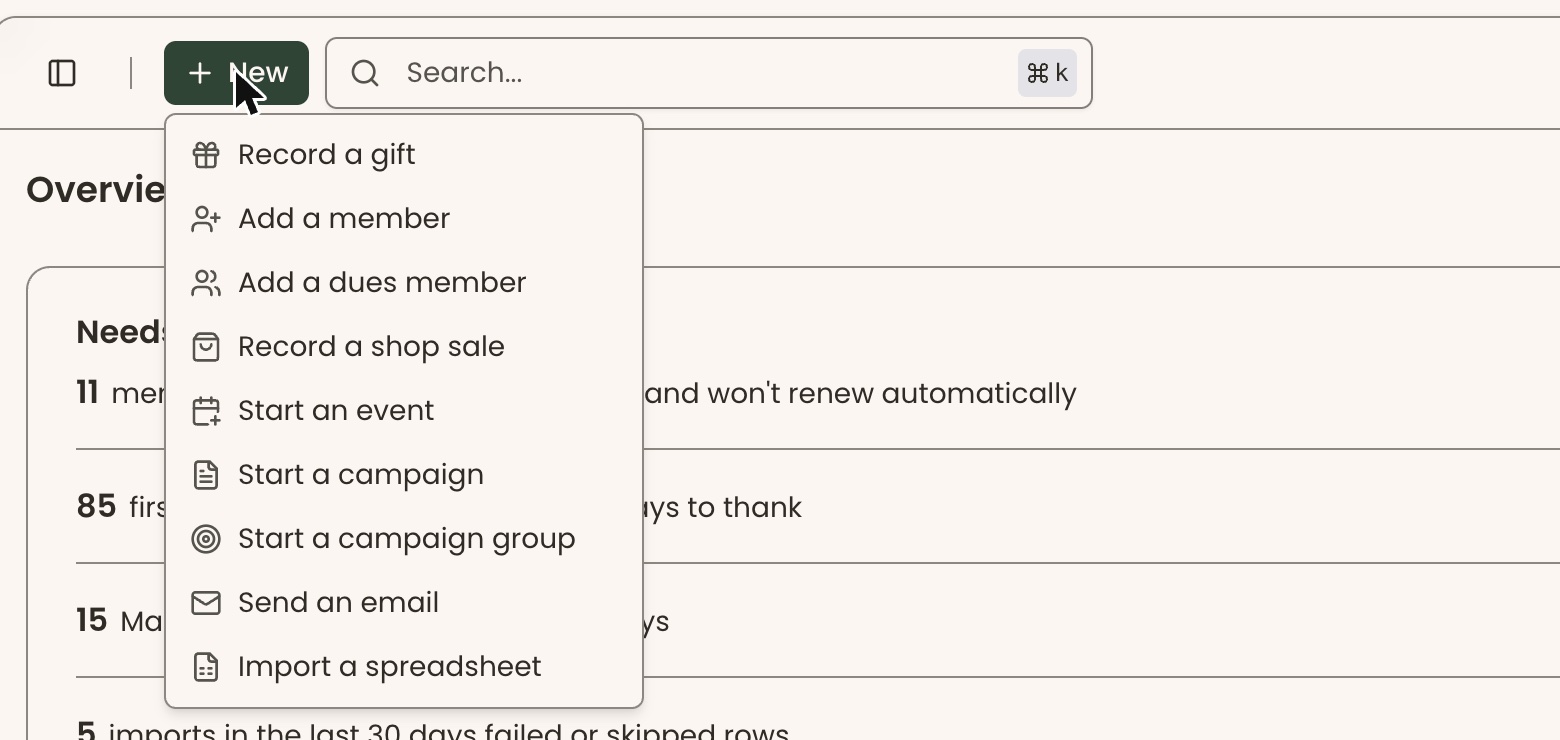
- At the top left of any page, just left of the search box, click "New". It has a plus sign (+).
- A list opens. Click the job you want.
- Clerestory opens the right page. Where the job has a form, the form is already open.
| Item | What it opens | Who sees it |
|---|---|---|
| "Record a gift" | Donations, with the gift form open | Owner, Administrator, Finance, Fundraiser |
| "Add a member" | Member List, with the membership form open | Everyone except Viewer |
| "Add a dues member" | Dues Members, with the form open | Owner, Administrator, Finance, Fundraiser |
| "Record a shop sale" | Retail Purchases, with the sale form open | Owner, Administrator, Programs, Front desk |
| "Start an event" | A new event | Owner, Administrator, Programs |
| "Start a campaign" | A new campaign | Owner, Administrator |
| "Start a campaign group" | A new campaign group | Owner, Administrator, Finance, Fundraiser |
| "Send an email" | Report Templates, where you choose who to email | Owner, Administrator, Fundraiser, Programs |
| "Import a spreadsheet" | Import Data | Owner, Administrator, Finance, Fundraiser |
An item only appears when its feature is switched on. For example, "Add a dues member" needs Dues.
Use a next-step prompt
Some pages suggest the next job in a box with a light-bulb icon that starts "Next:". You'll see one suggestion at most, and only if your role can do it.
- Open a supporter: in the left-hand menu, click Supporters, then All Supporters, then click a name. Or open an event: click Events, then Events, then click the event.
- Look for the box starting "Next:", at the top of the page above the name. It says why, for example "First gift on …, and no email or letter since."
- Click the button on the right of the box.
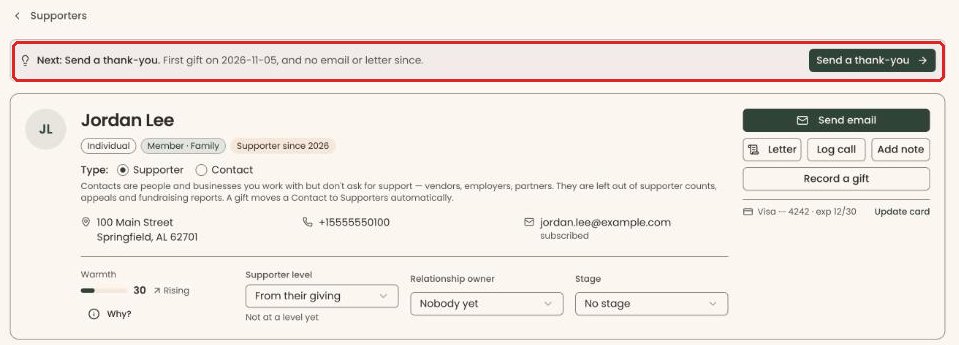
On a supporter's page:
| You'll see | When | The button |
|---|---|---|
| "Next: Update their card." | A charge on their recurring gift was declined | "Update their card" opens the card update |
| "Next: Renew membership." | Their membership ends within 30 days and won't renew automatically, or ended in the last year | "Renew membership" opens "Renew or change level" |
| "Next: Send a thank-you." | Their first gift was in the last 30 days, and nobody has emailed or written to them since | "Send a thank-you" opens an email to them. Nothing is sent yet |
On an event's page:
| You'll see | When | The button |
|---|---|---|
| "Next: Open check-in." | The event is today or tomorrow | "Open check-in" opens check-in for the event |
| "Next: Share event link." | The event is published, 2 to 14 days away, and has unsold seats | "Copy event link" copies the link. It changes to "Link copied" |
Read the Overview page
Page: /dashboard/overview
- In the left-hand menu, click Overview, the first row at the top. You also land here after signing in.
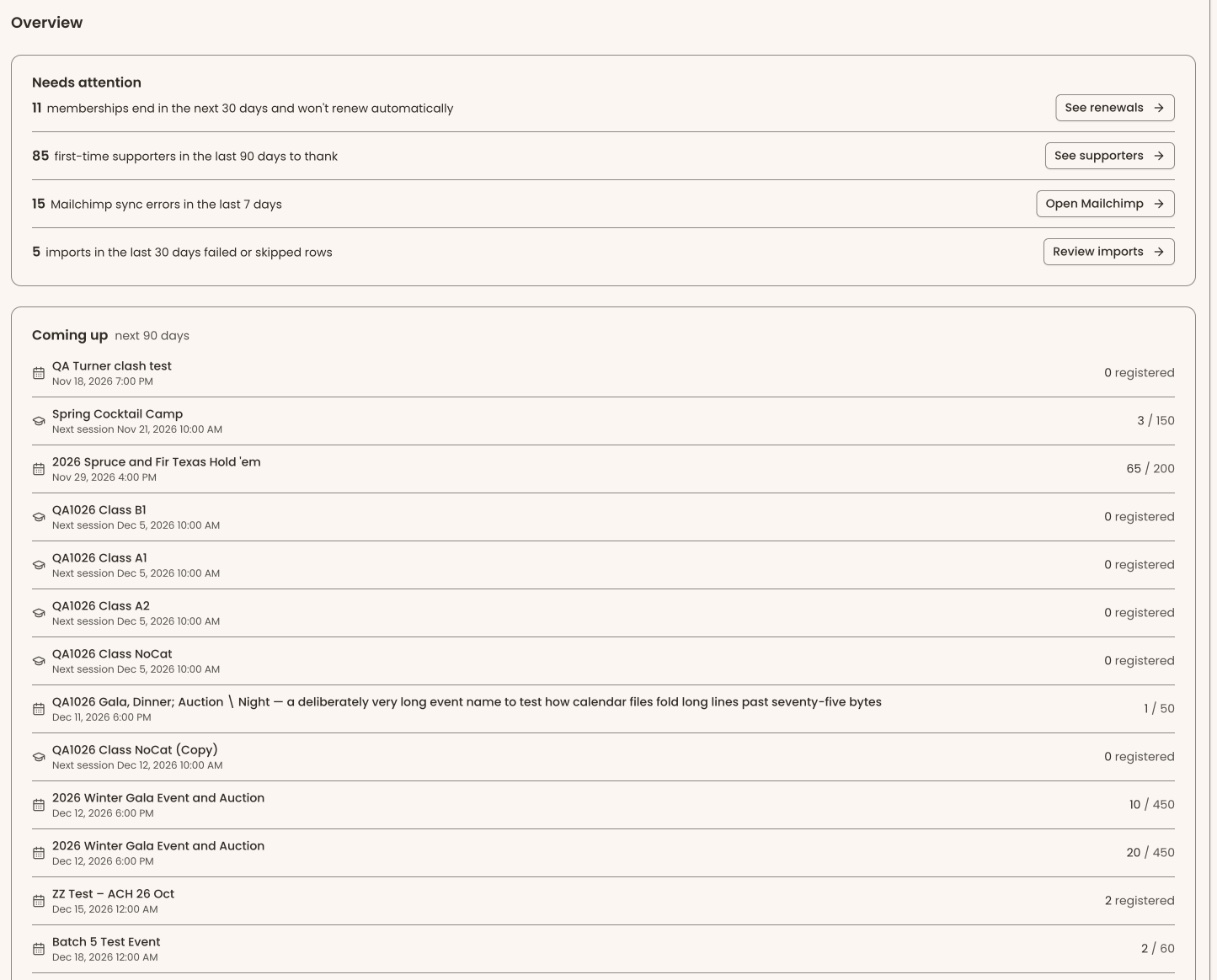
- "Needs attention" lists jobs waiting for you. Each has a button, such as "Review gifts", "See renewals", "Open tasks", "Review requests" or "Finish in Stripe". If there's nothing, it says "You're all caught up."
- "Coming up" lists events and classes in the next 90 days. If there are none, it says "Nothing is scheduled in the next 90 days."
- "At a glance" shows "Raised this month", "Revenue at risk, next 90 days" and "Supporter retention" (twice: once for donations only, once for anyone who gave, paid dues, bought a ticket, visited or shopped).
- "Recent gifts" lists the five latest gifts. Click "View All", at the top right of that box, to open Payments.
What the labels mean
- All activity / Stripe-processed: the switch at the right of "At a glance". "All activity" counts everything recorded, including cash and checks. "Stripe-processed" counts only payments that went through Stripe, the card payment service. It changes the money figures only.
- Raised this month: money raised so far this month, compared with the same point last year. With nothing to compare, it says "Nothing recorded for this point last year".
- Revenue at risk, next 90 days: money due in the next 90 days that might not arrive. If there's none, it says "Nothing at risk right now".
Special cases
- "Failed to load what needs attention" (or "upcoming events", "recent gifts", "figures"). One part of the page didn't load. Refresh the page.
- A row or "New" item you expected is missing. Either your role doesn't include it or the feature is switched off. Ask your Owner or Administrator.