


Who can do this: Everyone on your team: Owner, Administrator, Finance, Fundraiser, Programs, Front desk and Viewer. Only Owner, Administrator, Finance and Fundraiser see giving amounts. Everyone else sees a count of supporters and no money columns.
Quick steps: People › Supporters › "All Supporters" › type in "Search by name or email..." › press Enter › click the eye button on the row.
Before you start
- Any role can do this.
- Have part of the person's name, email address or phone number to hand.
- A supporter is anyone in your records you ask for support: someone who has given, joined or registered. Vendors and other business contacts are kept on a separate Contacts list.
Search the Supporters list
Page: /dashboard/supporters
- In the left-hand menu, find the group called "People".
- Click "Supporters". A short list of pages opens under it.
- Click "All Supporters". The Supporters page opens.
- Near the top of the list, click the search box that says "Search by name or email...".
- Type part of a name, an email address, a business name, or at least 4 digits of a phone number. For example, "Jordan Lee".
- Press Enter on your keyboard, or click "Apply Filters" to the right of the search box.
- The list now shows only the people who match. The badge at the top right of the first box shows how many, for example "3 supporters".
- To open someone's record, look at the far right of their row. Click the round button with an eye shape.
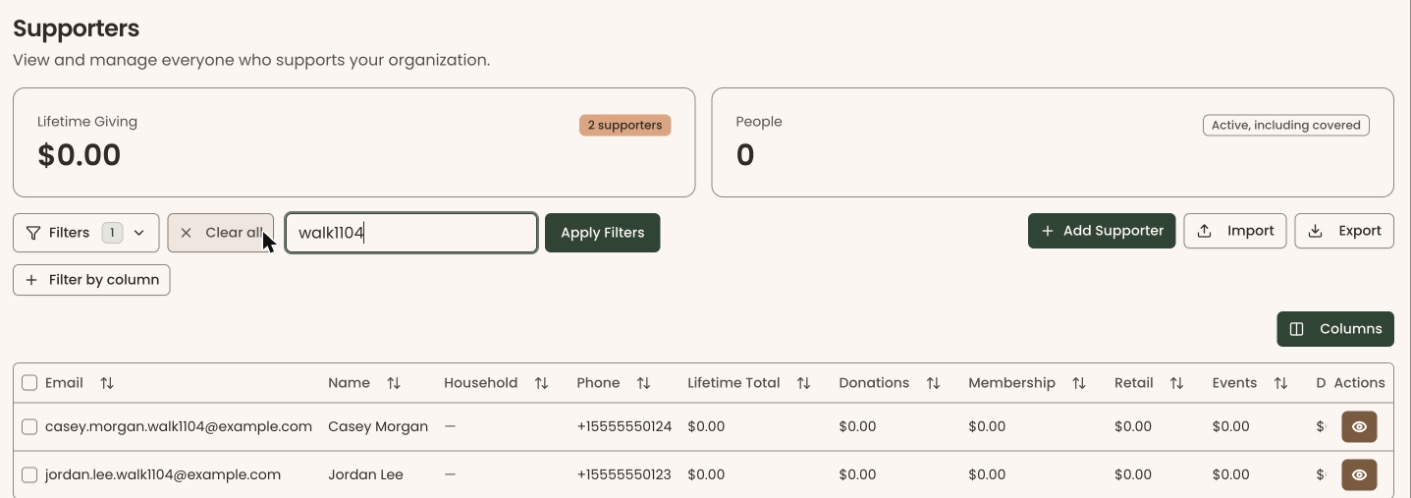
If nobody matches, the list says "No results match your filters." Check the spelling, or try fewer letters.
Filter the list
A filter narrows the list to people who match a rule, such as members only.
Page: /dashboard/supporters
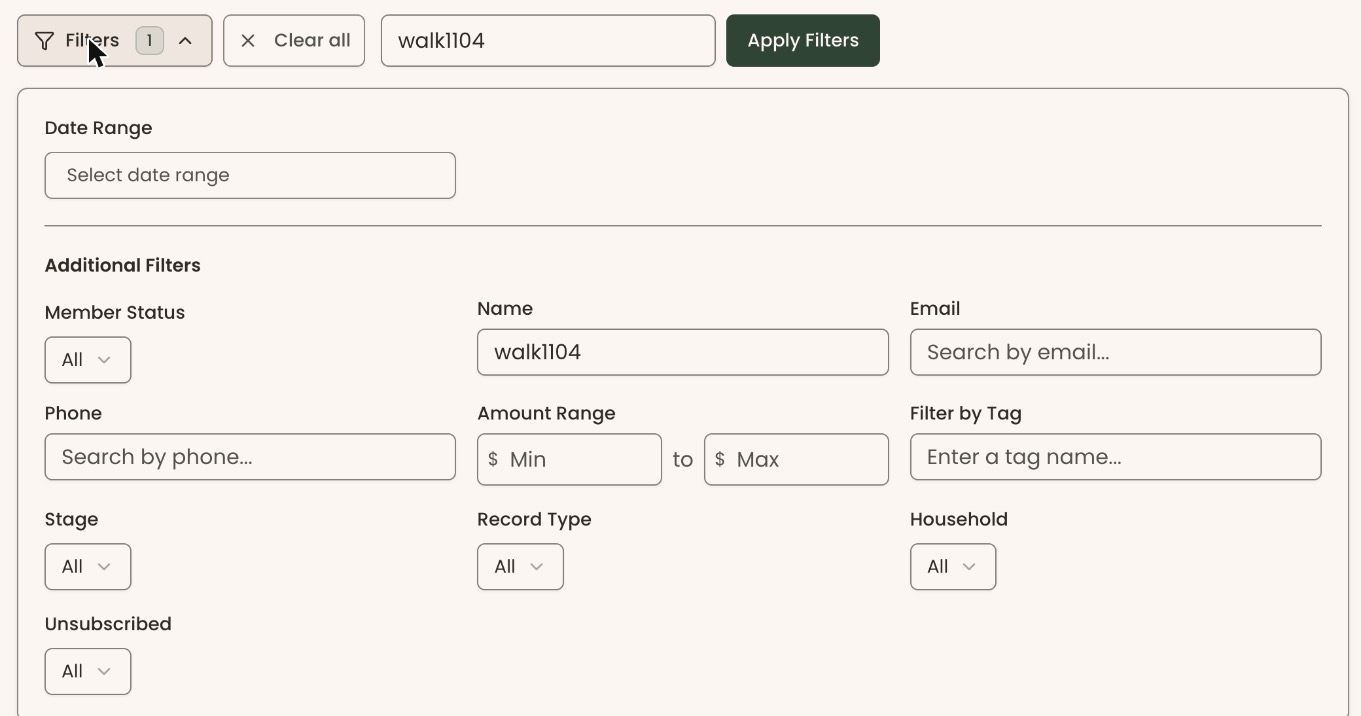
- On the Supporters page, click "Filters" at the top left of the list. A panel opens below it.
- Choose any of these in the panel:
- "Member Status": "All", "Members" or "Non-Members".
- "Name", "Email" or "Phone": type part of it.
- "Amount Range": the lowest ("Min") and highest ("Max") lifetime giving amount.
- "Filter by Tag": type a tag name.
- "Stage": one of your organization's supporter stages.
- "Record Type": "People" or "Businesses".
- "Household": "In a household" or "Not in a household".
- "Unsubscribed": for example "Unsubscribed from appeals", "No postal mail", "Do not contact" or "Deceased".
- "Date Range": read "What the labels mean" below before you use it.
- Click "Apply Filters".
- The "Filters" button now shows a number: how many filters are on. The list and the totals at the top count only the people who match.
- To remove every filter, click "Clear all" next to "Filters".
You can also filter on any single column. Under the "Filters" button, click "Filter by column". A row opens below it. Choose a "Column" ("Choose a column"), a "Condition" and a "Value", then click "Add filter" at the right of that row. Each filter shows as a chip. To remove one, click the small "x" on the chip.
Sort and choose columns
Page: /dashboard/supporters
- To sort, click a column heading, for example "Last Contribution".
- To reverse the order, click the same heading again.
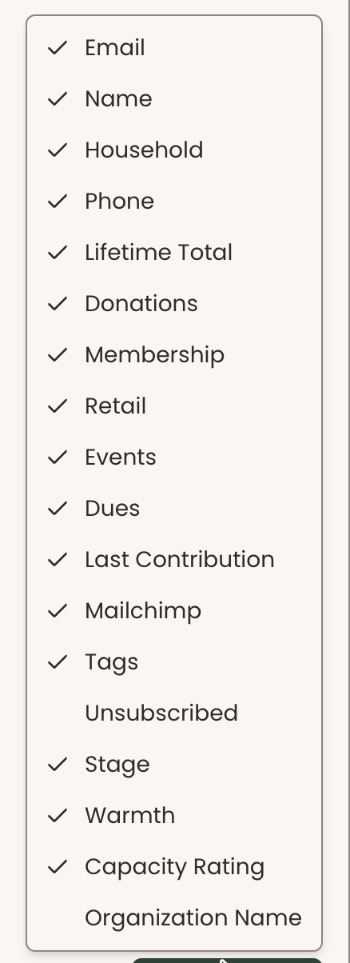
- To show or hide columns, click "Columns", just above the right end of the list.
- Click a column name to check or uncheck it, for example "Stage", "Tags" or "Unsubscribed".
Find anyone from any page
- At the top of any page, click the box that says "Search...". On a Mac you can press Command and K instead; on Windows, Ctrl and K. On a small screen, click the magnifying-glass button.
- Type at least 2 letters of a name, email or phone number.
- Under "People", click the person. Their record opens.
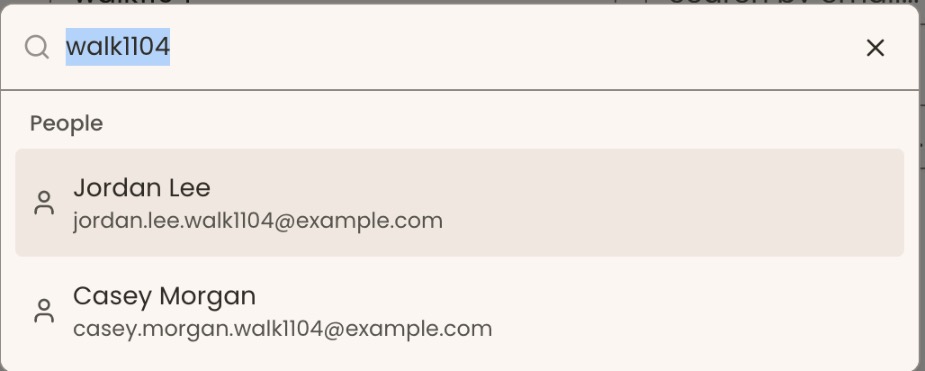
This search finds Supporters and Contacts. A Contact says "Contact" under their name.
What the labels mean
- Lifetime Giving (first box): the total given by everyone the list is showing. If your role doesn't see giving amounts, this box reads "Supporters" and shows a count instead.
- "supporters" badge: how many people the list is showing.
- People (second box): people who are members right now, counting everyone a membership covers, such as a spouse. Each person counts once. Its tag reads "Active, including covered".
- Lifetime Total: everything the person has given. "Donations", "Membership", "Retail", "Events" and "Dues" split that total by type.
- Last Contribution: the date of their most recent payment.
- Date Range filter: keeps people whose first payment is on or after the start date and whose last payment is on or before the end date. People who have never given always stay in. It does not find "everyone who gave between these dates": a long-time donor who also gave inside your dates is left out.
Special cases
- Contacts aren't on this list. Vendors, employers and other people saved as Contacts have their own list: in the left-hand menu, under "People", click "Contacts". The quick search finds both. See Add a supporter or a contact, and move people between Supporters and Contacts.
- On a phone, the "Add Supporter" button reads "Manual".
- Mailchimp column: shows only if your organization has connected Mailchimp.