


Who can do this: Owner, Administrator and Fundraiser can do every part. Programs can send the email but can't change a template's type. Front desk doesn't see Communications.
Quick steps: Communications › "Templates" › check the email's "Type" is "Newsletter". Then Reporting › Templates › "Active Members" › "Run Report →" › "Email these people" › "Template" › "Send email".
Before you start
- You need one of the roles above.
- Write and save your email first, as a template. If you haven't yet, see Email setup, and emailing expiring or expired members, Part 4.
- A template is an email you write once and reuse. Clerestory fills in each person's own details when it sends.
1. Check your email's type
An email's type decides whether it has an unsubscribe link and whether people who opted out of emails get it. For an email to all your members, such as a meeting reminder, use "Newsletter".
Page: /dashboard/communications
- In the left-hand menu, under "Operations", click "Communications". The "Templates" tab opens.
- Find your email in the list. Look at its "Type" column. If it says "Newsletter", go to Part 2.
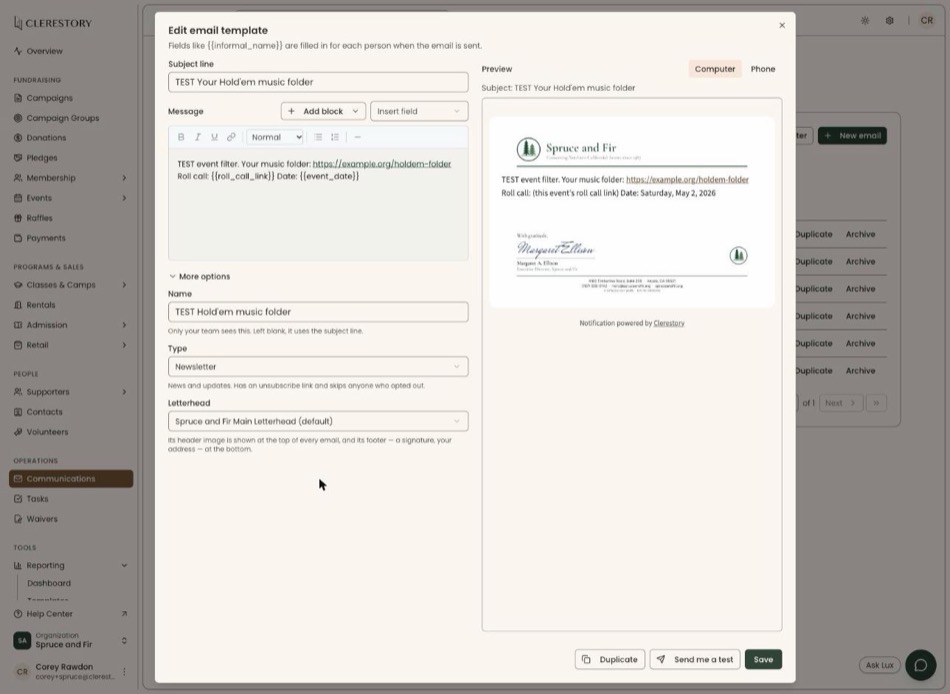
- If it says something else, click "Edit" on that row. A box opens called "Edit email template".
- Under the message, click "More options".
- In "Type", choose "Newsletter". Its note reads "News and updates. Has an unsubscribe link and skips anyone who opted out."
- Click "Save".
- You'll see "Template saved." That means it worked.
Important: "Thank-you" and "Confirmation" emails have no unsubscribe link and also go to people who opted out of emails. Don't use them for an email to all your members.
2. Send it to every active member
Page: /dashboard/reporting/templates
- In the left-hand menu, under "Tools", click "Reporting" to open it, then click "Templates".
- The page is headed "Report Templates". Under "Membership", find "Active Members". It lists every membership that is currently active.
- Click "Run Report →" at the bottom of its card. The report opens.
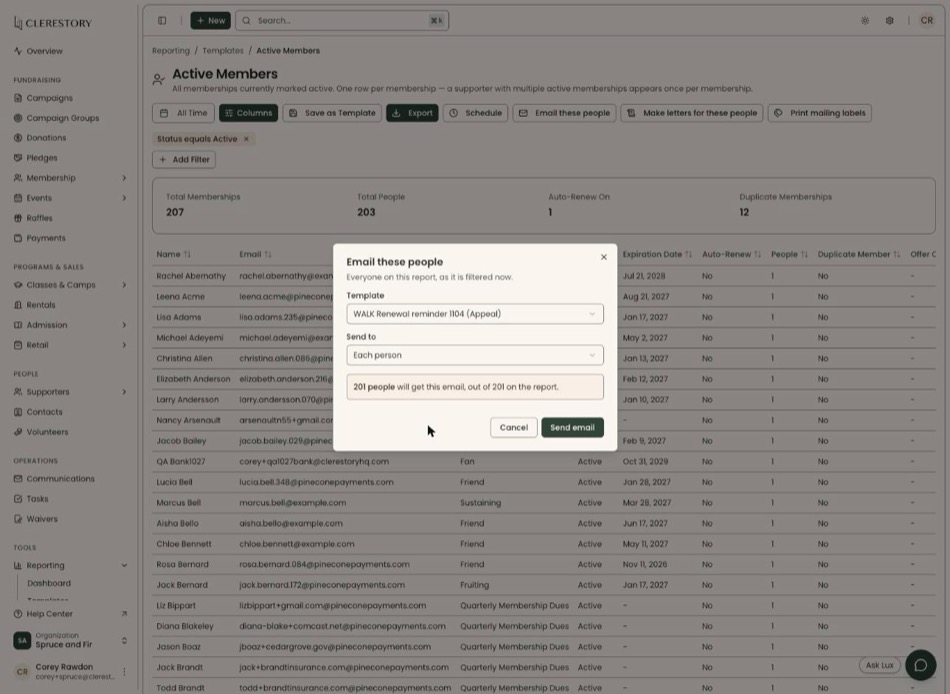
- Above the results, click "Email these people". A box opens with the same name.
- In "Template", choose your email. Each email shows its type in brackets, for example "November Quarterly Meeting (Newsletter)".
- In "Send to", leave "Each person". (Choose "One per household or business" to send one email per household.)
- Read the line that says how many people "will get this email", out of the number on the report. Under it, Clerestory lists anyone it's leaving out, with the number and the reason.
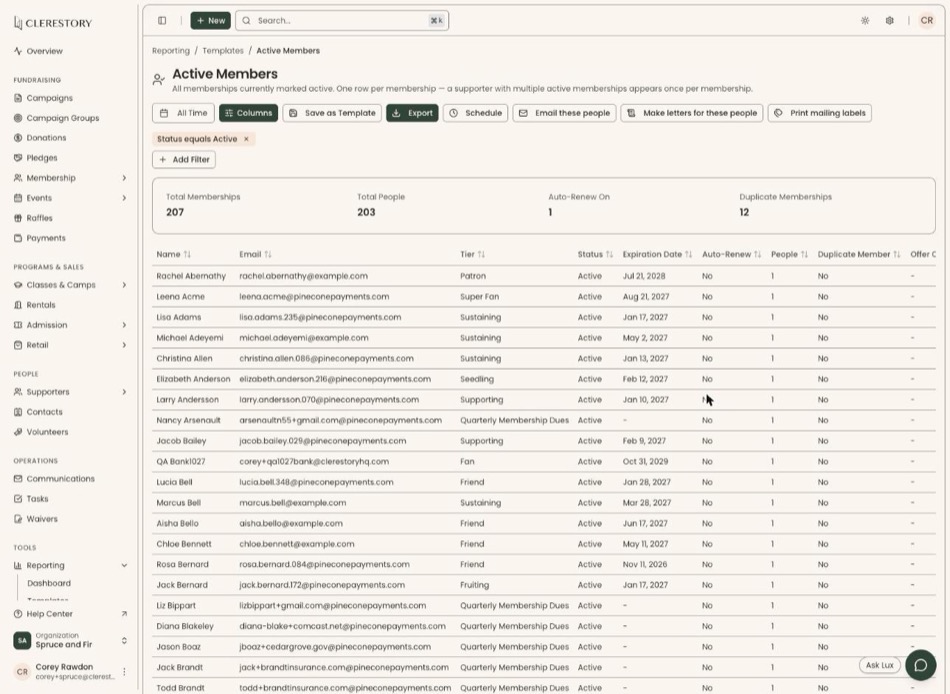
Someone with two memberships is counted once, so they get one email, not two. That's why the number can be lower than the "Total Memberships" figure on the report.
Important: clicking "Send email" sends to everyone counted, right away. There's no second "Are you sure?" step, and an email can't be unsent. Send yourself a test first: open the email from the "Templates" tab, click "Send me a test" and check your own inbox.
- Click "Send email".
- You'll see a message such as "105 emails on the way." That means it worked. If anyone was left out, the message says how many.
3. See what was sent
- Everything: in the left-hand menu, under "Tools", click "Settings", then "Email Log".
- One person: open their record from People › Supporters, then click the "Communication" tab.
If you make a mistake
- Sent the wrong email: an email can't be unsent. Send a short correction the same way.
- Wrong wording: open the email from the "Templates" tab, change it and click "Save". Emails already sent don't change.
- "There are no email templates yet": you haven't saved an email. Write one first (see "Before you start").