


Who can do this: Owner, Administrator and Programs. Finance, Fundraiser, Front desk and Viewer users can see the "Drawings" list but don't see "Draw a winner".
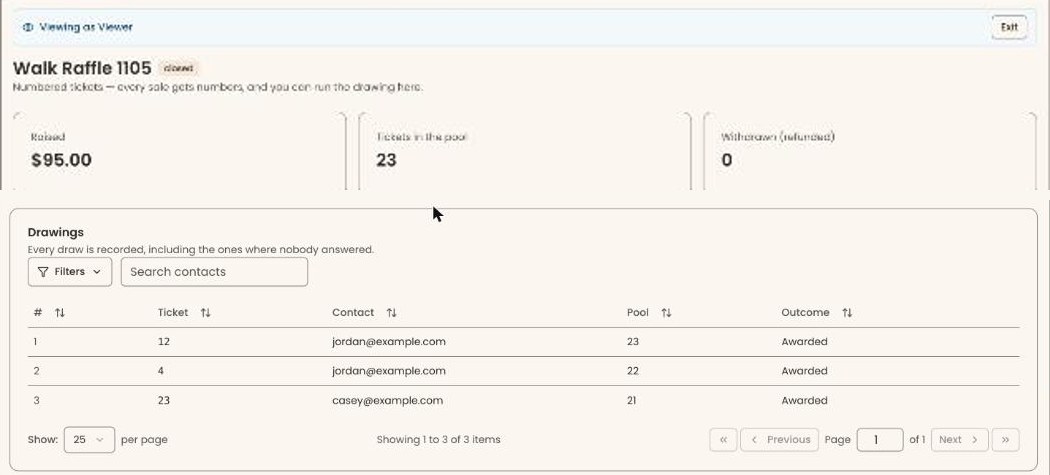
Quick steps: Fundraising › "Raffles" › the raffle › "Close entries" › "Draw a winner" › read out the ticket number › see it under "Drawings".
Before you start
- You need the Owner, Administrator or Programs role.
- The raffle must use numbered tickets. A paper raffle has no drawing button: draw its stubs from the drum. See Create a raffle, add ticket options, and open or close sales.
- Entries must be closed first. Clerestory won't draw while tickets are still on sale.
- The pool is every paid ticket that can still win. Refunded tickets and tickets already drawn are not in it.
Draw a winner
Page: /dashboard/raffle/<raffleId>
- In the left-hand menu, under "Fundraising", click "Raffles".
- In the table, click the raffle's name. The raffle's page opens.
- If the label next to the name says "open", click "Close entries" at the top right. The label changes to "closed".
- Check "Tickets in the pool" near the top of the page. Before the first draw, that's how many tickets can win. It doesn't go down after a draw.
Important: "Draw a winner" picks a ticket at random right away, and can't be undone. If the winning ticket's buyer gave an email address, they are emailed that they won.
- At the top right, click "Draw a winner".
- A message at the top of the screen shows the winning ticket and its email, for example "Ticket 42 — jordan@example.com". If the buyer gave no email, it says "no email on file".
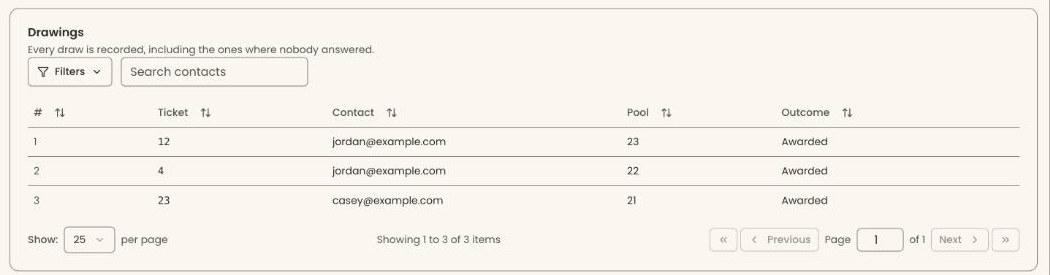
- Scroll down to the box headed "Drawings", below "Ticket options". This draw is there as "#" 1, with "Awarded" under "Outcome". That means it worked.
- Read out the ticket number. The winner shows their stub, or the email with their ticket numbers.


If you see "Nobody left in the pool.", every ticket has been drawn or refunded. The draw is still recorded, with "Void" as its outcome.
If you see "Could not run the drawing.", check that entries are closed and try again.
Draw again
Use this when the winner doesn't claim the prize, or when you have more than one prize.
Important: Each draw picks a new winner right away and emails them, if they gave an email address. A buyer who wasn't there is still emailed that they won. A draw can't be undone.
- On the raffle's page, click "Draw a winner" again.
- A new row appears under "Drawings" with the next number, and its "Pool" is one less. A ticket that has already been drawn never goes back in the pool, so it can't win twice.
What the labels mean
The "Drawings" box keeps every draw, including ones where nobody answered.
- "#": the order of the draws: 1 for the first, 2 for the second.
- "Ticket": the winning ticket number.
- "Contact": the email the buyer gave, or "—" if none.
- "Pool": how many tickets could win at that draw.
- "Outcome": "Awarded" (a winner was drawn), "Not present" or "Void" (the pool was empty).
Special cases
- Marking a winner "Not present". The "Not present" button shows only on a raffle where the winner must be present to win. That setting can't be chosen in the screens, so you won't see the button. To pick someone else, click "Draw a winner" again. Every draw stays in "Drawings".
- After the drawing. The raffle's label stays "closed", and "Reopen" stays on the page. There is no button to mark the raffle as drawn. Don't click "Reopen" after a drawing: tickets sold afterwards weren't in that draw.
- Paper raffles. No "Draw a winner" button. Draw from the drum.
Buttons to avoid
- "Reopen", next to "Draw a winner", starts selling tickets again.
If you make a mistake
A draw can't be undone or deleted in the screens. A winner's email can't be called back once sent.