


Who can do this: Owner, Administrator and Programs. Finance, Fundraiser, Front desk and Viewer users can open the "Event Series" page, see each series and copy its link, but don't see "Create Series", "Edit" or "Archive".
Quick steps: Events › "Event Series" › "Create Series" › "Name" › "Create". Add an event: the event › "Settings" tab › "Event Series" › pick the series. To archive: "Event Series" › "Archive" on the series' row › "Archive".
Before you start
- You need an Owner, Administrator or Programs login.
- The events you want to group should already exist. See Create an event and tickets.
- Have ready: the series' name, for example "2026 Concert Series".
- An event series groups related events, such as a concert season or a monthly lecture, on one public page. Supporters see all its upcoming events in one place.
Create a series
Page: /dashboard/campaigns/series
- In the left-hand menu, under "Fundraising", click "Events". Then click "Event Series" in the list that opens below it.
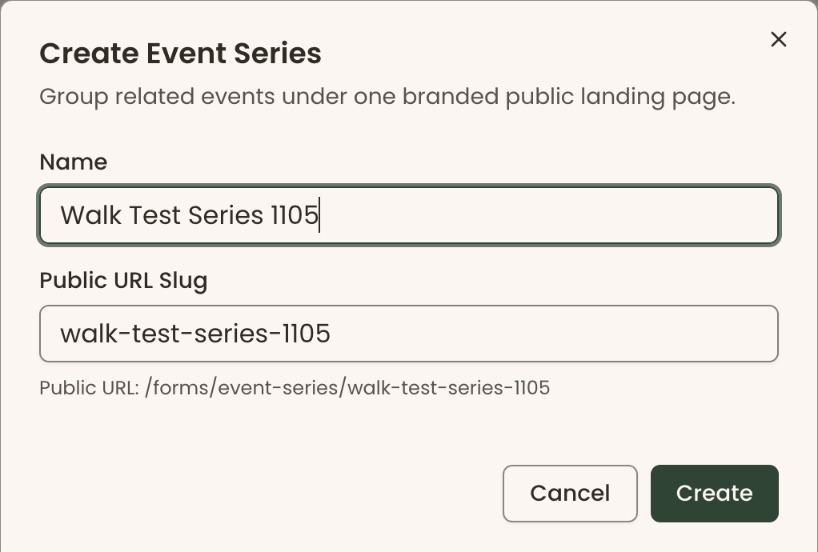
- At the top right of the "Event Series" page, click "Create Series". A box opens called "Create Event Series".
- In "Name", type the series' name, for example "2026 Concert Series".
- "Public URL Slug" fills itself in from the name, for example "2026-concert-series". This is the end of the page's web address. You can change it, using lowercase letters, numbers and dashes.
- Click "Create".
- You'll see "Event series created", and the series' own page opens. That means it worked.
If you see "That slug is already taken — try a different one", change "Public URL Slug" and click "Create" again.
Add details and branding
Page: /dashboard/campaigns/series/<seriesId>
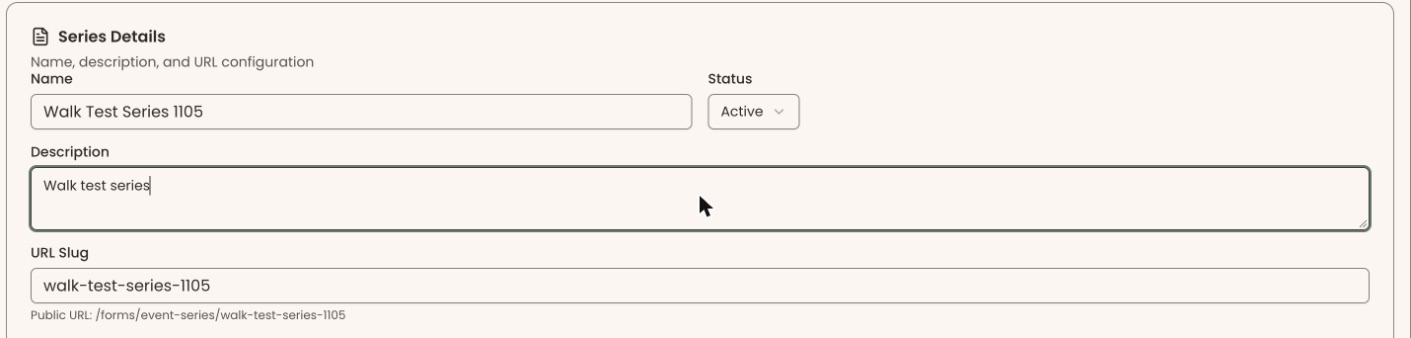
- On the series' page, at the top right, click "Edit".
- Under "Series Details", fill in "Description" if you like, for example "Three evenings of chamber music".
- Under "Branding", you can add a "Hero Image", the wide picture across the top of the public page. The suggested size is 1800 × 600 pixels.
- At the bottom right of the page, click "Save Changes".
- You'll see "Event series updated". That means it worked.
The series' colors and fonts are also set under "Branding". Events in the series use them unless an event has its own.
Add an event to the series
You add events from each event's own settings, not from the series.
Page: /dashboard/campaigns/<campaignId>?tab=settings
- In the left-hand menu, under "Fundraising", click "Events". Then click "Events" in the list that opens below it.
- In the list of events, click the event's name.
- Click the "Settings" tab in the row of tabs near the top. It is the last tab, on the second line.
- Scroll down to "Event Series", inside the "Venue & Details" box. You don't need to click "Edit" for this.
- Click the box under "Event Series" and click the series' name.
- You'll see "Series updated". That means it worked. It saves right away.

To take an event out of a series, choose "None" in the same box.
The series' page lists its events under "Events in this Series". It starts on "Upcoming". Click "Past" or "All", above the list on the right, to see the others.
Share the series' public page
- On the "Event Series" page, find the series' row.
- In the "Public URL" column, click the small copy icon (two overlapping squares) next to the address.
- You'll see "Public URL copied". That means it worked. Paste it wherever you need it.
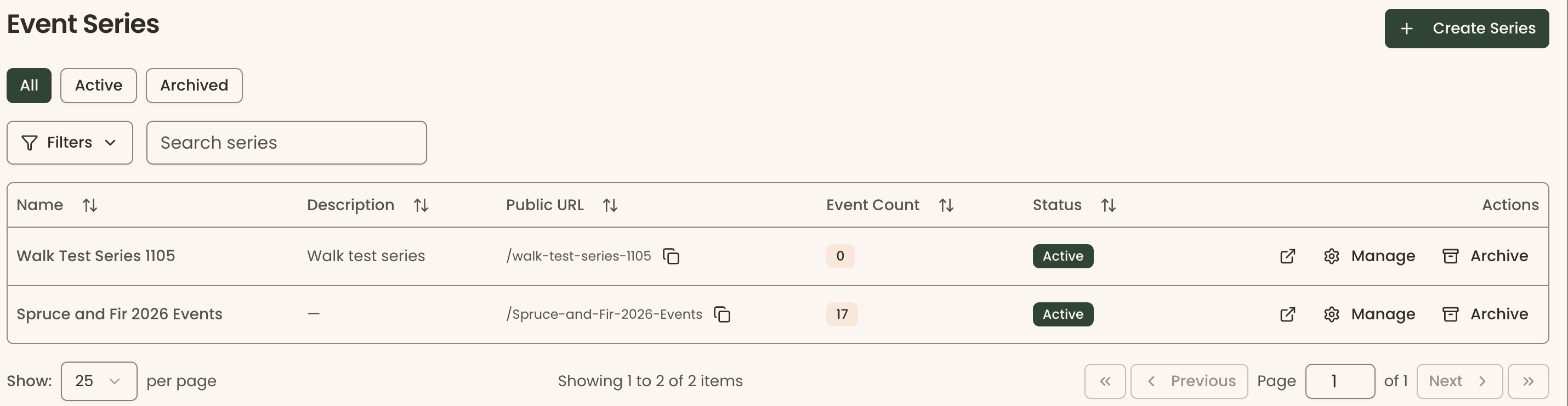
To look at the page yourself, click the arrow-out-of-a-box icon in the "Actions" column. It opens in a new tab.
Archive a series
Archive a series when it's over and you no longer want it shown.
- On the "Event Series" page, find the series' row.
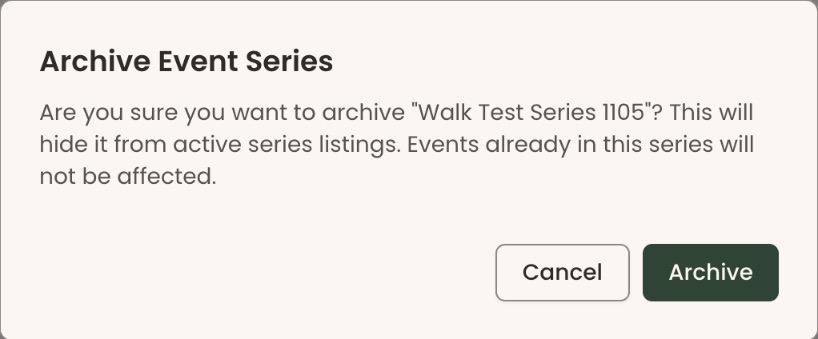
- In the "Actions" column, click "Archive". A box opens called "Archive Event Series".
Important: Once archived, the series' public page stops working, and you can't add events to it. The events themselves don't change.
- Click "Archive".
- You'll see "Event series archived", and its "Status" reads "Archived". That means it worked.
If you see "Failed to archive event series", try again.
To see only some series, click "All", "Active" or "Archived" at the top left, above "Filters".
Special cases
- No series yet. The page shows "No event series yet" and a "Create Series" button.
- "Manage" on each row opens the series' own page.
If you make a mistake
To bring an archived series back:
- On the "Event Series" page, click "Archived" above the table.
- On the series' row, click "Manage".
- At the top right, click "Edit".
- Under "Series Details", click the box under "Status" and choose "Active".
- Click "Save Changes" at the bottom of the page. You'll see "Event series updated".