


Who can do this: Owner and Administrator. Viewer users can open the page, but "Connect", "Sync Now" and "Disconnect" are grayed out for them. Other roles don't see "Integrations" in Settings.
Quick steps: Settings › "Integrations" › Mailchimp "Connect" › sign in to Mailchimp and allow access › "Select an audience" › "Save Audience Selection" › "Sync Now".
Before you start
- You need the Owner or Administrator role.
- You need a Mailchimp account with at least one audience, and its login details.
- A supporter is anyone in your records who has given, joined or registered. "Sync Now" sends every supporter who has an email address.
Connect your Mailchimp account
Page: /dashboard/settings/integrations
- In the left-hand menu, under "Tools", click "Settings". Then click "Integrations" in the list that opens below it. You may need to scroll the left-hand menu to see the list.
- Find the "Mailchimp" box. At its top right it says "Not Connected".
- Click "Connect". Mailchimp's own sign-in page opens.
- Sign in to Mailchimp and allow Clerestory to access your account.
- Mailchimp sends you back to Clerestory. You'll see "Mailchimp connected successfully", and a page called "Select a Mailchimp Audience" opens. That means it worked.
If you see "Connection failed", click "Back to Integrations" and try again.
Choose your audience
Page: /dashboard/settings/integrations/mailchimp
- On "Select a Mailchimp Audience", click the box that says "Select an audience".
- Click the audience you want. Each one shows how many members it has.
- Click "Save Audience Selection".
- You'll see "Audience "…" selected and configured" with your audience's name. The page now shows "Connected", your "Account" and your "Audience". That means it worked.
If you see "No audiences found in your Mailchimp account.", create an audience in Mailchimp first, then reload this page.
Send your supporters to Mailchimp
Page: /dashboard/settings/integrations/mailchimp
- Go to Settings › "Integrations". In the "Mailchimp" box, click "Manage".
Important: "Sync Now" adds every supporter with an email address to your Mailchimp audience as subscribed, unless they are marked do not contact, have opted out of newsletters, or are marked deceased. Those are added as unsubscribed. These choices are set on each supporter's record: see Edit a supporter's contact details and preferences, or mark them deceased.
- Click "Sync Now".
- You'll see "Sync started for 250 supporters" (with your own number). That means it worked. The sync runs in the background.
- Reload the page after a few minutes. A large sync can take much longer. "Last synced" changes only when the whole sync has finished.
- "Recent Sync Activity" lists the most recent sync work, newest first, such as "Supporter sync" and "Tag sync", each with the date and time. A green check means that piece worked. The "Bulk sync" row for "Sync Now" shows how many were "synced" and how many "failed", for example "476 synced · 24 failed".
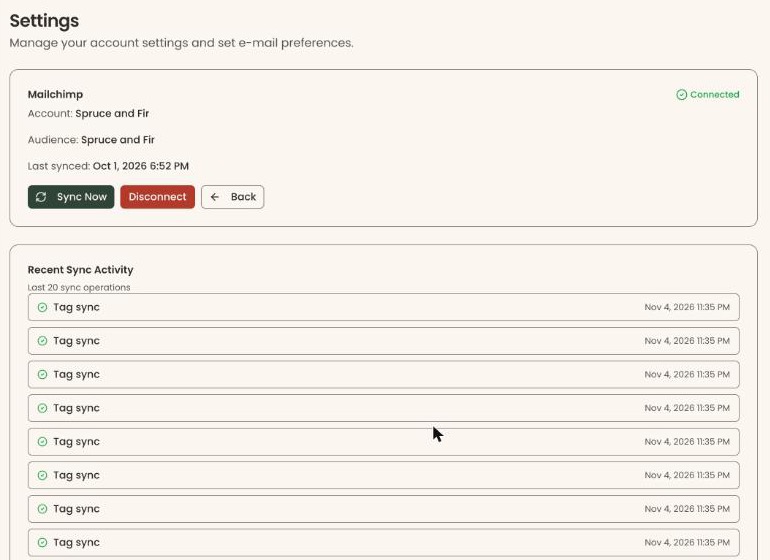
A red line under a row explains why that piece failed, for example an email address Mailchimp rejects.
If a red box appears under "Last synced", it explains what went wrong in the last sync.
Disconnect Mailchimp
- Go to Settings › "Integrations". In the "Mailchimp" box, click the red "Disconnect" button.
- A box called "Disconnect Mailchimp?" opens. It says "Are you sure you want to disconnect Mailchimp? Your audience configuration will be preserved."
- Click "Disconnect" in the box to confirm, or "Cancel" to keep the connection.
- You'll see "Mailchimp disconnected successfully", and the box says "Not Connected". That means it worked.
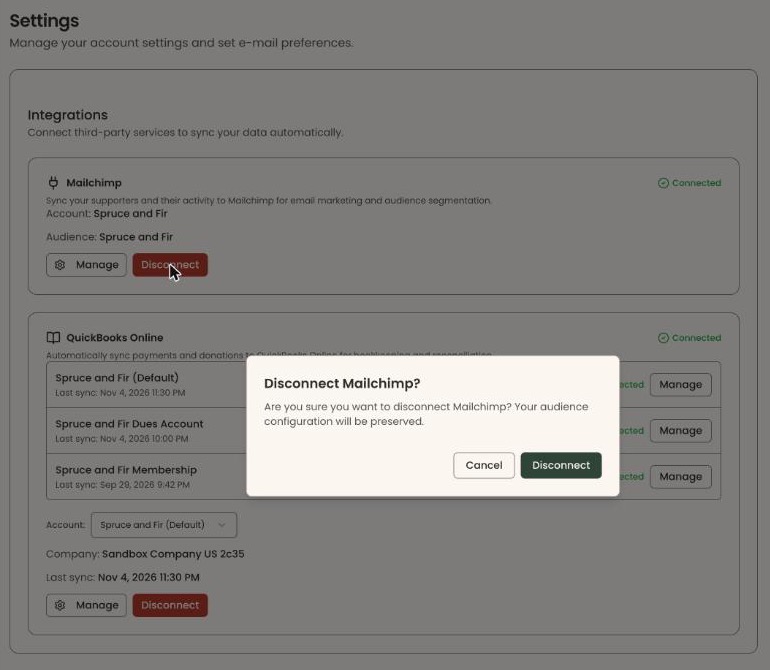
Disconnecting stops syncing. Your contacts already in Mailchimp are not deleted, and you can connect again at any time.
Buttons to avoid
- "Disconnect" (red) stops all syncing to Mailchimp. Use "Manage" to see the sync instead.
- "Back" returns to Integrations without changing anything.
If you make a mistake
Contacts added by "Sync Now" can't be removed from Mailchimp in Clerestory. Remove them in Mailchimp itself. To use a different audience, disconnect and connect again, then choose the new audience.