


Who can do this: "Cancel registration": Owner, Administrator and Programs. "Issue refund": Owner, Administrator and Finance. "Transfer to another class": Owner and Administrator; Programs users see it only on a registration with no payment attached. Front desk and Viewer users don't see these options.
Quick steps: Programs & Sales › Classes & Camps › Classes › the class › "Roster" tab › ⋯ on the row › "Cancel registration", "Issue refund" or "Transfer to another class"
Before you start
- To cancel and refund in one go, you need an Owner or Administrator login.
- Have ready: the registrant's name.
- Decide whether the money goes back to them, and how much.
- If one order registered several people, canceling one of them cancels them all. See "Special cases".
- A registration is one person's place in one class.
Cancel a registration
Page: /dashboard/classes/<classId>?tab=roster
- In the left-hand menu, under "Programs & Sales", click "Classes & Camps". Then click "Classes" in the list that opens below it.
- In the list of classes, click the class's name.
- Click the "Roster" tab in the row of tabs near the top.
- In the search box ("Search registrants..."), type the registrant's name.
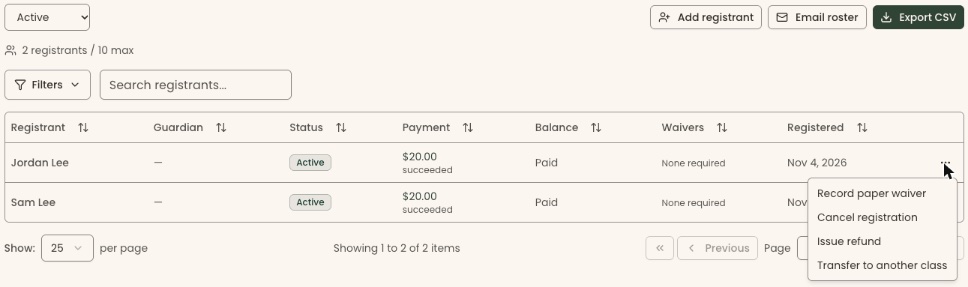
- At the far right of their row, click the three dots (⋯).
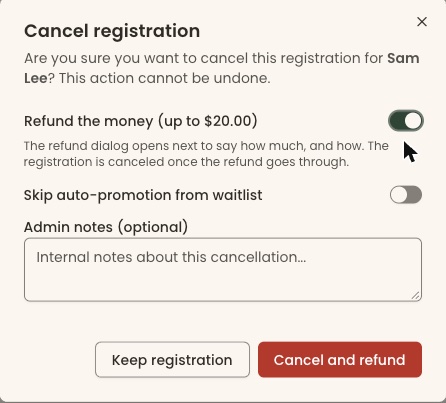
- Click "Cancel registration". A box opens called "Cancel registration".
- If they paid, you'll see "Refund the money (up to $…)". Switch it on to refund, or leave it off to keep the money. The amount is what the whole order paid, so for an order of several people, refund only this person's share in the next box.
- If you see "Skip auto-promotion from waitlist", switch it on only if you don't want the next person on the waitlist offered this place.
- Add "Admin notes (optional)" for your team if you like.
Important: canceling can't be undone. Clerestory emails the registrant that their registration was canceled, and your team is notified. If the same order registered other people, they are all canceled too.
- Click "Cancel registration" (or "Cancel and refund" if you switched on the refund).
- Without a refund, you'll see "Registration cancelled.". The row moves out of the "Active" list. That means it worked.
- With a refund, a refund box opens next. Go to "Refund the money" below. The registration is canceled once the refund goes through.
If it didn't work, you'll see the reason, or "Failed to cancel registration.".
Refund the money
The refund box opens after "Cancel and refund", or when you click "Issue refund" in the row's ⋯ menu. "Issue refund" on its own refunds without canceling the registration.
Paid by card online (box called "Issue refund"):
- "Refund amount" is filled in with the most you can refund. Type a different amount if you need to, or click "Refund full amount" at the top right of the box to fill it in again.
- Choose "Refund $… to their card" to send the money back.
- Or choose "Already refunded another way" if you already gave it back outside Clerestory. Pick "How?" ("Check", "Cash" or "Other").
- Add a "Reason (optional)" if you like.
Important: "Issue refund" sends the money back to their card right away, and Clerestory emails them a refund confirmation. It can't be undone.
- Click "Issue refund". (For "Already refunded another way" the button is "Record refund": no money moves, but they are still emailed a refund confirmation.)
Paid by cash, check or bank transfer (box called "Record a refund paid by hand"):
- The box says "No card is refunded. Record this only after you have handed the money back to …".
- Check or change "Refund amount".
- Check "I handed the money back to …". The button stays grayed out until you do.
Important: "Record refund" records the refund and emails them a refund confirmation. It can't be undone.
- Click "Record refund".
You'll see "$50.00 refunded to Jordan Lee." (or "$50.00 recorded as refunded for Jordan Lee."). After "Cancel and refund" you'll also see "Registration cancelled.". That means it worked.
If it didn't work:
- "The most you can refund is $…" means the amount is too high. Lower it.
- "The refund went through, but the registration was not canceled: …" means the money was refunded but the place is still taken. Click "Cancel registration" on the row again, with the refund switched off.
Transfer to another class
A transfer cancels this registration, refunds what they paid for it in full, and registers them in another class.
- On the "Roster" tab, at the far right of their row, click the three dots (⋯).
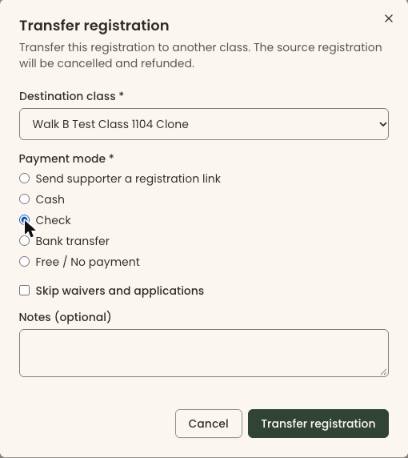
- Click "Transfer to another class". A box opens called "Transfer registration".
- In "Destination class *", choose the new class. Only other published classes are listed.
- Under "Payment mode *", choose one:
- "Send supporter a registration link": they register and pay for the new class themselves.
- "Cash", "Check", "Bank transfer" or "Free / No payment": you record how they paid for the new class.
- For cash, check, bank transfer or free, check "Skip waivers and applications" if they don't need to fill these in again.
- Add "Notes (optional)" if you like.
Important: "Transfer registration" cancels the old registration and refunds its payment in full right away. It can't be undone.
- Click "Transfer registration".
- For cash, check, bank transfer or free, you'll see "Registration transferred to …". That means it worked.
- For a registration link, a box opens called "Send this link to the supporter". Click the copy button (two overlapping squares) next to the link, send it to them, then click "Done".
If it didn't work:
- A message such as "Destination class is full." or "Destination class registration has closed." means the new class can't take them. Nothing has changed.
- A box called "Transfer incomplete" means the old registration was canceled and refunded, but the new one failed. Add them to the new class yourself: see Add a registrant to a class.
Special cases
- No refunds permission (Programs): the cancel box has no refund switch, so the money is kept. An Owner, Administrator or Finance user can then click "Issue refund" on the row.
- To see canceled registrations, change the box at the top left of the roster from "Active" to "Cancelled" or "All".
- One order can register several people (for example a parent signing up two children). Canceling any one of them cancels every registration on that order, while the refund is only the amount you enter. Refund each person's share, and add back anyone who should stay.
- Refunds can also be made from the payment's own page: see Refund a payment.
Buttons to avoid
- "Keep registration" closes the box without canceling.
- "Record paper waiver" records a waiver; it doesn't cancel anything.
If you make a mistake
This can't be undone in the screens. A canceled registration can't be reopened, and a refund to a card can't be taken back. To put someone back in the class, add them again: see Add a registrant to a class.