


Who can do this: Owner, Administrator and Fundraiser. Other roles don't see "Duplicates" in the menu.
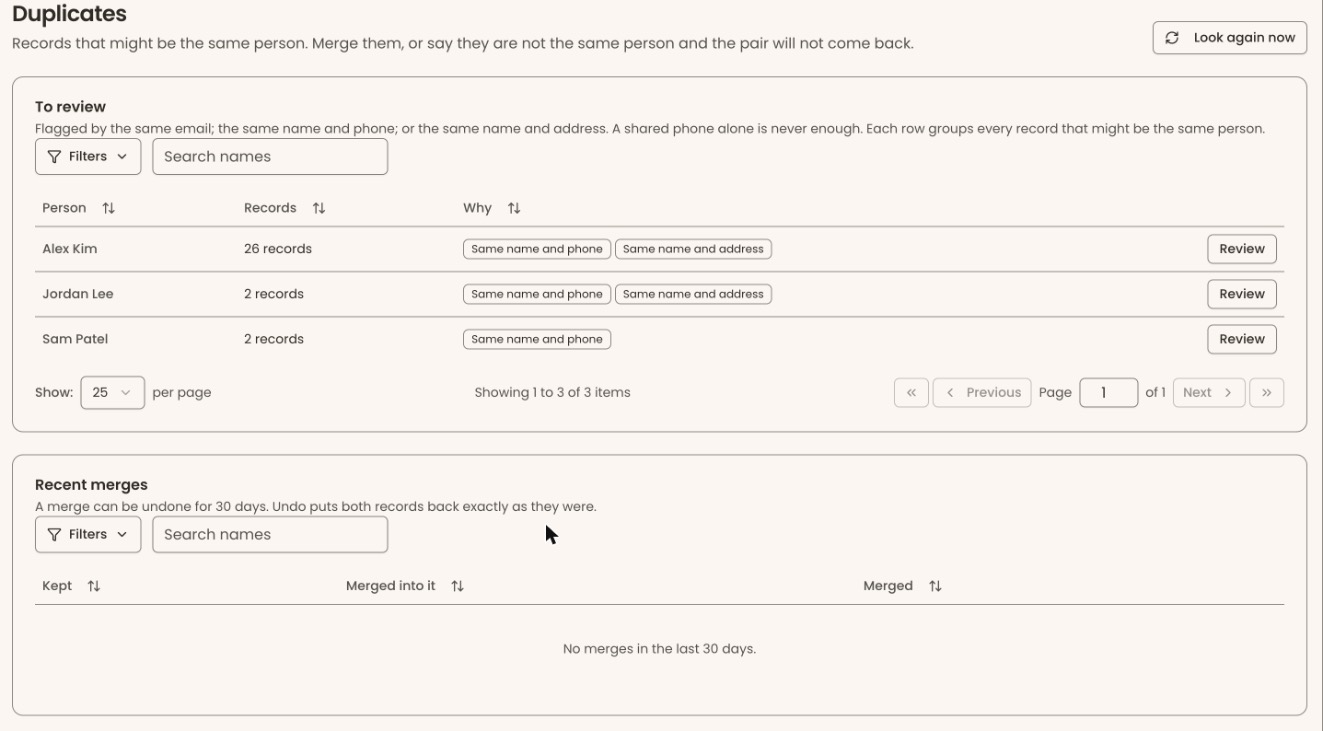
Quick steps: People › Supporters › "Duplicates" › "Review" › choose the record to keep and each detail › "Merge into …". Wrong pair: "Not the same person". Undo: "Recent merges" › "Undo" › "Undo merge".
Before you start
- You need the Owner, Administrator or Fundraiser role.
- A duplicate is two or more records that are really the same person, for example one with a work email and one with a home email.
- To merge is to combine them into one record. Everything moves to the record you keep.
- Know which details are current, such as the right phone number and address.
How duplicates are found
Every night, Clerestory looks for records that might be the same person. A pair is flagged for one of three reasons, shown as tags:
- "Same email"
- "Same name and phone"
- "Same name and address"
A shared phone number alone is never enough. Each row on the Duplicates page groups every record that might be the same person.
Review and merge two records
Page: /dashboard/supporters/duplicates
- In the left-hand menu, find the group called "People".
- Click "Supporters". A short list of pages opens under it.
- Click "Duplicates".
- Under "To review", find the person. You can type their name in "Search names".
- At the far right of their row, click "Review".
- A page opens called "Review two records". Next to "Flagged for:" you'll see why.
- Under "Which record do you keep?", click "Keep [name]" for the record to keep. The older record is chosen for you, because it usually has the history.
- Under "Choose each detail", click the right value for each detail that differs, for example the phone number. If nothing differs, it says "The two records' details already match."
- Under "What each record brings", check what each record holds.
Important: Merging moves all gifts, memberships, tickets, visits, notes and tasks onto the record you keep, and the other record disappears. You can undo it for 30 days from "Recent merges".
- At the bottom of the page, click "Merge into [name], added [date]".
- You'll see "Merged. You can undo it from Recent merges on the Duplicates page for 30 days." That means it worked. The kept record's profile opens.
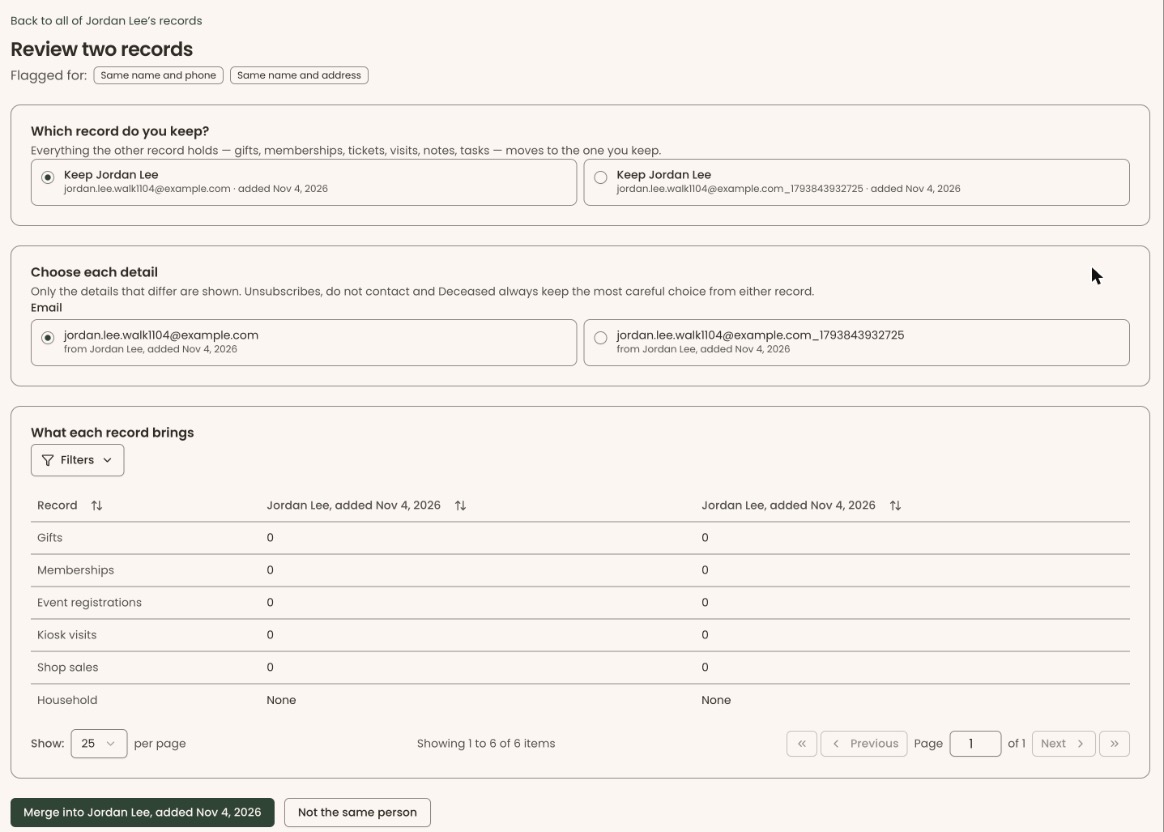
Unsubscribes, "do not contact" and "Deceased" always keep the most careful choice from either record. If you see "The records could not be merged.", go back to the Duplicates page and try again.
When a person has more than two records
Page: /dashboard/supporters/duplicates/group/<donorId>
- On the Duplicates page, click "Review" on their row. A page opens with their name and "[number] records that might be the same person".
- Under "Choose two records to compare", check the boxes at the left of two records. Once two are checked, the other boxes are grayed out.
- Scroll to the bottom of the list and click "Compare these two". Or click "Compare the first suggested pair", next to it, to let Clerestory pick.
- Follow steps 6–10 of "Review and merge two records".
- You'll see "Merged. [number] records left to review. …" and come back to this page with one record fewer.
- Repeat until the page says "Nothing left to review".
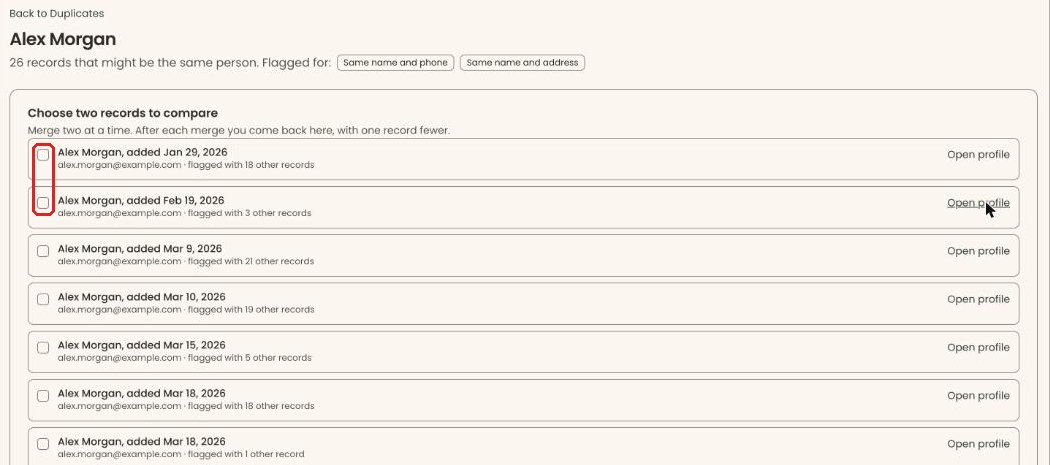
If you check two records that weren't flagged together, a line above the buttons says "These two were not flagged as possibly the same person. Clear one and choose another." and "Compare these two" is grayed out. Uncheck one and choose a different record. To go back to this list from a pair, click "Back to all of …'s records" at the top left.
Mark two records "Not the same person"
Page: /dashboard/supporters/duplicates/<pairId>
- Open the pair with "Review", as above.
Important: This can't be undone in the screens. The pair will never come back to the list, so you can't merge them from here later.
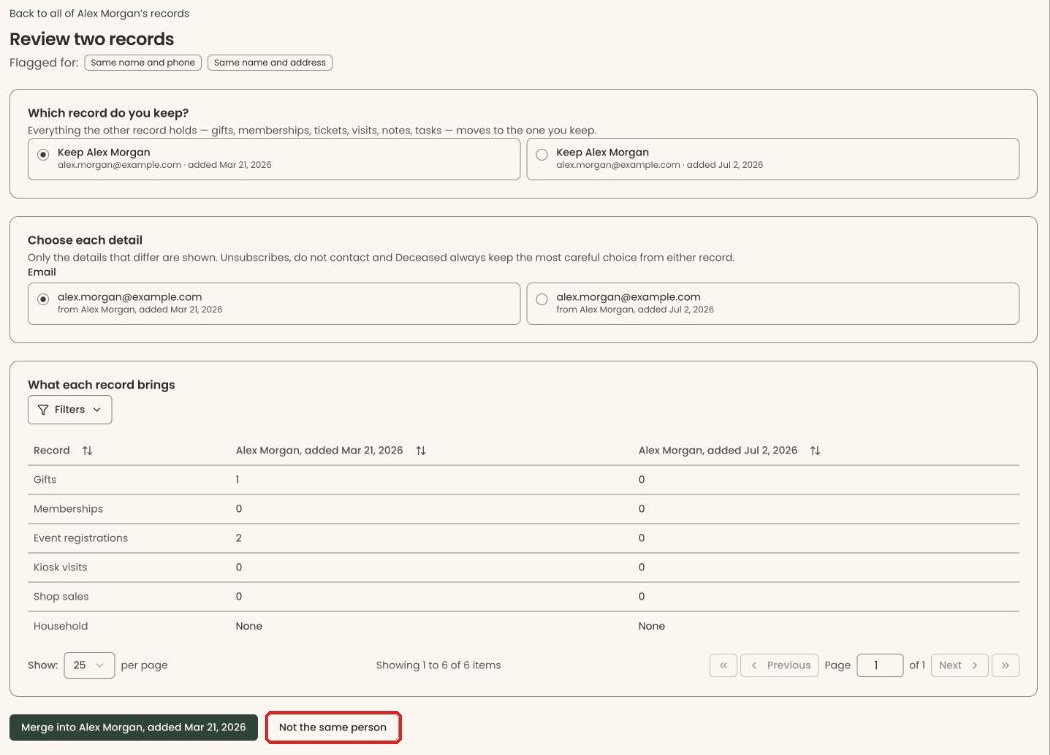
- At the bottom of the page, to the right of the "Merge into …" button, click "Not the same person".
- You'll see "Got it. This pair will not come back." That means it worked. Nothing about either record changes.
Undo a merge
Page: /dashboard/supporters/duplicates
- In the left-hand menu, under "People", click "Supporters", then "Duplicates".
- Scroll down to "Recent merges". "Kept" is the record you kept. "Merged into it" is the one that was merged.
- Under "Merged", check the "Undo until" date.
- At the far right of that row, click "Undo".
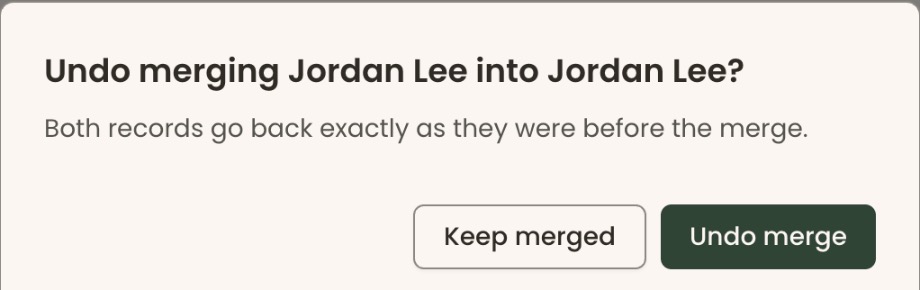
- A box asks "Undo merging [name] into [name]?" Click "Undo merge".
- You'll see "[name] is back as a separate record." That means it worked. Both records go back exactly as they were before the merge.
Special cases
- Don't want to wait for tonight's check? At the top right of the Duplicates page, click "Look again now". You'll see "[number] to review." or "No possible duplicates found."
- Nothing on the list. It reads "Nothing to review".
- An undo is refused with one of these messages:
- "A merge can be undone for 30 days. This one is older."
- "This record was merged again afterwards. Undo the later merge first." Undo the newer merge, then this one.
- "Something these records pointed to has changed since the merge, so it can't be undone automatically."
Buttons to avoid
- "Keep merged" in the undo box closes it without undoing anything.
If you make a mistake
- Merged the wrong two records: use "Undo" under "Recent merges" within 30 days.
- Marked "Not the same person" by mistake: this can't be undone in the screens.