



Most organizations that hold a gala run it on a separate system. The guest list is exported from one place, the bidding happens in another, and someone spends the following week reconciling the two. We built auctions so that none of that is necessary.
This walkthrough follows one event, a Winter Gala, from setup to the final report. Every screenshot is from a Clerestory demo organization with test data.
Where it lives
Open any event and you will find an Auctions tab, organized the way the evening runs: Before, Live and After.
- Before: items, guests and bidder numbers, tables, paddle-raise levels and payment settings.
- Live: check-in, the bid desk, the auctioneer screen, entering results, checkout and pickup, and the room screen.
- After: charge cards, receipts and corrections, thanking item donors, and results.
A checklist at the top, Get ready for the night, tracks what is still to do, from giving every item a value to sending every bidding link.
Bidder numbers, done once
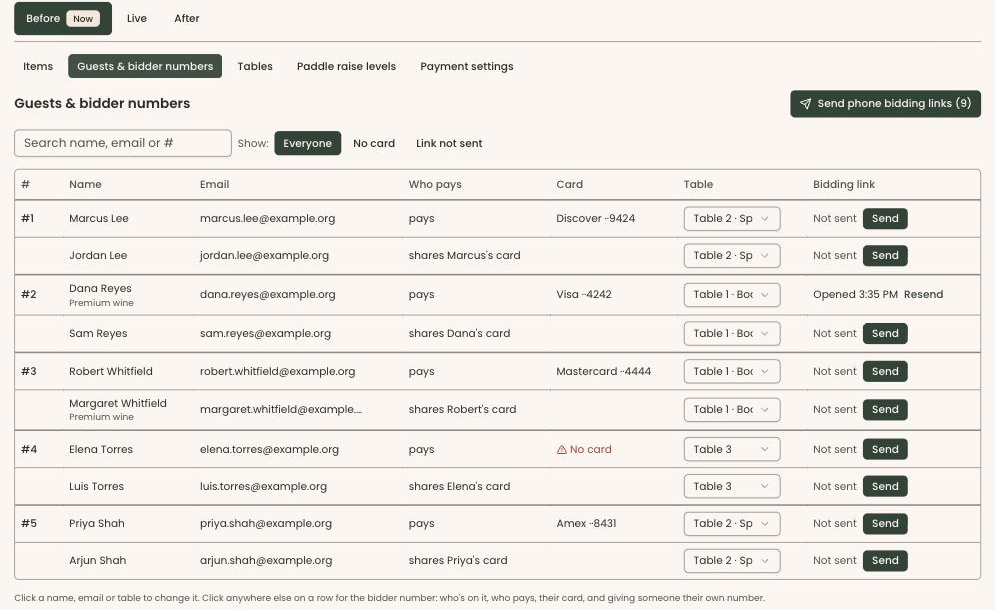
Each household gets one bidder number, with one paying contact and as many guests as came with them. When someone buys a ticket, the checkout asks who can bid on their card tonight, and that party is put on its own bidder number automatically. By the time the doors open, most of your bidder numbers already exist.
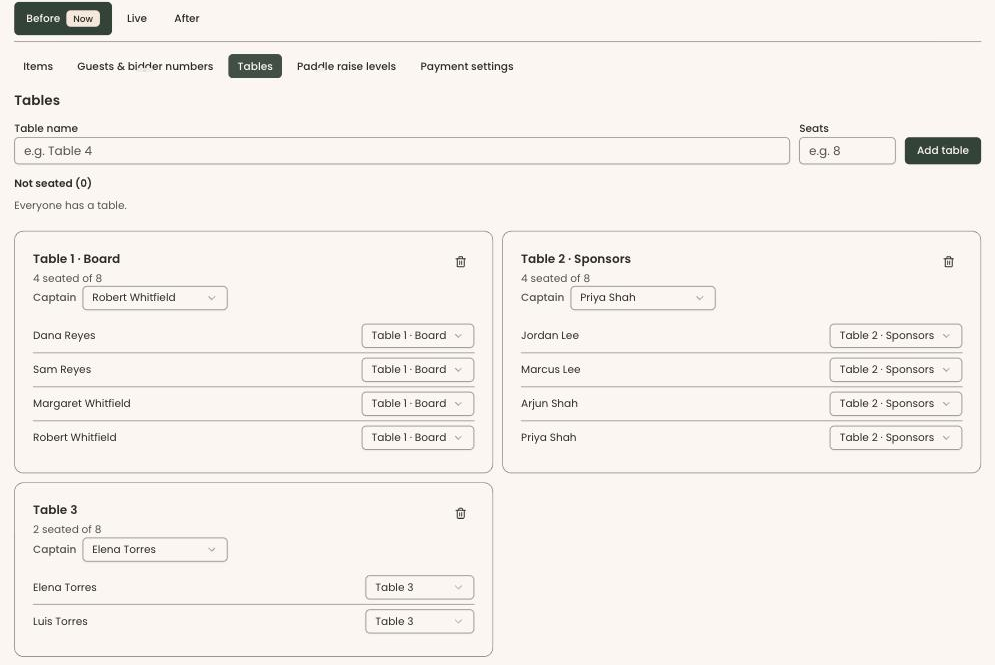
Seat guests at tables and name a captain for each, and the whole room is in one place.
Paddle-raise levels and payment settings
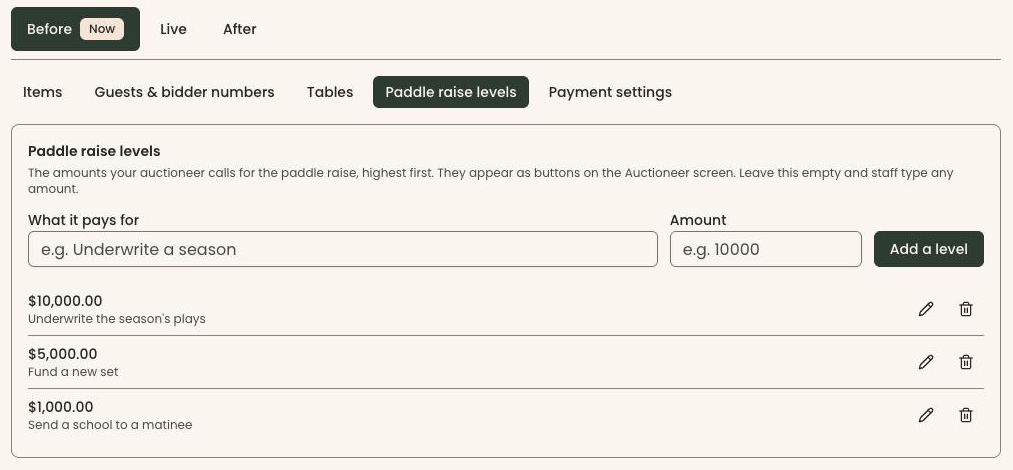
Set the amounts your auctioneer will call for the paddle raise, each with what it pays for. They become buttons on the auctioneer screen and on guests' phones.
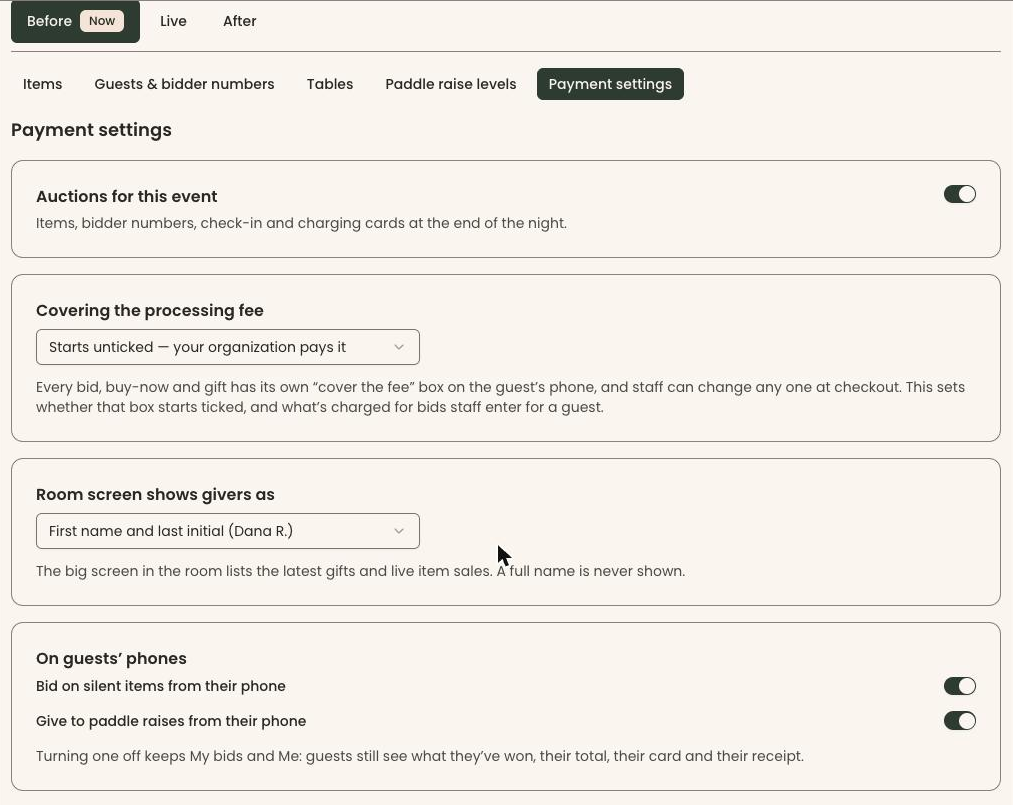
Payment settings decide whether the "cover the fee" box on each bid and gift starts ticked, how givers appear on the room screen, and whether guests can bid and give from their phones at all.
Bidding from guests' own phones
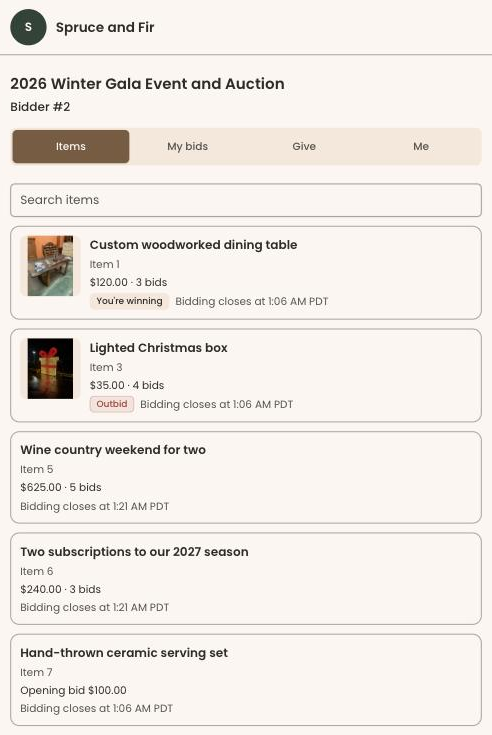
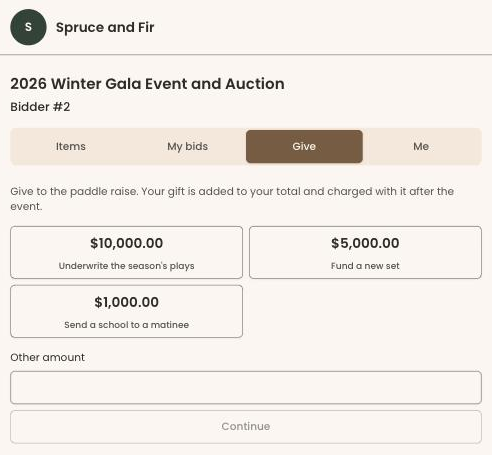
Every guest gets their own bidding link. They sign in with a code sent to their email, and the phone app has four tabs: Items, My bids, Give and Me. The item list shows each guest where they are winning, where they have been outbid, and when each item closes.
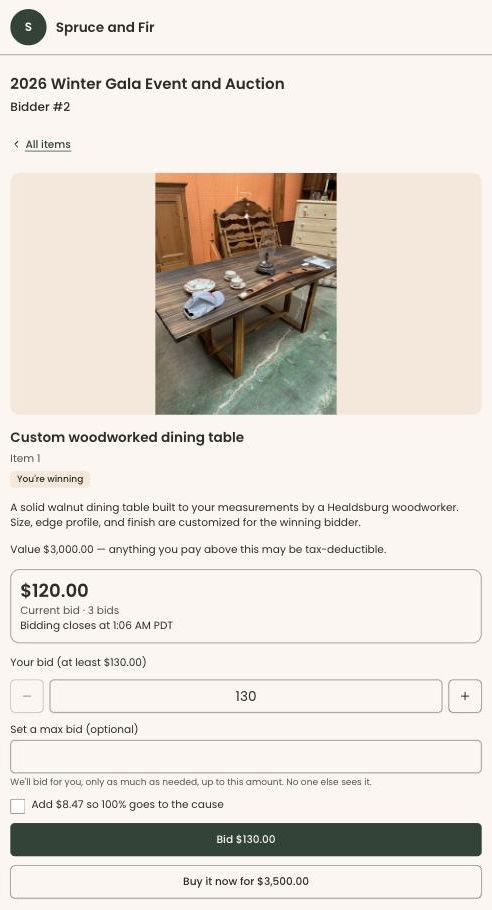
- Maximum bids. A guest can set the most they are willing to pay, and Clerestory bids for them only as much as it needs to, never past their maximum. No one else sees it.
- Buy it now. Set a buy-it-now price on an item and a guest can end the bidding by paying it. The button disappears once bidding reaches that price.
- The value, up front. Each item shows its value and tells the guest that anything they pay above it may be tax-deductible.
- Covering the fee. Each bid has its own box to add the processing fee, so 100% of the bid goes to the cause.
- Outbid alerts by email. When someone is outbid, they are told by email, with the lot number and name.
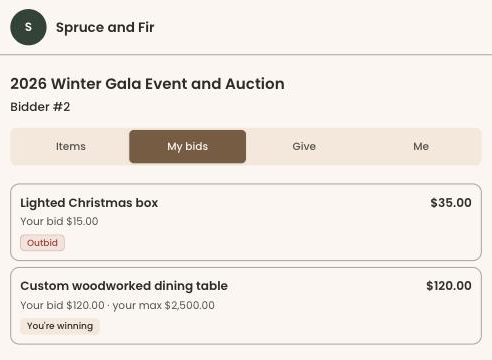
My bids keeps everything a guest has bid on in one list, with their maximum shown privately to them. Give lets them join the paddle raise from their seat at any level, or an amount of their own, so nobody has to catch the auctioneer's eye to be counted.
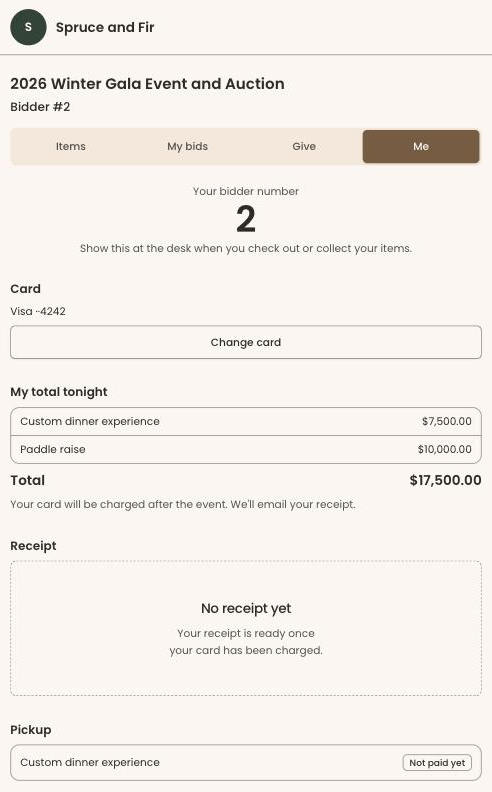
Me shows the guest their bidder number, the card on file, a running total for the night, their receipt once the card is charged, and what they have to collect.
Guests without a phone are not left out. Staff can place bids for them from the Bid desk, and if you would rather run part of the room on paper, Enter results takes winners straight from your bid sheets.
Closing the silent auction
Start the silent auction when you are ready, or schedule it. Set one closing time for every silent item and give a section, or a single item, its own time when you want a staggered close. Items close on their own at their time, and once an item closes with a winning bid, the result is final.
Check-in and cards on file
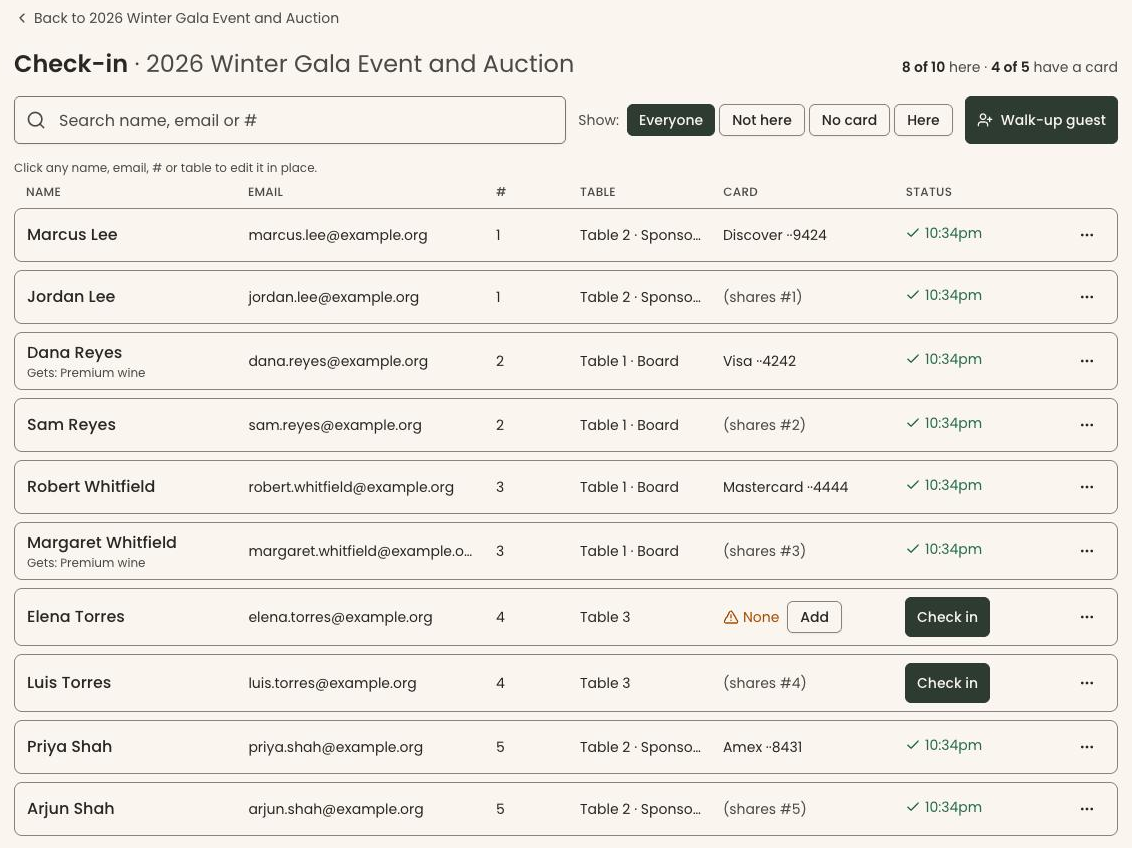
The check-in screen lists every guest, searchable by name, email or bidder number, with filters for who is here, who is not, and who has no card on file yet. Staff can take a card on a Stripe card reader, type it in, or send a link to the guest's phone, and there is always a way to skip for now so the line keeps moving. Walk-up guests can be added on the spot.
The auctioneer screen and the paddle raise
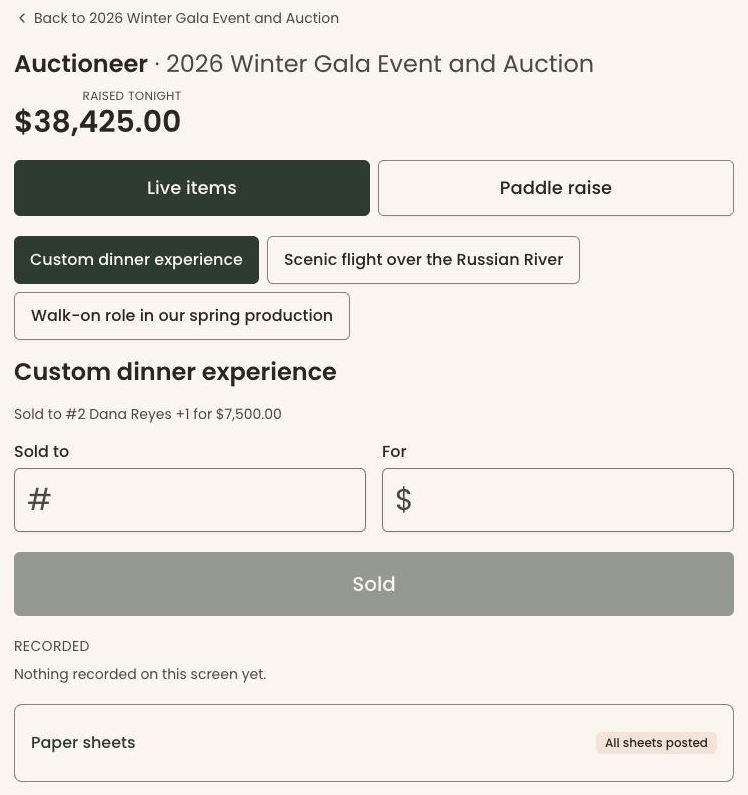
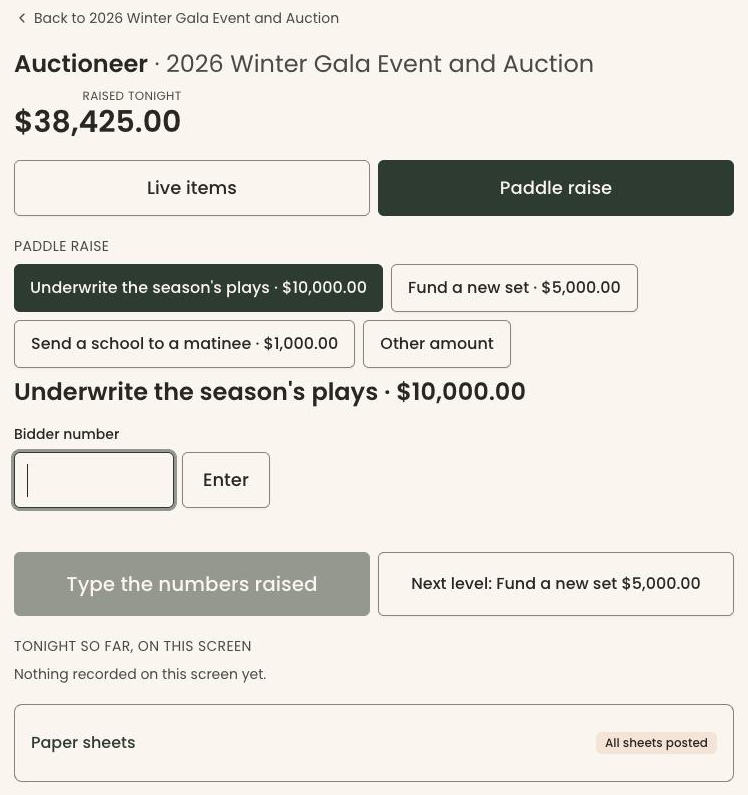
The auctioneer screen is a full-screen page built for the person running the live auction. It shows what has been raised tonight, with separate tabs for Live items and Paddle raise. Record each live sale by bidder number and price, and the screen confirms who won, by name.
During the paddle raise, pick the level being called and type in the bidder numbers as hands go up. When the room goes quiet, move straight on to the next level.
The room screen
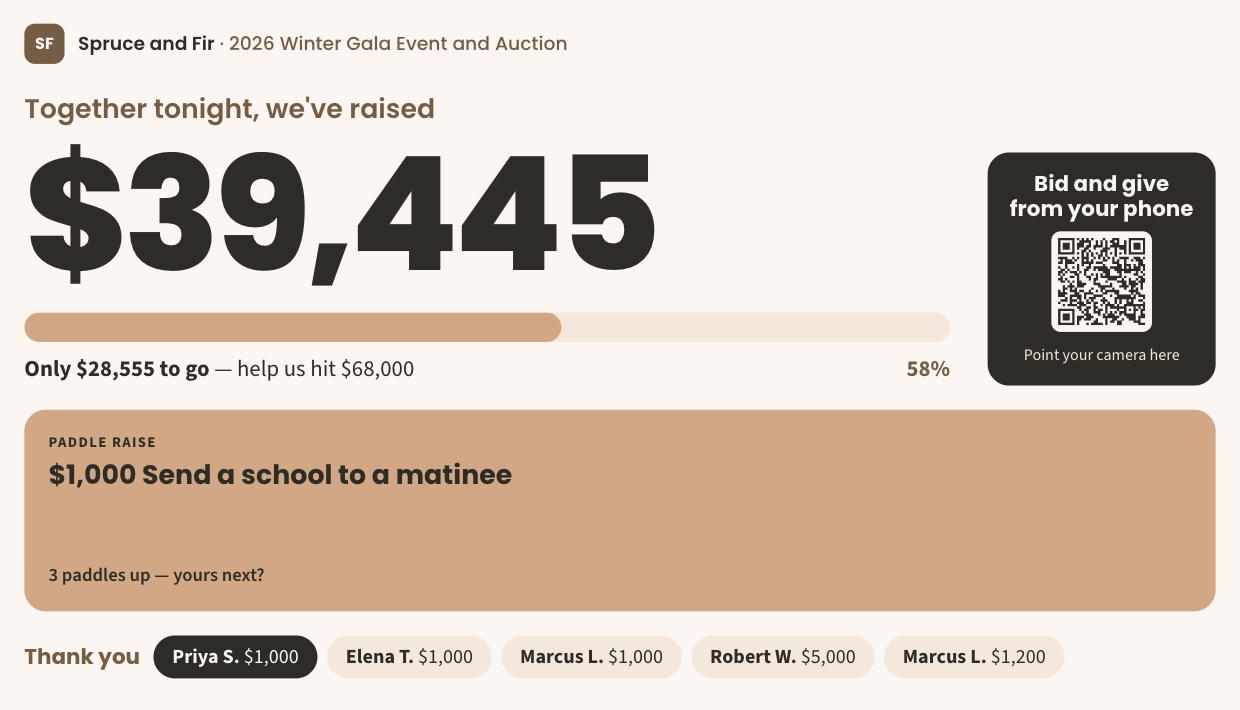
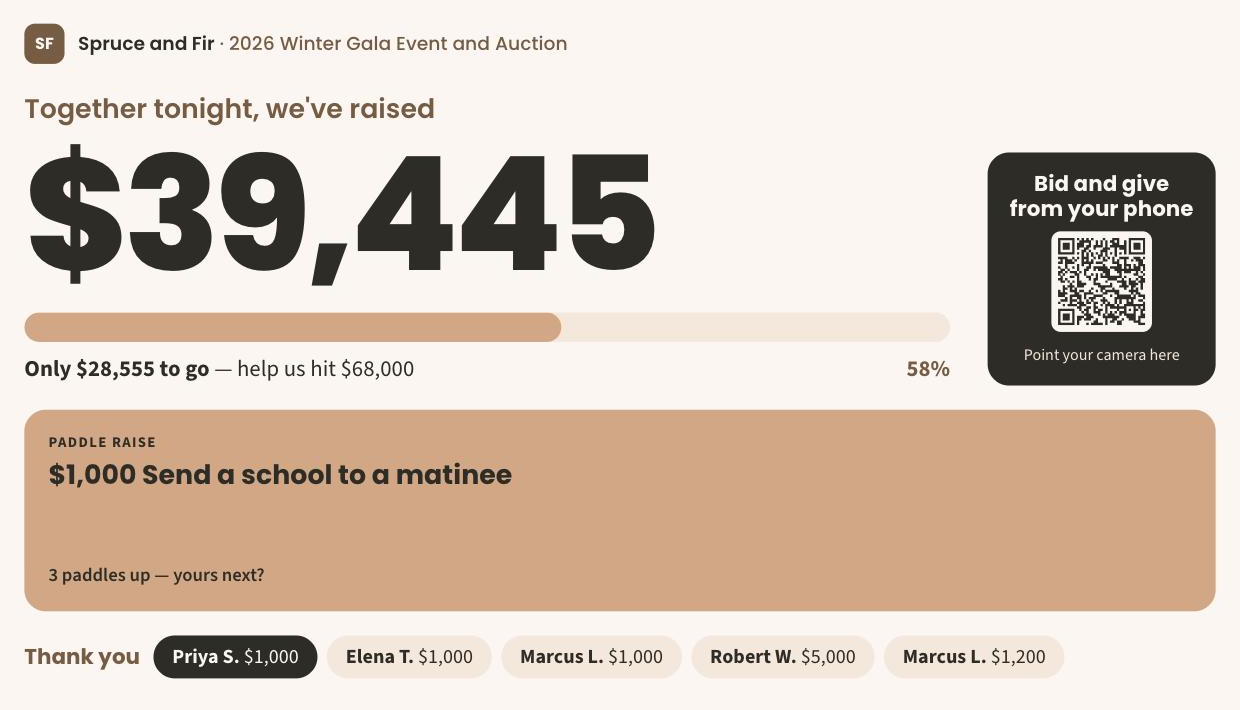
Put the room screen on the big display and it keeps the room with you all night. It shows what has been raised so far against your goal, a QR code guests can scan to bid and give from their own phones, the paddle-raise level being called and how many paddles are up, and a running thank-you to the people who just gave. Givers are shown the way your payment settings say, and never by full name.
After the event: charge everyone at once
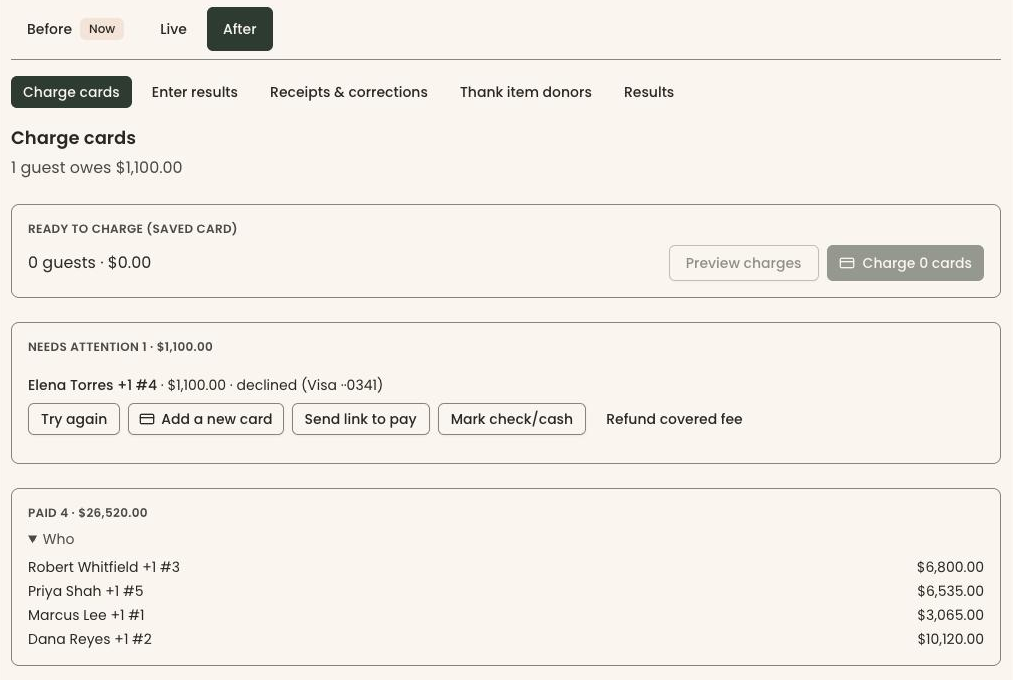
The Charge cards screen shows who is ready to charge from a saved card, who needs attention and who has paid. One button charges every ready card. For anyone whose card did not go through, you can try again, add a new card, send them a link to pay, or mark the balance as paid by check or cash. Charges are made once per bidder number, and retrying is safe: nobody is charged twice.
If a guest wants to pay and take their items before they leave, Checkout & pickup charges that one guest, records the hand-over and emails their receipt.
One statement per guest, with the tax split shown
Each guest receives one statement for the evening. Every line shows what was paid and how much of it is tax-deductible. For an auction item, only the amount paid above the item's fair market value is deductible. A paddle-raise gift is shown as a gift. For a 501(c)(3) the column reads Tax-deductible portion, and for other organizations it reads Fair Market Value.
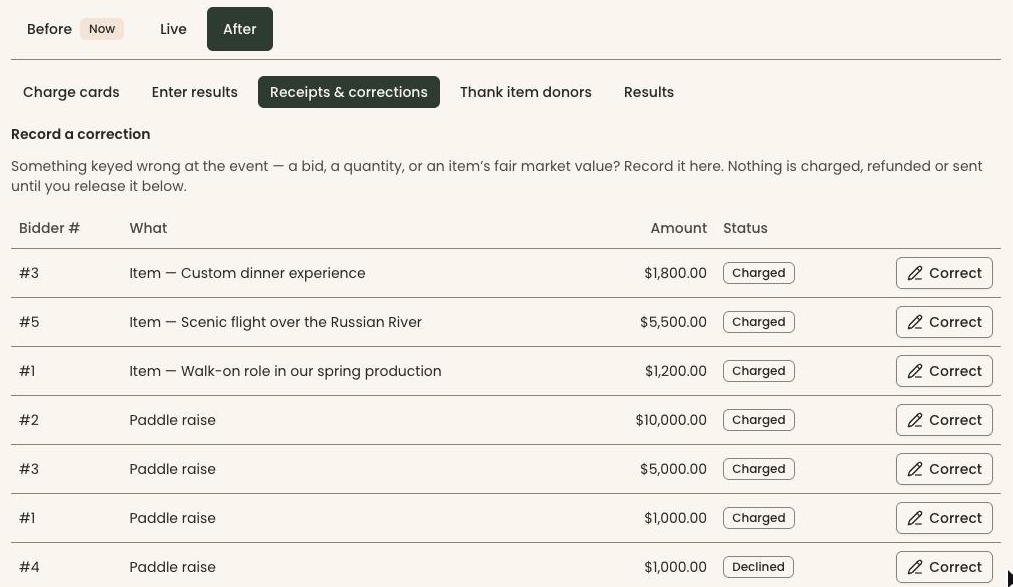
Fair market value is locked when the win is recorded, so correcting an item's description the next day cannot change a donor's statement. If something was keyed wrong on the night, record the correction under Receipts & corrections. Nothing is charged, refunded or sent until you release it, and a corrected statement is numbered and says which one it replaces. As always, your organization should confirm its own receipting practice with its tax advisor.
Results, giving history and item donors
Results shows what the event raised by source (tickets, sponsorships, live and silent auction, paddle raise, raffles and more), with processing fees, refunds and anything won but not yet collected, then how each item did against its value. Export it as a CSV or PDF.
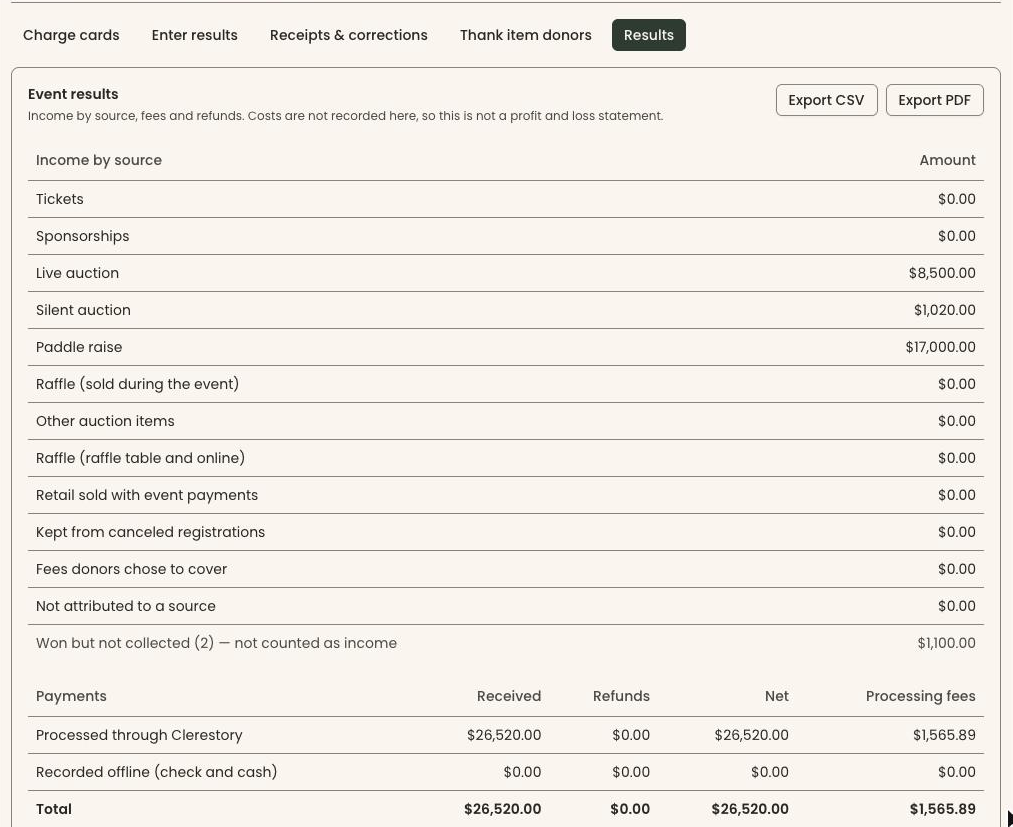
A paddle-raise gift is recorded as a donation on the event's campaign and appears in the donor's giving history, credited to the guest who raised their paddle even when the household's paying contact is the one charged. An auction win is recorded as event revenue rather than giving. Under Thank item donors, Clerestory sends in-kind acknowledgement letters to everyone who donated an item.
What it does not do, yet
We would rather you hear this from us. Outbid alerts go by email, not text message. There is no offline mode: if the venue's internet fails, the paper bid sheets and Enter results are the backup. Card readers are Stripe card readers, not tap-to-pay on an iPhone. And check-in is by search rather than by scanning a QR code at the door.
What it costs
Nothing extra. Auctions are part of every Clerestory account at the same 3% per transaction as everything else, with no event fee and no per-bidder fee.
Frequently asked questions
What is the best silent auction software for a small non-profit?
Clerestory runs silent auctions, live auctions and paddle raises on the event itself, so tickets, guests, bids and payments land on the same records as the rest of the organization's year instead of on a separate system. Auctions cost nothing extra: the same 3% per transaction, with no event fee and no per-bidder fee.
Can guests bid on their phones at a gala?
Yes. In Clerestory every guest gets their own bidding link and signs in with a code sent to their email. From their phone they can bid, set a private maximum bid, use buy it now, get outbid alerts by email, and give to the paddle raise from their seat.
How do you charge auction winners after a gala?
On the Clerestory Charge cards screen, one button charges every ready card on file, once per bidder number, and retrying is safe so nobody is charged twice. For a declined card, staff can try again, add a new card, send a link to pay, or mark the balance paid by check or cash.
Is the amount paid for an auction item tax-deductible?
Only the amount paid above the item's fair market value is deductible. Clerestory sends each guest one statement for the evening showing, line by line, what was paid and how much is tax-deductible, and a paddle-raise gift is shown as a gift. Organizations should confirm their own receipting practice with their tax advisor.
How does a paddle raise work in Clerestory?
The auctioneer screen shows the paddle-raise levels you set, and staff type in bidder numbers as hands go up, then move on to the next level. Guests can also give from their phones, and the room screen shows the total against the goal and a thank-you to each giver, never by full name.
Does Clerestory auction software work offline or send text alerts?
No. Clerestory has no offline mode, so paper bid sheets and Enter results are the backup if the venue's internet fails, and outbid alerts go by email, not text message. Card readers are Stripe card readers, not tap-to-pay on an iPhone, and check-in is by search rather than a QR scan.