


Who can do this: Everyone with a Clerestory staff login, whatever their role. Each person can change only their own account.
Quick steps: Settings › Profile (name, email, password, two-factor, passkeys) · Settings › Account (signed-in devices) · Settings › Appearance (font, theme).
Before you start
- For a new password or for two-factor sign-in, you need your current password.
- Two-factor sign-in means that after your password, you also type a 6-digit code from an app on your phone. You need an authenticator app installed, such as Google Authenticator or Microsoft Authenticator.
- A passkey lets you sign in with your device's fingerprint, face or PIN instead of a password.
- A session is one browser or device where you're signed in.
Change your name or email
Page: /dashboard/settings
- In the left-hand menu, near the bottom under "Tools", click "Settings" to open the group. If you can't see it, scroll down inside the menu.
- Under "Settings", click "Profile". The page is headed "Settings".
- In "Name", type your name as your colleagues should see it.
- To change your sign-in address, type the new one in "Email".
- Leave "Favorite Number" as it is. It isn't used anywhere.
- Click "Update Profile", the wide button at the bottom of the first box.
- You'll see "Profile updated successfully". That means it worked.
- If you changed your email, you'll see "Verify your new email address to complete the change." instead. Open the email Clerestory sends and click its link. Until then, keep signing in with your old address.

The photo buttons ("Upload image" / "Change image") are on this page too, but at the moment they don't save a new photo.
Change your password
Page: /dashboard/settings
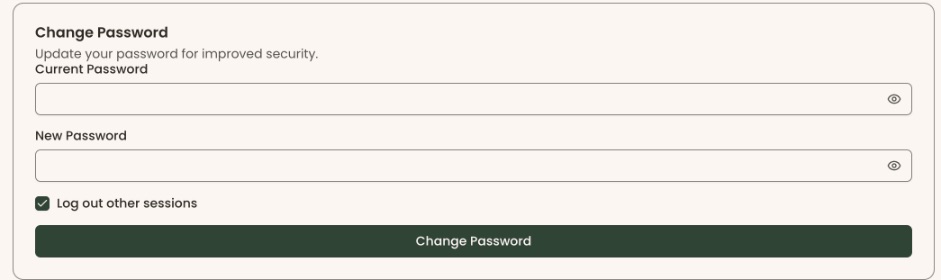
- Go to Settings › Profile, as above, and scroll to the box headed "Change Password".
- In "Current Password", type the password you use now.
- In "New Password", type the new one.
- "Log out other sessions" is checked to start with, so every other browser and device where you're signed in is signed out. That's a good idea if you think someone else knows your password. To stay signed in on them, uncheck it.
- Click "Change Password".
- You'll see "Password changed successfully". That means it worked.
No "Change Password" box? You'll see "Set Password" instead if your account has no password yet. Click "Send Password Reset Email". You'll see "Password reset email sent". Open the email and choose a password.
Turn on two-factor sign-in
Page: /dashboard/settings
- Go to Settings › Profile and scroll to "Two-Factor Authentication". The label beside it says "Disabled".
- In "Password", type your current password.
- Click "Enable 2FA".
- A QR code appears. Open your authenticator app, add a new account, and scan the code with your phone's camera.
- If you can't scan it, click "Copy key" and paste the key into the app instead.
- The app now shows a 6-digit number. Type it in "Code".
- Click "Submit Code".
- A list of backup codes appears. Each one lets you sign in once if you lose your phone.
Important: this is the only time you see these codes. After you click "Done" they're gone, so save them first.
- Click "Copy codes" or "Download codes", and keep them somewhere safe.
- Click "Done". The label beside "Two-Factor Authentication" now says "Enabled". That means it worked.
From now on, signing in asks for a code from the app (see "Sign in, reset a forgotten password, and enter a two-factor code").
Turn off two-factor sign-in
- Go to Settings › Profile and scroll to "Two-Factor Authentication". The label says "Enabled".
- In "Password", type your current password.
- Click "Disable 2FA".
- The label changes to "Disabled". That means it worked. If your password was wrong, you'll see an error message instead.
Add or remove a passkey
Page: /dashboard/settings
- Go to Settings › Profile and scroll to "Passkeys".
- Click "New Passkey", below the "Passkeys" box.
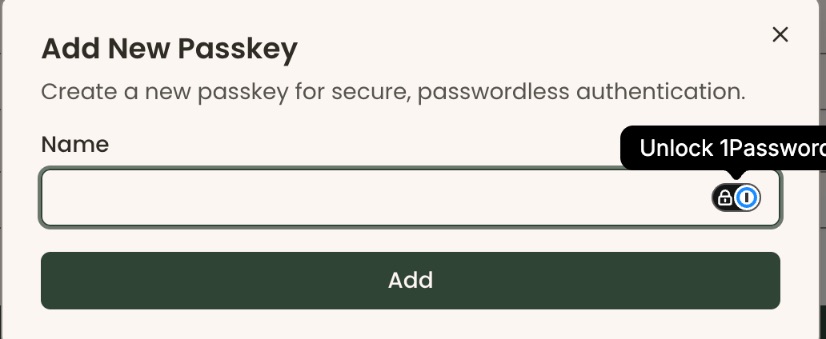
- A box opens called "Add New Passkey". In "Name", type something to recognize it by, for example "Work laptop".
- Click "Add".
- Your device asks you to confirm with your fingerprint, face or PIN. Follow its prompts.
- The passkey appears in the list with "Created" and today's date. That means it worked.
To remove one:
- Click the trash-can icon at the right of that passkey. A box asks "Are you sure?" and says "This action cannot be undone."
Important: clicking "Yes" deletes the passkey for good. You can't sign in with it again; add a new one if you need it.
- Click "Yes".
Sign out other devices
Page: /dashboard/settings/account
- In the left-hand menu, click "Settings" (under "Tools"), then "Account". (You can also click your picture or initials in the bar along the top of the page, then "Account".)
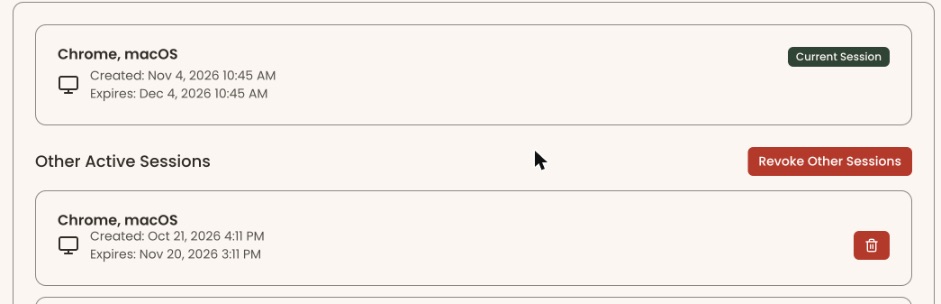
- The page is headed "Settings". The top box is "Linked Accounts". In the box below it, the first card is the browser you're using now, marked "Current Session".
- Under "Other Active Sessions" is every other place you're signed in, with "Created" and "Expires" dates.
- To sign out one of them, click the red trash-can icon at the right of its card. You'll see "Session revoked".
Important: "Revoke Other Sessions" signs you out everywhere except this browser, straight away, with no "Are you sure?" step.
- To sign out all of them, click the red "Revoke Other Sessions" button beside "Other Active Sessions".
- The list then says "No other active sessions". That means it worked.
The "Linked Accounts" box on this page says "No linked accounts found". Signing in with another service isn't offered at the moment.
Change the font or theme
Page: /dashboard/settings/appearance
- In the left-hand menu, click "Settings" (under "Tools"), then "Appearance".
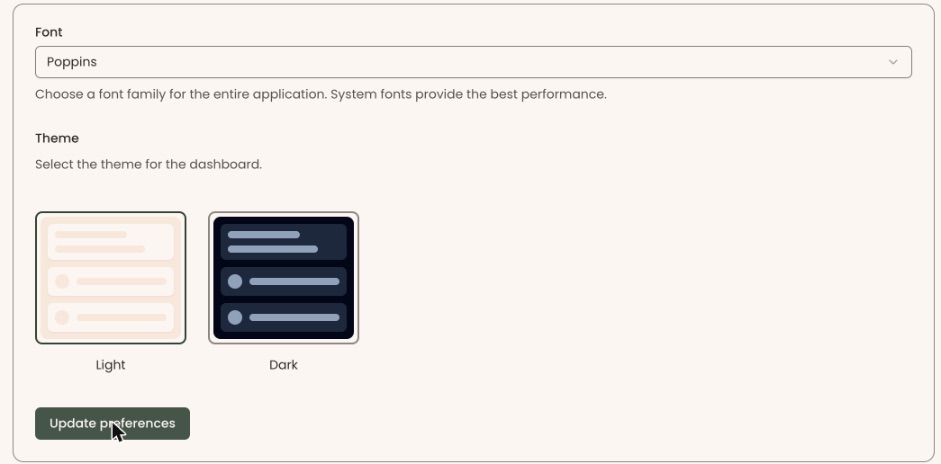
- Under "Font", click the box and choose a font. The page changes straight away so you can see it.
- Under "Theme", click the "Light" or "Dark" picture.
- Click "Update preferences".
- You'll see "Appearance preferences updated" and "Your font and theme preferences have been saved." That means it worked.
Your font choice is saved in the browser you're using. On another computer, choose it again.
Sign out
- In the bar along the top of the page, click your picture or initials.
- A menu opens with your name and email, "Account" and a "Sign Out" button. Click "Sign Out". The sign-in page opens.
Special cases
- Lost your phone with two-factor on. Use one of your backup codes when you sign in.
- The code was turned down. The number in the app changes regularly. Type the newest one.
If you make a mistake
- Changed your email to a wrong address: you keep your old address until the new one is verified. Change it again in "Email".
- Signed out another device by mistake: sign in on that device again.