


Who can do this: Owner, Administrator, Finance and Fundraiser. Other roles don't see "Membership Settings" in the left-hand menu.
Quick steps: Membership › "Membership Settings" › "Rules" tab › choose your rules › check the preview on the right › "Save rules"
Before you start
- You need one of the roles above.
- Your membership levels should already be set up. See "Set up membership levels: add, edit, duplicate, stop offering and delete".
- Decide your rules first. Your board or membership policy usually says which you use.
- A term is the period a membership is paid for, for example one year.
- A rolling membership runs a full term from the day each member joins. In Clerestory this is "Each member's year starts on the day they join".
- A fixed-year membership ends on the same date for everyone, like a season. In Clerestory this is "Everyone has the same dates".
- A grace period is extra time after a membership ends when the member can still renew and keep their renewal date.
What changes for members you already have
The top of the "Rules" tab says: "Changes apply to new joins and renewals; nobody's current dates move."
- A member's current expiry date stays as it is when you save new rules.
- The new rules apply the next time someone joins or renews.
- To move an existing member's dates, use "Edit Dates" on the Member List. See "See paid periods and fix start or expiry dates".
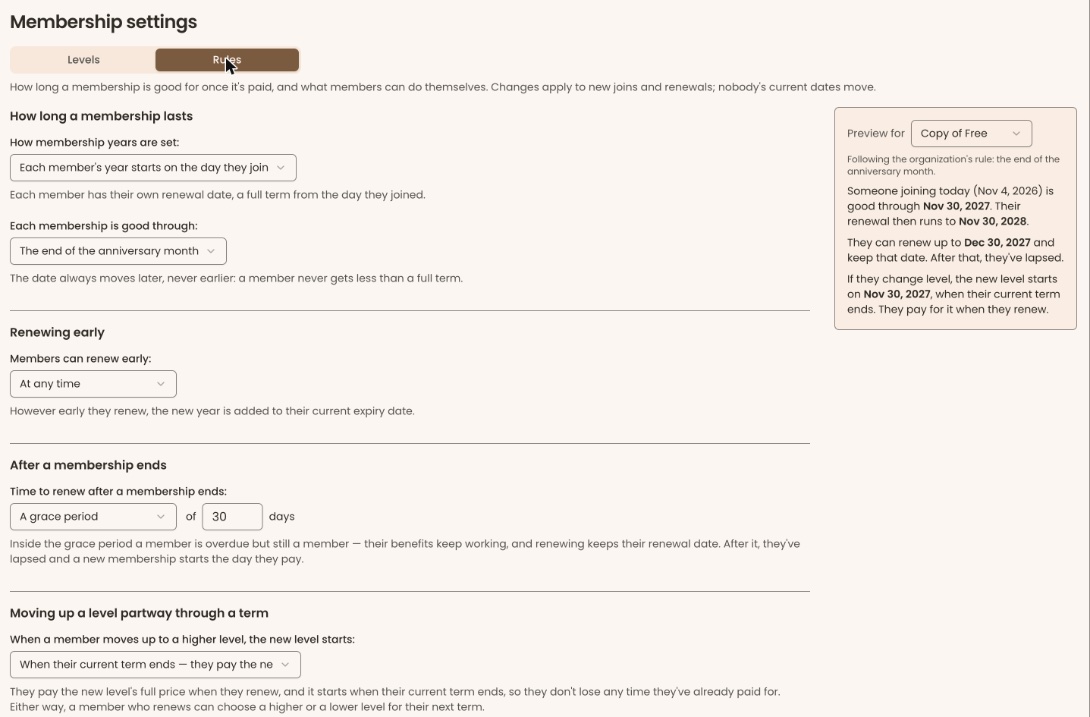
Open the Rules tab
Page: /dashboard/membership/manage?tab=rules
- In the left-hand menu, click "Membership". The group opens.
- Click "Membership Settings". The page is headed "Membership settings".
- Near the top left of the page, click the "Rules" tab, to the right of "Levels".
Each rule is a list. Click the list to open it, then click your choice.
On a wide screen, a gray preview panel sits on the right. On a phone it is below the rules. It shows what your choices mean in real dates for one level. Change "Preview for" to see another level.
Choose rolling or fixed-year memberships
- Under "How long a membership lasts", find "How membership years are set:".
- Click the list below it and choose one:
- "Each member's year starts on the day they join" (rolling).
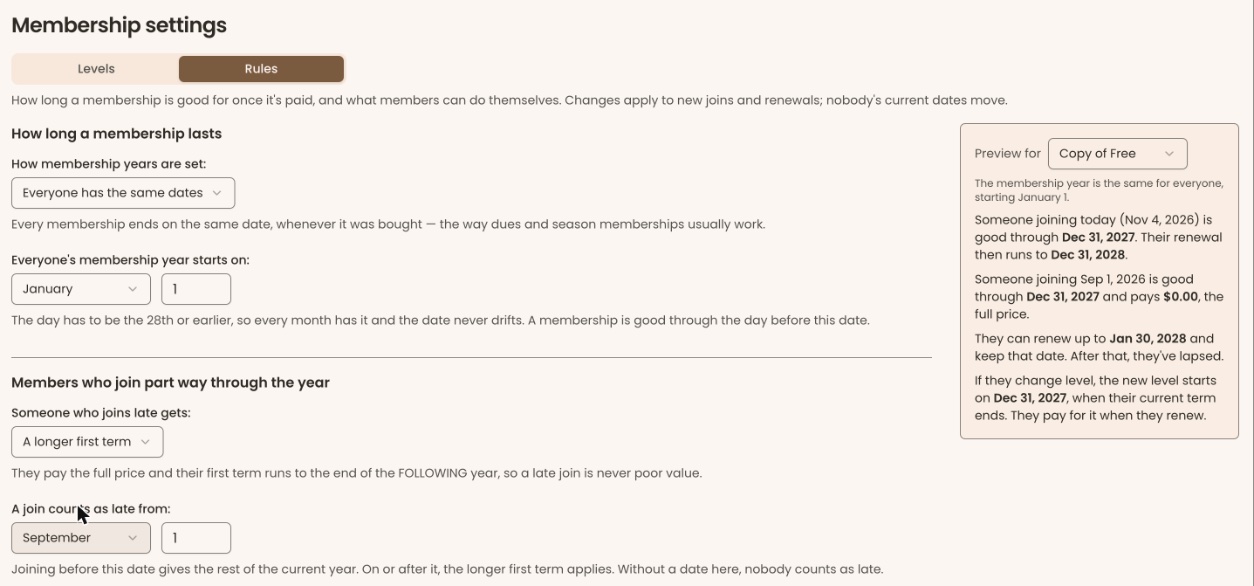
- "Everyone has the same dates" (fixed year).
- For rolling: click the list under "Each membership is good through:" and choose one:
- "The anniversary of the join date".
- "The end of the anniversary month".
- "The first of the month on or after the anniversary".
- For a fixed year: in "Everyone's membership year starts on:", choose the month, then type the day in the box beside it. The day must be the 28th or earlier. A membership is good through the day before this date.
- For a fixed year only: a section "Members who join part way through the year" appears. Click the list under "Someone who joins late gets:" and choose one:
- "The same term and price as everyone else": full price, and their first term ends with everyone else's.
- "A longer first term": full price, and their first term runs to the end of the following year.
- "A lower first price": they pay for the months left in the year, counting the month they join.
- If you chose "A longer first term", "A join counts as late from:" appears with a date already filled in, for example September 1. Change the month and day if you need to. Without a date here, nobody counts as late.
Choose when members can renew early
- Under "Renewing early", find "Members can renew early:".
- Click the list below it and choose "At any time", or "Only near the end of their term".
- If you chose "Only near the end of their term", a box appears between "within" and "days of expiry", already showing 60. Change the number if you need to.
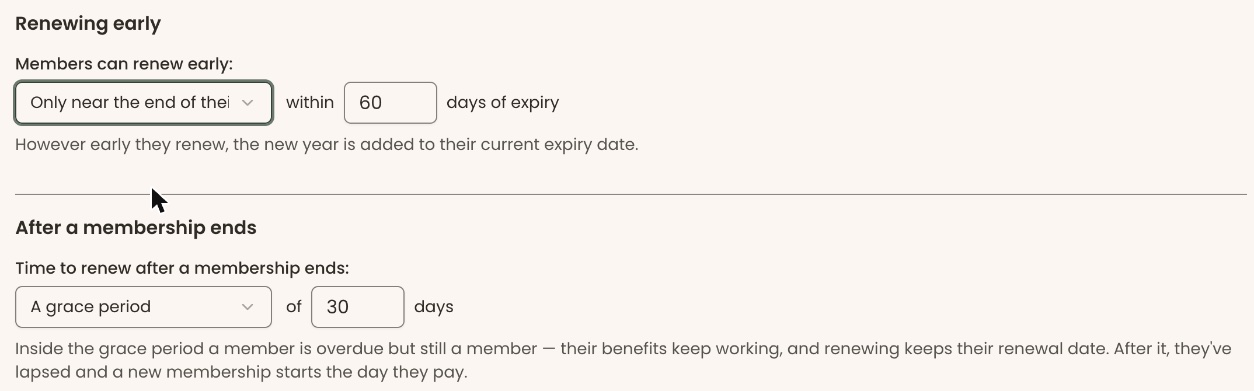
However early they renew, the new year is added to their current expiry date.
Choose a grace period
- Under "After a membership ends", find "Time to renew after a membership ends:".
- Click the list below it and choose "No grace period" or "A grace period".
- If you chose "A grace period", type the number of days in the box between "of" and "days", for example 30.
Inside the grace period a member is overdue but still a member, and renewing keeps their renewal date. After it, they've lapsed, and a new membership starts the day they pay.
Choose what happens when a member moves up a level
- Under "Moving up a level partway through a term", find "When a member moves up to a higher level, the new level starts:".
- Click the list below it and choose one:
- "Immediately — they pay the difference in price". Their renewal date stays the same.
- "When their current term ends — they pay the new level's full price".
- Either way, a member who renews can choose a higher or a lower level.
This choice decides whether staff see "Move up now" in the "Renew or change level" box. See "Change a member's level (upgrade or downgrade)".
Save the rules
- Check the gray preview panel on the right shows the dates you expect.
- Scroll down past the "Levels that work differently" table. Click "Save rules", at the right below the table.
- You'll see "Membership rules saved. They apply to new terms." That means it worked.
- If you see "A fixed membership year already sets the end date, so end-date rounding does not apply. Choose one or the other.", nothing was saved. This can appear even when "Each member's year starts on the day they join" is chosen. Contact Clerestory support; it can't be fixed in the screens.
Special cases
- "Levels that work differently": below the rules, a table lets one level use a different "Good through" rule. "Same as above" means it follows your main rule. If it says "Every level follows the rule above.", no level differs.
- A fixed year with a level-only exception: a note says these exceptions don't apply under a fixed year. Set each one back to "Same as above" before saving.
- An orange message starting "A fixed membership year can't be worked out for": one of your levels runs in weeks or days. On the "Levels" tab, change it to months or years, or turn it off, then save the rules again.
- "Couldn't save the rules" or another red message: nothing was saved. Check the numbers you typed and try again.
- Members-only renewal window and staff: with "Only near the end of their term", a renewal recorded too early may show a red message in the "Renew or change level" box instead of the dates. Wait until the window opens, or change this rule.
Buttons to avoid
- "Renewals through Stripe", the section below "Save rules", is about moving members off old automatic renewals. It acts as soon as you press its button and isn't part of "Save rules". Don't use it while setting rules. That is a separate guide.
If you make a mistake
- Saved the wrong rule: change it back and click "Save rules" again. Only joins and renewals made in between used the wrong rule.
- A member joined or renewed with the wrong dates: fix their dates with "Edit Dates" on the Member List. See "See paid periods and fix start or expiry dates".