


Who can do this: "Send a thank-you": Owner, Administrator, Fundraiser and Programs. "Update their card": Owner, Administrator, Finance and Fundraiser. Anyone else doesn't see that suggestion.
Quick steps: Supporters › All Supporters › eye button on the person's row › "Next:" bar › "Send a thank-you" › choose a "Template" › "Send email". Or "Update their card" › read the script › enter the card › check the box › "Save card".
Before you start
- You need one of the roles above.
- To send a thank-you, your organization needs at least one email template. Templates are made under Communications › Templates.
- To take a card, have the supporter on the phone.
Words used here:
- The next step is one suggestion Clerestory shows at the top of a supporter's record, in a shaded bar with a light-bulb icon. It starts "Next:" and says why. If there's nothing to suggest, the bar isn't there.
- A template is a saved email your organization wrote once and reuses. Clerestory fills in the person's details.
When each suggestion appears (only one shows at a time, in this order):
- "Update their card": "A charge on their recurring gift was declined."
- "Renew membership": their membership is ending soon or ended recently (see the membership guides).
- "Send a thank-you": their first gift was in the last 30 days and nobody has emailed or written to them since.
Send a thank-you
Page: /dashboard/supporters/<donorId>
- In the left-hand menu, under the heading People, click "Supporters". It opens a short list.
- Click "All Supporters". Find the person and, at the far right of their row, click the round button with an eye shape. Their record opens.
- Near the top of the record, find the shaded bar that says "Next: Send a thank-you."
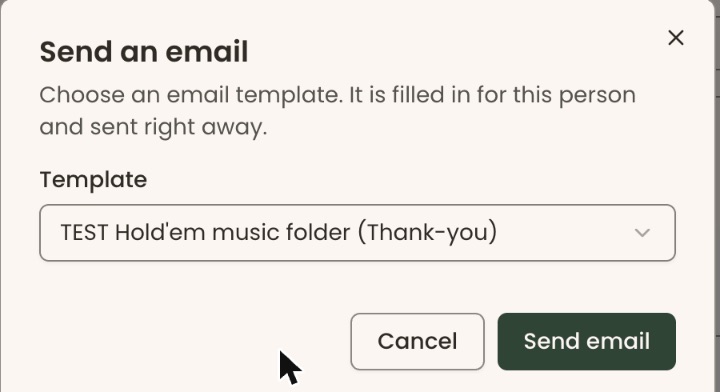
- At the right end of that bar, click "Send a thank-you". A box opens called "Send an email".
- Under "Template", choose the email to send.

Important: the next step emails the person straight away. It can't be taken back.
- At the bottom of the box, click "Send email".
- You'll see "Email sent." That means it worked. The email shows in the list on the record's "Overview" tab.
The "Next: Send a thank-you." bar can still show after you send. Don't send it again: check for the email in the list on the "Overview" tab instead.
If the box says "There are no email templates yet. Make one under Communications → Templates.", make a template first, then come back.
If a person can't be emailed, the box lists them under "Not sent:" with the reason. Click "Close".
If you see "We couldn't send the email.", try again.
Update their card by phone
Page: /dashboard/supporters/<donorId>
- Open the person's record as in steps 1 and 2 above.
- Near the top, find the bar that says "Next: Update their card."
- At the right end of that bar, click "Update their card". A box opens called "Take a card by phone".
- Look at "Recurring gift" (the amount and next charge date) and "Card" (the card on file now).
- Read the words in the quoted box to the supporter, word for word.
- Type the card details only into the card field. Never type a card number into notes or anywhere else.
- Check "I read the words above to the supporter and they agreed to this amount and date."
Important: after the next step, the recurring gift is charged to this new card from its next charge date.
- At the bottom of the box, click "Save card".
- You'll see a message starting "Card on file for the recurring gift:" and "The supporter's consent is recorded with the gift." That means it worked.
If you see "The card couldn't be added. Try again." or "Check the card details.", check the details with the supporter and try again. If the card's bank asks for a verification step, the card can't be taken by phone. Ask the supporter to update it themselves.
Special cases
- The suggestion isn't there: either there's nothing to suggest, or your role can't take that step.
- Only one suggestion shows. A declined card is shown before a thank-you.
If you make a mistake
An email that has been sent can't be taken back. A card saved by mistake can be replaced by taking the correct card the same way.