


Who can do this: Owner, Administrator, Finance and Fundraiser. Programs, Front desk and Viewer users see the "Non-cash gifts" list but not the "Record a non-cash gift" or "Send acknowledgement" buttons.
Quick steps: Supporters › All Supporters › eye button on the person's row › "Giving & history" › "Non-cash gifts" › "Record a non-cash gift" › fill in › "Save and send acknowledgement" › check the box › "Send".
Before you start
- You need one of the roles above.
- The giver must already be a supporter in Clerestory. A supporter is anyone in your records who has given, joined or registered. To add one, see "Add a supporter or a contact, and move people between Supporters and Contacts".
- To send the letter, the supporter needs an email address on their record.
- Have to hand: the date you received the gift, a short description, and the value you record for your own books.
Words used here:
- A non-cash gift (also called an in-kind gift) is a gift of goods or property, not money.
- Value (books) is the value your organization records for its own accounts. It is never printed on the letter, and never added to any money total.
- The acknowledgment is the thank-you letter emailed to the supporter. It describes the gift but states no value, because the supporter values their own gift.
Record a non-cash gift
Page: /dashboard/supporters/<donorId>?tab=giving
- In the left-hand menu, under the heading People, click "Supporters". It opens a short list.
- Click "All Supporters".
- Find the person. To search, type their name or email in "Search by name or email..." and click "Apply Filters".
- At the far right of their row, click the round button with an eye shape. Their record opens.
- Below the name box and the giving totals is a row of tabs ("Overview", "Communication" and so on). Click "Giving & history".
- Scroll down to the card called "Non-cash gifts", below "Pledges".
- At the top right of that card, click "Record a non-cash gift". A box opens called "Record a non-cash gift".
- Under "Date", pick the day you received the gift. It starts at today.
- Under "Description", type what was given. The gray "Framed print" in the empty box is only an example.
- Under "Value (books)", type the value for your books, for example 150. It can be 0.
- Under "Fund", choose a fund, or leave "No fund (unrestricted)".

Important: once saved, a non-cash gift can't be edited or deleted in the screens. Check the date, description, value and fund first.
- At the bottom of the box, click "Save and send acknowledgement" to go straight on to the letter. Or click "Save" to send the letter later.
- You'll see "Non-cash gift recorded." That means it worked. The gift appears in the "Non-cash gifts" list, with its value marked "(books)".
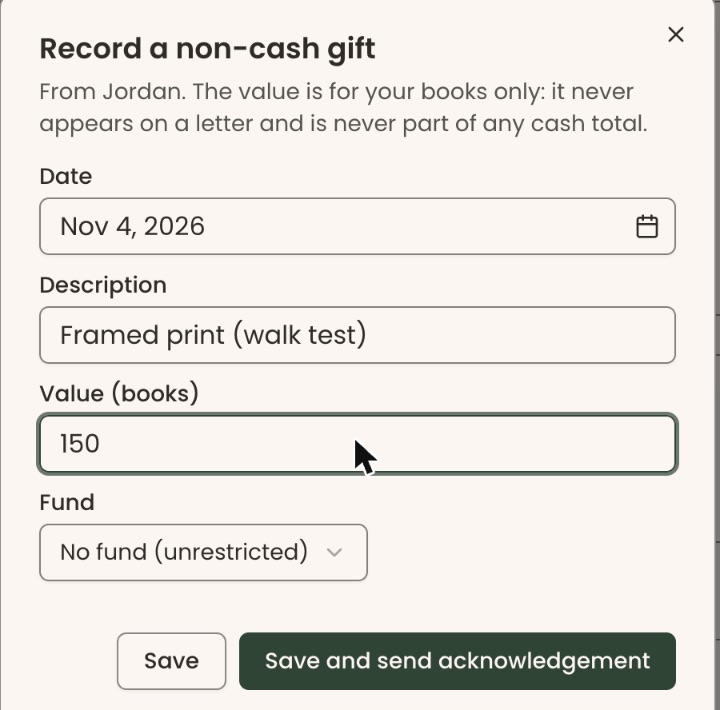
The two buttons stay grayed out until "Date", "Description" and "Value (books)" are filled in. If you clicked "Save and send acknowledgement", the "Send acknowledgement" box opens straight away. Carry on from step 5 of the next section.
Send the acknowledgment
Page: /dashboard/supporters/<donorId>?tab=giving
- Open the person's record and click the "Giving & history" tab, as in steps 1 to 5 above.
- Scroll down to the "Non-cash gifts" card.
- Find the gift in the list.
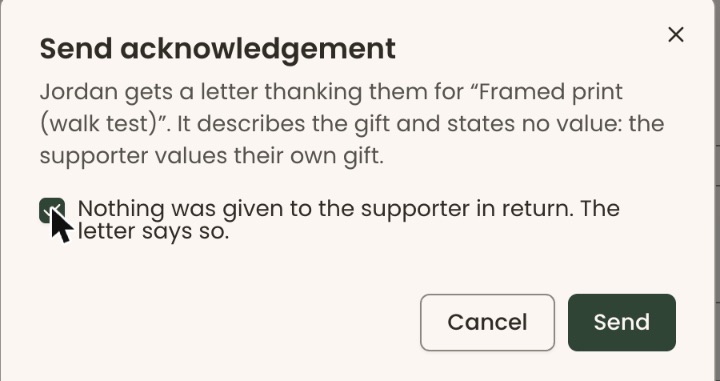
- At the right end of that gift's row, click "Send acknowledgement" (it has an envelope icon). A box opens called "Send acknowledgement".
- Read the box. It names the gift the letter thanks them for.
- Check "Nothing was given to the supporter in return. The letter says so." The "Send" button stays grayed out until you do.
Important: the next step emails the letter to the supporter straight away. It can't be taken back.
- At the bottom of the box, click "Send".
- You'll see "Acknowledgement sent." That means it worked. The gift now shows "Acknowledged" instead of the button.

If it doesn't send, you may see:
- "This supporter has no email address." Add an email address to their record, then try again.
- "This gift has already been acknowledged." The letter has already gone. Nothing more to do.
Special cases
- The supporter got something back (for example a dinner in exchange for the item): you can't send this letter. It can only be sent with "Nothing was given to the supporter in return" checked. There is no other letter for non-cash gifts in the screens.
- Each gift is acknowledged once. There is no way to resend the letter from this card.
- Gifts of stock recorded with "Record Manual Donation" also appear here, marked "Gift of stock" and "Receipted with the gift". They got their own stock receipt, so there is no "Send acknowledgement" on them.
- Auction items donated for a gala appear here marked "Auction item".
- A date in a month your organization has closed in its books can't be saved. Pick a date in an open month.
If you make a mistake
This can't be undone in the screens. There is no edit or delete for a recorded non-cash gift, and a sent letter can't be taken back. Check the details before you click "Save".