


Who can do this: Owner, Administrator, Finance, Fundraiser, Programs and Front desk. Viewer can read notes but doesn't see "Log call" or "Add note", and the "Notes & activity" tab is read-only.
Quick steps: Supporters › All Supporters › open the person › "Log call" or "Add note" › type › "Save"
Before you start
- You need one of the roles above.
- Know who the person is, so you can find their record.
- Have what you want to record ready, for example what was said on the call.
Log a call or add a note from the top of the record
Page: /dashboard/supporters/<donorId>
- In the left-hand menu, under People, click "Supporters". A short list opens under it.
- Click "All Supporters".
- Find the person. (See the guide "Find, search and filter supporters".) At the far right of their row, under "Actions", click the eye button to open their record. Clicking the name doesn't open it.
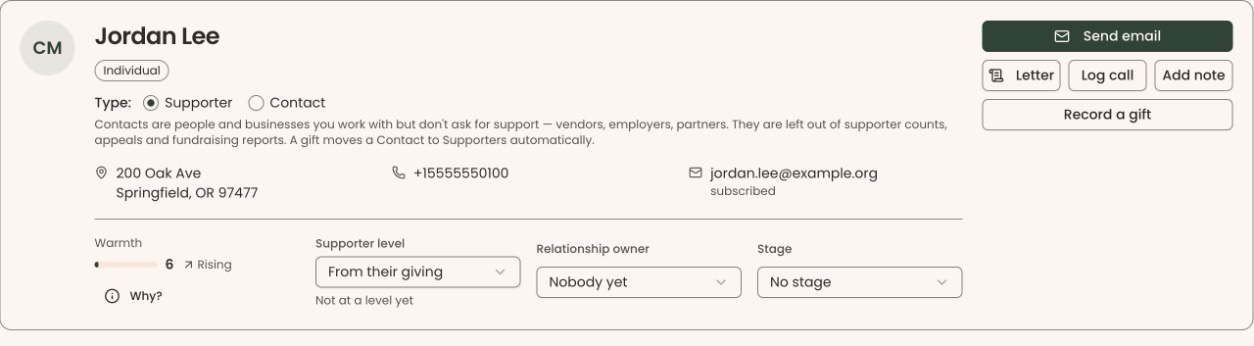
- At the top right of the record, click "Log call" or "Add note".
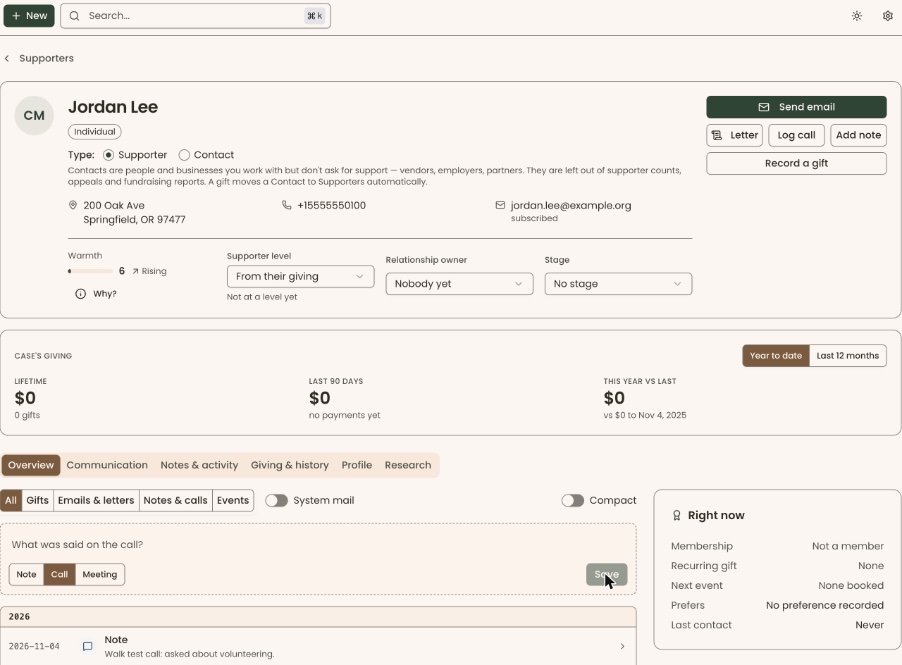
- The record switches to the "Overview" tab and puts your cursor in a writing box. The box says "What was said on the call?" for a call, or "Add a note…" for a note.
- Type what happened.
- Under the box, look at the small buttons "Note", "Call" and "Meeting". The one you picked is highlighted. Click another to change it.
Important: Once saved, a note or call can't be edited or deleted. Read your text before you click "Save".
- Click "Save" at the bottom right of the box. It stays gray until you type something.
- You'll see "Call logged", "Meeting logged" or "Note added". That means it worked. The entry appears on the timeline below the box. On this timeline a call or meeting is headed "Note"; the "Notes & activity" tab labels it "Call" or "Meeting".
- If you see "We couldn't save that. Try again.", your text is still in the box. Click "Save" again.

Record an email, letter or a past date
Use this when the conversation happened on another day, or was an email or a letter.
- Open the person's record (steps 1–3 above).
- Below the giving totals, click the "Notes & activity" tab.
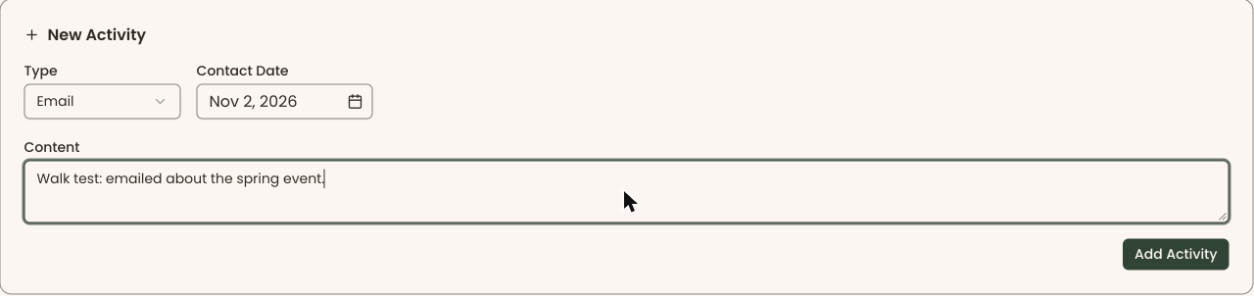
- Find the box called "New Activity", below the "Tasks" box.
- Click the list under "Type" and choose "Note", "Call", "Email", "Meeting" or "Letter". It starts on "Note".
- Click the box under "Contact Date" and type the day it happened, for example Sep 24, 2026. Leave it empty for today.
- Under "Content", type what happened.
Important: Once added, an activity can't be edited or deleted. Read your text before you click "Add Activity".
- Click "Add Activity", at the bottom right of the box. It stays gray until you type something.
- You'll see "Activity added". That means it worked. If you see "Failed to add activity", try again.
Special cases
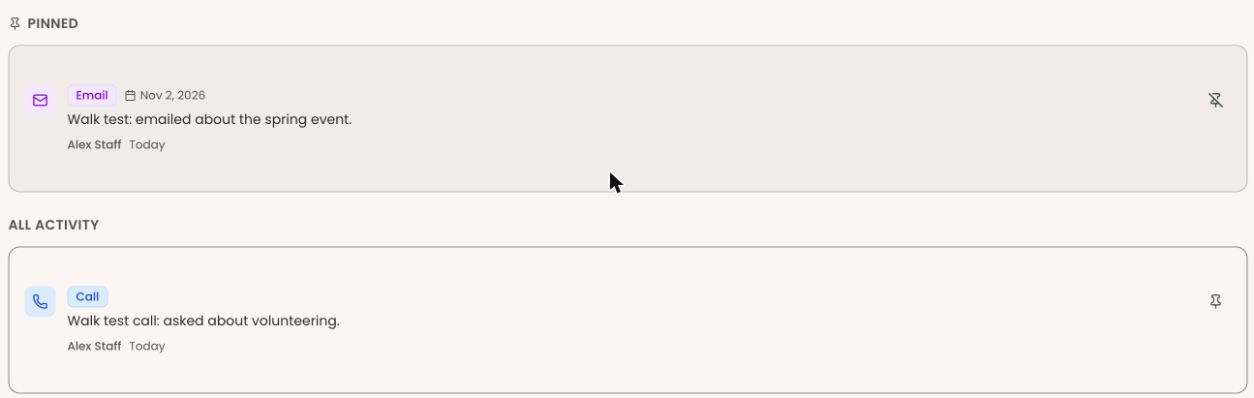
- Keep an important note at the top. On the "Notes & activity" tab, click the pin icon at the far right of the note. It moves under "PINNED". Click the crossed-out pin to unpin it.
- A household record. The writing box doesn't show on the "Overview" tab while you are looking at a whole household. Use the "Notes & activity" tab instead.
- Emails you send from your own inbox. On the "Communication" tab, "Log emails to this timeline" gives an address. Add it as a BCC and a copy of the email appears on the timeline.
If you make a mistake
A saved note, call or activity can't be edited or deleted in the screens. To correct one, add a new note saying what was wrong.