


Who can do this: Anyone who has been invited, or whose work email address is on the organization's own web domain. You don't need a Clerestory account first.
Quick steps: Invitation email › "Accept my invitation →" › "Sign in or create your account" › "Join [organization]".
Before you start
- An invitation is an email a colleague sends you from Clerestory. It is good for two weeks.
- Use the email address the invitation was sent to. A different address won't work.
- If nobody has invited you, see "Ask for access" below.
Accept an invitation from the email
Page: /join/<invitationId>
- Open the email headed "You're Invited to Join [your organization]".
- Click "Accept my invitation →".
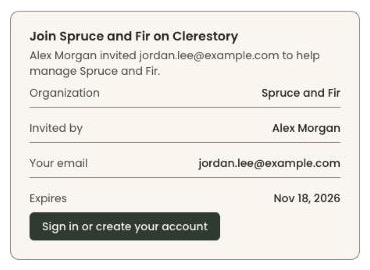
- A page opens headed "Join [your organization] on Clerestory".
- Check the details: "Organization", "Invited by", "Your email" and "Expires".
- If you're not signed in, click "Sign in or create your account" at the bottom.
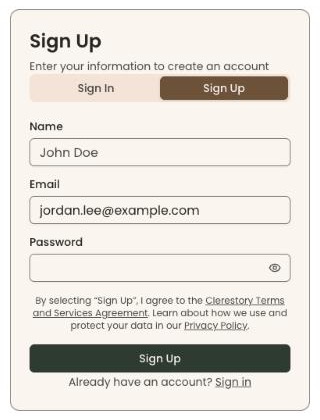
- A page headed "Login" opens, with your email already in "Email".
- Already have a Clerestory password: stay on the "Sign In" tab, type it in "Password" and click "Login".
- New to Clerestory: click the "Sign Up" tab at the top. Type your name in "Name" and choose a password in "Password". "Email" already shows the invited address; leave it as it is. Then click "Sign Up".
- After "Sign Up" you'll see "Account created. Please verify your email." Open the email from Clerestory and click its link to verify your address.
- You're now signed in. Open the invitation email again and click "Accept my invitation →".
- Click "Join [your organization]" at the bottom of the page.
- Your organization's Overview page opens. That means it worked.
Accept or turn down an invitation after signing in
If you sign in and have an invitation waiting, Clerestory may show a page headed "Organization Invitations" instead.
Page: /dashboard/invitation
- Each invitation is a card with the organization's name, "Role", "Invited By", "Expires" and "Status".
- To join, click "Accept" at the bottom of the card. You'll see "Invitation accepted successfully" and your dashboard opens.
Important: "Reject" works straight away. There's no "Are you sure?" step, and the invitation can't be used again.
- To turn it down, click "Reject".
- You'll see "Invitation rejected". That means it worked.
- To see one invitation on its own page, click "View Details". It has the same "Accept" and "Reject" buttons.
Ask for access with your work email
Use this if nobody has invited you, but your work email is on your organization's domain (for example jordan.lee@sprucefir.org).
Page: /welcome
- Sign in, or create an account with your work email (see step 6 above).
- If no invitation is waiting, a page opens headed "[Organization] is already on Clerestory".
- Click "Ask for access".
- The page changes to "We've asked [Organization] to let you in", with the date you asked.
- An Owner or Administrator of your organization must approve you. They see your request on their Settings page the next time they sign in. If it's urgent, tell one of them.
- Come back to this page later and click "Check again". Once you're approved, your dashboard opens.
Some organizations let people on their domain in straight away. Then the button reads "Join [Organization]" instead. Click it and your dashboard opens. You start with the Viewer role, which can see but not change things. An Administrator can give you a different role.
Special cases
- "This invitation isn't available". The invitation was used, canceled or has expired. Ask the person who invited you to send a new one.
- Signed in with a different email. The join page says "You're signed in as … but this invitation was sent to …". Click "Switch account", then sign in with the invited address.
- "We couldn't accept this invitation with the account you're signed in as." Check you're signed in with the invited email address.
- "An account with this email already exists." You already have an account. Use the "Sign In" tab, or "Forgot your password?" (see "Sign in, reset a forgotten password, and enter a two-factor code").
- "You're signed in, but not part of an organization yet". Clerestory found no invitation and no matching organization. Ask a colleague to invite your email address. Their steps are in the guide "Invite staff, and copy, resend or cancel an invitation". Don't click "Set up a new organization" unless you really are starting a new one.
- Personal email address. If you signed up with a personal address (such as Gmail), Clerestory can't tell which organization you belong to. Ask to be invited.
- On the invitation card, the role shows as a short code such as "front_desk" or "admin". "admin" means Administrator.
If you make a mistake
- Rejected an invitation by mistake: ask the person who invited you to click "Resend invitation".
- Joined the wrong organization: ask an Owner or Administrator of that organization to remove you.