


Who can do this: Owner, Administrator, Finance and Fundraiser. Programs, Front desk and Viewer don't see "Cancel Membership" in the row menu.
Quick steps: Membership › "Member List" › ⋯ on the member's row › "Cancel Membership" › choose when › "Cancel Immediately" or "Schedule Cancellation"
Before you start
- You need one of the roles above.
- Decide when the membership should end: today, or at the end of the period they've paid for.
- Canceling doesn't refund anything. To give money back, see "Refund a payment" first.
- A term is the period a membership is paid for. Auto-renew means their card is charged automatically for the next term.
Cancel a membership
Page: /dashboard/membership/members
- In the left-hand menu, click "Membership". The group opens.
- Click "Member List". The page is headed "Membership List".
- Find the member. Type their name or email in "Search by name or email..." above the list, then click "Apply Filters".
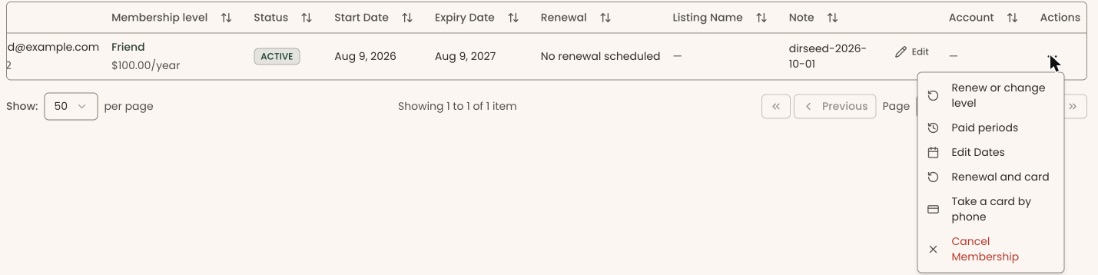
- On the member's row, at the far right under "Actions", click the three dots (⋯). If you can't see them, scroll the table sideways.
- Click "Cancel Membership", at the bottom of the menu in red.
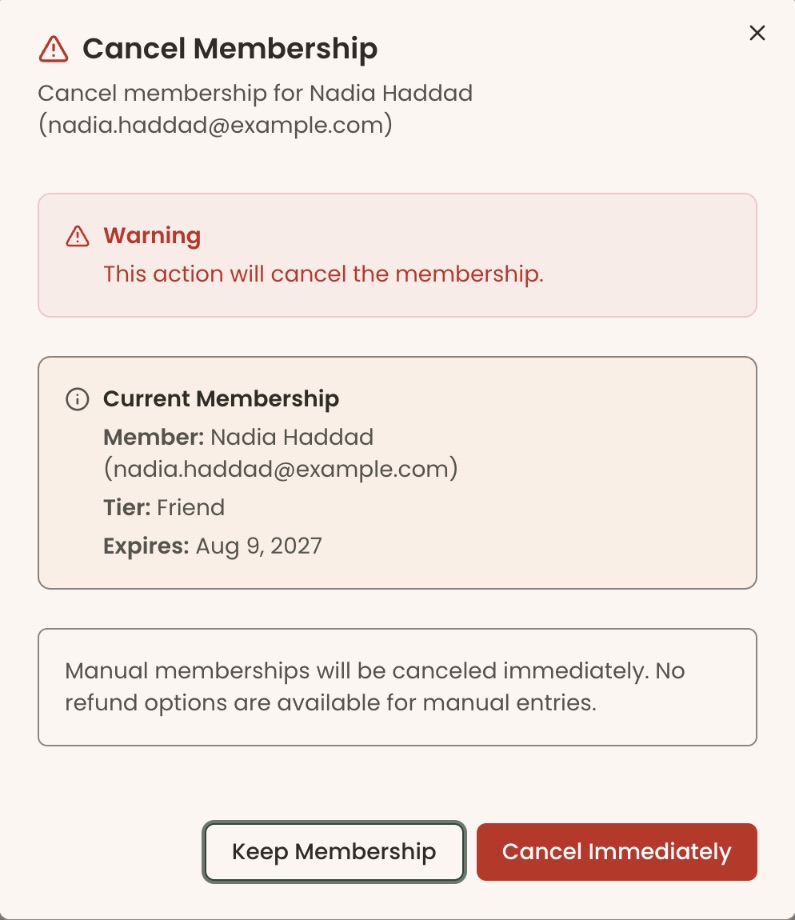
- A box opens called "Cancel Membership". A red "Warning" says "This action will cancel the membership." Under "Current Membership" it shows "Member:", "Tier:" and "Expires:".
- What you see next depends on how the membership was recorded:
- Recorded by staff in Clerestory: a note says "Manual memberships will be canceled immediately. No refund options are available for manual entries." There is nothing to choose, and the red button reads "Cancel Immediately". Skip step 8 and read the Important note below it.
- Bought online: you see two choices, "Cancel at Period End" and "Cancel Immediately". Go to step 8.
- Staff-recorded memberships are always canceled today, even though the message afterwards may say "scheduled for cancellation".
- Choose one:
- "Cancel at Period End" (already selected): the membership stays active until its expiry date and won't renew.
- "Cancel Immediately": the membership ends today.
Important: "Cancel Immediately" ends the membership today and can't be undone with a button. Nothing is refunded.
- Click the red button at the bottom right. It reads "Cancel Immediately" or "Schedule Cancellation", matching your choice.
- You'll see "Membership canceled successfully" or "Membership scheduled for cancellation successfully". That means it worked.
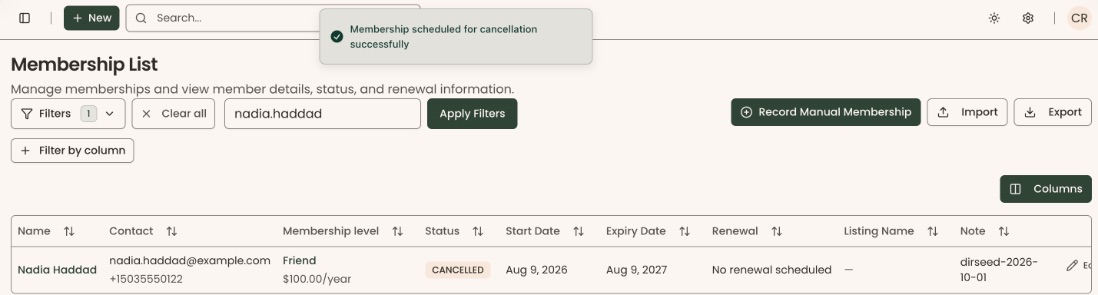
After canceling immediately, the member's "Status" on the Member List shows "CANCELLED". Its ⋯ menu then offers only "Renew or change level", "Paid periods" and "Cancel Membership".
Buttons to avoid
- "Keep Membership" at the bottom left closes the box without canceling anything. Use it if you opened the box by mistake.
- "Renewal and card" in the same menu is where you turn off auto-renew only, without canceling the membership. See "Cards and auto-renew: take a card by phone, set how next year is paid, charge now".
Special cases
- No "Cancel Membership" in the menu: the member is on a dues level, or your role can't change memberships. For a dues member, click "Open dues member" and change their standing there.
- A staff-recorded membership shows "Membership scheduled for cancellation successfully": the screen shows this message, but the membership was canceled today. Its "Status" on the Member List shows "CANCELLED".
- The membership has already expired or been canceled: the menu still offers "Cancel Membership". There is no need to cancel it again.
- "Failed to cancel membership" or another red message: nothing was changed. Close the box and try again. If it repeats, contact Clerestory support.
If you make a mistake
- Canceled the wrong member, or canceled too early: open the ⋯ menu on their row and click "Renew or change level" to renew them. The box says "This membership has lapsed, so the new term starts today." and shows the new dates, so their expiry date changes. See Record a renewal paid by check or cash. If they already paid, choose "No charge", pick a reason in "Why it's free", and click "Record renewal · No charge". You'll see a message like "Recorded. Friend runs Nov 4, 2026 – Nov 30, 2027." To put the old expiry date back, use "Edit Dates" (see "See paid periods and fix start or expiry dates").
- Chose "Cancel at Period End" but meant to cancel now: open "Cancel Membership" again and choose "Cancel Immediately".