


Who can do this: Owner, Administrator, Finance and Fundraiser. Programs, Front desk and Viewer users don't see the three-dots (⋯) menu on donations, the "Move" button on payments, or the "Move to…" button on a supporter's payment.
Quick steps: Add: Donations › ⋯ on the recurring gift › "Add Payment" › amount and method › "Add Payment". Move: supporter (eye button) › "Giving & history" › click the payment › "Move to…" › choose › "Move payment".
Before you start
- You need one of the roles above.
- To add a payment: the supporter must already have a recurring gift. "Add Payment" only appears on recurring gifts.
- Have to hand: the amount, and whether it was paid by cash, check, bank transfer or another way.
Words used here:
- A recurring gift is a donation that repeats, for example every month.
- A payment is one amount of money received. One recurring gift has many payments.
- Moving a payment changes what it counts as (a donation, a membership, event tickets, dues or a shop sale). Nobody is charged again.
Add a payment to a recurring gift
Page: /dashboard/donations
- In the left-hand menu, under the heading Fundraising, click "Donations".
- Find the recurring gift in the list. You can search for the supporter's name.
- At the far right of that row, click the three dots (⋯). If you can't see them, scroll the table sideways. A menu opens headed "Actions".
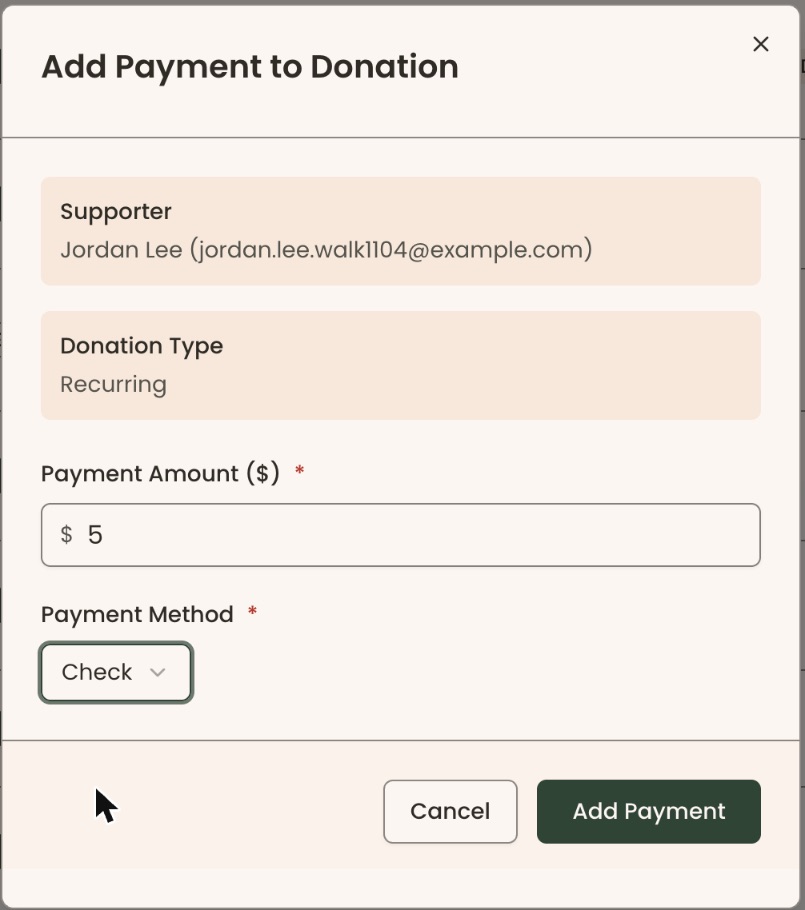
- Click "Add Payment". A box opens called "Add Payment to Donation". It shows the "Supporter" and "Donation Type".
- Under "Payment Amount ($)", type the amount, for example 50.
- "Payment Method" starts on "Cash". To change it, click it and choose "Check", "Bank Transfer" or "Other".

Important: the next step emails the supporter a receipt, unless your organization has turned off "Donation receipts" in Settings › Emails. The box has no choice of its own. The payment can't be edited or deleted afterwards.
- At the bottom of the box, click "Add Payment".
- You'll see "Payment added successfully". That means it worked.
If it doesn't save, you may see "Amount must be greater than 0" (fix the amount) or "Failed to add payment" (try again; if it repeats, check the supporter has an email address).
Move a payment recorded as the wrong thing
Page: /dashboard/supporters/<donorId>?tab=giving
- In the left-hand menu, under the heading People, click "Supporters". It opens a short list.
- Click "All Supporters". Find the person and, at the far right of their row, click the round button with an eye shape. Their record opens.
- Below the name box and the giving totals is a row of tabs. Click "Giving & history".
- Scroll down to "Payments and event orders".
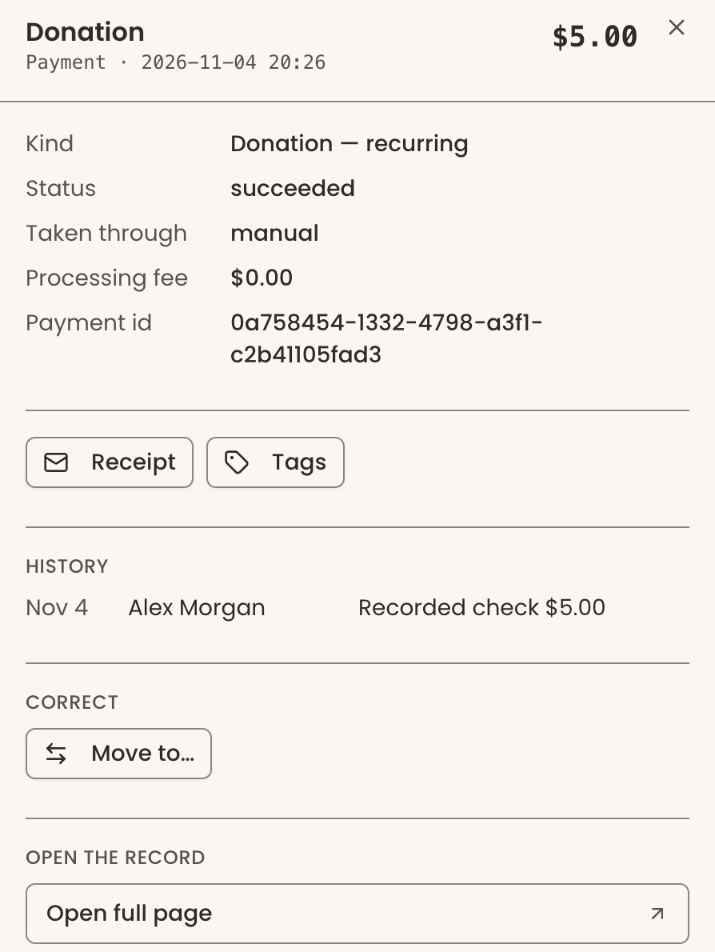
- Click the payment you want to move. A panel opens with its details.
- In the panel, under the small heading "CORRECT", click "Move to…".
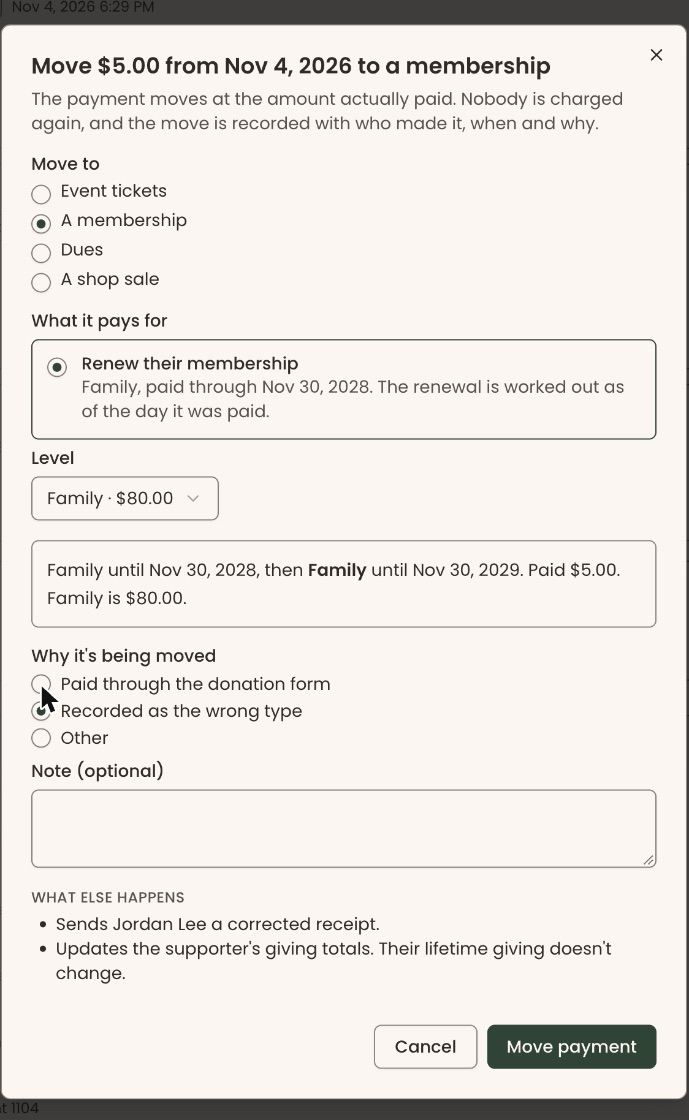
- A box opens. Its title starts "Move" and names the amount, the day it was paid, and what it moves to.
- If Clerestory can't move this payment, the box says why, for example "This payment can't be moved." Click "Close". Nothing has changed.
- Under "Move to", choose what the payment should count as, for example "A membership" or "A donation". The list leaves out what it counts as now, and one choice is already picked to start with.
- Fill in what the box asks next. For a membership, "What it pays for" offers "Renew their membership" (for a current member) or "Start a membership". Then check the "Level". A note under it shows the membership dates the move gives.
- Under "Why it's being moved", choose a reason, for example "Paid through the donation form" or "Recorded as the wrong type". "Move payment" stays grayed out, with "Choose why this payment is being moved.", until you do.
- If you chose "Other", type a note under "Note (required for Other)". Otherwise the note is optional.
- Read "What else happens". It lists everything the move will change, and what it will email.
Important: the next step sends whatever "What else happens" lists. If the supporter has an email address, that includes "Sends … a corrected receipt", and on a move to an event, "Sends … their tickets". These emails can't be taken back.
- At the bottom of the box, click "Move payment".
- You'll see a message such as "Payment moved to membership." or "Payment moved to donation." That means it worked.
If the payment came from a recurring gift, the message adds "The recurring donation is still running, and its next charge will be recorded as a donation." Moving one payment never stops the recurring gift.
Another way in: in the left-hand menu, under Fundraising, click "Payments". At the far right of the payment's row, click "Move" (scroll the table sideways if you can't see it). The same box opens. Not every payment has "Move".

Special cases
- No money moves. The payment keeps the amount actually paid. Nobody is charged or refunded.
- QuickBooks: if your organization uses QuickBooks, the box may ask you to finish a setting there first. Follow its message.
- Each move is recorded with who made it, when and why.
- No date field on "Add Payment". The payment is dated the day you enter it.
If you make a mistake
- Wrong move: open the same payment again, click "Move to…" and move it back to what it was. The box says "This payment was moved on … Moving it back undoes that move" and, for example, "It becomes a donation again, in any campaign it was in." Choose a reason under "Why it's being moved", then click "Move payment". You'll see "Move undone."
- Wrong added payment: there is no edit or delete in the screens. The only fix is recording a refund on that payment (see "Refund a payment"). That emails the supporter a refund confirmation.